
You need to edit a PDF — change text, fill a form, annotate, or convert a scanned document — and you want to know which tool is worth using. The best PDF editor depends on your platform, your budget, and what kind of editing you need. This guide compares the best PDF editing software for Windows, Mac, iPad, and online, plus how to edit a scanned PDF when the text isn't selectable.

- Best overall: Adobe Acrobat Pro (paid, all platforms). Best free on Windows: PDF-XChange Editor. Best free on Mac: Preview (built-in). Best on iPad: PDF Expert.
- Google doesn't have a dedicated PDF editor, but Google Docs can open and edit simple PDFs with OCR.
- Below: the best PDF editors compared by platform, plus how to edit scanned PDFs.
Best PDF Editing Software (All Platforms)
| Tool | Free | Platforms | Edit text | OCR | Best for |
|---|---|---|---|---|---|
| Adobe Acrobat Pro | ❌ | Win, Mac, iPad, Web | ✅ | ✅ | The industry standard. Full editing, forms, OCR, conversion. |
| PDF Expert | ❌ | Mac, iPad, iPhone | ✅ | ✅ | Best Mac/iPad-native editor. Fast, clean, one-time purchase. |
| PDF-XChange Editor | ✅ (base) | Windows | ✅ (paid) | ✅ | Most powerful free Windows editor. Annotations, stamps, OCR. |
| Preview | ✅ | Mac | ❌ | ❌ | Annotate, sign, fill forms, merge. Built into macOS. |
| Foxit PDF Editor | ❌ | Win, Mac, iOS, Android | ✅ | ✅ | Cross-platform, collaborative editing, lighter than Acrobat. |
| LibreOffice Draw | ✅ | Win, Mac, Linux | ✅ | ❌ | Free, open source. Basic text editing in PDFs. |
| Smallpdf | ✅ (limited) | Web (any device) | ❌ | ❌ | Add text, annotate, sign. No install needed. |
| iLovePDF | ✅ (limited) | Web (any device) | ❌ | ❌ | Add text, sign, merge, compress. Quick online edits. |
| Google Docs | ✅ | Web (any device) | ✅ (via OCR) | ✅ | Opens PDFs as editable Google Docs. Free, no install. |
| Apple Files app | ✅ | iPad, iPhone | ❌ | ❌ | Basic markup: highlight, sign, add text. Built into iOS. |
Best PDF Editor by Platform
| Platform | Best free option | Best paid option |
|---|---|---|
| Windows | PDF-XChange Editor (most features) or LibreOffice Draw (text editing). | Adobe Acrobat Pro or Foxit PDF Editor. |
| Mac | Preview (annotations, forms) + LibreOffice Draw (text editing). | PDF Expert (best Mac-native) or Adobe Acrobat Pro. |
| iPad / iPhone | Apple Files app (basic markup) or Acrobat Reader (free). | PDF Expert (best iPad editor). |
| Online (any device) | Google Docs (OCR + edit) or Smallpdf/iLovePDF (annotate). | Adobe Acrobat web or Foxit online. |
Does Google Have a PDF Editor?
Not exactly — but Google Docs can function as a basic PDF editor:
- Upload the PDF to Google Drive.
- Right-click the file → Open with → Google Docs.
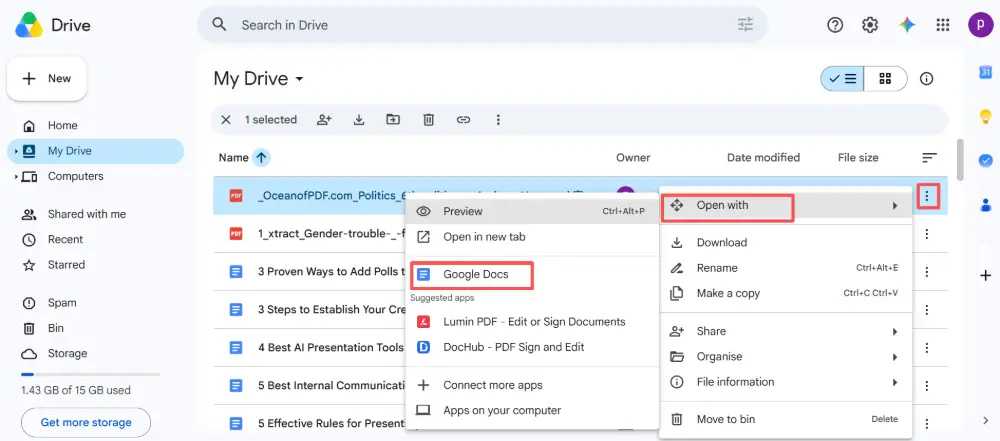
- Google Docs converts the PDF to an editable document using OCR. You can modify the text directly.
- When done, download as PDF: File → Download → PDF.
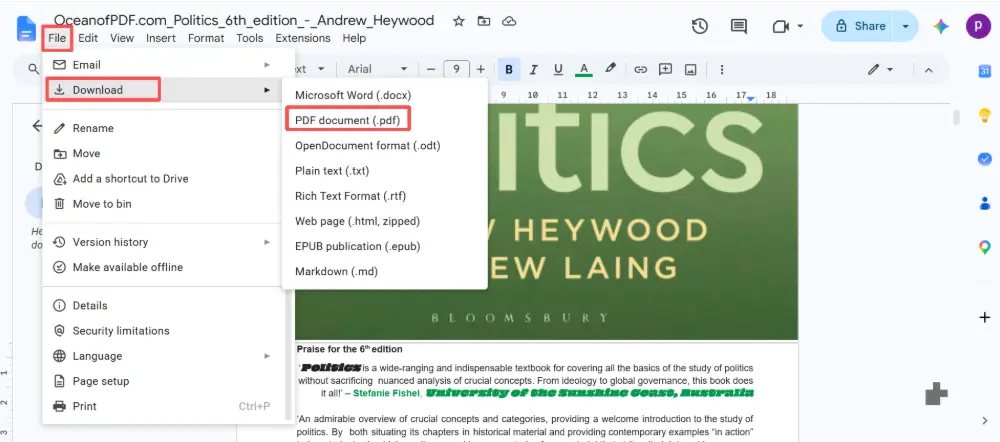
This works well for text-heavy, simple-layout PDFs. Complex layouts (columns, tables, images) often lose formatting in the conversion. For those, a dedicated editor is better.
Free PDF Editor for iPad
The best free PDF editor for iPad options:
- Apple Files app: open any PDF → tap the markup icon (pen) → highlight, add text, sign, draw. Built in, no install.
- Adobe Acrobat Reader (free): fill forms, sign, add comments. More features than Files but can't edit existing text.
- Google Docs: upload to Drive, open with Docs for OCR-based text editing.
- PDF Expert (paid): the best iPad PDF editor — edit text, annotate, merge, organize pages. Worth the purchase for regular use.
When choosing a PDF editor, safety matters: stick to well-known tools (Adobe, Foxit, PDF Expert, Smallpdf, iLovePDF). Avoid unknown free editors that ask for unnecessary permissions — they may contain adware or handle your files insecurely. The tools listed here are all reputable and safe PDF editors.
How to Edit a Scanned PDF
A scanned PDF stores each page as an image — the text isn't selectable or editable. To modify a scanned PDF, you first need OCR (Optical Character Recognition) to convert the image to text:
- Open the scanned PDF in a tool with OCR: Adobe Acrobat Pro, PDF-XChange Editor, or PDF Expert.
- Run OCR: in Acrobat, click Scan & OCR → Recognize Text. In PDF-XChange, click OCR Pages. The tool reads the image and creates a hidden text layer.
- Edit the text: after OCR, the text becomes selectable and editable. Click on it to make changes.
- Save the file.
Free alternatives for OCR: upload to Google Drive → open with Google Docs (auto-OCR), or use PDF24 OCR online to create a searchable PDF, then edit in LibreOffice Draw.
💡 Pro tip: If your PDF is a presentation that needs editing, rebuilding it in an AI tool like Gamma.com.ai is often faster than editing the static PDF. Paste the content, generate designed slides, and export a fresh PDF in minutes.
Conclusion
The best PDF editor depends on your platform and needs. On Windows, PDF-XChange Editor is the best free option; on Mac, Preview handles most tasks with PDF Expert for text editing. On iPad, the Files app plus Acrobat Reader covers basics, with PDF Expert for serious work. Google Docs works as a free, browser-based editor for simple PDFs. For scanned documents, run OCR first (Acrobat, Google Drive, or PDF24) to make the text editable. Stick to safe, reputable editors from the list above.
FAQs
What is the best free PDF editor?
On Windows: PDF-XChange Editor (most features) or LibreOffice Draw (text editing). On Mac: Preview (annotations) + LibreOffice Draw (text). Online: Google Docs (OCR-based editing) or Smallpdf/iLovePDF (annotate and sign).
Does Google have a PDF editor?
Not a dedicated one, but Google Docs works: upload the PDF to Google Drive, open with Google Docs, and it converts the PDF to editable text using OCR. Works well for simple layouts; complex PDFs may lose formatting.
How do I edit a scanned PDF?
Run OCR first to convert the image to text: use Adobe Acrobat Pro (Scan & OCR), PDF-XChange Editor (OCR Pages), or Google Drive (open with Google Docs). After OCR, the text becomes selectable and editable.
Is there a safe free PDF editor?
Yes — stick to well-known tools: Adobe Acrobat Reader (free for annotations), PDF-XChange Editor, LibreOffice Draw, Preview (Mac), and online tools like Smallpdf and iLovePDF. Avoid unknown free editors that may contain adware.
What is the best PDF editor for iPad?
PDF Expert (paid) is the best iPad PDF editor — it edits text, annotates, and manages pages. For free: Apple Files app (basic markup) and Adobe Acrobat Reader (forms, signing, comments).

