
A slide full of bullet points can only hold attention for so long. Dropping in a short YouTube video — a product demo, a client testimonial, a training clip — changes the rhythm of a presentation and gives your audience something to actually watch instead of read. This guide walks through exactly how to insert a YouTube video in PowerPoint, three different ways, plus how to customize playback, which alternatives exist to YouTube, and a faster way to get the same result if you're building your deck in Gamma.com.ai.
| Key Takeaways |
|---|
| Insert → Video → Online Video is the fastest way to embed a YouTube video directly on a slide |
| Hyperlinking works as a lighter-weight fallback that opens the video in a browser instead |
| Downloading a YouTube video for offline playback is only appropriate when you have explicit permission or a license |
| Gamma.com.ai lets you drop a YouTube link straight onto a card, skipping the manual embed steps entirely |
Why Add YouTube Videos to PowerPoint?
Video breaks up the visual monotony of slide after slide of text, and it lets other voices — an expert, a customer, a demo — carry part of the message instead of you. The right use case depends on the setting:
| Use Case | Why a YouTube Video Helps |
|---|---|
| Education | Explains a concept visually, brings in outside expert voices, and gives students a break from lecture-style delivery |
| Business Presentations | Adds credibility with product demos, client testimonials, or executive statements |
| Training | Standardizes how a process or procedure is explained across every session |
| Marketing | Reuses existing brand or campaign video assets inside a pitch or sales deck |
| Webinars | Fills natural pause points and keeps a remote audience visually engaged |
Method 1: Embed a YouTube Video (Recommended)
This is the built-in PowerPoint method, and it's the one most people should use — the video plays directly on the slide using the source website's own playback controls.
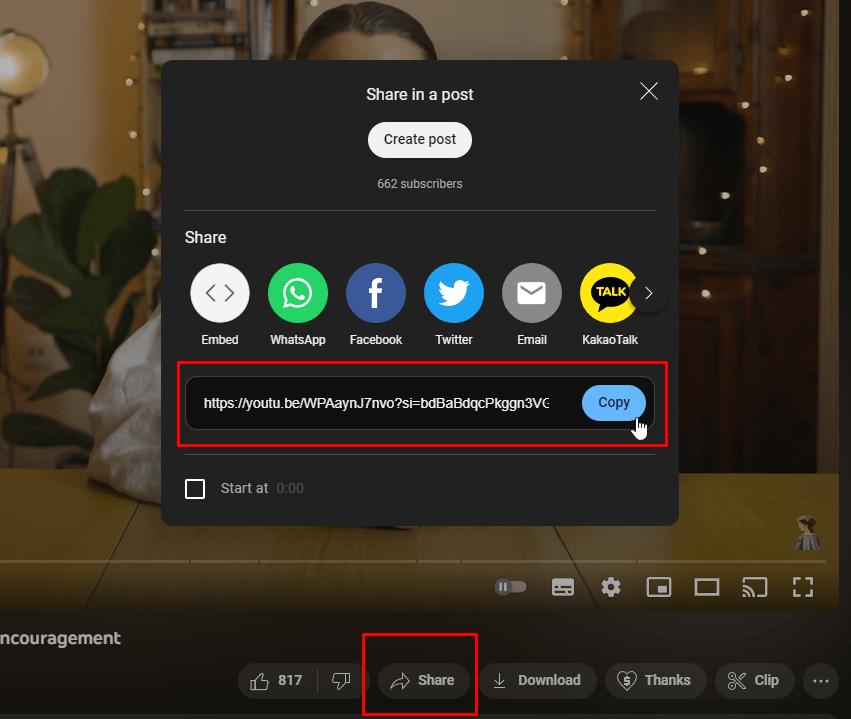
Open the video on YouTube, click Share, and copy the URL.
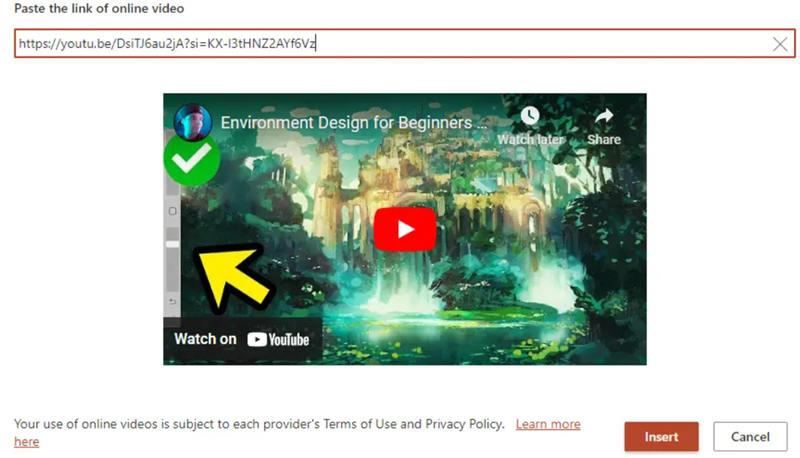
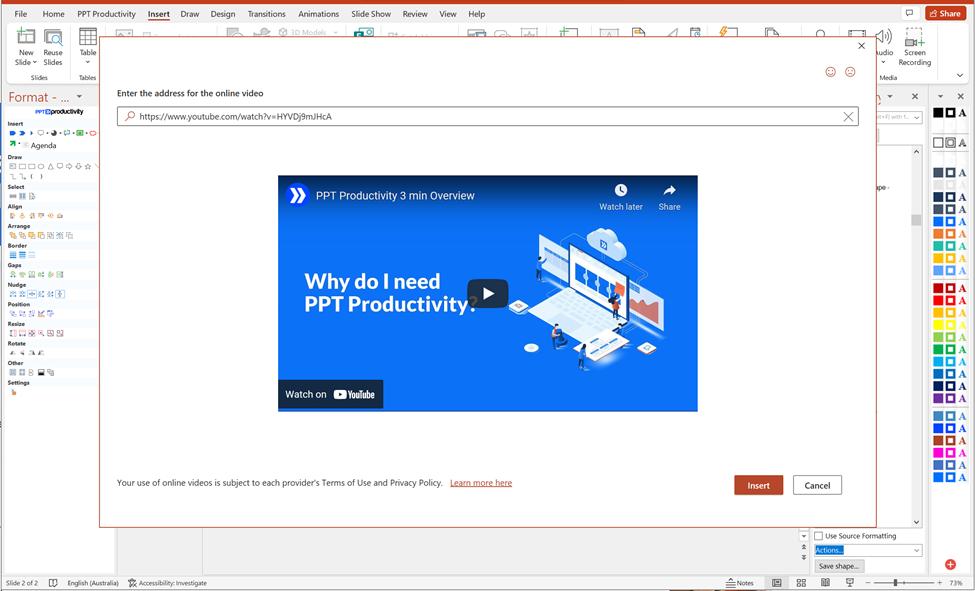
In PowerPoint, select the target slide, go to the Insert tab, click Video, then choose Online Video.
Two ways to start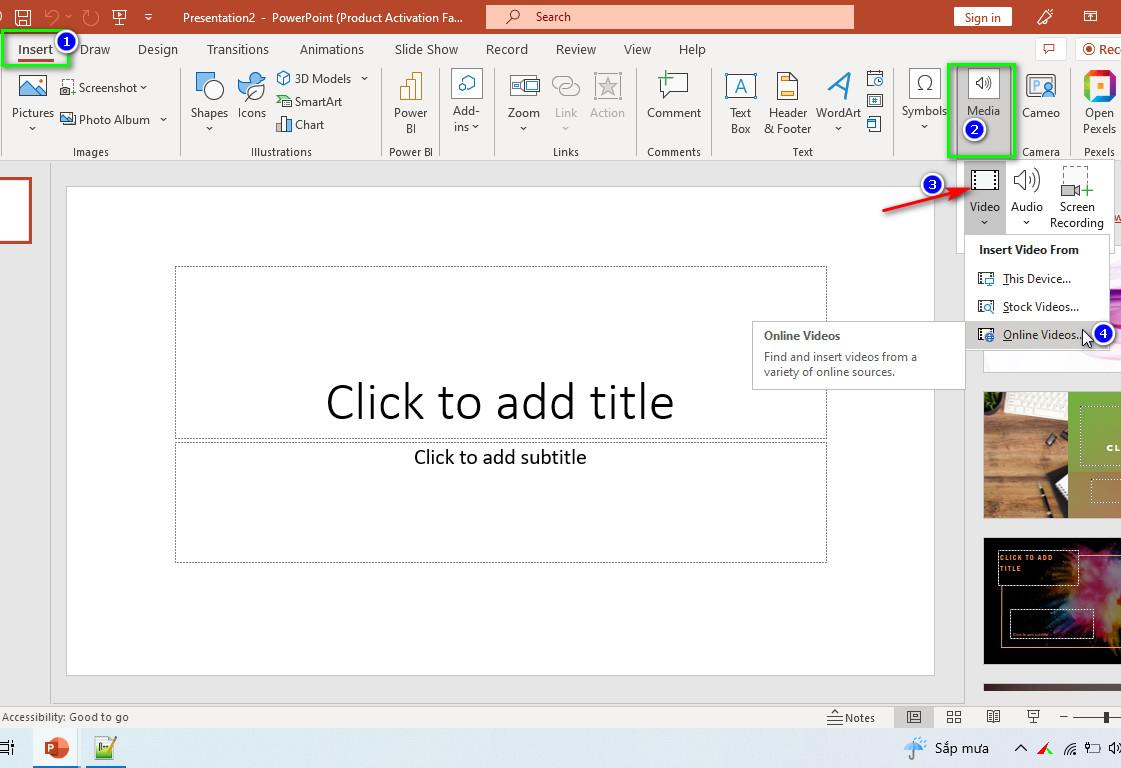
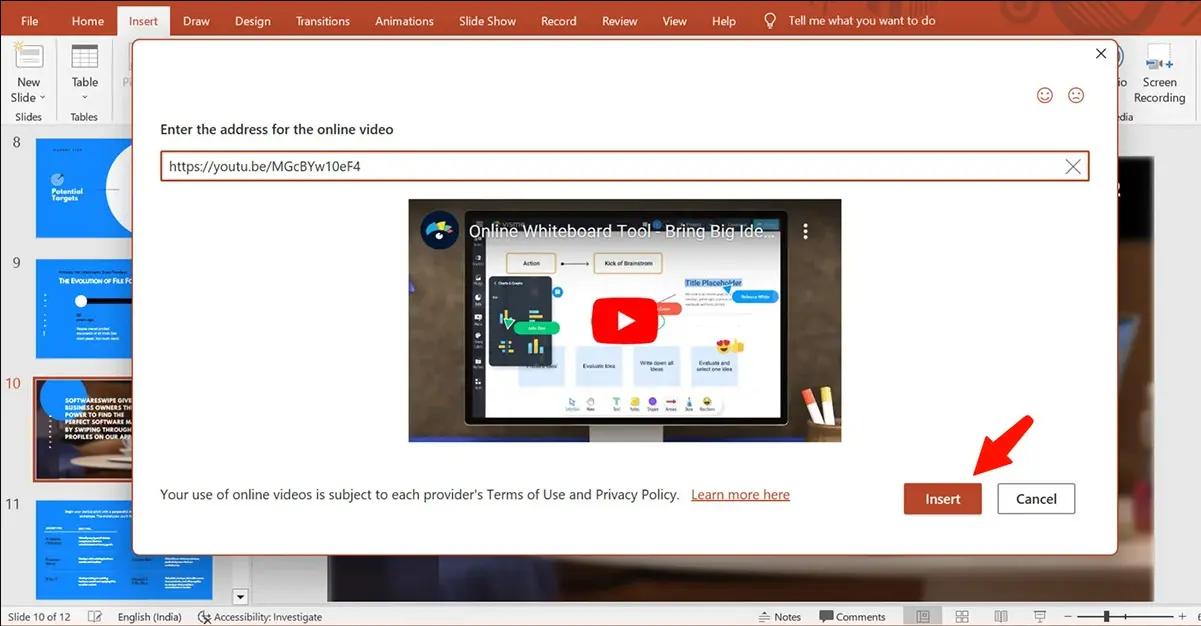
Paste the YouTube URL into the video field and click Insert. A video rectangle appears on the slide — resize and reposition it as needed.
Note
Because the video streams from YouTube rather than being stored in your file, you'll need an internet connection for it to play during your presentation. Not every video allows embedding — if a video's owner has disabled embedding, you'll need to use the hyperlink method instead.
Method 2: Insert a Hyperlink to YouTube
If you'd rather not embed a live video rectangle on the slide — for a smaller file size, an older PowerPoint version, or simply to keep the slide clean — you can link text, an image, or a button so it opens the video in a browser when clicked.
Link Text
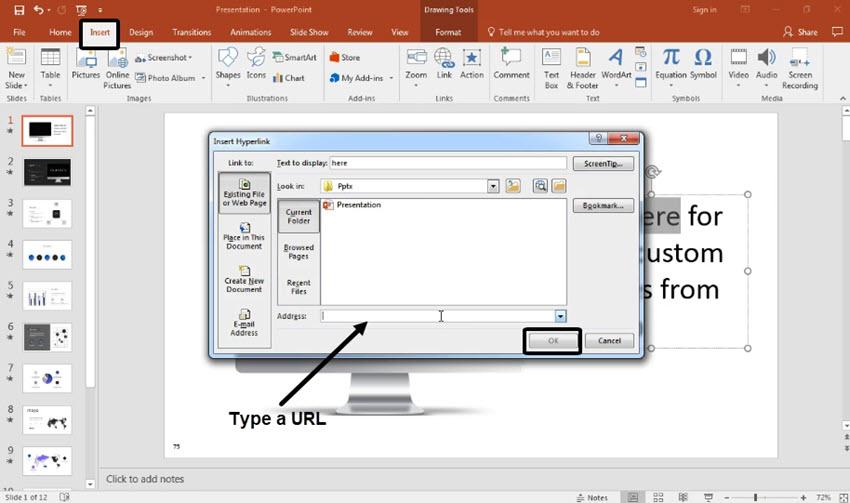
Select a word or phrase, go to Insert → Link, and paste the YouTube URL.
Link an Image
Insert a screenshot or thumbnail of the video, then apply the same Insert → Link steps to that image.
Link a Button
Add a shape styled like a "Play Video" button, then link it to the URL the same way.
Why Use This Method
Works on virtually every PowerPoint version and keeps your file size small since nothing is embedded.
Method 3: Download the Video (If You Have Permission)
Downloading a video for offline playback makes sense when you're presenting somewhere without a reliable internet connection — a conference hall with weak Wi-Fi, a classroom with restricted network access, or a client site where you can't guarantee streaming will work.
Respect copyright and YouTube's Terms of Service
Only download and reuse a video if you own the content, have explicit permission from the creator, or the video is licensed for reuse (for example, Creative Commons). Downloading YouTube videos without permission generally violates YouTube's Terms of Service, even for internal or educational use. When in doubt, use Method 1 or Method 2 instead, or contact the video owner directly for a licensed copy.
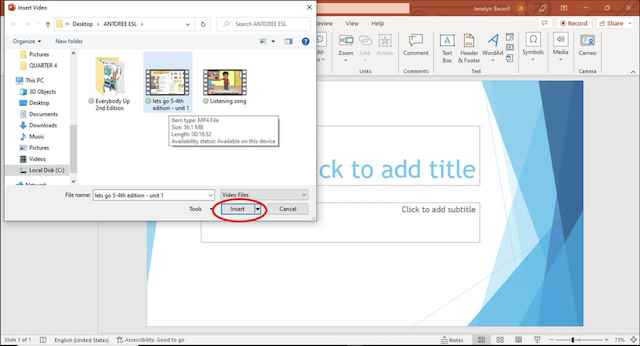
If you do have the rights to a video file, insert it the same way you would any local video: Insert → Video → This Device, then select the file from your computer.
Customize the Video
Once a video is on your slide, PowerPoint gives you a handful of controls to make it look and behave the way you want.
Resize and Crop
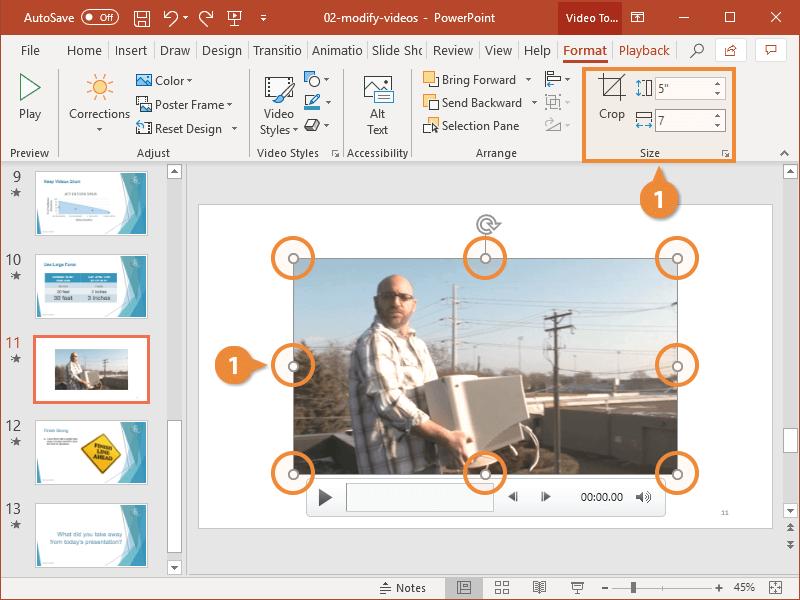
Drag the corner handles to resize, or use Video Tools → Format → Crop to trim the visible frame.
Move and Position
Drag the video rectangle anywhere on the slide, or use Align tools for precise placement.
Poster Frame
Choose a custom thumbnail image that displays before the video is played.
Playback Settings
Set the video to start automatically or only when clicked, from the Playback tab under Video Tools.
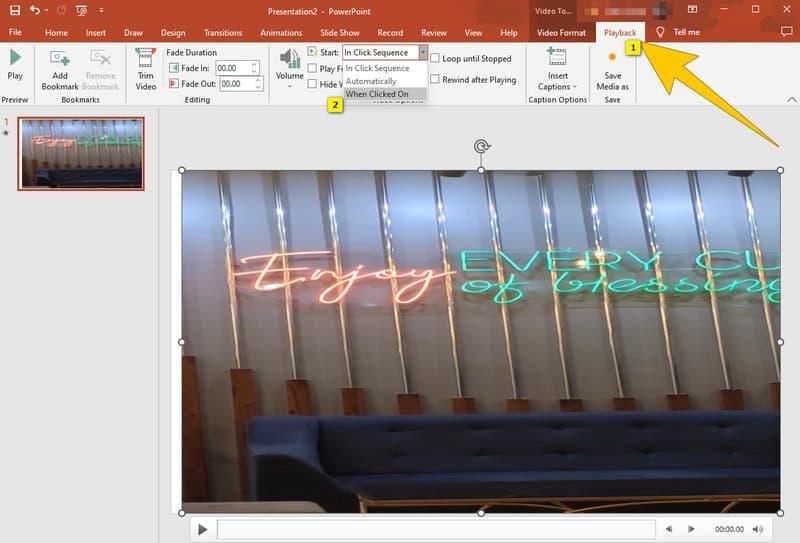
Note
Trim, Fade, and Bookmark tools apply to locally uploaded videos but generally don't apply to embedded online videos, since the video plays from YouTube's own player rather than from inside your file.
Alternatives to YouTube
YouTube isn't the only source for video content in a presentation. Depending on where your video lives, one of these may fit better.
| Source | Best For |
|---|---|
| Vimeo | Higher production-quality embeds with fewer distracting recommendations or ads |
| Microsoft Stream | Enterprise teams already using Microsoft 365 for internal video hosting |
| OneDrive | Linking or embedding a video file stored in your own cloud storage |
| Local MP4 File | Fully offline playback with no internet dependency, plus access to Trim and Fade tools |
| Google Drive | Teams that store and share video assets in Google Workspace |
FAQ
Can I embed a YouTube video in PowerPoint without an internet connection?
No. Because embedded online videos stream from YouTube rather than being stored inside your file, you need an active internet connection for them to play during your presentation.
Why won't a YouTube video embed on my slide?
Some video owners disable embedding, which blocks the video from playing directly on external sites, including PowerPoint. If that happens, use the hyperlink method instead so the video opens in a browser.
Is it legal to download a YouTube video for my presentation?
Only if you own the content, have explicit permission from the creator, or the video carries a license that allows reuse. Downloading without permission typically violates YouTube's Terms of Service.
Can I make a YouTube video start automatically when the slide appears?
Yes. Select the video, go to Video Tools → Playback, and set Start to Automatically instead of On Click.
Is there a faster way to add video to a presentation without the manual embed steps?
Gamma.com.ai lets you paste a YouTube link directly onto a card while building your AI-generated deck, embedding it automatically without navigating PowerPoint's Insert menu.
Conclusion
Embedding a YouTube video through Insert → Video → Online Video is the most reliable way to bring video into a PowerPoint slide, with hyperlinking and offline downloads as useful fallbacks when embedding isn't possible or an internet connection isn't guaranteed. Whichever method you choose, keep clips short, relevant, and properly licensed — and if you're building the deck from scratch, Gamma.com.ai can save you the manual steps entirely by embedding video links as you go.