
How to Turn Google Slides into PDF: Desktop and Mobile Guide
This guide explains how to convert Google Slides to PDF on a computer, iPhone, iPad, and Android device. It also covers speaker notes, selected slides, page size, image quality, hyperlinks, common export problems, and the content you should include or remove before sending the final file.
- On a computer, open the presentation and choose File → Download → PDF Document (.pdf).
- Use File → Print settings and preview when you need speaker notes, handouts, or a different print layout.
- The Google Slides apps for Android and iPhone/iPad support PDF export.
- Animations, transitions, video, and audio do not remain interactive in a standard PDF.
- Open and test the downloaded PDF before sending or printing it.
Why Turn Google Slides into a PDF?
A Google Slides file is designed for editing, collaboration, and presenting. A PDF is designed for consistent viewing and distribution. Converting the deck creates a fixed copy that is easier to open on different devices and less likely to be changed accidentally.
- Consistent appearance: slide positions, colors, and page dimensions are preserved in a fixed document.
- Easy sharing: recipients can open the file with a browser or PDF reader without requesting access to the original presentation.
- Convenient printing: the PDF can be printed as full pages, handouts, or a document with speaker notes.
- Controlled editing: the PDF is less convenient to modify than the source deck, although it should not be treated as a secure or uneditable format.
- Reliable archiving: you can store a final version that will not change when collaborators update the original slides.
The main limitation is that a PDF is static. Transitions, animations, embedded videos, audio, presenter tools, and live audience features are not reproduced as interactive presentation elements. If those features matter, share the Google Slides link or an exported PowerPoint file as well.
Google Slides vs. PDF: What Changes After Conversion?
Method 1: Download Google Slides as a PDF on a Computer
This is the fastest method when you want one PDF page for each slide and do not need speaker notes or a special handout layout.
-Open the presentation in Google Slides.
-Review the slide order and remove any content that should not appear in the final document.
-Click File in the top menu.
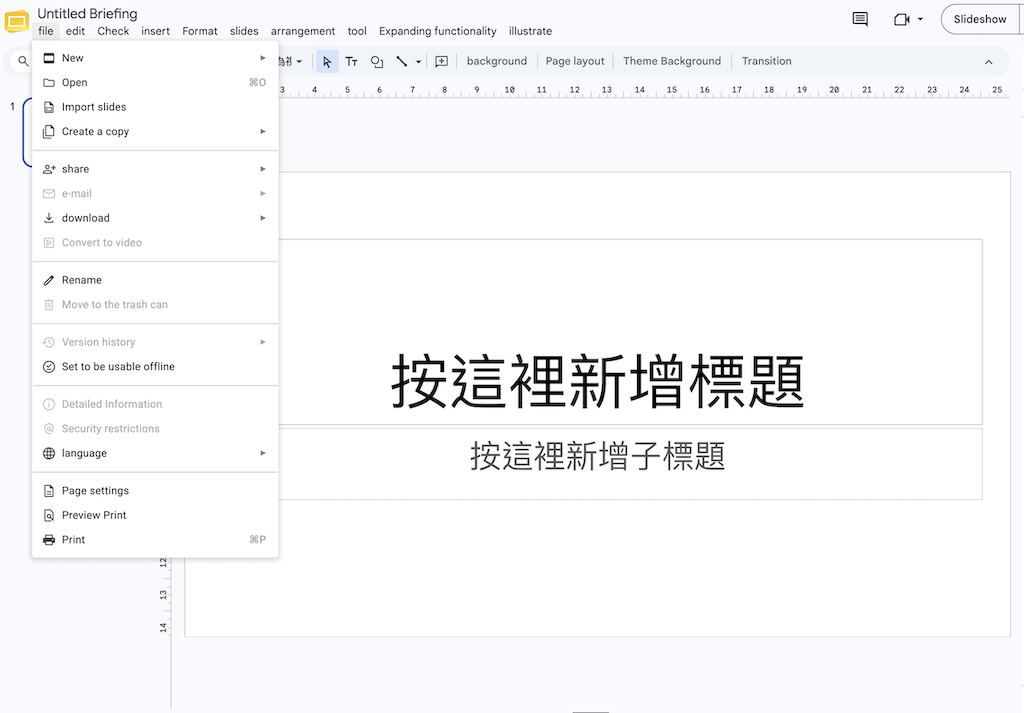
-Point to or select Download.
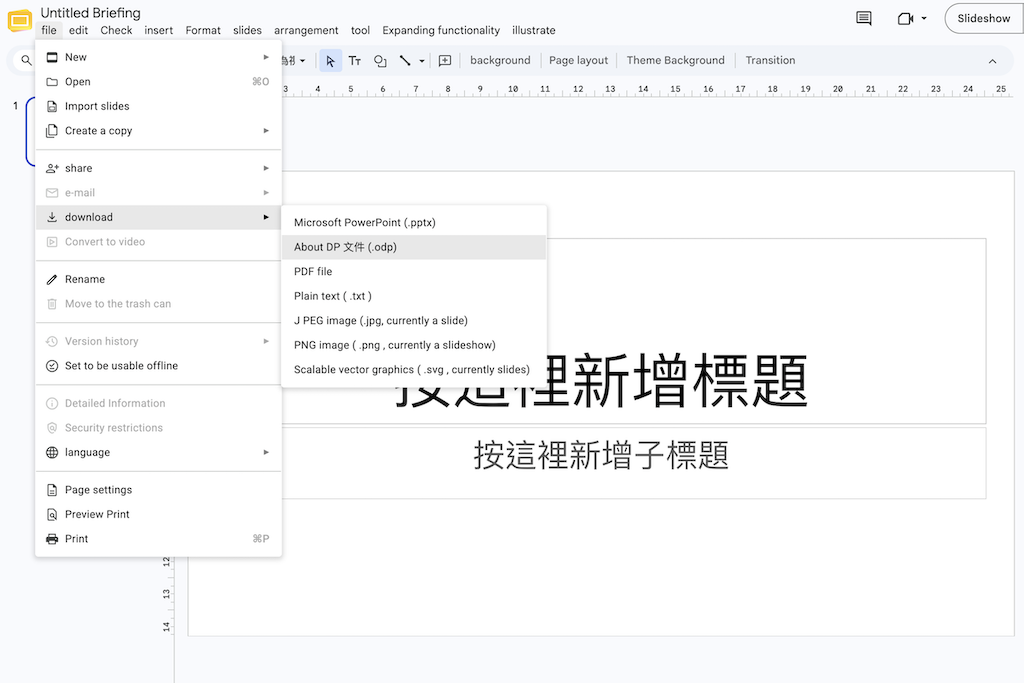
-Choose PDF Document (.pdf).
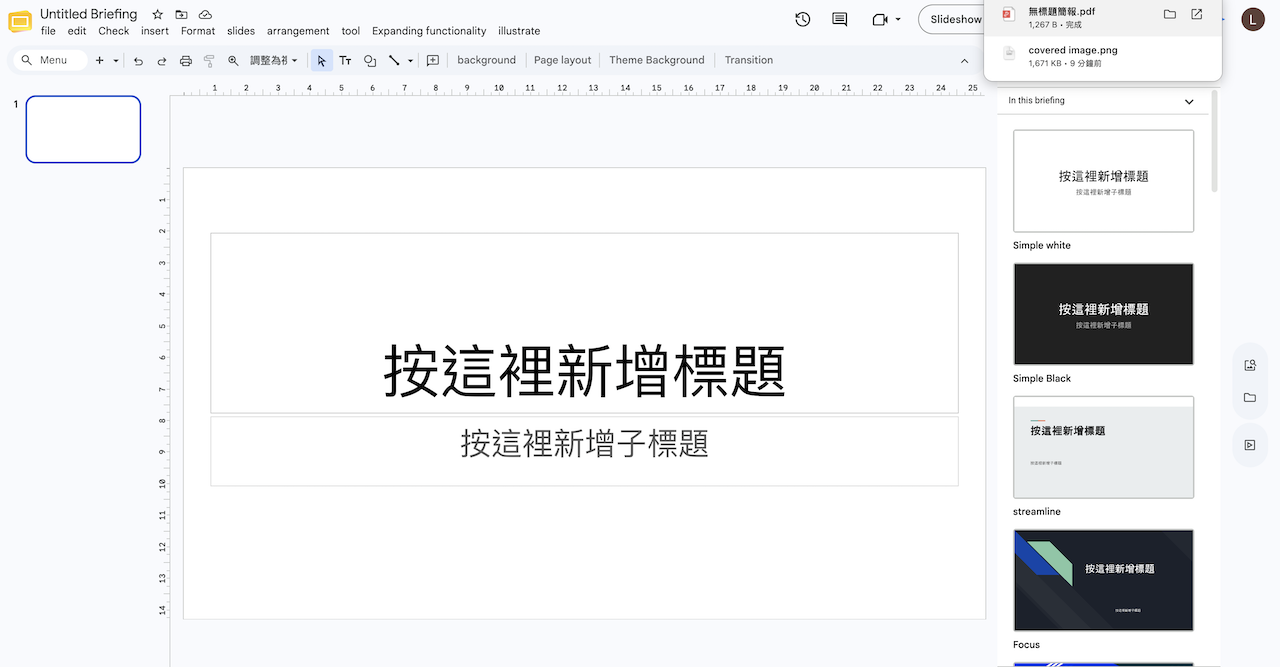
-Wait while Google Slides prepares the file.
-Open the downloaded PDF from your browser’s download list or Downloads folder.
Google’s official download instructions confirm that files can be downloaded from the File → Download menu by choosing a file type. The exact position of the downloaded PDF depends on your browser settings. Some browsers save it automatically, while others ask you to select a destination.
Method 2: Save Google Slides as PDF with Print Settings
Use the print workflow when you need more control over how the slides are arranged. Google’s official printing help provides options for standard slides, handouts, orientation, and one slide with speaker notes.
- Open the presentation on a computer.
- Choose File → Print settings and preview.
- Open the layout menu in the toolbar.
- Select the required option, such as one slide without notes, one slide with notes, or a handout layout.
- Adjust landscape or portrait orientation when available.
- Review every page in the preview.
- Click Print.
- In the system print dialog, select Save as PDF, Microsoft Print to PDF, or the equivalent PDF destination.
- Choose a file name and save location.
Choose Download → PDF for a clean full-slide document. Choose Print settings and preview when you need speaker notes, several slides per page, or print-oriented layout controls.
How to Turn Google Slides into PDF on iPhone or iPad
Google’s current iOS documentation states that the Google Slides app can export presentations as PDF or PPTX files. Menu labels can vary slightly by app version, but the usual workflow is:
- Open the Google Slides app on the iPhone or iPad.
- Open the presentation you want to convert.
- Tap the More icon, usually shown as three dots.
- Choose Share & export, Send a copy, or the available export command.
- Select PDF as the format.
- Choose where to send or save the file.
- Use Save to Files if you want a local or iCloud Drive copy.
After saving, open the Files app and test the PDF. Check the first page, a middle page, the final page, and any slide containing complex images or links.
How to Convert Google Slides to PDF on Android
Google’s Android help confirms that the Slides app supports exports in PDF, PPTX, TXT, and ODP formats. Depending on the app version and device manufacturer, you may see an export command or use the print workflow.
Option 1: Export a PDF copy
- Open the presentation in the Google Slides app.
- Tap the three-dot More menu.
- Select Share & export or Send a copy.
- Choose PDF.
- Select a storage location or sharing application.
Option 2: Use the Android print service
- Open the presentation and tap More.
- Select Share & export → Print.
- Open the printer or destination menu.
- Choose Save as PDF.
- Tap the PDF save button and select a folder.
If the PDF cannot be found afterward, check the Downloads folder, Files application, device storage, or the cloud service selected during export.
How to Export Only Selected Google Slides to PDF
The normal Download → PDF command exports the presentation as a complete document. If you need only selected slides, use one of these approaches.
Use a temporary copy
- Open the source presentation.
- Choose File → Make a copy → Entire presentation.
- Give the temporary copy a clear name.
- Delete the slides that should not appear in the PDF.
- Choose File → Download → PDF Document.
- Keep or delete the temporary Google Slides copy when finished.
Use a print page range
Open File → Print or Print settings and preview. In the browser or operating-system print dialog, look for a Pages or Custom range option. Enter the required PDF page numbers, such as 2–4 or 1,3,7. This method depends on the available print interface, so always verify the resulting PDF.
Do not delete slides from the original collaborative presentation unless you are authorized to change it. A temporary copy is safer and prevents accidental data loss.
Improve the Presentation Before Exporting
PDF conversion preserves the current presentation; it does not improve weak structure, crowded slides, inconsistent layouts, or low-resolution images. Before exporting, review the deck as a document. A reader may move through the PDF without hearing your spoken explanation, so each page needs enough context to remain understandable.
If you are beginning with notes, a report, or an unstructured outline, an AI presentation tool can help create the first narrative and visual direction before you produce the final PDF.
With Gamma.com.ai, you can start from a topic, document, or outline and develop an AI-assisted presentation draft. Replace generic examples, verify every claim, simplify the wording, and confirm that the final page size suits the intended PDF. AI can speed up the first draft, but the author remains responsible for accuracy, accessibility, and presentation quality.
How to Preserve Image Quality in the PDF
Blurry PDF pages usually begin with low-resolution source images or screenshots. Exporting cannot restore detail that is missing from the original media.
- Use the original image instead of a screenshot whenever possible.
- Avoid enlarging small images until they become visibly pixelated.
- Crop pictures instead of stretching them.
- Use vector charts, shapes, and icons when appropriate.
- Check charts and screenshots at the size they will appear in the PDF.
- Open the PDF at 100 percent zoom and inspect text, logos, and fine lines.
A larger image is not always better. Extremely large media can make the source deck slower and may increase download time. Use enough resolution for the final page without inserting unnecessarily oversized files.
Will Fonts and Text Look the Same?
PDF export normally preserves the rendered appearance of the slides, but you should still inspect the result. Text can overflow or wrap unexpectedly when a font is unavailable, when content was imported from PowerPoint, or when a text box was already close to its limit.
- Use readable fonts that are available in Google Slides.
- Leave extra space inside text boxes.
- Avoid placing important words against the page edge.
- Check mathematical symbols, uncommon characters, and multilingual text.
- Confirm that no text is hidden behind images or shapes.
Do Hyperlinks Work After Converting Google Slides to PDF?
Text and object hyperlinks may remain clickable in the exported PDF, but the result can depend on how the link was created and which PDF viewer is used. Never assume that every interactive element survived the export.
- Open the finished PDF in a standard PDF reader and in a browser.
- Test website links, email links, internal navigation, and linked buttons.
- Check that the visible link label accurately describes the destination.
- Remove links that require private permissions unless the recipients have access.
- Provide visible URLs or contact information when a link is essential.
Animations triggered by clicks and links intended to control the slideshow are different from normal web links. They should not be expected to function as they do in presentation mode.
Choose the Correct Page Size Before Exporting
The PDF uses the dimensions and orientation of the Google Slides presentation. If the final document will be viewed on a screen, widescreen 16:9 is usually a practical choice. If it will be printed, a custom page size may fit the paper more efficiently.
To change the slide size on a computer:
- Open the presentation.
- Choose File → Page setup.
- Select Standard 4:3, Widescreen 16:9, Widescreen 16:10, or Custom.
- For a custom format, enter the dimensions and choose inches, centimeters, points, or pixels.
- Click OK.
- Review every slide because changing the ratio can alter the composition.
Google’s official page-setup documentation confirms the available standard and custom settings. Make this decision before designing whenever possible. A late ratio change can create empty space, crop images, or force text into new line breaks.
Common Google Slides to PDF Problems and Fixes
The PDF will not download
- Confirm that the internet connection is working.
- Reload the presentation and try again.
- Check the browser’s Downloads panel for a blocked or unfinished file.
- Allow downloads for the Google Slides site if the browser blocked them.
- Try another supported browser or use File → Print as a fallback.
- For a work or school account, check whether organizational policies limit downloading.
The PDF is too large
Remove unused media, replace oversized images with appropriately sized versions, and shorten the deck when possible. If you compress the final PDF with another service, inspect the images and small text afterward. Avoid uploading confidential material to an unknown compression website.
Text is cut off or moves
Return to Google Slides and inspect the affected text boxes. Increase their size, reduce unnecessary text, or choose a supported font. Also check imported PowerPoint slides, because their original fonts and spacing may not translate perfectly.
Images are blurry
Replace screenshots or small files with higher-resolution originals. Do not enlarge a small logo to cover a large area. Inspect the source image before blaming the PDF export.
Speaker notes are missing
Download → PDF exports the slides themselves. Use File → Print settings and preview, select one slide with notes, and save the resulting print document as PDF.
Animations or videos disappeared
This is expected in a static PDF. Add a representative image and a normal hyperlink to the video, or share the original presentation when motion and media playback are essential.
What to Include and Exclude Before Exporting
Include
- A clear title and document purpose
- Readable text and sufficient contrast
- Page numbers when useful
- Sources and image credits when required
- Accessible link labels
- Current contact information
- A final spelling and fact check
- A test of the exported PDF
Exclude
- Hidden drafts and internal comments
- Speaker notes not intended for recipients
- Private links without access permission
- Low-resolution screenshots
- Unnecessary personal or confidential data
- Instructions that depend on animations
- Duplicate or empty slides
- Outdated figures and broken links
How to Share the Finished PDF Safely
A PDF is an independent file. It does not automatically inherit the sharing permissions of the original Google Slides presentation. Before sending it, check whether it contains internal financial information, student data, customer details, unpublished plans, or private speaker notes.
Use an approved storage and sharing service for sensitive documents. Set appropriate access permissions, use an expiration date if the platform supports one, and send the password through a separate channel when password protection is required. Remember that PDF restrictions are not a substitute for removing information the recipient should never receive.
Official Google Resources
- Download a copy of a Google file on a computer
- Print a Google Slides presentation and speaker notes
- Use and export Google Slides on Android
- Use and export Google Slides on iPhone or iPad
- Change slide size and measurement units
Conclusion
The fastest way to turn Google Slides into PDF on a computer is File → Download → PDF Document. Use Print settings and preview when you need speaker notes, handouts, orientation controls, or a custom print arrangement. On iPhone, iPad, and Android, use the Google Slides app’s export or print options to create the PDF.
Conversion is only the final technical step. Before exporting, review the page size, image resolution, text overflow, links, source credits, and confidential information. Open the finished PDF on another device and test it as a recipient would. A two-minute review can prevent missing pages, broken links, unreadable text, and accidental disclosure.
Frequently Asked Questions
Is it free to convert Google Slides to PDF?
Yes. Google Slides includes PDF download and export options. You do not need a separate converter for a normal presentation.
Can I convert Google Slides to PDF without downloading software?
Yes. Open the presentation in a web browser and choose File → Download → PDF Document. The conversion is handled through Google Slides.
Can a PDF keep Google Slides animations?
No. Standard PDFs are static. Animations, transitions, embedded video, audio, and presenter features do not behave as they do in slideshow mode.
Can hyperlinks remain clickable?
Many normal hyperlinks can remain clickable, but results vary by link type and PDF viewer. Test every important link after export.
How do I save Google Slides with speaker notes as PDF?
Choose File → Print settings and preview, select one slide with notes, click Print, and save the print output as a PDF.
How do I export only certain slides?
Make a temporary copy and delete the unwanted slides before downloading, or use a custom page range in the print dialog when that option is available.
Can I convert the PDF back to editable Google Slides?
There is no perfect reverse conversion. A PDF can be imported through other tools or rebuilt as slides, but editable text, layouts, animations, and media may not be recovered accurately. Keep the original Google Slides file.
Why does my PDF look blurry?
The source presentation probably contains low-resolution images or enlarged screenshots. Replace them with higher-quality originals and export again.