
A hyperlink turns a static slide into something your audience can actually act on — a click that opens a website, jumps to another slide, or launches a file, right in the middle of your presentation. This guide covers what a hyperlink in PowerPoint is, why it's worth using, how to add one to text, an image, or a shape, how to link to a website or a file, best practices, common problems and fixes, and how the same idea works if you're building your deck in Gamma.com.ai.
| Key Takeaways |
|---|
| A hyperlink connects a slide element to a website, file, email address, or another slide |
| You can hyperlink text, images, or shapes using the same Insert → Link menu |
| Linked files should ideally be embedded or hosted online, since local file paths can break if the file moves |
| Gamma.com.ai lets you add clickable links to any card or button while building your AI-generated deck |
What Is a Hyperlink in PowerPoint
A hyperlink in PowerPoint is a clickable connection attached to a piece of text, an image, or a shape, that takes the viewer somewhere else when clicked — a website, an email address, another slide in the same presentation, or a separate file on your computer or a shared drive. Unlike a static caption, a hyperlink is interactive: clicking it triggers an action during the presentation itself.
Why Use a Hyperlink in PowerPoint (Benefits)
Faster Navigation
Jump straight to a specific slide, like an appendix or a detailed backup slide, without clicking through every slide in between.
Live References
Send your audience to a live website, document, or dashboard instead of a static screenshot.
Interactive Presentations
Turn a linear deck into a menu-style presentation viewers can navigate based on their interests.
Cleaner Slides
Keep supporting detail one click away instead of cramming it onto the slide itself.
How to insert a hyperlink in Powerpoint ? (3 possible methods)
Three ways to add a hyperlink, depending on what you're linking from
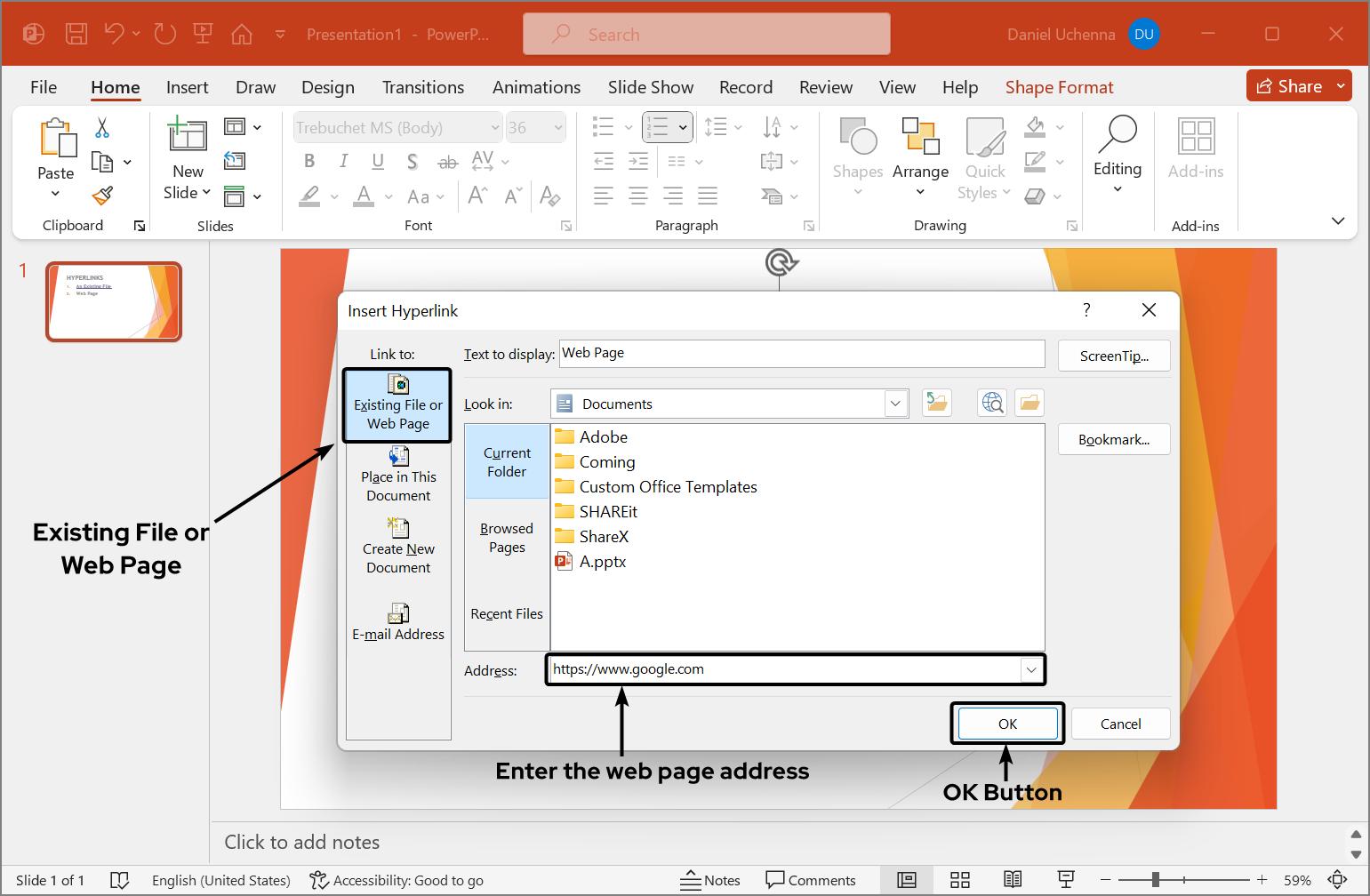
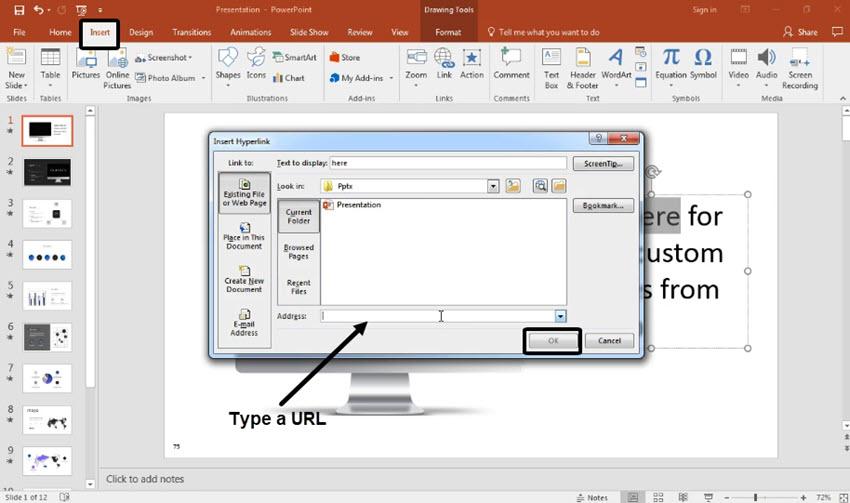
Highlight the word or phrase you want to link, go to Insert → Link (or right-click → Link), then enter the destination and click OK.
Click the image once to select it, then go to Insert → Link and enter the destination. The entire image becomes clickable.
Two ways to start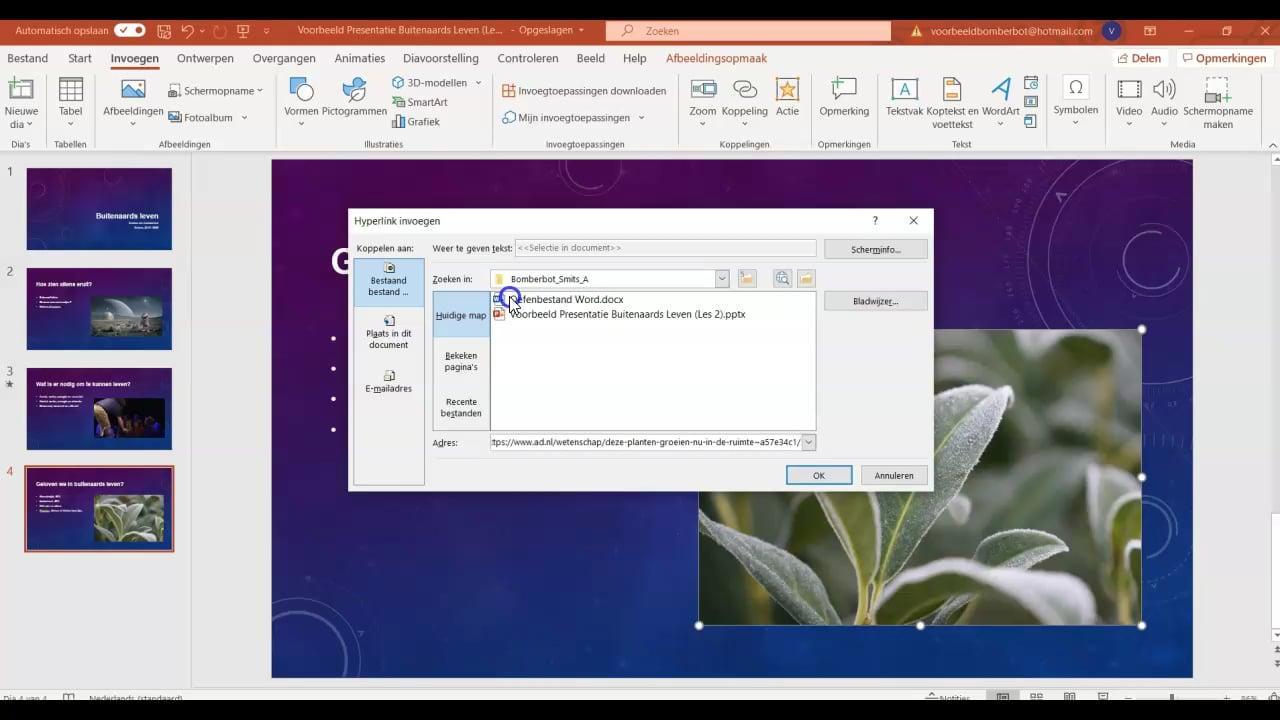
Insert a shape (for example, a "Learn More" button), select it, then apply the same Insert → Link steps to make the shape clickable.
How to Hyperlink to a Website
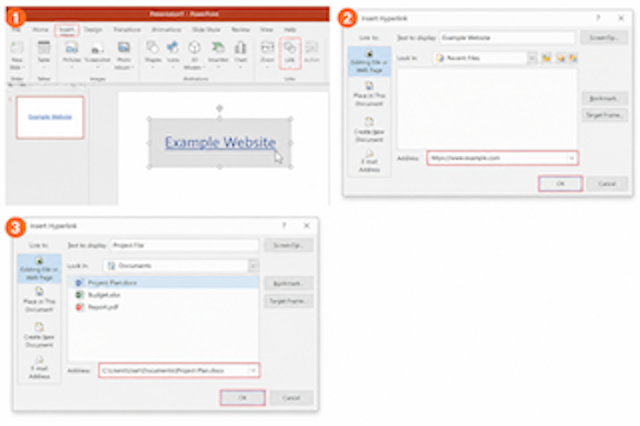
Select the text, image, or shape you want to use as the link, open Insert → Link, and under "Existing File or Web Page," paste the full URL — including https:// — into the Address field, then click OK. Clicking the linked element during the presentation opens that page in your default browser.
How to Hyperlink to a File
Select the element you want to use as the link, open Insert → Link, and under "Existing File or Web Page," browse to and select the file — a Word document, spreadsheet, or PDF, for example — then click OK.
Note
A file hyperlink stores the file's path, not the file itself. If you move, rename, or share the presentation without also sending the linked file, the link will break. For anything you plan to share externally, either embed the file directly in the slide or host it somewhere online (like OneDrive or Google Drive) and link to that instead.
Best Practices
Make Links Obvious
Use a distinct color, underline, or a clear button label so viewers know an element is clickable.
Use Descriptive Text
Link phrases like "View the full report" instead of a bare, unreadable URL.
Test Every Link
Click through each hyperlink in Slide Show mode before presenting, since links don't activate in Normal editing view.
Add a Return Link
When linking to another slide, add a link back so the audience can return to where they left off.
Common Hyperlink Problems and Fixes
| Problem | Likely Cause | Fix |
|---|---|---|
| Link doesn't work when clicked | You're clicking in Normal editing view, where links aren't active | Switch to Slide Show mode, then click the link |
| File link is broken | The linked file was moved, renamed, or wasn't shared along with the deck | Re-link to the file's current location, or embed/host it online instead |
| Link opens the wrong page | An outdated or mistyped URL was entered | Edit the link via right-click → Edit Link and re-enter the correct URL |
| Linked image or shape isn't clickable | The link was applied to a text box behind the object instead of the object itself | Select the image or shape directly, then reapply Insert → Link |
| Slide-to-slide link doesn't jump correctly | The target slide was deleted, moved, or renumbered after the link was created | Edit the link and reselect the correct slide from the current deck |
Frequently Asked Questions (FAQ)
Why doesn't my hyperlink work when I click it?
Hyperlinks are only active in Slide Show mode. If you click a link while editing in Normal view, nothing will happen.
Can I hyperlink to another slide in the same presentation?
Yes. In the Insert Link dialog, choose "Place in This Document" and select the target slide instead of entering a URL.
Can I add a hyperlink to an email address?
Yes. In the Insert Link dialog, choose "Email Address," then enter the address and an optional subject line.
Will my hyperlinks still work if I convert my presentation to PDF?
Website and email hyperlinks generally still work in a PDF export. Links to local files usually won't work once exported, since the PDF is no longer connected to your file system.
How do I remove a hyperlink from text, an image, or a shape?
Right-click the linked element and choose Remove Link. This removes the link but keeps the text, image, or shape in place.
Conclusion
A hyperlink is a small addition that changes how your audience can interact with a presentation — turning a fixed sequence of slides into something they can navigate, click through to a live source, or jump around based on what matters to them. Whether you're linking text, an image, or a button, the steps are the same: select the element, open Insert → Link, and choose the destination. Test every link in Slide Show mode before you present, and for anything shared externally, favor hosted files and web links over local file paths so nothing breaks after the fact. And if you're building the deck itself with AI, Gamma.com.ai lets you add the same clickable links directly to any card as you go.