
In this guide, you will learn how to add, view, edit, present, and print speaker notes in Google Slides on a computer and mobile device. You will also discover when notes are most useful, their advantages and limitations, and how Gamma.com.ai can help you prepare a clearer presentation in less time.
- Speaker notes are private prompts attached to individual slides.
- On desktop, type them in the notes field below the slide; use View > Show speaker notes if the field is hidden.
- During a presentation, open Presenter view so you can see the notes while the audience sees only the slide.
- Keep notes short and scannable. They should support your delivery, not become a script you read word for word.
What Are Speaker Notes?
Speaker notes are text attached to a slide that helps the presenter remember what to say. They appear in the editing interface and in Google Slides Presenter view, but they do not appear on the projected slide during a standard slideshow. Each slide has its own notes area, so your prompts stay connected to the relevant visual.
Useful notes can include a statistic, a short story, the pronunciation of a name, a transition to the next topic, a timing cue, or a reminder to ask the audience a question. They can also record background information for collaborators. Speaker notes should not be confused with comments: comments are used for review and discussion, while notes support the person delivering the presentation.
When Should You Add Speaker Notes to Google Slides?
You do not need extensive notes for every presentation. Add them when they reduce mental load or improve consistency. They are especially valuable in the following situations.
| Situation | What to put in the notes |
|---|---|
| Sales pitch or proposal | Customer-specific examples, proof points, objection responses, and the next-step question. |
| Class, lecture, or training | Definitions, examples, discussion prompts, activity instructions, and time checks. |
| Conference talk or webinar | Opening and closing lines, transitions, source reminders, and cues for demonstrations. |
| Team presentation | Speaker handoffs, responsibilities, pronunciation notes, and shared terminology. |
| Data-heavy presentation | The main interpretation of each chart, the source date, and one takeaway to emphasize. |
| High-stakes or unfamiliar topic | Exact wording for essential claims, compliance language, and answers to likely questions. |
Add notes while building the deck, not five minutes before presenting. Writing them early exposes missing transitions, unsupported claims, and slides that try to communicate too many ideas.
Why Add Speaker Notes to Google Slides?
The main reason is simple: speaker notes let you separate what the audience needs to see from what you need to remember. A slide can remain visual and concise while your explanation carries the detail.
- Cleaner slides: You can remove paragraphs and keep only the headline, visual evidence, and essential figures.
- More confident delivery: A glance at a keyword or transition can help you recover without an uncomfortable pause.
- Better timing: Notes such as “2 minutes,” “pause,” or “skip if late” help you manage the session.
- Consistent messaging: Teams can preserve key explanations even when different people present the same deck.
- More useful rehearsals: Notes give you a draft to test, shorten, and refine as you practice.
- Improved accessibility for the presenter: Difficult names, acronyms, and verbal descriptions can be prepared in advance.
Pros and Cons of Speaker Notes
- Reduces memory pressure
- Keeps audience-facing slides uncluttered
- Supports timing and smooth transitions
- Makes handoffs easier in team presentations
- Creates a reusable knowledge layer for future presenters
- Long scripts can encourage reading and weaken eye contact
- Presenter view needs correct screen setup
- Notes may be visible to editors and collaborators
- Small mobile screens can be harder to scan
- Outdated notes can contradict revised slides
The best solution is not to avoid notes, but to use them deliberately. Treat each note as a safety net and delivery aid rather than a teleprompter.
What to Include—and What to Leave Out
Include
- One key message for the slide
- Two or three supporting points in speaking order
- Important figures, names, or pronunciations
- A short transition to the next slide
- Audience questions, pauses, or demonstration cues
- A source reminder when a claim needs attribution
Leave out
- Full paragraphs copied from the slide
- Unverified facts or AI-generated claims you have not checked
- Confidential information that should not be shared with collaborators
- Every possible detail you know about the topic
- Instructions so long that you cannot scan them while speaking
A practical format is: message → evidence → example → transition. For example: “Customer churn fell 18% after onboarding changes. Mention Q2 cohort. Ask which stage causes the most friction. Transition: now show the new onboarding flow.”
How to Add Speaker Notes in Google Slides on a Computer
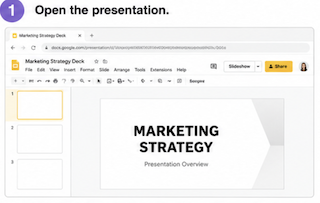
Open the presentation. Go to Google Slides and open an existing deck, or create a new one.
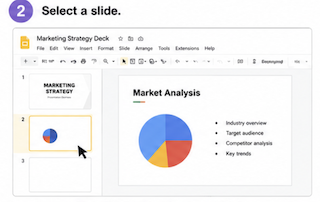
Select a slide. Click the slide thumbnail on the left.
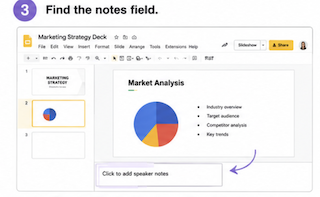
Find the notes field. Beneath the slide canvas, click the area labeled “Click to add speaker notes.”
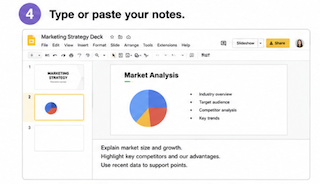
Type or paste your notes. Use short lines, keywords, and clear cues. Google Slides saves changes automatically.
Repeat slide by slide. Select the next thumbnail and add only the information needed to present it.
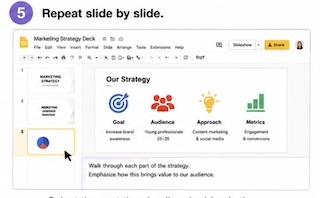
If the notes field is not visible, open the View menu and select Show speaker notes. You can drag the top edge of the notes area upward when you need more writing space.
How to View Speaker Notes While Presenting
- At the top right, open the drop-down next to Slideshow.
- Select Presenter view.
- In the presenter window, open Speaker notes if they are not already displayed.
- Move the slideshow window to the projector or shared display and keep Presenter view on your own screen.
- Advance the presentation from Presenter view while checking the timer, current slide, next slide, and notes.
During a slideshow, pressing S can open speaker notes. Other useful controls include the arrow keys to move between slides, B for a temporary black screen, and W for a white screen. Browser, account, and device differences can affect shortcuts, so test them before a live event.
How to Add and See Speaker Notes on Mobile
The Google Slides app supports notes, but menu names and icon positions can vary between Android, iPhone, iPad, and app versions. Update the app first if an option is missing.
Android
- Open the Google Slides app and choose your presentation.
- Switch to editing mode and select the slide you want to annotate.
- Open the More menu and choose Show speaker notes.
- Tap the notes area, enter your text, and close the keyboard when finished.
- To present, tap Present and choose Present on this device, or connect to a compatible display or meeting.
iPhone and iPad
- Open the presentation in the Google Slides app.
- Enter editing mode and select a slide.
- Open the slide or More options and enable the speaker notes area if it is hidden.
- Tap the notes field and add your prompts.
- Tap Present to present on the device, through Google Meet, or on a compatible connected display.
When casting with supported devices, Google Slides can let you show or hide speaker notes on the presenter device. Always test the connection first. If the phone must serve as both the presentation controller and the notes display, keep notes extremely short so you can read them without losing contact with the audience.
How to Print Google Slides with Speaker Notes
- Open the presentation on a computer.
- Choose File > Print settings and preview.
- Open the layout menu and select 1 slide with notes.
- Review the pages, then click Print.
A printed backup can be useful when the venue has unreliable internet or you prefer paper cues. However, it is slower to navigate than Presenter view, so add slide numbers and avoid printing long blocks of text.
Practical Tips for Adding Speaker Notes Faster
- Write the one-sentence takeaway first. If you cannot state the purpose of a slide in one sentence, simplify the slide before expanding the notes.
- Use a repeatable template. For every slide, write “Key point,” “Evidence,” “Audience cue,” and “Transition.” A consistent pattern reduces preparation time.
- Use fragments instead of prose. Short lines are easier to scan and sound more natural than a polished paragraph.
- Add timing labels. Tags such as “[0:30],” “[PAUSE],” “[DEMO],” and “[OPTIONAL]” make decisions easier during delivery.
- Draft notes while rehearsing aloud. Speak through the deck once, then record only the prompts you actually needed.
- Build transitions in pairs. End one note with the reason the next slide matters. This prevents abrupt topic changes.
- Use find-and-replace carefully. Standardize repeated product names, dates, and terminology, then check each occurrence in context.
- Review after slide edits. When you delete or reorder slides, update the notes immediately so examples and transitions remain accurate.
Common Mistakes to Avoid
- Reading every sentence: It sounds rehearsed and reduces eye contact. Convert the script into keywords after your first practice.
- Writing notes that are too small or dense: Break them into short lines and test the zoom level in Presenter view.
- Assuming notes are completely private: They are hidden from the slideshow audience, but people with editing access can view them.
- Mirroring the presenter screen: This can expose notes. Use extended-display mode and confirm the audience view.
- Skipping rehearsal: Notes cannot repair an unclear story or unrealistic timing.
- Ignoring the mobile interface: If you will present from a phone or tablet, practice on that exact device and app version.
- Using unverified AI output: Check numbers, names, quotations, and claims before placing them in your notes.
Prepare Your Presentation Faster with Gamma.com.ai
Speaker notes work best when the presentation already has a clear narrative. Gamma.com.ai can help you turn a topic or rough outline into a structured presentation, giving you a stronger starting point for both slides and notes. After refining the content, bring the deck into your preferred Google Slides workflow and add presenter-specific prompts in the speaker notes field.
You can also ask AI to draft a concise notes outline. For example: “Create speaker notes for this slide using four lines: key message, supporting evidence, audience question, and transition. Keep the total under 60 words.” Review every draft, personalize the wording, and remove confidential information before using it.
Browse the Gamma.com.ai template library and choose a polished design that suits your topic and audience.

Open your preferred template and select “Generate with AI” to start from a prompt or outline.

Enter your topic, audience, goal, language, and preferred number of slides. Add the key facts the presentation must include.
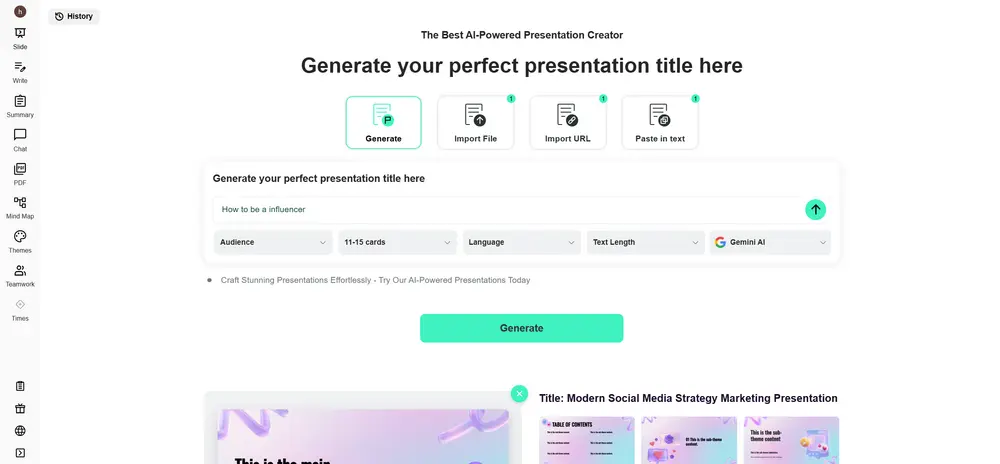
Check the proposed story, remove repetition, verify claims, and make sure every slide has one clear purpose before generating the deck.
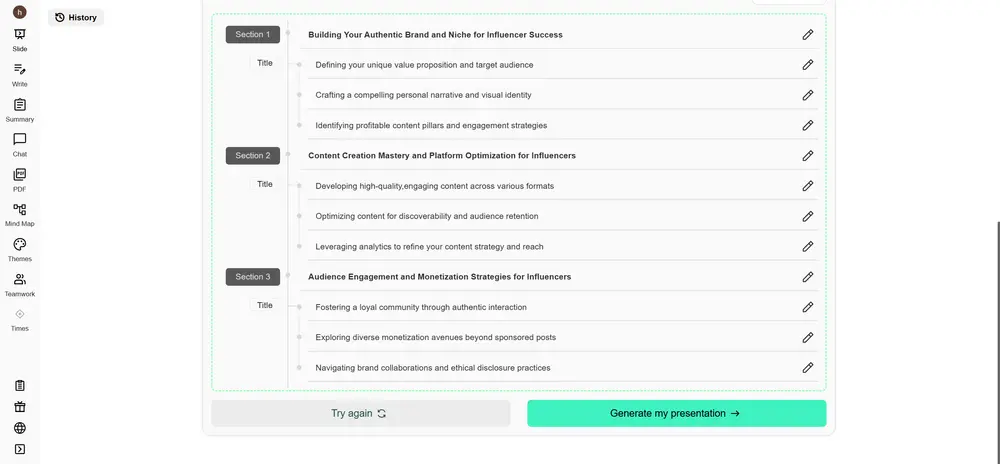
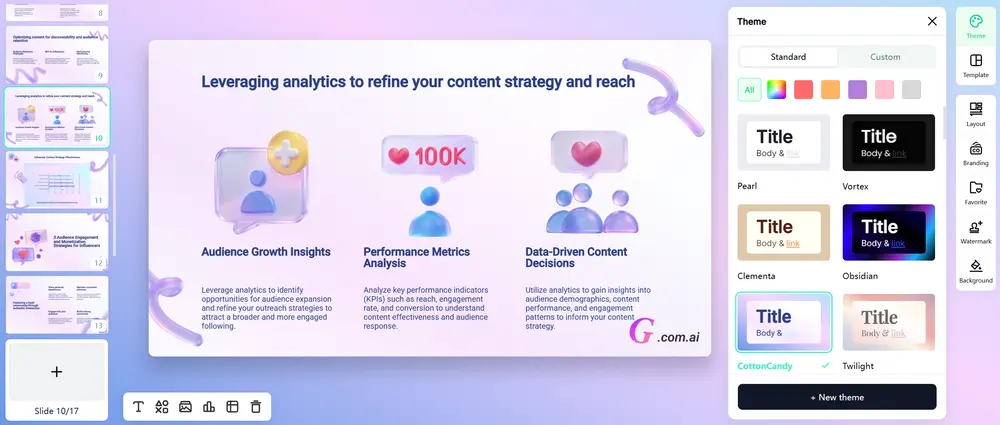
Refine the wording and visuals, then use the final slide structure to create concise, personalized speaker notes in Google Slides.
Final Speaker Notes Checklist
- Every slide has one clear verbal takeaway.
- Notes are short enough to scan in two or three seconds.
- Statistics, names, and claims have been verified.
- Transitions connect the presentation into one story.
- Timing, demos, questions, and handoffs are labeled.
- Sensitive information has been removed.
- Presenter view has been tested on the actual device and display setup.
- A backup plan is available if the connection fails.
Conclusion
Learning how to use speaker notes in Google Slides is a small improvement with a large effect on delivery. Good notes keep the slide clean, reduce memory pressure, and help you explain ideas in a more natural order. Add them beneath each slide, open Presenter view before the session, and test the audience display so your notes remain on your screen.
The most effective notes are brief, accurate, and written in your own speaking voice. Combine a well-structured deck from Gamma.com.ai with focused Google Slides speaker notes, rehearse aloud, and you will be prepared to present with greater clarity and confidence.