
The default PowerPoint slide is 13.33 × 7.5 inches (widescreen 16:9) — but that's not always what you need. Whether you're designing for a projector, a print handout, a social media post, or a custom display, knowing the PowerPoint slide dimensions and how to change slide size is essential. This guide covers the standard PowerPoint slide size, all the preset options, how to set a custom size, and which dimensions to use for different situations.

- Default PowerPoint slide size: 13.33 × 7.5 inches (Widescreen 16:9). The old default (before 2013) was 10 × 7.5 inches (Standard 4:3).
- To change: Design → Slide Size → Standard (4:3), Widescreen (16:9), or Custom Slide Size.
- Below: all standard dimensions, how to change slide size, and which size to use for each situation.
PowerPoint Slide Dimensions (All Standard Sizes)
| Preset | Dimensions (in) | Dimensions (cm) | Pixels (96 dpi) | Aspect ratio |
|---|---|---|---|---|
| Widescreen (default) | 13.33 × 7.5 | 33.87 × 19.05 | 1280 × 720 | 16:9 |
| Standard | 10 × 7.5 | 25.4 × 19.05 | 960 × 720 | 4:3 |
| On-screen Show (16:9) | 10 × 5.63 | 25.4 × 14.29 | 960 × 540 | 16:9 |
| On-screen Show (16:10) | 10 × 6.25 | 25.4 × 15.88 | 960 × 600 | 16:10 |
| Letter Paper | 10 × 7.5 | 25.4 × 19.05 | 960 × 720 | 4:3 |
| A4 Paper | 10.83 × 7.5 | 27.52 × 19.05 | 1040 × 720 | ~4:3 |
| Overhead | 10 × 7.5 | 25.4 × 19.05 | 960 × 720 | 4:3 |
| Custom | Any | Any | Any | Any |
How to Change Slide Size in PowerPoint
- Open your presentation in PowerPoint.
- Go to the Design tab.
- Click Slide Size (on the right side of the ribbon).
- Choose Standard (4:3), Widescreen (16:9), or Custom Slide Size.
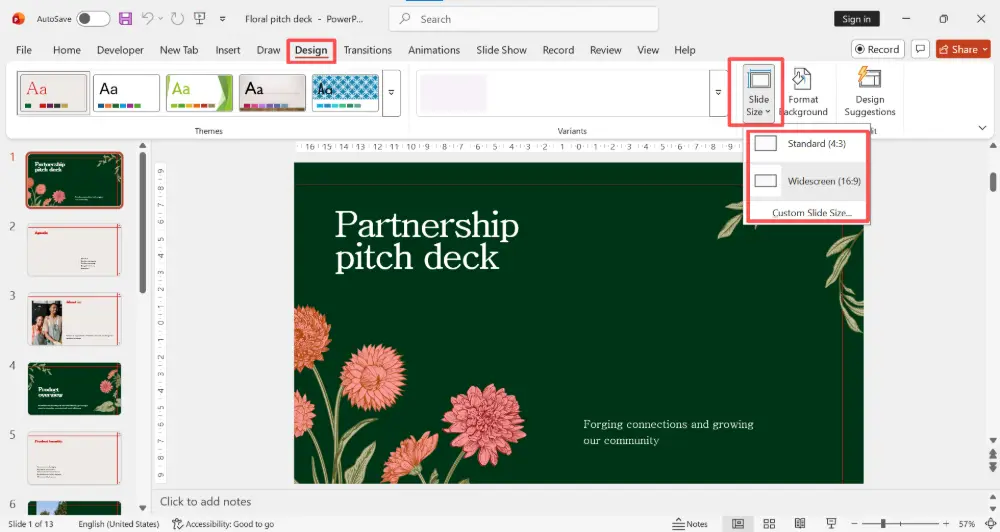
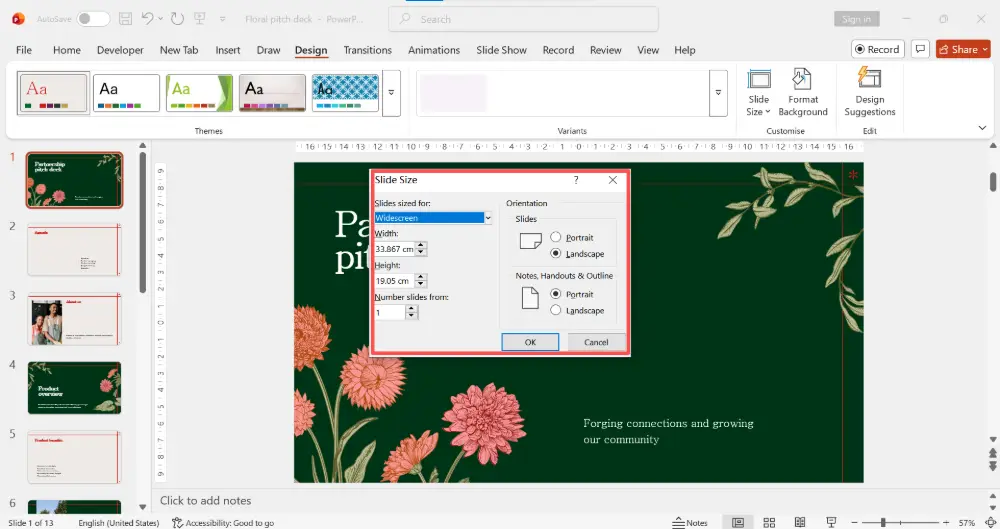
- If you choose Custom, enter your desired width and height, then click OK.
- PowerPoint asks whether to Maximize (scale content up to fill the new size) or Ensure Fit (scale content down to fit without cropping). Choose based on your content.
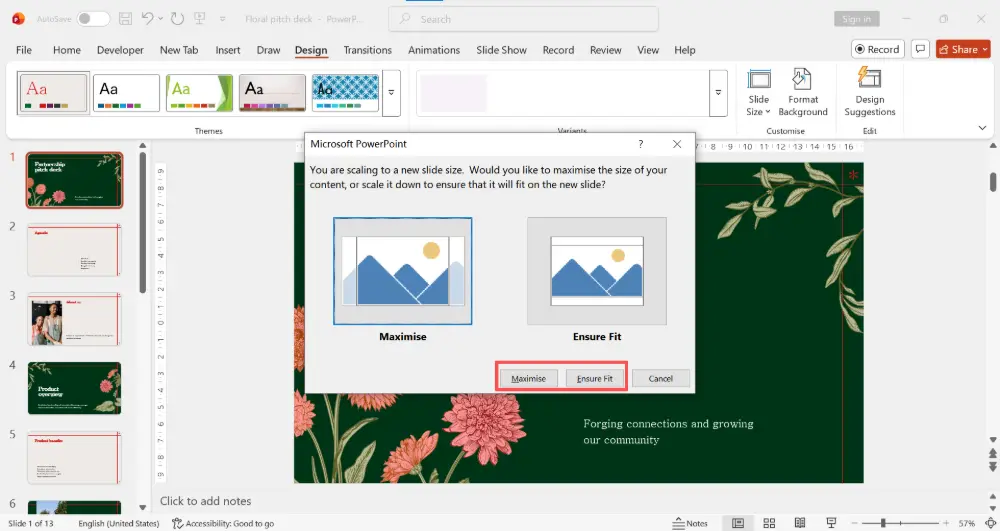
Always change your slide size before you start designing. Changing the size on a finished deck can distort images, shift text, and break layouts. If you must change size on an existing deck, choose "Ensure Fit" and manually adjust elements afterward.
Which Slide Size Should You Use?
| Situation | Recommended size | Why |
|---|---|---|
| Modern projector / screen | Widescreen 16:9 | Matches modern screens and projectors. The default for a reason. |
| Older projector / square screen | Standard 4:3 | Matches older monitors without black bars on the sides. |
| Printed handout (US) | Letter 10 × 7.5 | Fits US Letter paper without scaling. |
| Printed handout (international) | A4 10.83 × 7.5 | Fits A4 paper without scaling. |
| Social media / Instagram | Custom 10 × 10 | Square format for Instagram posts. |
| Vertical / portrait poster | Custom 7.5 × 10 | Swap width and height for vertical orientation. |
| Large display / digital signage | Custom (match display) | Match the display's native resolution for best quality. |
Widescreen (16:9) vs. Standard (4:3)
The two most common PPT sizes are Widescreen and Standard:
- Widescreen (16:9) is the default since PowerPoint 2013. It matches modern laptops, monitors, projectors, and TVs. Use this unless you have a specific reason not to.
- Standard (4:3) was the default before 2013. It matches older screens and square projectors. On a widescreen display, 4:3 slides show black bars on the sides.
If you don't know what screen you'll present on, go with 16:9 — it's the safer bet for modern setups.
PowerPoint Size in Pixels
PowerPoint uses inches (or centimeters) internally, not pixels. But for export (saving slides as images), the pixel dimensions depend on the DPI (dots per inch):
- At 96 DPI (default for screen): Widescreen = 1280 × 720 px.
- At 150 DPI: Widescreen = 2000 × 1125 px.
- At 300 DPI (print quality): Widescreen = 4000 × 2250 px.
When exporting slides as images (File → Save As → JPEG/PNG), PowerPoint uses 96 DPI by default. For higher resolution, change the export DPI in the Windows Registry or use a third-party tool.
💡 Pro tip: If you want your slides to look great on any screen without worrying about dimensions, AI tools like Gamma.com.ai generate responsive, web-native presentations that adapt to any display — no slide-size settings needed.
Conclusion
The default PowerPoint slide size is 13.33 × 7.5 inches (Widescreen 16:9), and that's the right choice for most presentations on modern screens. To change it: Design → Slide Size → pick a preset or enter custom dimensions. Match your PPT dimensions to your display (16:9 for widescreen, 4:3 for older screens, custom for print or social media), and always set the size before you start designing to avoid layout issues.
FAQs
What are the dimensions of a PowerPoint slide?
The default Widescreen slide is 13.33 × 7.5 inches (33.87 × 19.05 cm), which is a 16:9 aspect ratio. The Standard size is 10 × 7.5 inches (4:3). In pixels at 96 DPI, Widescreen is 1280 × 720 px.
How do I change slide size in PowerPoint?
Go to Design → Slide Size → choose Standard (4:3), Widescreen (16:9), or Custom Slide Size. For custom, enter your width and height and click OK. PowerPoint asks to Maximize or Ensure Fit for existing content.
Should I use 16:9 or 4:3?
Use 16:9 (Widescreen) for modern screens, laptops, projectors, and TVs — it's the default for a reason. Use 4:3 only if you're presenting on an older square screen or need to match a legacy template.
What size is a PowerPoint slide in pixels?
At the default 96 DPI: Widescreen (16:9) = 1280 × 720 px, Standard (4:3) = 960 × 720 px. For higher resolution exports, increase the DPI: at 150 DPI Widescreen = 2000 × 1125 px; at 300 DPI = 4000 × 2250 px.
Can I use a custom slide size?
Yes. Design → Slide Size → Custom Slide Size → enter any width and height. Use this for posters, social media (square 10×10 for Instagram), vertical/portrait layouts (7.5×10), or any non-standard display.

