
Google Slides doesn't have Photoshop-level editing — but it handles the basics well. You can crop a picture into a circle, flip an image, or place an image inside any shape. This guide shows you how to do each, step by step.

- Circle crop: select the image → click the crop dropdown arrow → Shapes → Oval. Make the image square first for a perfect circle.
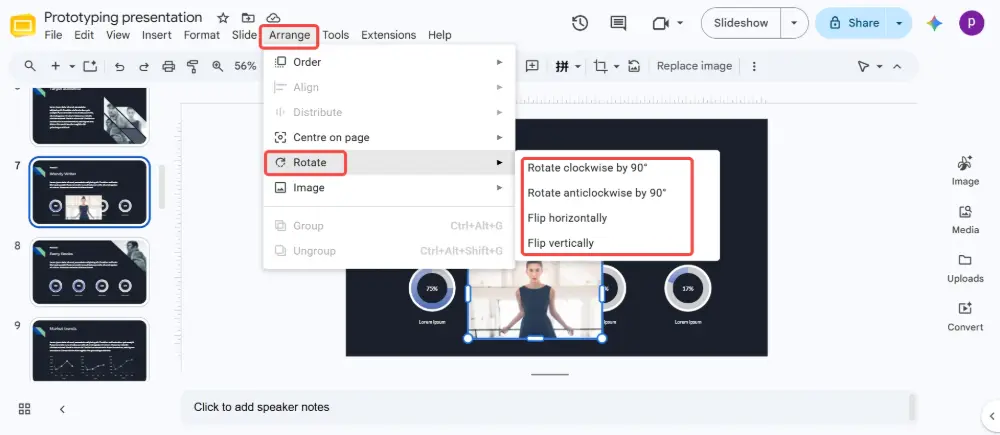
- Flip image: select the image → Arrange → Rotate → Flip horizontally or Flip vertically.
- Below: step-by-step for each, plus how to put an image inside any shape.
How to Make a Picture a Circle in Google Slides
- Insert your image: Insert → Image → choose your source.
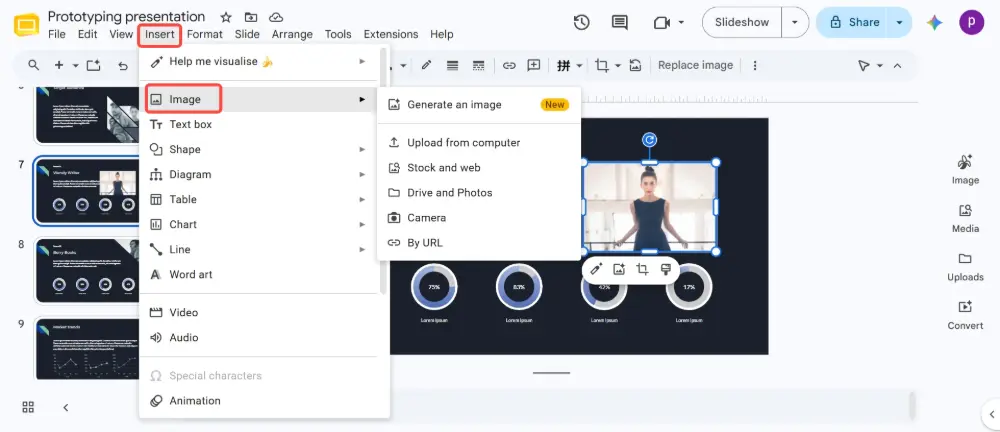
- Click on the image to select it.
- In the toolbar, find the Crop icon. Click the small dropdown arrow next to it (not the icon itself).
- Hover over Shapes → select Oval (circle).
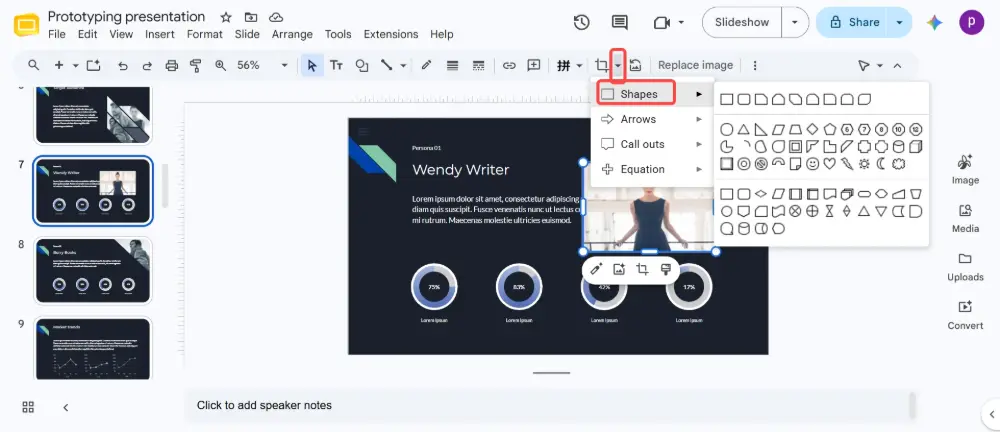
- The image is now masked to an oval shape.
Getting a perfect circle (not an ellipse)
If your image is rectangular, the oval mask creates an ellipse, not a circle. To get a perfect circle:
- Before applying the mask, crop the image to a square: click the Crop icon → drag the edges to make the crop area square.
- Press Enter to apply the crop.
- Now apply the oval mask (crop dropdown → Shapes → Oval).
- The result is a perfect circle.
Alternatively: hold Shift while resizing the image to constrain it to equal proportions, then apply the oval mask.
The crop mask is non-destructive — the original image is preserved. Double-click the masked image to adjust the crop area, or change the mask shape anytime by clicking the crop dropdown again.
How to Flip an Image in Google Slides
Flip horizontally (mirror)
- Click on the image to select it.
- Click Arrange (in the menu bar) → Rotate → Flip horizontally.
- The image is mirrored left-to-right.
Flip vertically
- Select the image.
- Click Arrange → Rotate → Flip vertically.
- The image is flipped upside down.
Other rotation options
- Rotate 90° clockwise: Arrange → Rotate → Rotate clockwise 90°.
- Rotate 90° counter-clockwise: Arrange → Rotate → Rotate counter-clockwise 90°.
- Free rotation: click the image, then drag the circular handle at the top to rotate to any angle.
How to Put an Image in a Shape in Google Slides
Google Slides doesn't have a direct "fill shape with image" option like PowerPoint. But the crop mask achieves the same result:
Method 1: Crop to any shape (mask)
- Insert your image.
- Select the image.
- Click the crop dropdown arrow in the toolbar.
- Choose from Shapes, Arrows, Callouts, or Equation.
- Select the shape you want — the image is masked to that shape.
- Double-click to adjust which part of the image is visible inside the shape.
Available shapes include: rectangles, rounded rectangles, ovals, triangles, stars, hearts, arrows, pentagons, hexagons, and many more.
Method 2: Use a placeholder shape
- Insert a shape: Insert → Shape → choose your shape.
- Draw the shape on the slide.
- Right-click the shape → Replace image won't appear on a shape. Instead, use the crop mask method (Method 1) on your image.
All Image Editing Actions in Google Slides
| Action | How to do it |
|---|---|
| Circle crop | Select image → crop dropdown → Shapes → Oval. Square the image first for a perfect circle. |
| Any shape crop | Select image → crop dropdown → Shapes → pick any shape (triangle, star, heart, etc.). |
| Flip horizontally | Arrange → Rotate → Flip horizontally. |
| Flip vertically | Arrange → Rotate → Flip vertically. |
| Rotate 90° | Arrange → Rotate → Rotate clockwise/counter-clockwise 90°. |
| Free rotate | Drag the circular handle above the selected image. |
| Add border | Select image → use the border color, border weight, and border dash options in the toolbar. |
| Adjust transparency | Right-click → Format options → Adjustments → Transparency slider. |
| Add shadow | Right-click → Format options → Drop shadow → toggle on, adjust angle/distance/blur. |
| Reset image | Right-click → Reset image. Restores the original uncropped, unedited version. |
💡 Pro tip: If you're spending time cropping, flipping, and formatting images on every slide, try Gamma.com.ai — the AI places and formats images automatically when generating your presentation. Circle profile photos, full-bleed backgrounds, and consistent styling — all handled for you.
Conclusion
To make a picture a circle in Google Slides: crop dropdown → Shapes → Oval (square the image first for a perfect circle). To flip an image: Arrange → Rotate → Flip horizontally or vertically. To put an image in a shape: use the crop dropdown → Shapes → pick any shape. All edits are non-destructive — you can reset the image to its original state anytime.
FAQs
How do I make a picture a circle in Google Slides?
Select the image → click the crop dropdown arrow (not the crop icon) → Shapes → Oval. For a perfect circle, crop the image to a square first, then apply the oval mask.
How do I flip an image in Google Slides?
Select the image → Arrange → Rotate → Flip horizontally (mirror) or Flip vertically (upside down). You can also rotate 90° or drag the rotation handle for any angle.
How do I put an image inside a shape?
Insert your image → select it → click the crop dropdown → Shapes → choose any shape (triangle, star, heart, hexagon, etc.). The image is masked to that shape. Double-click to adjust positioning inside the shape.
Can I undo a shape crop?
Yes — double-click the masked image to see the original. Or right-click → Reset image to remove all edits. The crop mask is non-destructive; the original image is always preserved.
Why does my circle crop look like an oval?
Your image is rectangular. The oval mask stretches to fit the image's proportions. Fix: crop the image to a square first (crop icon → drag edges to square → Enter), then apply the oval mask.

