
Google Slides doesn't have a one-click "transparency" button like PowerPoint — but you can make images, shapes, and backgrounds transparent with a few steps. This guide shows you how to make an image transparent in Google Slides, adjust shape opacity, and create transparent backgrounds, with the exact steps for each.

- Image transparency: select the image → Format Options → Adjustments → drag the Transparency slider.
- Shape transparency: select the shape → Fill Color → Custom → adjust the Transparency slider.
- Below: step-by-step instructions for images, shapes, and backgrounds.
How to Make an Image Transparent in Google Slides
- Click on the image to select it.
- In the toolbar, click Format Options (or right-click → Format Options).
- In the panel that opens on the right, expand Adjustments.
- Drag the Transparency slider to the right to increase transparency (0% = fully opaque, 100% = fully invisible).
- Adjust to your preferred level — 30–50% works well for background images with text overlay.
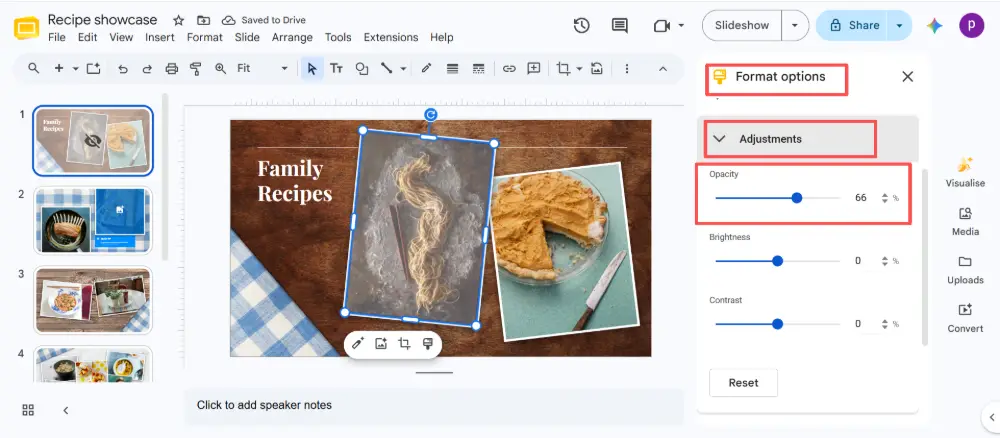
This method works for any image: photos, screenshots, logos, or imported graphics.
How to Make a Shape Transparent in Google Slides
Shapes (rectangles, circles, arrows, text boxes) use a different method — you adjust the fill color opacity:
- Click on the shape to select it.
- Click the Fill Color button (paint bucket icon) in the toolbar.
- Click Custom at the bottom of the color picker.
- In the custom color dialog, you'll see a Transparency slider at the bottom.
- Drag the slider to adjust opacity — left = more opaque, right = more transparent.
- Click OK.
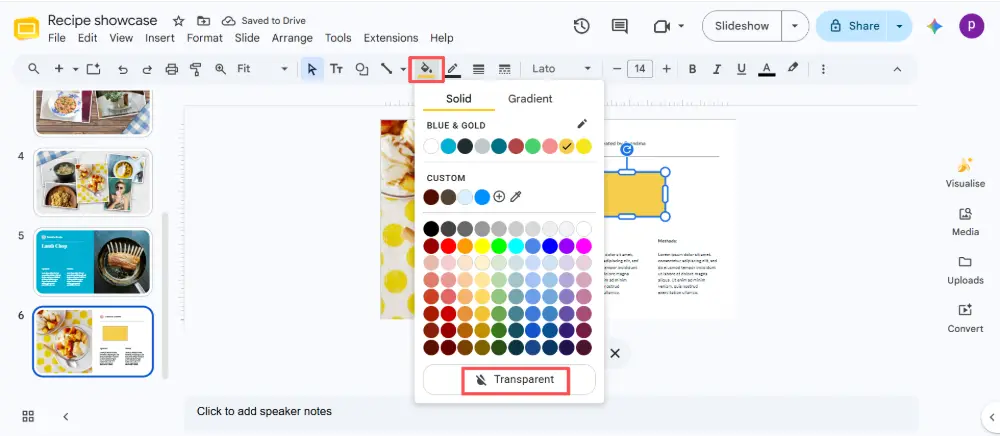
You can also type a specific percentage for precise control. This is the Google Slides shape opacity control.
The transparency slider for images and shapes is in two different places. Images: Format Options → Adjustments → Transparency. Shapes: Fill Color → Custom → Transparency. This catches many people off guard — remember the distinction.
How to Make a Background Transparent in Google Slides
Google Slides doesn't support a truly "transparent" slide background (since slides need a visible backdrop). But here are two common scenarios and how to handle them:
Scenario 1: Make a background image semi-transparent
- Insert your background image: Insert → Image.
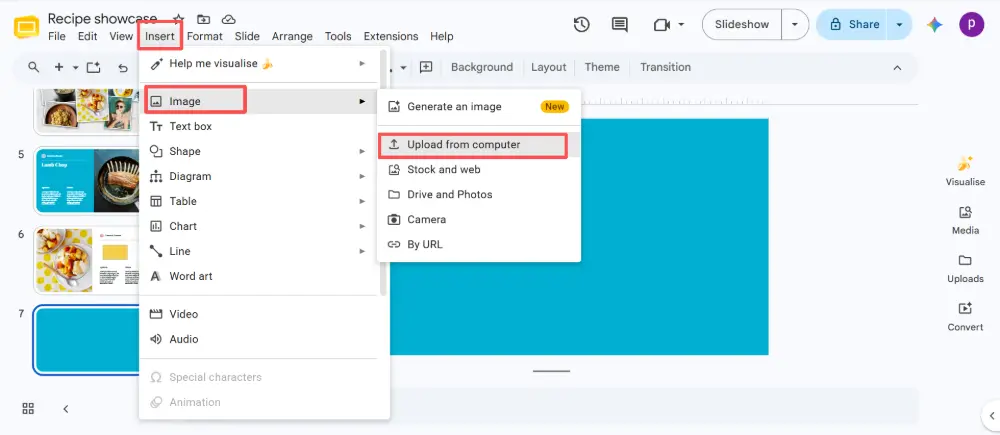
- Resize it to cover the full slide.
- Right-click the image → Order → Send to back.
- With the image selected, open Format Options → Adjustments → drag the Transparency slider to 40–60%.
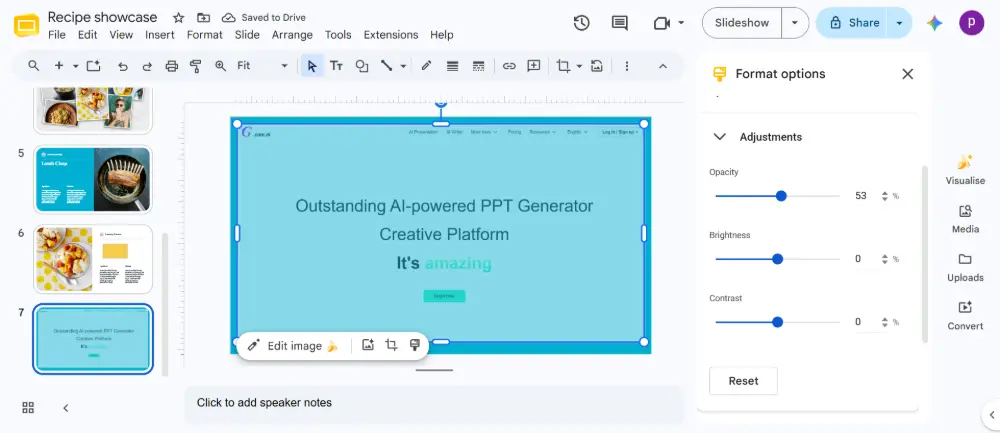
- Now add your text and other elements on top — the background is visible but doesn't overpower the content.
Scenario 2: Use a transparent overlay
- Insert a rectangle shape that covers the full slide.
- Set the fill color to white or black.
- Adjust the shape's transparency (Fill Color → Custom → Transparency slider) to 30–50%.
- Send the shape behind your text but in front of the background image.
This creates a "frosted glass" effect — the background shows through but text remains readable.
All Transparency Methods Compared
| Element | Where to find transparency | Steps |
|---|---|---|
| Image | Format Options → Adjustments → Transparency | Select image → Format Options → Adjustments → drag slider. |
| Shape fill | Fill Color → Custom → Transparency | Select shape → Fill Color → Custom → drag slider. |
| Shape border | Border Color → Custom → Transparency | Select shape → Border Color → Custom → drag slider. |
| Text box background | Fill Color → Custom → Transparency | Select text box → Fill Color → Custom → drag slider. |
| Background image | Insert as image → Format Options → Adjustments | Insert image → resize to slide → Send to back → Format Options → Transparency. |
💡 Pro tip: If you find Google Slides' transparency controls limited, try building your presentation in Gamma.com.ai — the AI handles design automatically with professional layering and image effects, so you don't need to manually adjust opacity for every element.
Conclusion
Making something transparent in Google Slides depends on the element: images use Format Options → Adjustments → Transparency; shapes use Fill Color → Custom → Transparency. For background effects, insert the image as a regular element, send it to back, and adjust its transparency — or add a semi-transparent shape overlay. Once you know where the two sliders live, transparency in Google Slides takes seconds.
FAQs
How do I change opacity in Google Slides?
For images: select the image → Format Options → Adjustments → Transparency slider. For shapes: select the shape → Fill Color → Custom → Transparency slider. Two different locations depending on the element type.
How do I make a picture transparent in Google Slides?
Click the picture → Format Options (in toolbar or right-click) → expand Adjustments → drag the Transparency slider to the right. 30–50% is a good range for background images with text overlay.
Can I make a slide background transparent?
Not directly — Google Slides requires a visible background. But you can insert an image, resize it to the full slide, send it to back, and adjust its transparency via Format Options. Or add a semi-transparent shape overlay for a "frosted glass" effect.
How do I make a text box background transparent?
Click the text box → Fill Color (paint bucket) → Custom → drag the Transparency slider. Set it to 100% for fully transparent, or lower for a semi-transparent colored background behind your text.
Why can't I find the transparency option?
Make sure you've selected the right element. For images, the transparency is in Format Options → Adjustments (a side panel). For shapes, it's in Fill Color → Custom (a color picker dialog). If neither appears, check that the element is actually selected (blue handles visible).

