
Grouping turns multiple objects — images, shapes, text boxes, drawings — into a single unit you can move, resize, and format together. It's one of the most useful features in PowerPoint for keeping layouts clean and consistent. This guide shows you exactly how to group in PowerPoint, how to ungroup, and how to work with grouped elements — including pictures, shapes, and drawing objects.

- Select multiple objects (hold Shift or Ctrl and click each one), then right-click → Group → Group. Done.
- To ungroup: select the group, right-click → Group → Ungroup.
- Below: step-by-step instructions for grouping, ungrouping, and working with groups — plus keyboard shortcuts and common issues.
What Does Grouping Do?
Grouping elements in PowerPoint combines multiple objects — shapes, images, text boxes, icons, or drawings — into a single unit. Once grouped, the objects move together, resize proportionally together, and can be formatted as one. It's essential for keeping complex slide layouts intact and making design changes faster.
You can group almost anything on a slide: shapes, pictures, text boxes, icons, SmartArt (after converting), and drawing objects. The only things you can't group are placeholders (the default title and content boxes on a layout).
How to Group Objects in PowerPoint
- Select the first object by clicking on it.
- Hold Shift (or Ctrl) and click each additional object you want to include.
- Once all objects are selected, right-click on any of them.
- Click Group → Group.
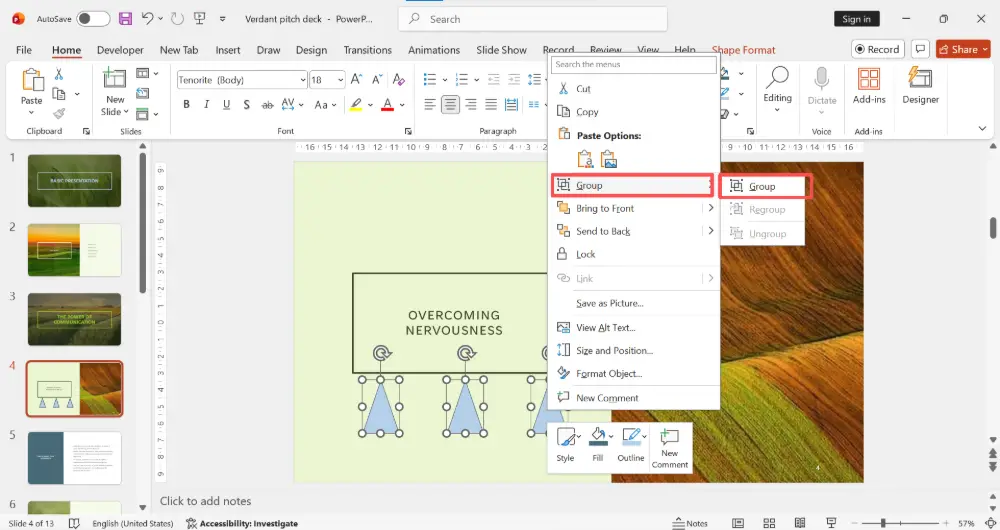
All selected objects are now a single group. You can move, resize, rotate, or copy the group as one unit.
Alternative: Use the menu
- Select the objects (Shift+click).
- Go to the Shape Format tab (or Picture Format if images are selected).
- Click Group → Group.
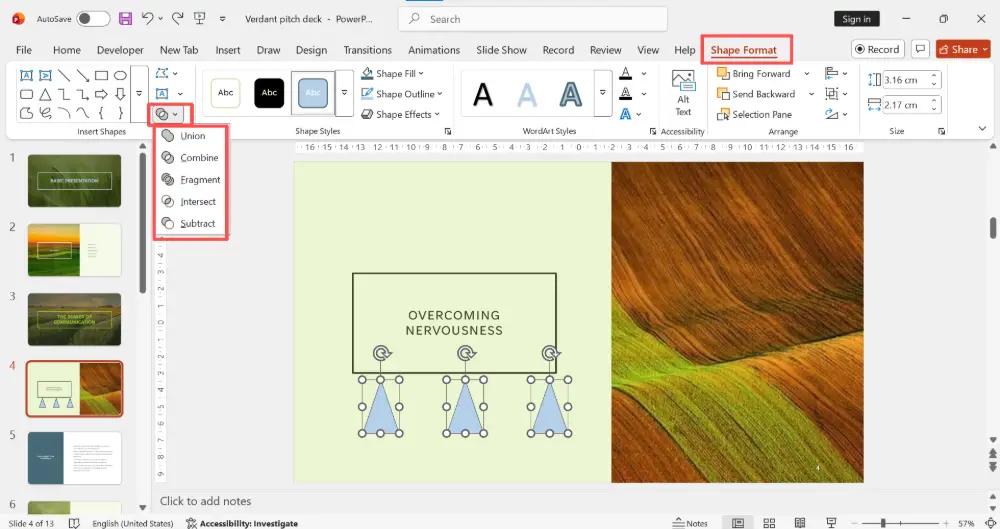
How to Group Images in PowerPoint
Grouping pictures works the same way — but there's one catch: if the images are set to "In Line with Text" wrapping (common when pasted), you need to change them first.
- Click the image → Picture Format → Wrap Text → choose anything except "In Line with Text" (e.g., "In Front of Text").
- Repeat for each image.
- Now select all images (Shift+click) → right-click → Group → Group.
How to Ungroup in PowerPoint
- Click on the grouped object to select the entire group.
- Right-click → Group → Ungroup.
- All objects become individual again.
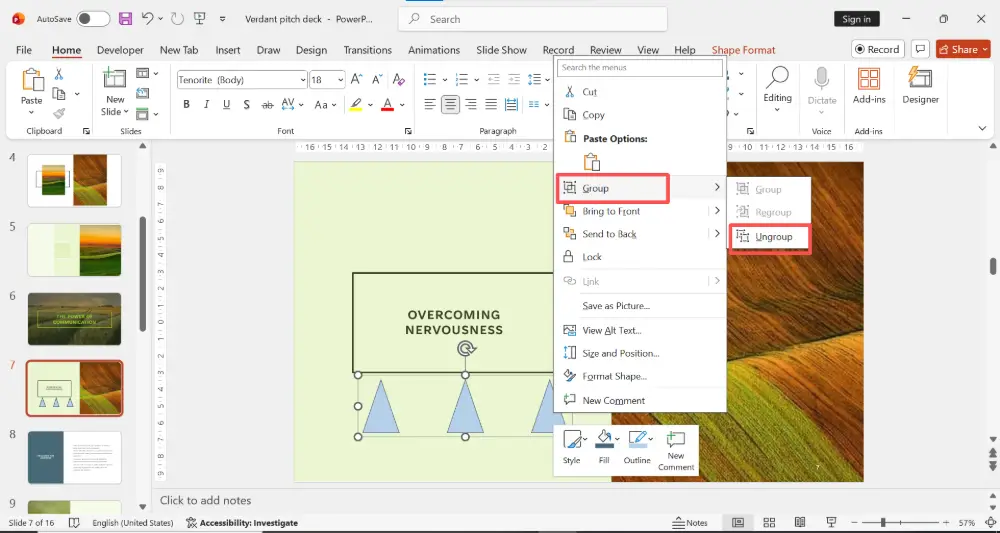
After ungrouping, click anywhere on the slide to deselect, then click individual objects to edit them separately.
You can also edit an individual object inside a group without ungrouping: double-click the group to enter it, then click the specific object you want to edit. Click outside the group when done. This keeps the group intact while letting you make targeted changes.
Keyboard Shortcuts for Grouping
| Action | Windows | Mac |
|---|---|---|
| Group selected objects | Ctrl + G | Cmd + Option + G |
| Ungroup | Ctrl + Shift + G | Cmd + Option + Shift + G |
| Select multiple objects | Shift + Click (or Ctrl + Click) | Shift + Click (or Cmd + Click) |
| Select all objects on slide | Ctrl + A | Cmd + A |
| Regroup (after ungrouping) | Right-click → Group → Regroup | Right-click → Group → Regroup |
Working with Shapes: Grouping Drawings and Office Layouts
Shapes are the most commonly grouped objects. When you build diagrams, flowcharts, or office layouts with shapes, grouping keeps the entire design together:
- Draw your shapes (Insert → Shapes) and position them.
- To classify and compare shapes in a layout, use consistent colors for each category (e.g., blue for workstations, green for meeting rooms, gray for common areas).
- Select all related shapes (Shift+click or draw a selection box around them).
- Right-click → Group → Group.
- Now you can move the entire layout, duplicate it for another floor, or resize it proportionally.
Groupings of drawing objects work the same way as any other group — you can nest groups inside groups for complex diagrams.
Common Issues and Fixes
| Problem | Fix |
|---|---|
| "Group" option is grayed out | Make sure you've selected at least two objects. Also check that none of them is a placeholder — placeholders can't be grouped. |
| Can't select an object behind another | Use the Selection Pane (Home → Select → Selection Pane) to click on any object by name, even if it's hidden. |
| Images won't group together | Change each image's wrapping from "In Line with Text" to "In Front of Text" first (Picture Format → Wrap Text). |
| Group resizes unevenly | Hold Shift while dragging a corner handle to maintain proportions. |
| Need to edit one item in a group | Double-click the group to enter it, then click the individual item. No need to ungroup. |
💡 Pro tip: If you spend a lot of time arranging and grouping elements manually, AI presentation tools like Gamma.com.ai handle layout and alignment automatically — shapes, images, and text are always properly positioned without manual grouping.
Conclusion
Grouping objects in PowerPoint is one of the simplest ways to keep your slides organized: select the objects (Shift+click), right-click → Group → Group, and they become a single unit. Ungroup with right-click → Group → Ungroup when you need individual access again. Use keyboard shortcuts (Ctrl+G / Ctrl+Shift+G) for speed, the Selection Pane for hard-to-reach objects, and double-click to edit items inside a group without breaking it apart.
FAQs
How do I group objects in PowerPoint?
Select multiple objects by holding Shift and clicking each one. Then right-click → Group → Group. Or use the keyboard shortcut Ctrl+G (Windows) / Cmd+Option+G (Mac). All selected objects become a single movable, resizable unit.
How do I ungroup in PowerPoint?
Click the group to select it, then right-click → Group → Ungroup. Or press Ctrl+Shift+G (Windows) / Cmd+Option+Shift+G (Mac). All objects become individual again. Use "Regroup" if you want to put them back together.
How do I group images in PowerPoint?
First, make sure each image's text wrapping is set to anything except "In Line with Text" (Picture Format → Wrap Text → In Front of Text). Then select all images with Shift+click and right-click → Group → Group.
Can I edit an object inside a group without ungrouping?
Yes. Double-click the group to enter it, then click the specific object you want to edit. Make your changes and click outside the group when done. The group stays intact.
Why is the Group option grayed out?
You need at least two objects selected. Also, placeholders (default title/content boxes on layouts) can't be grouped. And if images are set to "In Line with Text" wrapping, change them to "In Front of Text" first.

