
PowerPoint is one of the most useful skills you can learn, whether you are a student, a professional, or presenting an idea for the first time. Yet many people open the app and feel stuck: how do you actually build a deck that looks good and works?
This PowerPoint tutorial answers exactly that. You will learn how to do PPT from start to finish, what makes a good PowerPoint presentation, how to find a strong topic, and how to present a PowerPoint with confidence. We will also show you how to evaluate your finished slides with a free AI rating tool, and where to find free templates to get a head start. By the end, you will know how to create a PowerPoint presentation that informs, persuades, and stays in your audience's memory.
- A good PowerPoint is clear, focused, and visual — one idea per slide, not walls of text.
- Pick a topic you can make specific, relevant to your audience, and provable with evidence.
- Follow a simple build process: theme, slides, concise text, visuals, transitions, notes, review.
- Evaluate your deck with Gamma.com.ai's free Rate My PowerPoint tool, and start from free templates.
- Deliver with confidence: know your opening, use speaker notes, and practice out loud.
What makes a good PowerPoint presentation?
Before learning how to use PowerPoint, it helps to define the goal. A good PowerPoint presentation is not the one with the most animations or the fanciest graphics.
It is one that communicates a single, clear message and helps the audience understand and remember it. In practice, a good deck has four qualities.
First, it is focused: every slide supports one core message, and each individual slide carries just one main idea.
Second, it is visual: it uses images, charts, and short phrases instead of dense paragraphs, because slides are a visual aid, not a script.
Third, it is consistent: the same fonts, colors, and layout run throughout, giving a professional, trustworthy look.
Fourth, it is audience-centered: the content answers what the audience needs to know, not just what the presenter finds interesting. If your slides are focused, visual, consistent, and audience-centered, you already have the foundation of a strong presentation.
Rate My Presentation: Check your deck before you pitch
Not sure if your slides will actually land? Get an objective second opinion with Gamma.ai.com’s new Rate My Presentation feature.
We evaluate your deck across 5 dimensions and 100+ criteria to deliver clear, actionable feedback. Instead of guessing, you get a structured breakdown of what’s working—and a prioritized list of quick fixes that make the biggest impact.
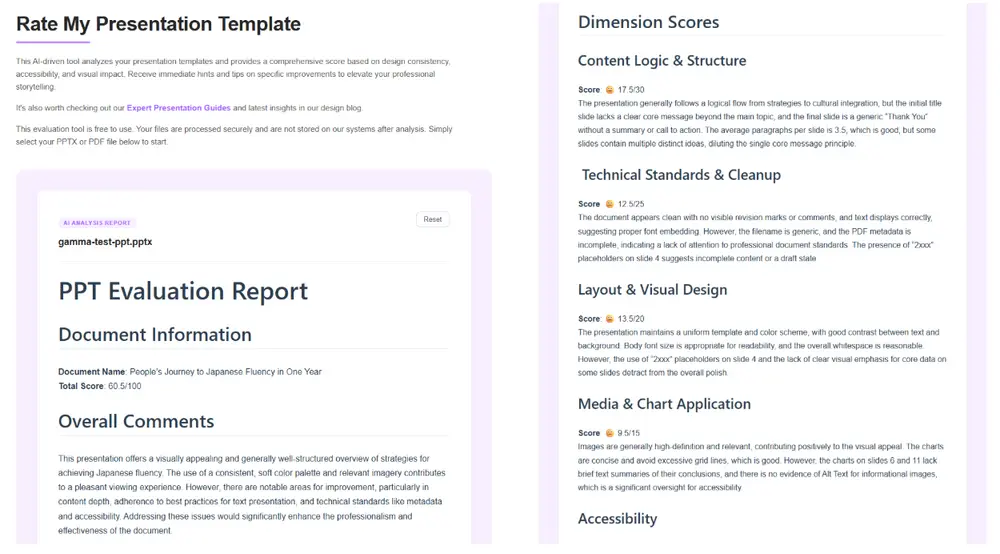
Stop second-guessing your slides. Click below to let Gamma instantly refine your deck.
How to find a good topic
Every great presentation starts with the right topic, and choosing one is easier when you ask three questions.
First, who is my audience, and what do they care about? A topic that is fascinating to you but irrelevant to them will fall flat, so start from their interests and needs. Second, can I make it specific? Broad topics like "marketing" overwhelm; a focused angle like "three low-budget marketing tactics for small cafes" is memorable and manageable.
Narrow a big subject down to one clear, promise-driven idea. Third, can I support it with evidence? The best topics let you back up your points with data, examples, or stories, which makes your presentation credible. If you are still searching for ideas, browse real-world examples, look at trending questions in your field, or start from a template category that matches your goal. Once your topic passes the relevant, specific, and provable test, you are ready to build.

How to create a PowerPoint presentation: step-by-step
Here is a simple, reliable PowerPoint tutorial for building your deck from scratch. These steps work in PowerPoint, and the same logic applies in any modern slide tool.
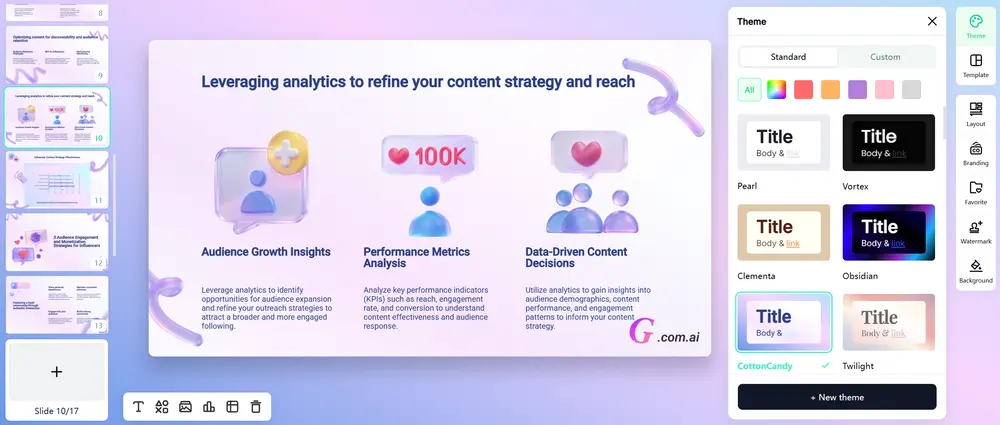
Open PowerPoint and pick a design theme, or start from a ready-made design so your deck looks consistent from slide one. You can browse free slide templates by genre here.
Start strong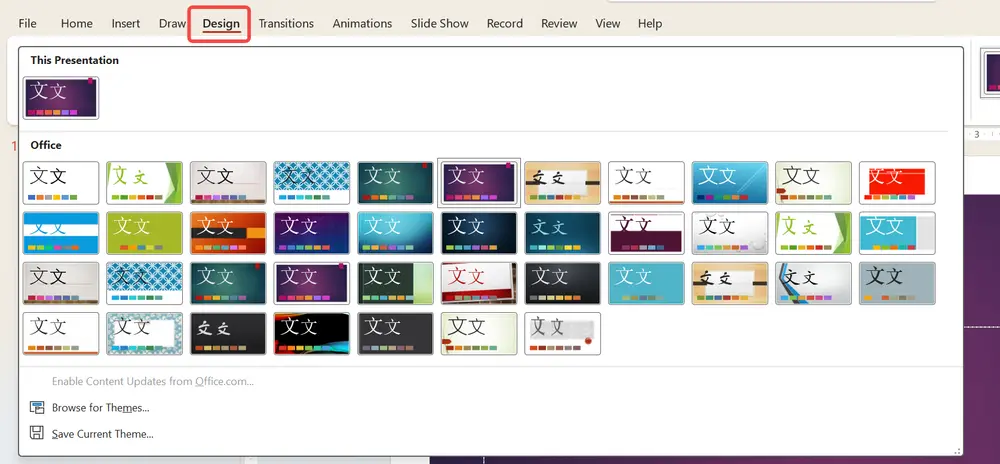
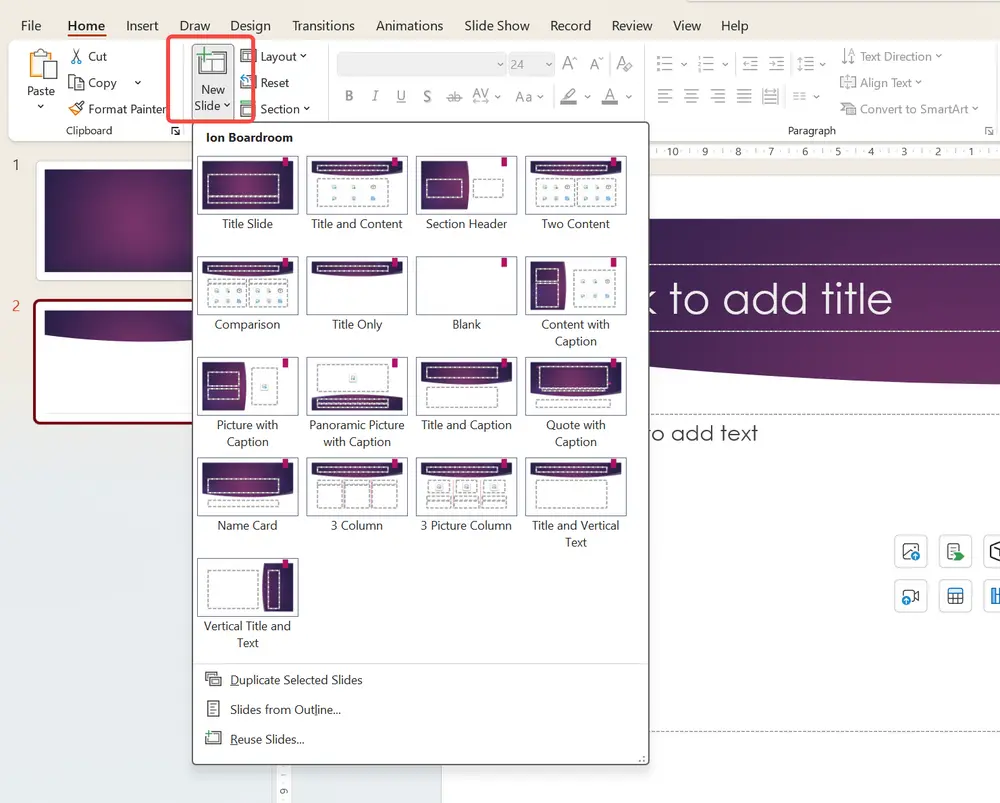
Start with a title slide, then add one slide per main point using Home > New Slide. Choose layouts (title, title and content) that fit each idea.
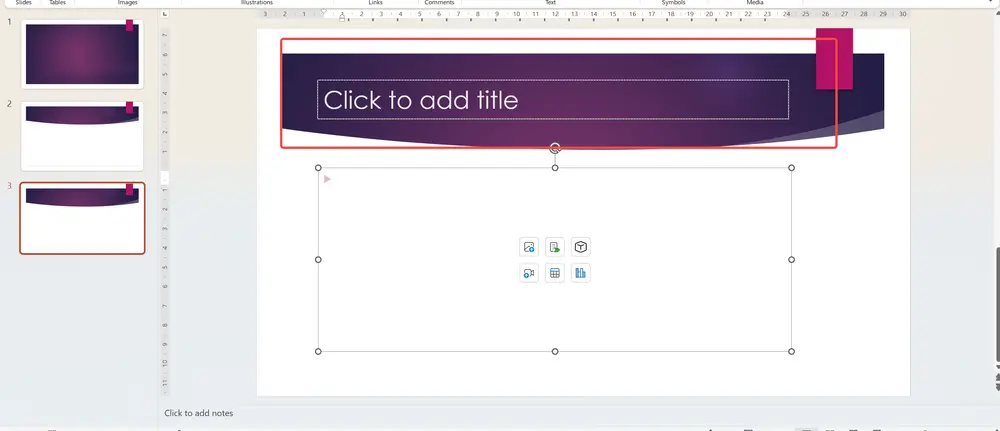
Write a clear title and a few short bullet points per slide. Keep one idea per slide and never paste full paragraphs you plan to read aloud.
Use Insert > Pictures, Icons, or Chart to illustrate your points. Choose high-quality, relevant visuals that replace text rather than decorate it.
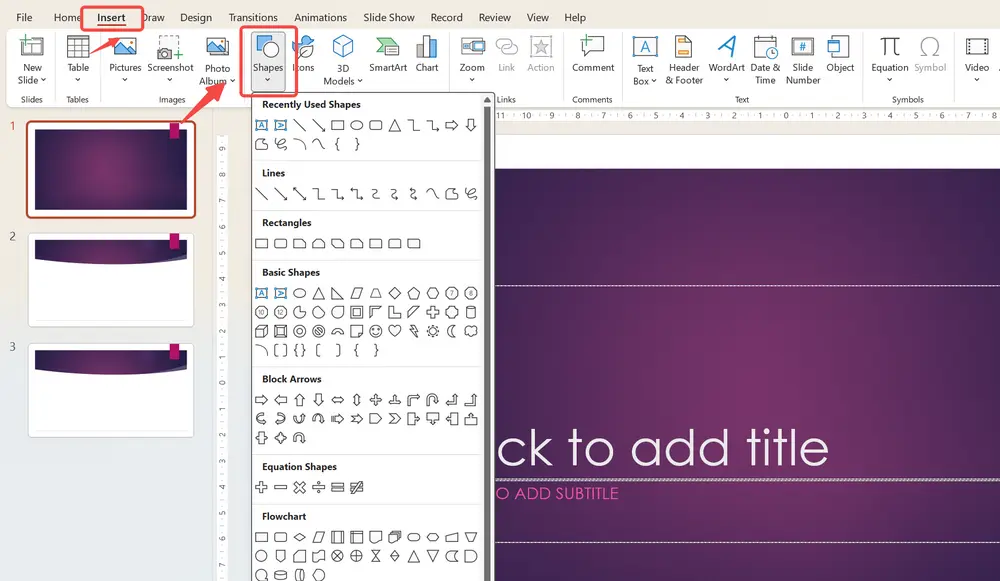
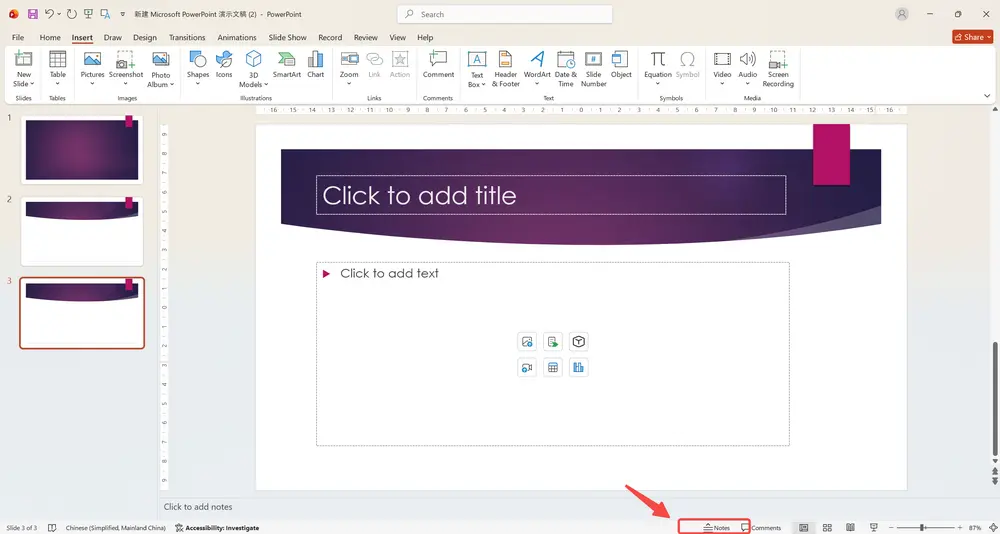
Apply subtle transitions from the Transitions tab, and write speaker notes in the Notes pane to guide your delivery. You can print these notes as handouts to rehearse from.
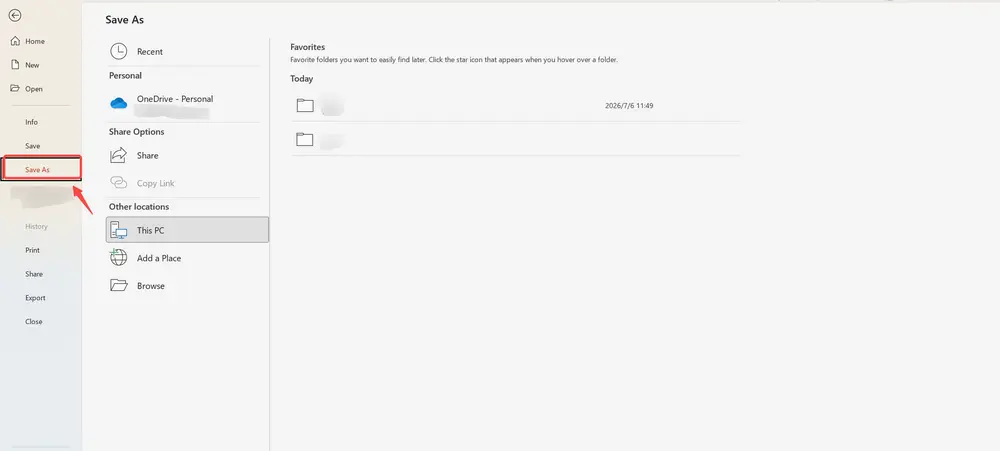
Proofread every slide, check that fonts and colors are consistent, then save with File > Save As. Finally, run your deck through a rating tool to catch weak spots before you present.
Short on time? Gamma.com.ai can generate a complete, well-designed deck from a topic in seconds, so you can skip the manual formatting and focus on your message.
Design and content tips for a great deck
Once your slides exist, a few habits turn an ordinary deck into a great one. Keep one idea per slide and split any slide that tries to say two things. Minimize text and use large, readable fonts (around 24 points or more) with high contrast. Limit yourself to two or three colors and one or two fonts for a clean, consistent look, and use plenty of whitespace so the eye knows where to land. Favor meaningful visuals — charts with a clear takeaway, relevant photos, simple diagrams — over bullet-point walls. Keep every slide visually consistent, which is far easier when you begin from a template. Add speaker notes so you never have to cram text onto the slide itself, and remember you can print those notes as handouts for practice or for your audience. These small choices, applied consistently, are what separate a forgettable deck from a polished one.
Evaluate your slides: Rate My PowerPoint
How do you know if your presentation is actually good before you stand up to present it? Instead of guessing, you can get an objective, AI-powered second opinion. Gamma.com.ai offers a free tool called Rate My PowerPoint that analyzes your slides and gives them a comprehensive score based on design consistency, accessibility, and visual impact. You simply upload your PPTX or PDF file (up to 50MB) and the tool returns a score along with specific, actionable hints on what to improve — from structure and logical flow to visual clarity. It works best on logical, explanatory decks such as business proposals, academic reports, and manuals, and it supports multiple languages including English, French, and Japanese. Your files are processed securely and are not stored after analysis, so you can even evaluate confidential material. As with any AI tool, treat the score as a guide and do a final human review, but it is an excellent way to catch weak spots you might have missed and to elevate your professional storytelling.
Get a head start: free templates from Gamma.com.ai
You do not have to design every slide from a blank canvas. Starting from a professional template is the fastest way to get a consistent, polished look, and it lets you focus your energy on your message instead of formatting. Gamma.com.ai offers a library of free slide templates organized by genre, covering business, education, marketing, creative projects, and more. Pick a category that matches your topic, and you get a ready-made structure and design that you can fill in with your own content. This is especially helpful if you are new to PowerPoint and unsure how to lay out your slides, or if you simply want to save time. A good template gives you consistency and professionalism from the very first slide.
How to present a PowerPoint with confidence
Great slides are only half the job; how to present a PowerPoint well is what turns a good deck into a memorable talk. Confidence comes from preparation, not personality. Start by knowing your material well enough that the slides are a prompt, not a crutch — this is exactly what speaker notes are for.
Rehearse out loud several times, ideally in front of someone, so the words feel natural; just avoid over-rehearsing to the point of sounding robotic.
When you present, make eye contact with your audience rather than reading from the screen, and use open, relaxed body language and a steady posture, both of which signal confidence and increase engagement. Vary your voice, slow down, and use deliberate pauses so key points land.
Open with a hook — a question, a surprising fact, or a short story — to capture attention in the first thirty seconds, and close with a clear, memorable ending, because the opening and closing are what audiences remember most. Involve your audience with a question or a quick interaction to keep energy high.
And if nerves strike, take a breath and remember that you know your topic better than anyone in the room. With good slides, good notes, and a little practice, you can present any PowerPoint with genuine confidence.
Build your deck, run it through Rate My PowerPoint, apply the feedback, then rehearse from your speaker notes. That simple loop — create, evaluate, refine, practice — is the fastest path to a presentation that looks great and feels confident.
Make it faster with Gamma.com.ai
Building a great PowerPoint by hand is a valuable skill, but it takes time. When you want a polished deck fast, Gamma.com.ai, the best AI presentation tool, does the heavy lifting for you. Just enter a topic or paste your text, and the AI generates a complete, well-structured, professionally designed presentation in seconds, handling the layout and design automatically.
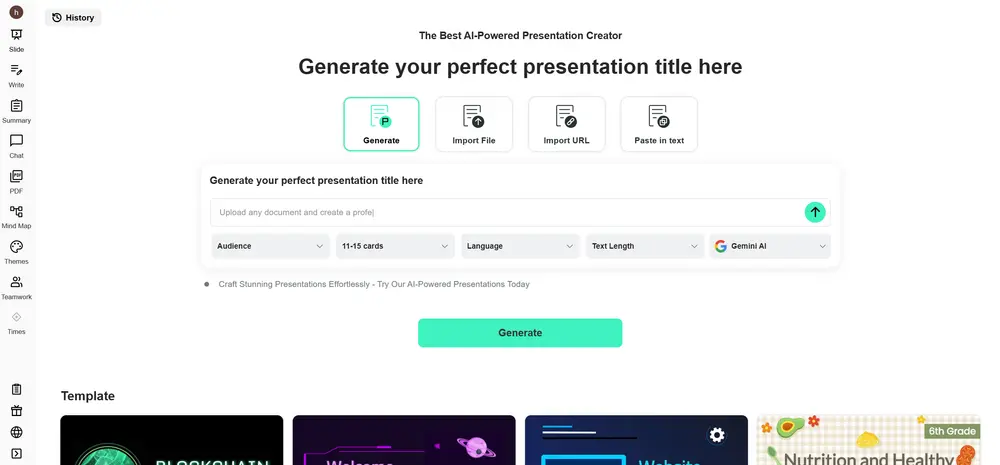
You can then refine any slide, evaluate it with Rate My PowerPoint, and start from a free template whenever you like. It is multilingual and beginner-friendly, so whether you are learning how to do PPT for the first time or producing decks every week, it saves you hours. Create, evaluate, and present — all in one place.
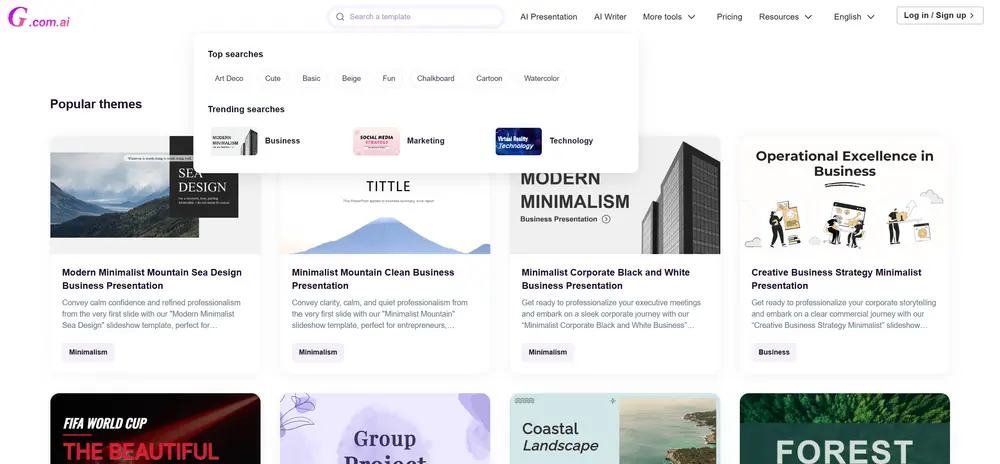
Browse the Gamma.com.ai template library and find a polished template that's perfect for the vibe of your event.
Once you've found your favorite template, click "Generate with AI." If you'd rather customize it manually, you can also download it and start editing right away.
Two ways to start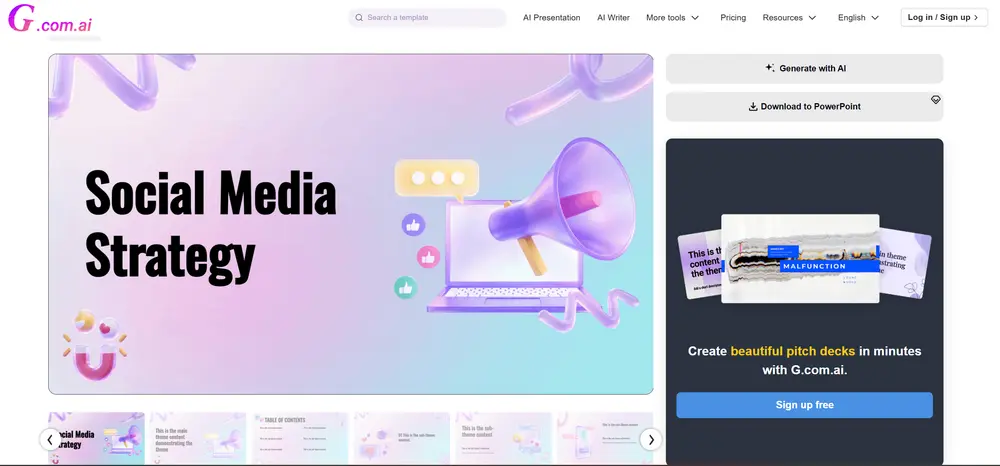
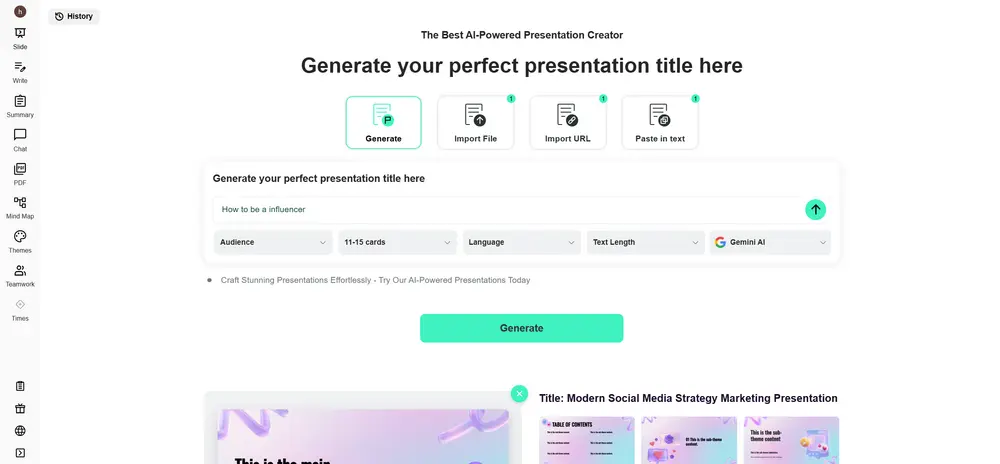
Upload a screenshot or type the keywords for your presentation's topic, choose settings like the number of slides and the language, and start generating.
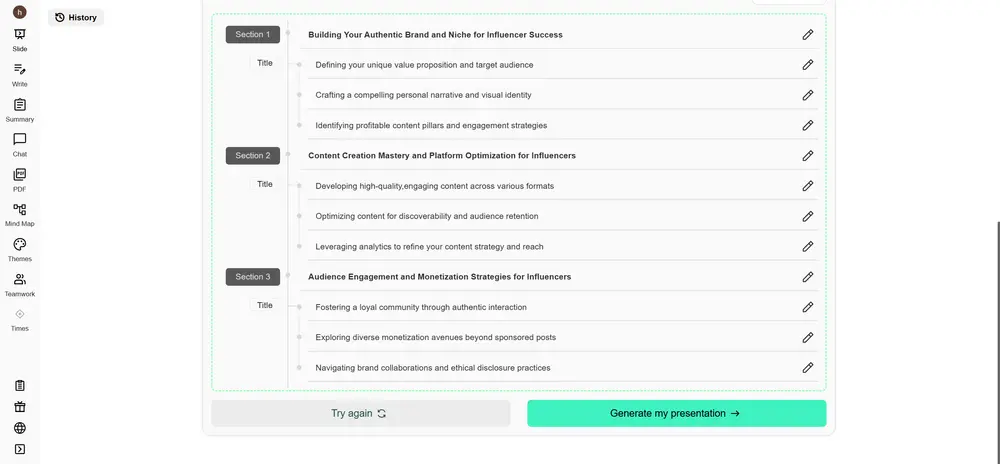
Review the structure (outline) that the AI proposes for your presentation. Adjust it as needed, then click "Create presentation" to have every slide completed automatically.
Fine-tune the generated slides to your taste. Perfect every detail and finish a flawless Christmas presentation.
Conclusion
Learning how to use PowerPoint comes down to a repeatable process. Define what a good presentation is — focused, visual, consistent, and audience-centered. Choose a topic that is relevant, specific, and provable. Build your deck step by step: theme, slides, concise text, visuals, transitions, and speaker notes. Then evaluate it with Gamma.com.ai's free Rate My PowerPoint tool, start from free templates to save time, and rehearse so you can present with confidence. Follow this PowerPoint tutorial and you will know exactly how to create a PowerPoint presentation — and how to deliver it — every single time. Now open a template, pick your topic, and start building.
How do I create a PowerPoint presentation for beginners?
Start from a theme or template, add one slide per main point, write concise titles and bullet points (one idea per slide), insert relevant visuals, add subtle transitions and speaker notes, then review and save. Beginning from a free template makes the whole process much faster.
What makes a good PowerPoint presentation?
A good deck is focused (one message overall, one idea per slide), visual (images and short phrases instead of paragraphs), consistent (the same fonts, colors, and layout throughout), and audience-centered (built around what your audience needs to know).
How can I check if my PowerPoint is good?
Use Gamma.com.ai's free Rate My PowerPoint tool. Upload your PPTX or PDF and it scores your deck on design consistency, accessibility, and visual impact, with specific tips to improve. Treat the score as a guide and do a final human review.
Where can I find free PowerPoint templates?
Gamma.com.ai offers a free library of slide templates organized by genre, covering business, education, marketing, and more. Starting from a template gives you a consistent, professional look from the first slide.
How do I present a PowerPoint confidently?
Know your material, rehearse out loud, and use speaker notes so the slides are a prompt rather than a script. Make eye contact, use open body language, vary your voice with pauses, open with a hook, and close with a memorable ending.