
Sharp rectangular images look harsh on a slide. Rounded corners, circle crops, and curved edges soften images and give presentations a modern, polished feel. This guide shows you how to round corners in PowerPoint and Google Slides, crop pictures into circles, and create shapes with rounded corners — with the exact steps for each.

- PowerPoint rounded corners: select the image → Picture Format → Crop → Crop to Shape → Rounded Rectangle.
- Google Slides rounded image: insert the image inside a shape with rounded corners using a mask.
- Below: step-by-step for PowerPoint and Google Slides, plus circle crops and adjustable corner rounding.
How to Round Image Corners in PowerPoint
Method 1: Crop to Rounded Rectangle
- Click on the image to select it.
- Click Picture Format (or Format) in the ribbon.
- Click Crop → Crop to Shape.
- Select Rounded Rectangle from the shapes list.
- The image is now cropped to a rounded rectangle.
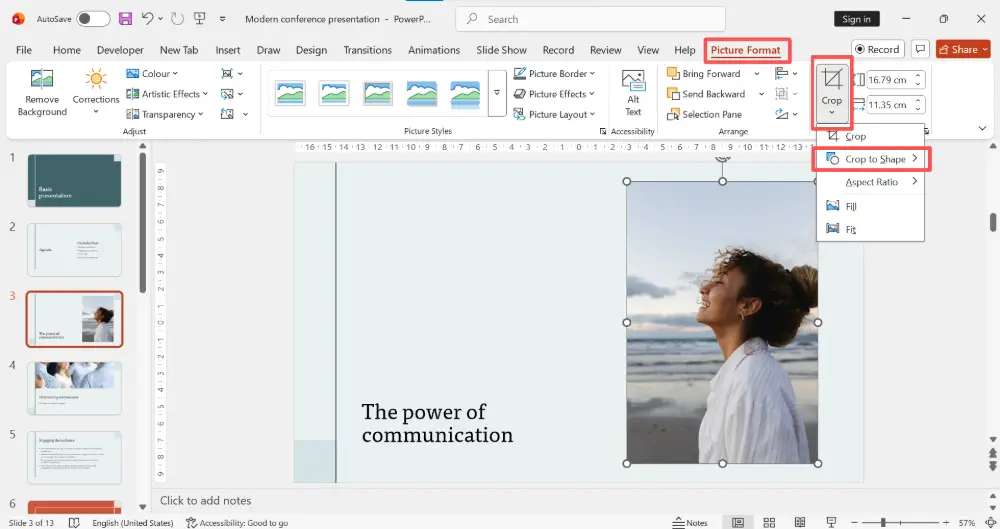
To adjust the corner rounding: after cropping, click the image. A small yellow diamond handle appears near one corner — drag it to control how round the corners are. Drag inward for more rounding, outward for less.
Method 2: Make a Picture a Circle in PowerPoint
- Click on the image.
- Click Picture Format → Crop → Crop to Shape.
- Select Oval (circle).
- If the image isn't square, it will crop to an ellipse. To get a perfect circle: hold Shift while resizing the image to make it square first, then crop to oval.
Method 3: Rounded Rectangle Shape with Image Fill
For precise control over corner rounding:
- Insert a Rounded Rectangle shape: Insert → Shapes → Rounded Rectangle.
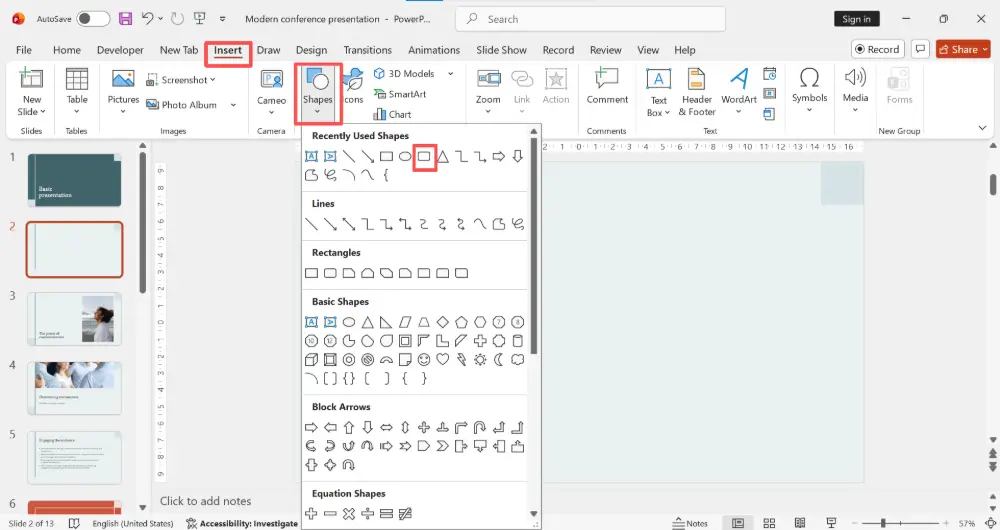
- Draw the shape on your slide.
- Right-click the shape → Format Shape.
- Under Fill, select Picture or texture fill → Insert → choose your image.
- Adjust the yellow diamond handle on the shape to control corner radius.
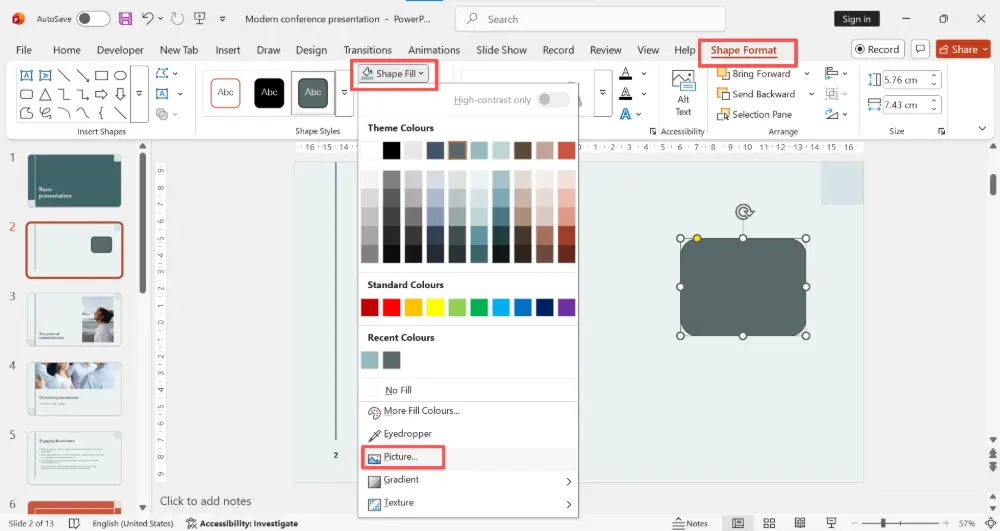
The yellow diamond handle is the key to controlling corner radius in PowerPoint. After cropping to a Rounded Rectangle, look for it near the top-left corner of the shape. If you don't see it, click the image again — it sometimes takes a second click to appear.
How to Round Corners in Google Slides
Google Slides doesn't have a direct "round image corners" option, but there are two workarounds:
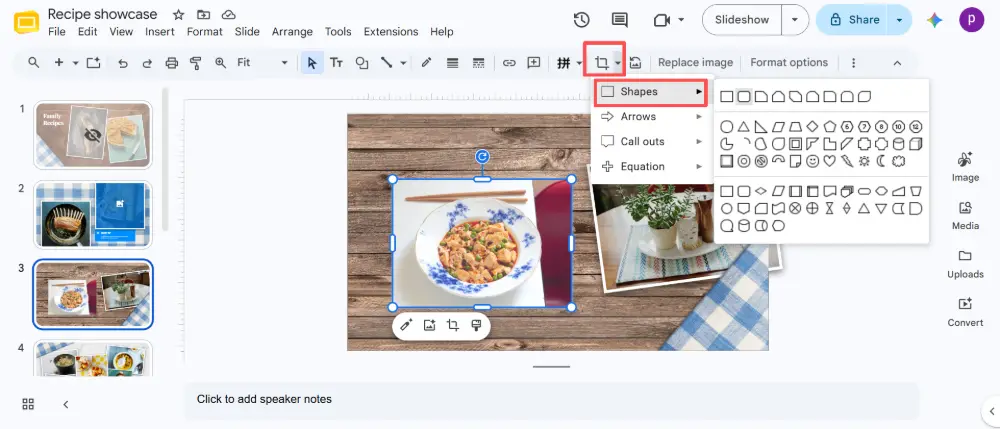
Method 1: Crop to Shape (Mask)
- Insert your image: Insert → Image.
- Click the image to select it.
- In the toolbar, click the small dropdown arrow next to the Crop icon.
- Select Shapes → Rounded Rectangle.
- The image is masked to a rounded rectangle.
- Use the crop handles to adjust the visible area.
Method 2: Circle Crop in Google Slides
- Select the image.
- Click the crop dropdown → Shapes → Oval.
- The image is cropped to an oval/circle.
- For a perfect circle: resize the image to a square first (hold Shift while dragging a corner), then apply the oval mask.
Method 3: Shape with Image Fill
- Insert a shape: Insert → Shape → Shapes → Round Rectangle.
- Draw the shape.
- Right-click the shape → Replace image won't work here. Instead, use a workaround: create the rounded rectangle, then set the image as a background for a text box placed over it, or use the mask method above.
All Methods Compared
| Task | PowerPoint | Google Slides |
|---|---|---|
| Round image corners | Crop → Crop to Shape → Rounded Rectangle. Adjust with yellow handle. | Crop dropdown → Shapes → Rounded Rectangle. |
| Circle crop | Crop → Crop to Shape → Oval. Make image square first for a perfect circle. | Crop dropdown → Shapes → Oval. Make image square first. |
| Adjust corner radius | Drag the yellow diamond handle on the rounded rectangle. | Not adjustable — Google Slides uses a fixed radius. |
| Rounded rectangle shape | Insert → Shapes → Rounded Rectangle. Yellow handle controls radius. | Insert → Shape → Shapes → Round Rectangle. |
| Shape with image fill | Right-click shape → Format Shape → Picture fill → insert image. | Use mask method (crop dropdown) instead. |
💡 Pro tip: If you're building a presentation where every image needs consistent rounded corners or circle crops, tools like Gamma.com.ai handle image styling automatically — the AI applies consistent, modern formatting to all visuals so you don't have to crop each one manually.
Conclusion
Rounded corners and circle crops are easy once you know where the tools are. In PowerPoint: Crop to Shape gives you rounded rectangles, circles, and any other shape — use the yellow handle to fine-tune corner rounding. In Google Slides: use the crop dropdown → Shapes for masks. For square shapes with rounded corners, insert a Rounded Rectangle shape in either tool. Both work in under 10 seconds once you've done it once.
FAQs
How do I make a picture a circle in PowerPoint?
Select the image → Picture Format → Crop → Crop to Shape → Oval. For a perfect circle, make the image square first (hold Shift while resizing), then crop to oval.
How do I round image corners in Google Slides?
Select the image → click the crop dropdown arrow → Shapes → Rounded Rectangle. The image is masked to a rounded rectangle. Google Slides doesn't let you adjust the corner radius — it uses a fixed value.
How do I adjust the corner radius in PowerPoint?
After cropping to a Rounded Rectangle, click the image. A small yellow diamond handle appears near one corner. Drag it inward for rounder corners, outward for less rounding.
Can I adjust corner radius in Google Slides?
Not directly for masked images — Google Slides uses a fixed corner radius. For shapes (Insert → Shape → Round Rectangle), you can drag the yellow handle to adjust the radius.
How do I create a rounded rectangle shape?
PowerPoint: Insert → Shapes → Rounded Rectangle. Google Slides: Insert → Shape → Shapes → Round Rectangle. Use the yellow diamond handle to control how round the corners are.

