
You have plain text — notes, code, a pasted document, or raw content — and you need it as a PDF to share, submit, or archive. Converting text to PDF is quick, free, and doesn't require any software. This guide shows you how to create a PDF from text online, with built-in tools, and even from the command line.

- The fastest way: paste your text into an online tool (Smallpdf, PDF24, or Soda PDF) and download the PDF instantly.
- No tool needed: paste text into Google Docs or Notepad, then print to PDF (Ctrl+P → Save as PDF).
- Below: 5 methods to convert text to PDF, compared by speed, formatting, and flexibility.
5 Methods to Convert Text to PDF
| Method | Free | Formatting | Best for |
|---|---|---|---|
| Online converter | ✅ | Basic | Quick conversion without any software. |
| Google Docs | ✅ | Full | Adding formatting (bold, headings, images) before exporting. |
| Microsoft Word | ✅ | Full | Professional documents with full layout control. |
| Print to PDF | ✅ | As-is | Any text from any app — the universal method. |
| Notepad / TextEdit | ✅ | None | Plain text, no formatting needed. |
Method 1: Online Converter (fastest)
- Go to Smallpdf (smallpdf.com → Word to PDF, or use the text editor), PDF24 (Create PDF), or Soda PDF (TXT to PDF).
- Upload your .txt file — or paste your text directly if the tool supports it.
- Click Convert.
- Download the PDF.
Most online tools accept .txt, .doc, and .docx files and convert them to PDF in seconds.
Method 2: Google Docs (best for formatted text)
- Open Google Docs (docs.google.com) → create a new document.
- Paste or type your text.
- Add formatting if needed: headings, bold, lists, images.
- Click File → Download → PDF Document (.pdf).
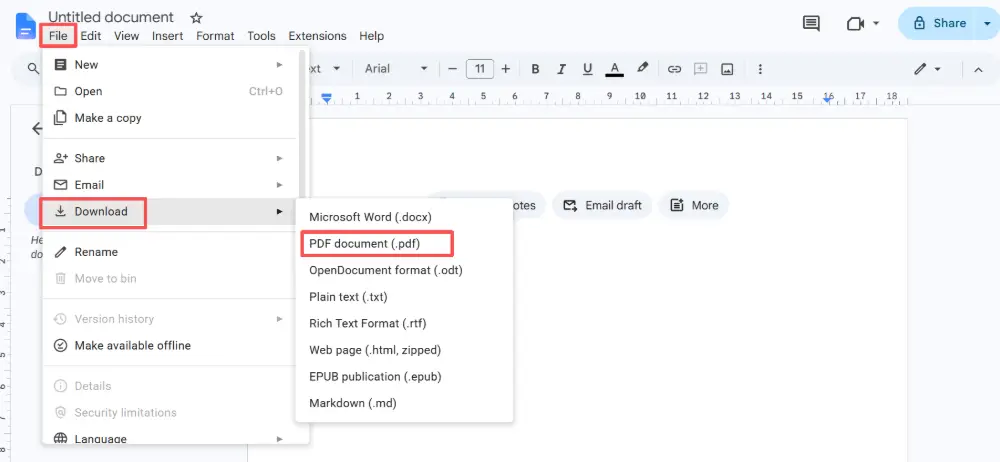
This is the best method when you want to generate a PDF from text with proper formatting — and it's completely free.
Method 3: Microsoft Word
- Open Word (desktop or online at office.com).
- Paste or type your text.
- Format as needed.
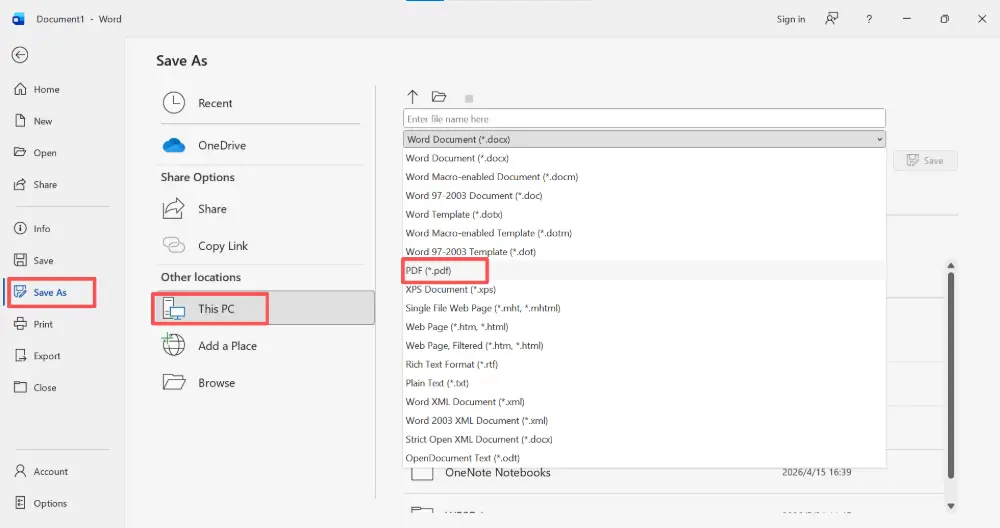
- Click File → Save As (or Download as) → choose PDF.
Method 4: Print to PDF (works everywhere)
This works from any application on any operating system:
- Open the text in any app (Notepad, TextEdit, a browser, an email).
- Press Ctrl+P (Cmd+P on Mac).
- In the printer dropdown, select "Save as PDF" (Mac) or "Microsoft Print to PDF" (Windows).
- Click Save → choose a filename and location.
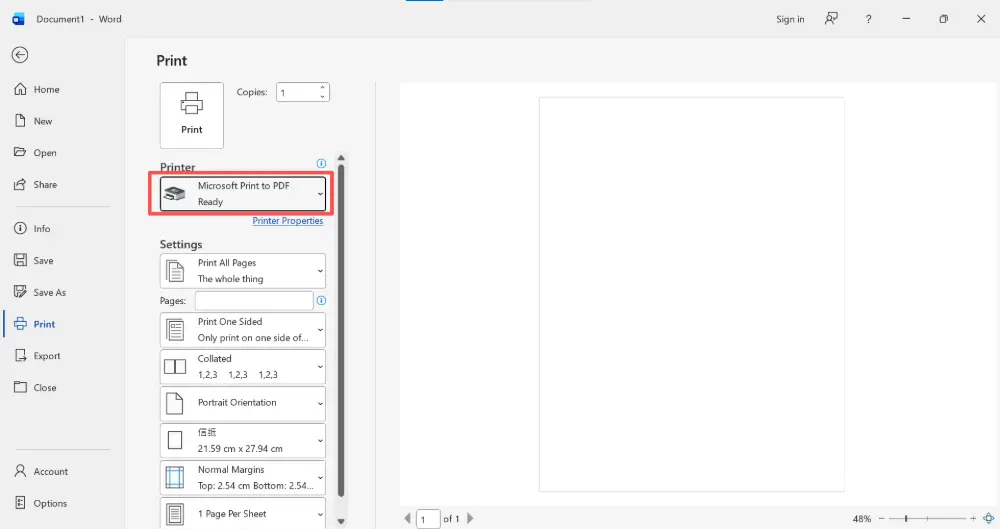
The PDF preserves whatever the text looks like on screen — fonts, spacing, and layout are captured as-is.
Method 5: Notepad / TextEdit (plain text only)
- Open Notepad (Windows) or TextEdit (Mac).
- Paste your text.
- Use Print to PDF (Method 4) to save as a PDF.
No formatting, no images — just raw text in a PDF. Useful for code, logs, or plain-text documents.
"Print to PDF" is the most universal method — it works from literally any application that can print. No software to install, no file upload, no internet required. If you can see it on screen, you can turn it into a PDF.
Which Method to Use
| Your situation | Best method |
|---|---|
| Quick conversion, no formatting needed | Online converter or Print to PDF from Notepad. |
| Need headings, bold, images, or layout | Google Docs or Word → export as PDF. |
| Convert a .txt file to PDF | Online converter (upload the file) or open in Notepad → Print to PDF. |
| Generate a professional-looking document | Word or Google Docs with full formatting → Save as PDF. |
| Convert text from any app (email, browser, code editor) | Print to PDF — works everywhere. |
💡 Pro tip: If your text is content for a presentation — notes, an outline, or a report — try pasting it into Gamma.com.ai instead of converting to PDF. The AI turns your text into polished, designed slides that you can share as a link or export to PDF with one click.
Conclusion
Converting text to PDF online free takes seconds: paste text into an online tool and download, or use Google Docs / Word for formatted output, or Print to PDF from any app on any device. For plain text, Notepad + Print to PDF is the simplest path. For professional documents, Google Docs or Word gives you full control over layout before exporting. No matter the method, the result is a universal PDF anyone can open.
FAQs
How do I convert text to PDF online free?
Use an online tool like Smallpdf, PDF24, or Soda PDF: upload a .txt file or paste your text, click Convert, download the PDF. Or paste text into Google Docs and go to File → Download → PDF. Both are free and take seconds.
How do I create a PDF from text without any tool?
Open the text in any app (Notepad, TextEdit, a browser), press Ctrl+P (Cmd+P on Mac), select "Save as PDF" or "Microsoft Print to PDF" as the printer, and click Save. Works from any application on any device.
How do I convert a .txt file to PDF?
Upload the .txt file to an online converter (PDF24, Smallpdf), or open it in Notepad/TextEdit and use Print to PDF. For formatted output, open the .txt in Google Docs, add headings and formatting, then export as PDF.
Can I add formatting before converting to PDF?
Yes — paste your text into Google Docs or Word first. Add headings, bold, lists, images, and tables. Then export to PDF. The formatting is preserved in the PDF exactly as you see it in the editor.
What's the best free way to generate a PDF from text?
For plain text: Print to PDF from Notepad (no software needed). For formatted text: Google Docs → Download as PDF (free, full formatting, works in any browser). For a quick file conversion: PDF24 online.

