
Whether you need to make a copy of a PowerPoint file, duplicate slides, or copy formatting from one element to another, PowerPoint has built-in tools for all of it — you just need to know where they are. This guide covers how to copy a PPT file, how to use the Format Painter, and every shortcut for pasting formatting in PowerPoint.

- Copy formatting: select the source → click Format Painter (paintbrush icon, Home tab) → click the target. Done.
- Copy a PPT file: File → Save a Copy (or Save As) → choose a new name/location.
- Below: Format Painter guide, paste formatting shortcuts, and how to copy files and slides.
How to Make a Copy of a PPT
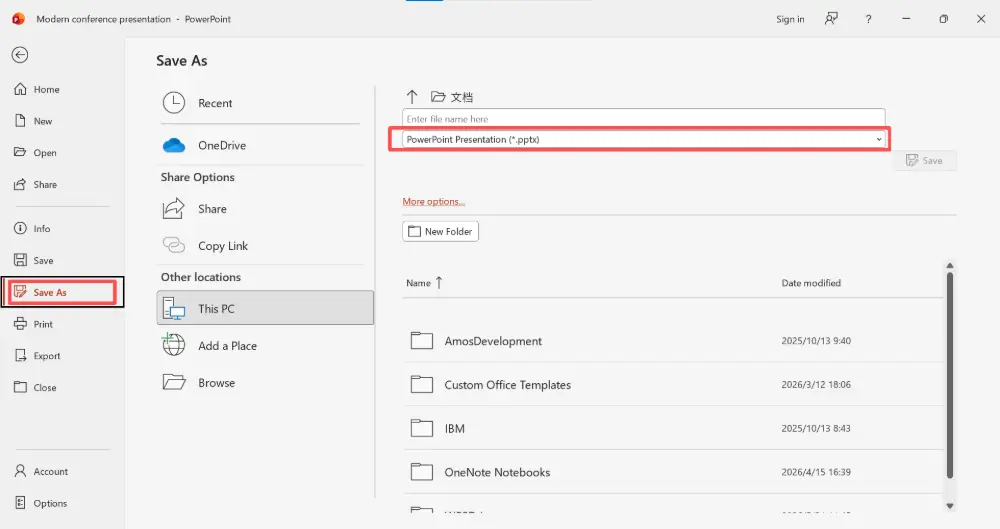
To duplicate a PowerPoint file:
Method 1: Save a Copy (inside PowerPoint)
- Open the presentation.
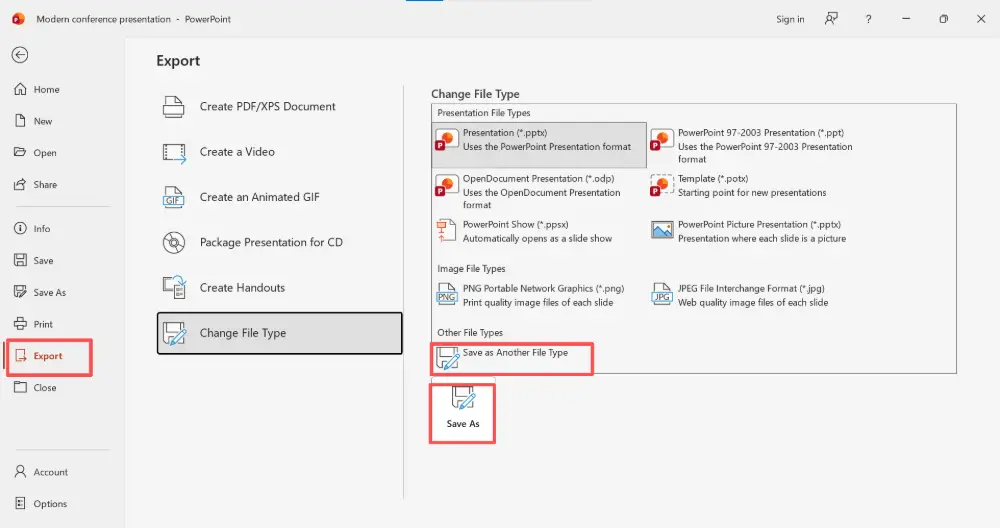
- Click File → Save a Copy (or Save As in older versions).
- Choose a location and give the copy a new name.
- Click Save.
Method 2: File Explorer / Finder
- Navigate to the .pptx file in File Explorer (Windows) or Finder (Mac).
- Right-click → Copy.
- Right-click in the destination folder → Paste.
- Rename the copy if needed.
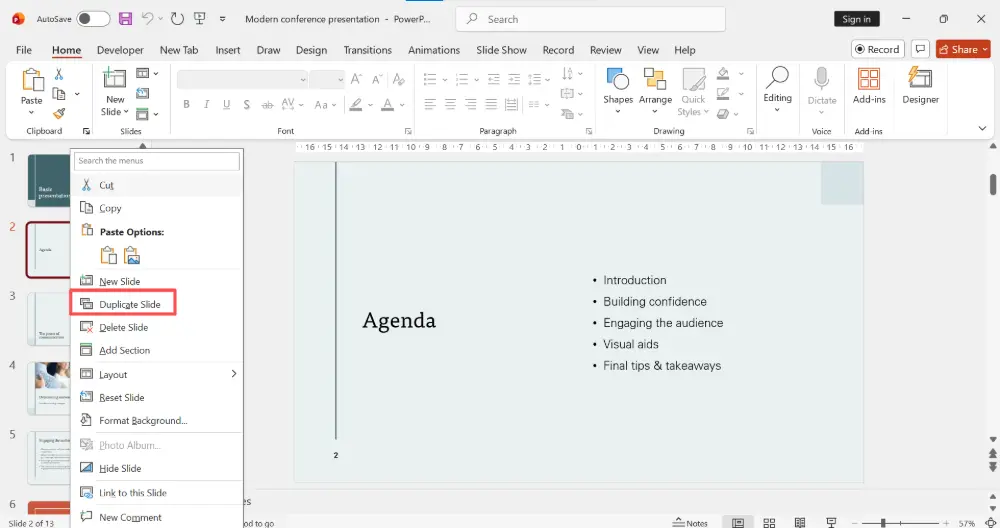
Method 3: Duplicate a single slide
- In the slide panel (left side), right-click the slide.
- Click Duplicate Slide (or press Ctrl+D).
How to Use Format Painter in PowerPoint
The Format Painter copies the formatting (font, size, color, bold/italic, fill, border) from one element and applies it to another — without copying the content.
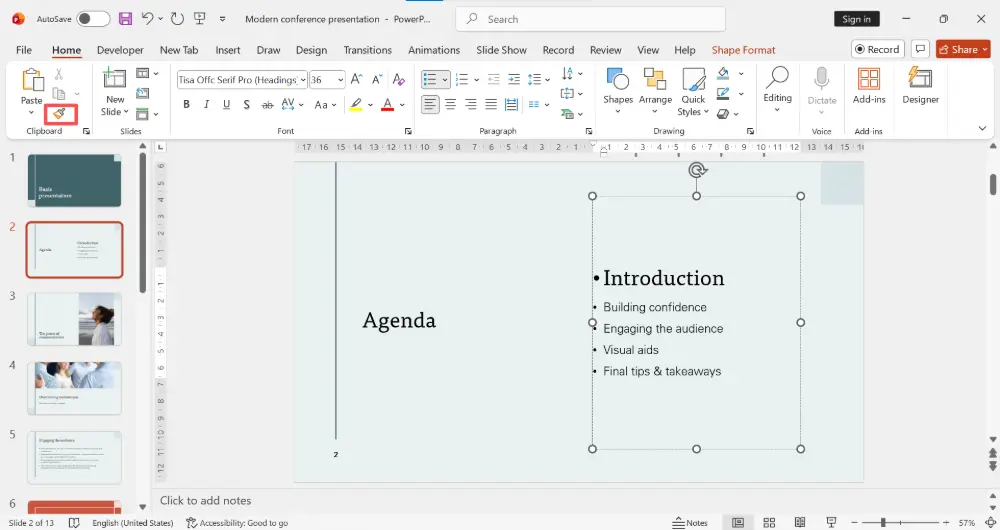
- Select the element whose formatting you want to copy (text, shape, image).
- Click the Format Painter button (paintbrush icon) in the Home tab.
- Your cursor changes to a paintbrush.
- Click (or click and drag across) the target element to apply the formatting.
Apply to multiple elements (double-click trick)
- Select the source element.
- Double-click the Format Painter button.
- The paintbrush stays active — click as many elements as you want.
- Press Esc to deactivate when done.
The double-click trick is the biggest time-saver most people don't know about. Single-click applies once and deactivates; double-click keeps it active for unlimited applications. Use it when you need to format 5, 10, or 50 elements the same way.
How to Copy Formatting in PowerPoint (All Methods)
| Method | Shortcut | What it does |
|---|---|---|
| Format Painter | Click paintbrush icon (Home tab) | Copies all formatting from source to target. Works on text, shapes, and images. |
| Paste Special → Formatting | Ctrl+Shift+V → select "Keep Source Formatting" | Pastes content with original formatting intact. |
| Paste as plain text | Ctrl+Shift+V → "Keep Text Only" | Pastes text without any formatting — inherits the target's style. |
| Ctrl+D | Ctrl+D | Duplicates the selected slide or object (preserving all formatting). |
| Copy slide from another deck | Ctrl+C → Ctrl+V in target deck | Pastes the slide. Right-click → paste options to keep source or use destination formatting. |
Paste Formatting Options Explained
When you paste content in PowerPoint (Ctrl+V), a small paste options icon appears. Click it to choose:
| Option | What it does |
|---|---|
| Use Destination Theme | Adapts the pasted content to match the current presentation's fonts and colors. Best for consistency. |
| Keep Source Formatting | Keeps the original formatting from wherever you copied. Useful when you want exact visual fidelity. |
| Picture | Pastes the content as a static image. Can't edit, but looks exactly as copied. |
| Keep Text Only | Strips all formatting and pastes raw text. Inherits the formatting of the target text box. |
💡 Pro tip: If you're spending more time formatting than creating content, try Gamma.com.ai — the AI generates presentations with consistent, professional formatting from the start. No Format Painter needed when every slide is designed automatically.
Conclusion
To make a copy of a PPT: File → Save a Copy. To copy formatting: select the source, click Format Painter, click the target — or double-click Format Painter to apply to multiple elements. For paste formatting options, use the paste icon after Ctrl+V to choose between destination theme, source formatting, or plain text. Master the Format Painter double-click and the paste options menu, and you'll format presentations in half the time.
FAQs
How do I use Format Painter in PowerPoint?
Select the source element → click the Format Painter button (paintbrush icon, Home tab) → click the target element. For multiple targets, double-click Format Painter to keep it active, then press Esc when done.
How do I copy formatting in PowerPoint?
Format Painter is the primary method: select source → click paintbrush → click target. You can also copy an element (Ctrl+C), then use Paste Special (Ctrl+Shift+V) to paste with specific formatting options.
How do I make a copy of a PowerPoint file?
Open the file → File → Save a Copy (or Save As) → choose a new name and location → Save. Or copy the .pptx file in File Explorer/Finder and paste it wherever you want.
What's the shortcut for Format Painter?
There's no direct keyboard shortcut for Format Painter in PowerPoint. The fastest approach: press Alt → H → F → P (sequential key presses) to activate it. Or add it to your Quick Access Toolbar for one-click access.
How do I paste without formatting in PowerPoint?
After pasting (Ctrl+V), click the paste options icon and select "Keep Text Only." This strips all formatting and applies the target's style. Or use Ctrl+Shift+V to access paste options directly.

