
A plain white background is the default in Google Slides — and the fastest way to make your deck look unfinished. Changing the background to an image, a solid color, or a gradient instantly elevates the design. This guide shows you how to change the background in Google Slides — color, image, or theme — plus how to customize fonts and theme colors to match.

- Change background color: right-click the slide → Change background → pick a color → Apply or Apply to all.
- Set a background image: same menu → Choose image → upload, search, or paste a URL.
- Below: step-by-step instructions for colors, images, gradients, plus how to customize fonts and theme colors.
How to Change Background Color on Google Slides
- Open your presentation in Google Slides.
- Right-click on the slide (or click Slide in the top menu).
- Select Change background.

- Click the Color dropdown.
- Pick a color from the palette, or click Custom to enter a hex code.
- Click Done to apply to this slide only, or Add to theme to apply to all slides using this layout.

To apply the same background to every slide at once, click Add to theme — this updates the master slide so all current and future slides inherit the color.
How to Add a Background Image in Google Slides
- Right-click the slide → Change background.
- Click Choose image.
- Upload an image from your computer, search Google Images, paste a URL, or pick from Google Drive or Google Photos.
- The image fills the entire slide as the background.
- Click Done.

The Google Slides background image stretches to fill the slide — use an image that matches your slide's aspect ratio (typically 16:9) for the best result. High-resolution images (at least 1920×1080 px) avoid blurriness.
If your background image makes text hard to read, add a semi-transparent shape on top: Insert → Shape → Rectangle → set the fill to black or white at 40–60% transparency. This creates an overlay that keeps the image visible while making text legible.
How to Edit the Background in Google Slides
Need to modify an existing background? Here's how to edit the background:
- Change the color: right-click → Change background → pick a new color.
- Replace the image: right-click → Change background → Choose image → select a new image. The old one is replaced.
- Remove the background image: right-click → Change background → click Reset to go back to the default.
- Add a gradient: right-click → Change background → Color → switch to the Gradient tab → choose a preset or create a custom gradient.
Background Options Compared
| Background type | How to set it | Best for |
|---|---|---|
| Solid color | Change background → Color → pick a color. | Clean, professional slides. The safest choice. |
| Gradient | Change background → Color → Gradient tab. | Modern, dynamic feel. Use subtle gradients. |
| Image | Change background → Choose image. | Title slides, section dividers, visual impact. |
| Theme default | Apply a theme (Slide → Change theme). | Consistent look across all slides. |
How to Change Fonts While Keeping Colors in Google Slides
If you want to change fonts but keep the color scheme intact:
- Select the text you want to change (or Ctrl+A / Cmd+A to select all text on a slide).
- In the toolbar, click the Font drop-down and choose a new font.
- The text color stays the same — only the font changes.

To change the font across all slides at once, edit the master slide: Slide → Edit theme → click the master slide → change the font for titles and body text. All slides update automatically, and colors are unaffected.
Best Font Colors for Google Slides
Readability is everything. Here are the best font color combinations for Google Slides:
| Background | Best font color | Why it works |
|---|---|---|
| White / light | Dark gray (#333333) or black | Maximum contrast, easy to read. The safe default. |
| Dark / navy / black | White (#FFFFFF) or light gray | High contrast, clean look. |
| Blue background | White for titles, light gray for body | Professional and calm. |
| Image background | White with a dark overlay, or dark with a light overlay | The overlay ensures readability regardless of the image. |
| Gradient | White or dark — test both sides of the gradient | Make sure text is readable at every point of the gradient. |
How to Delete Theme Colors in Google Slides
Google Slides doesn't let you directly delete individual theme colors, but you can reset or override them:
- Go to Slide → Edit theme.

- Click the master slide (top, largest).
- Change the colors of titles, body text, backgrounds, and accents to your preferred palette.
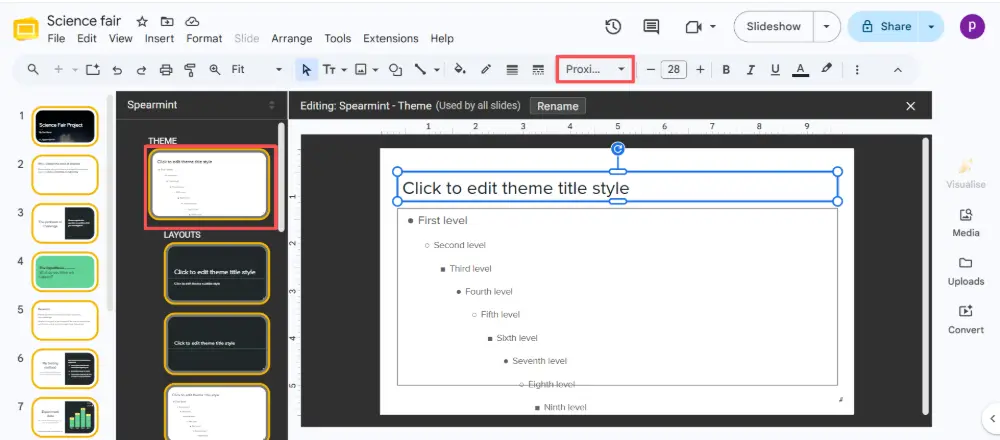
- Close the theme editor.
Any element using the old theme colors will update to the new ones. To start completely fresh, apply a different theme (Slide → Change theme) and then customize from there — this replaces all existing theme colors.
💡 Pro tip: If you want a polished background, consistent colors, and matching fonts without doing it all manually, AI tools like Gamma.com.ai apply a professional design system automatically — backgrounds, fonts, and colors are coordinated from the first slide.
Conclusion
Changing the background in Google Slides takes one right-click: Change background → pick a color, gradient, or image. Use "Add to theme" to apply it across all slides. For text readability, pair dark text on light backgrounds (or vice versa), and add a semi-transparent overlay when using image backgrounds. To change fonts while keeping colors, swap the font in the toolbar or update the master slide. To reset theme colors, edit the master slide or apply a new theme.
FAQs
How do I change the background in Google Slides?
Right-click the slide → Change background → choose a Color (solid or gradient) or click Choose image for a background image. Click Done for this slide, or Add to theme to apply to all slides.
How do I set a background image in Google Slides?
Right-click → Change background → Choose image → upload from your computer, search, paste a URL, or pick from Google Drive. Use a 16:9 image at 1920×1080 px or higher for the best quality.
How do I change the background color on all slides?
Right-click → Change background → pick a color → click "Add to theme" instead of "Done." This updates the master slide so all current and future slides using that layout inherit the new color.
How do I change fonts but keep colors in Google Slides?
Select the text, change only the font in the toolbar dropdown — the color stays the same. To change fonts across all slides, go to Slide → Edit theme, update the font on the master slide, and close. Colors are unaffected.
How do I delete or reset theme colors in Google Slides?
Go to Slide → Edit theme, edit the master slide's colors to your preferred palette, or apply a completely different theme (Slide → Change theme) to replace all existing colors at once.

