
Deleting, duplicating, hiding, and selecting slides are the bread-and-butter operations of building a presentation — but the buttons aren't always obvious. This guide covers how to delete slides in Google Slides, select multiple slides, duplicate them, hide (skip) and unhide slides, plus the equivalent in PowerPoint — all with keyboard shortcuts.

- Delete a slide: click it in the sidebar, press Delete (or Backspace). Right-click → Delete slide also works.
- Select multiple slides: Shift+click for a range, Ctrl/Cmd+click for individual picks.
- Below: step-by-step instructions for every slide operation — delete, select, duplicate, copy, hide, and unhide.
Quick Reference: All Slide Operations
| Action | Google Slides | Keyboard shortcut |
|---|---|---|
| Delete a slide | Right-click → Delete slide | Select slide → Delete / Backspace |
| Select multiple (range) | Click first → Shift+click last | Shift+click |
| Select multiple (individual) | Ctrl+click (Cmd+click on Mac) | Ctrl/Cmd+click |
| Select all slides | Click sidebar → Ctrl+A / Cmd+A | Ctrl+A / Cmd+A |
| Duplicate a slide | Right-click → Duplicate slide | Ctrl+D / Cmd+D |
| Copy slides | Select → Ctrl+C → Ctrl+V | Ctrl+C, Ctrl+V |
| Hide (skip) a slide | Right-click → Skip slide | — |
| Unhide (unskip) | Right-click → Unskip slide | — |
How to Delete Slides in Google Slides
- In the slide panel on the left, click the slide you want to delete.
- Press Delete or Backspace on your keyboard.
Alternatively: right-click the slide → Delete slide.
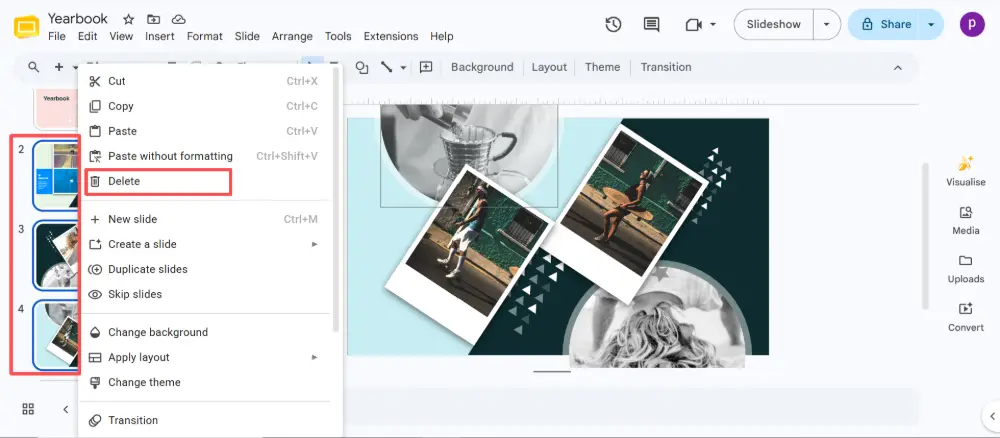
To delete multiple slides: select them first (see below), then press Delete or right-click → Delete slide.
How to Select Multiple Slides in Google Slides
You can't do much with multiple slides unless you know how to select them:
- Select a range: click the first slide, hold Shift, click the last slide. All slides between them are selected.
- Select individual slides: hold Ctrl (or Cmd on Mac) and click each slide you want. They don't need to be adjacent.
- Select all: click any slide in the sidebar, then press Ctrl+A (Cmd+A) to select every slide.
Once selected, you can delete, duplicate, copy, move, or skip them all at once.
How to Duplicate a Slide on Google Slides
- Click on the slide you want to duplicate in the sidebar.
- Press Ctrl+D (Cmd+D on Mac).
A copy appears directly below the original. You can also right-click → Duplicate slide.
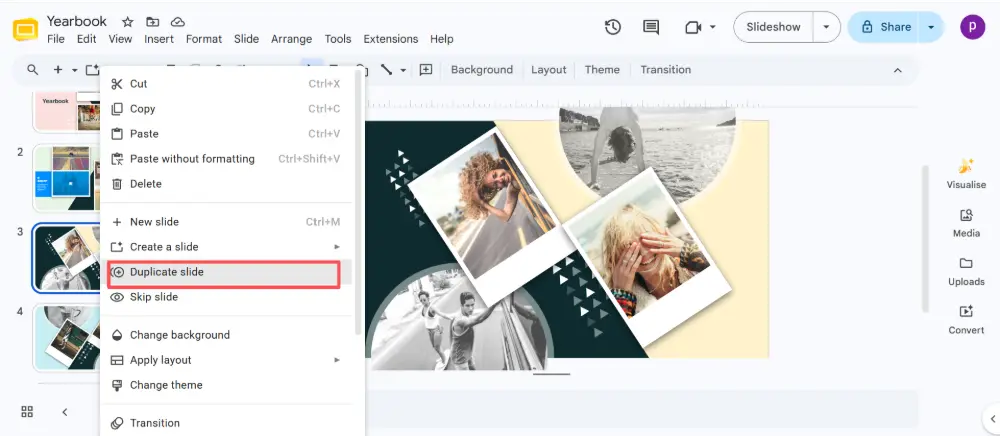
To copy multiple slides: select them (Shift+click or Ctrl+click), then press Ctrl+D to duplicate all at once, or Ctrl+C → Ctrl+V to copy and paste them at a specific position.
You can also copy slides between presentations: select slides in one deck (Ctrl+C), open another presentation, click in the sidebar where you want them, and paste (Ctrl+V). Google Slides asks whether to keep the original theme or match the destination — choose based on your needs.
How to Hide (Skip) Slides in Google Slides
Hiding a slide keeps it in the file but skips it during the presentation:
- Right-click the slide in the sidebar.
- Click Skip slide.
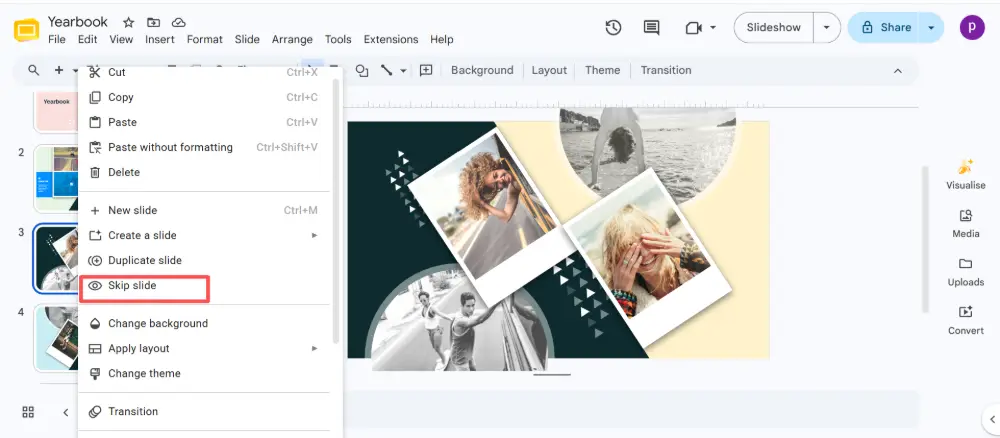
- The slide thumbnail gets a crossed-out eye icon and appears faded.

Skipped slides are invisible during presentation mode but stay in the file — you can edit them, and they'll be there if you need them later.
How to Unskip (Unhide) a Slide in Google Slides
- Find the skipped slide in the sidebar (it has a faded look and a crossed-out eye).
- Right-click it.
- Click Unskip slide.
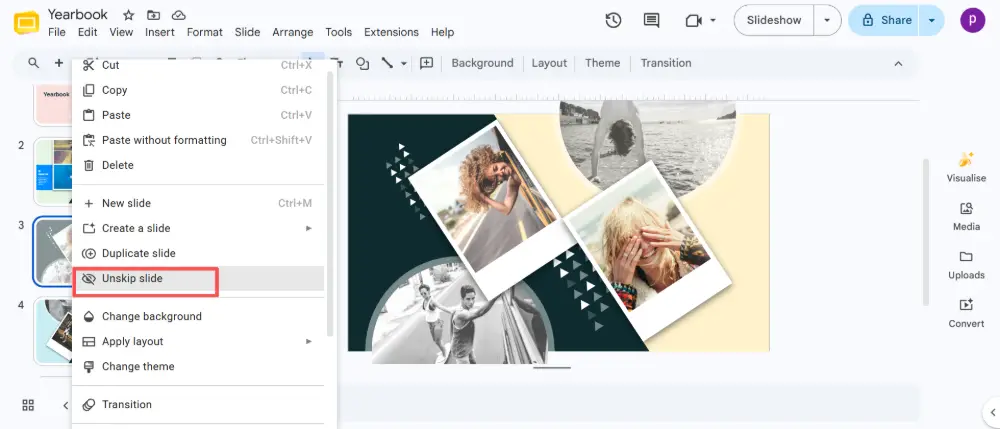
The slide returns to normal and will appear again during the presentation.
How to Unhide Slides in PowerPoint
PowerPoint calls it "Hide" instead of "Skip," but the concept is the same:
- In the slide panel, find the hidden slide (its number has a slash through it).
- Right-click the slide.
- Click Hide Slide (the checkmark toggles it off — clicking it again unhides).
Alternatively: select the slide → go to the Slide Show tab → click Hide Slide to toggle.
💡 Pro tip: If you're spending a lot of time reorganizing, duplicating, and deleting slides manually, AI tools like Gamma.com.ai generate well-structured presentations from your content — the right number of slides, in the right order, with professional design already applied.
Conclusion
Managing slides in Google Slides comes down to a few operations: delete (select → Delete key), select multiple (Shift+click for a range, Ctrl+click for individuals), duplicate (Ctrl+D), and hide/unhide (right-click → Skip/Unskip). In PowerPoint, unhiding uses right-click → Hide Slide to toggle. Learn the shortcuts, and these operations take seconds.
FAQs
How do I delete a slide in Google Slides?
Click the slide in the left sidebar, then press Delete or Backspace. Or right-click → Delete slide. To delete multiple, select them first (Shift+click or Ctrl+click), then press Delete.
How do I select multiple slides in Google Slides?
For a range: click the first slide, hold Shift, click the last. For individual picks: hold Ctrl (Cmd on Mac) and click each slide. For all slides: click in the sidebar and press Ctrl+A (Cmd+A).
How do I duplicate a slide in Google Slides?
Click the slide and press Ctrl+D (Cmd+D on Mac). A copy appears below the original. To duplicate multiple slides, select them all first, then Ctrl+D.
How do I hide a slide in Google Slides?
Right-click the slide → Skip slide. The slide stays in the file but won't show during presentation mode. It appears faded with a crossed-out eye icon. To unhide: right-click → Unskip slide.
How do I unhide slides in PowerPoint?
Right-click the hidden slide in the sidebar → click Hide Slide (it's a toggle — clicking it when the slide is hidden unhides it). Or go to the Slide Show tab → Hide Slide to toggle.

