
A theme controls the look and feel of your entire presentation — colors, fonts, backgrounds, and layouts — in one place. Whether you want to import a theme into Google Slides, change the theme on an existing deck, edit a theme to match your brand, or create a custom theme from scratch, this guide walks you through every option. Plus: how master slides work, where to find theme inspiration, and ready-to-use templates.

- To change a theme: Slide → Change theme → pick one. To import a theme from another file: click "Import theme" at the bottom of that same panel.
- To edit a theme (colors, fonts, layouts): Slide → Edit theme — this opens the master slide editor.
- Below: step-by-step instructions for changing, importing, editing, and creating themes, plus where to find inspiration and templates.
What Is a Google Slides Theme?
A theme is a set of pre-defined design choices — background colors, font pairings, accent colors, and slide layouts — that apply consistently across your entire presentation. Instead of formatting each slide individually, you pick or build a theme and every slide follows it. Under the hood, a theme is powered by master slides: template slides that define the structure (title slide, section header, content slide, etc.) and can be edited in one place.
How to Change the Theme on Google Slides
- Open your presentation in Google Slides.
- Click Slide in the top menu → Change theme.
- A panel opens on the right showing available themes.
- Click on any theme to apply it instantly to all slides.
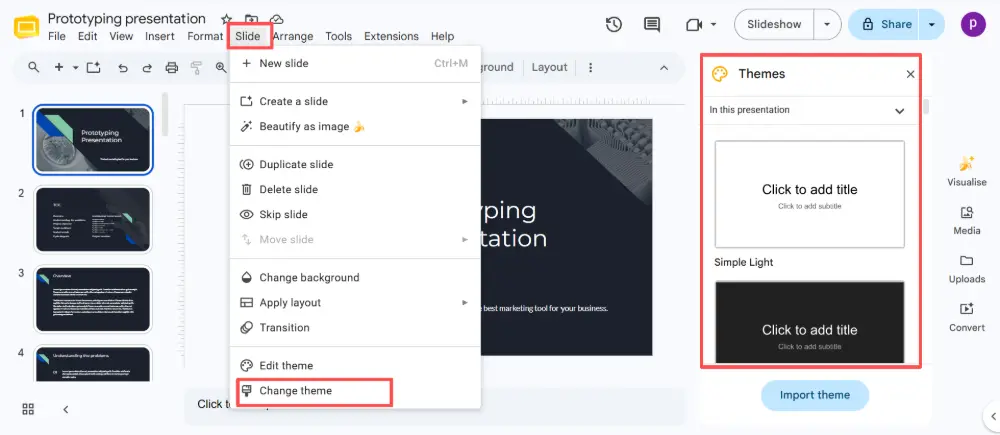
This replaces the current theme entirely — colors, fonts, backgrounds, and layouts all update at once.
How to Import a Theme into Google Slides
If you have a theme in another Google Slides file or a PowerPoint file, you can import it:
- Click Slide → Change theme.
- At the bottom of the theme panel, click Import theme.
- Choose the source: a file from Google Drive, or upload a .pptx file from your computer.
- Google Slides shows the themes available in that file. Click the one you want.
- Click Import theme. It applies to your current presentation.
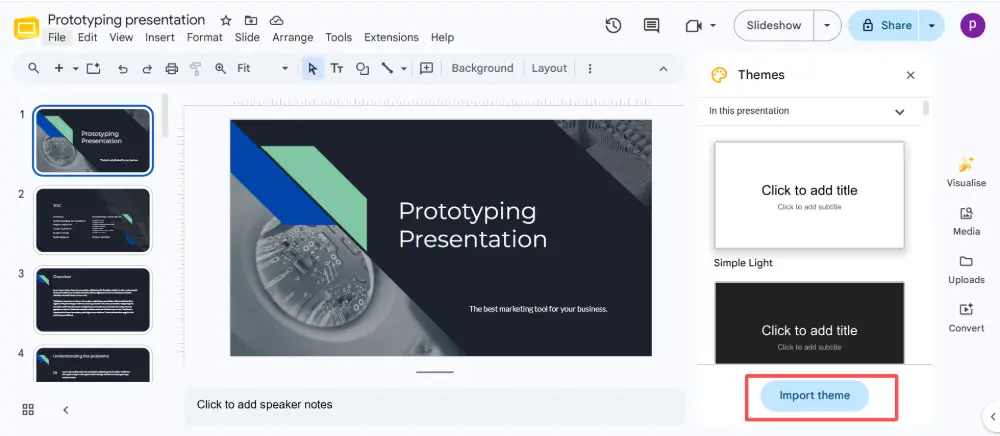
Importing a theme from a PowerPoint (.pptx) file is a great way to bring importable themes into Google Slides. Many free template sites offer .pptx files that work perfectly as imported themes — just upload the file and Google handles the conversion.
How to Edit a Theme in Google Slides
To customize an existing theme — change its colors, fonts, backgrounds, or layouts — you edit the master slides:
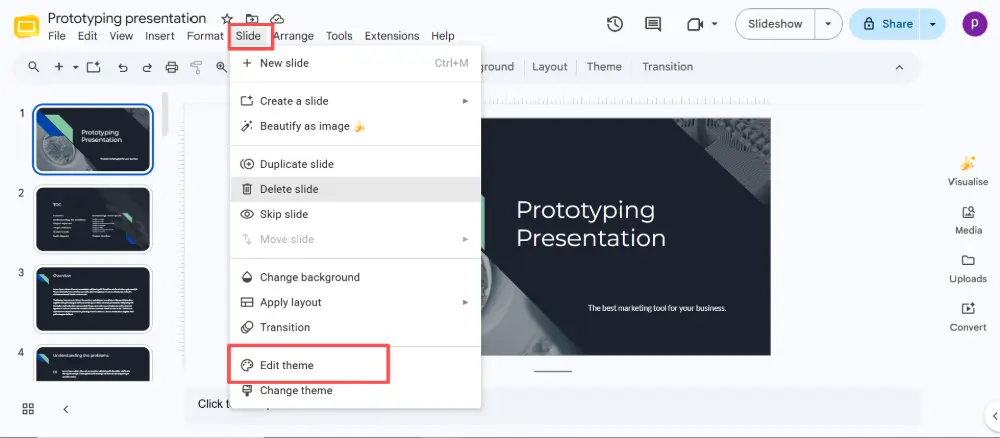
- Click Slide → Edit theme (this opens the master slide editor).
- On the left, you'll see the master slide (the largest one at the top) and several layout slides beneath it.
- Click the master slide to make changes that apply to every layout (background color, logo, footer).
- Click a layout slide to edit that specific layout (e.g., title slide, two-column, section header).
- Edit colors, fonts, text placeholders, images, and shapes as needed.
- When done, click the X in the top right (or Slide → Edit theme again) to close the editor.
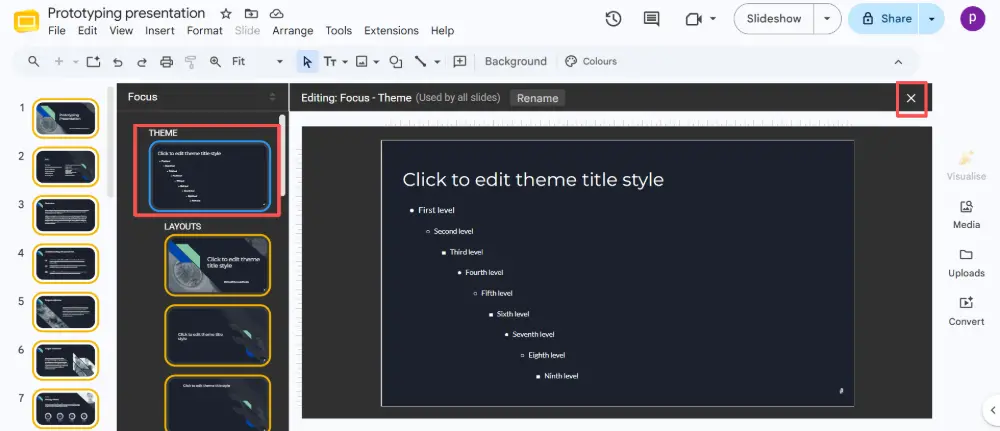
Every slide in your presentation that uses the edited layout updates automatically.
How Master Slides Work
Master slides are the backbone of any theme. Understanding them gives you full control over your presentation's design.
| Element | What it does |
|---|---|
| Master slide | The parent. Changes here (background, logo, font family) cascade to every layout and every slide in the deck. |
| Layout slides | Children of the master. Each defines a specific layout (title, content, section, blank). Changes apply only to slides using that layout. |
| Placeholders | Pre-positioned boxes for title, subtitle, body text, and images. They ensure consistent placement across slides. |
| Theme colors | A set of coordinated colors that update everywhere when you change them on the master. |
How to Make a Theme in Google Slides (from Scratch)
To create a custom theme:
- Open a new blank presentation.
- Go to Slide → Edit theme.
- Edit the master slide: set the background color, add your logo, choose your font family, and set accent colors.
- Edit each layout slide: adjust placeholders, add design elements (lines, shapes, icons), and style title/body text.
- Add or duplicate layouts if you need more (right-click a layout → Duplicate or New layout).
- Close the theme editor.
- Now use File → Make a copy to save this file as your reusable theme template.
To use your custom theme in another presentation, import it (Slide → Change theme → Import theme → select your template file).
Where to Find Google Slides Inspiration & Templates
Need design ideas or ready-to-use themes? Here are the best sources for Google Slides inspiration:
| Source | Free | What you'll find |
|---|---|---|
| Google Slides template gallery | ✅ | Built-in themes in Google Slides (File → New → From template gallery). |
| SlidesCarnival | ✅ | Hundreds of free, well-designed themes for Google Slides. |
| SlidesGo | ✅ / paid | Large library with creative, education, and business themes. |
| Canva | ✅ / paid | Presentation templates exportable to Google Slides. |
| Pinterest / Dribbble | ✅ | Visual inspiration for slide design, color palettes, and layouts. |
| Gamma.com.ai | ✅ | AI-generated presentations with professional themes — create, customize, and export. |
For specialized templates like a field journal template, search the template galleries above or Google "field journal template Google Slides" — several education-focused sites offer free versions.
💡 Pro tip: If you want a polished, custom-looking presentation without touching the theme editor, AI tools like Gamma.com.ai generate professionally themed slides from your content — just describe what you need and the tool builds the deck with a cohesive theme already applied.
Conclusion
Themes give your Google Slides presentation a consistent, professional look without formatting every slide by hand. Change a theme in one click (Slide → Change theme), import a theme from another file or PowerPoint, edit the theme through the master slide editor for full control, or create a custom theme from scratch and reuse it across all your decks. Master the master slides, and every presentation you make will look polished from the first slide to the last.
FAQs
How do I import a theme into Google Slides?
Click Slide → Change theme → Import theme (at the bottom of the panel). Choose a file from Google Drive or upload a .pptx file. Select the theme you want and click Import theme. It replaces the current theme on all slides.
How do I change the theme on Google Slides?
Click Slide → Change theme. A panel opens on the right showing available themes. Click any theme to apply it instantly. All slides update their colors, fonts, and backgrounds at once.
How do I edit a theme in Google Slides?
Click Slide → Edit theme to open the master slide editor. Edit the master slide (top, largest) for changes that affect every layout, or click individual layout slides to customize specific layouts. Changes cascade to all slides using those layouts.
What are master slides?
Master slides are the template layer behind your theme. The master slide at the top controls global design (background, logo, fonts). Layout slides beneath it define specific slide types (title, content, section). Edit them to control your entire presentation's look from one place.
Where can I find free themes for Google Slides?
Google's built-in template gallery (File → New → From template gallery), SlidesCarnival, SlidesGo, and Canva all offer free themes. You can also import any .pptx template file from the web. For AI-generated themes, Gamma.com.ai creates professionally designed decks automatically.

