
Google Slides defaults to landscape — wide and horizontal. But posters, infographics, phone mockups, and resumes need vertical slides. This guide shows you exactly how to make Google Slides vertical, change Google Slides to portrait mode, rotate a slide in PowerPoint, and flip an image in Google Slides — all in a few clicks.

- Google Slides: File → Page setup → Custom → swap width and height (e.g., 7.5 × 10 inches). There's no "portrait" button — you set the dimensions manually.
- PowerPoint: Design → Slide Size → Custom Slide Size → Orientation → Portrait.
- Below: step-by-step instructions for vertical slides, rotating slides in PowerPoint, and flipping images.
How to Make Google Slides Vertical (Portrait Mode)
Google Slides doesn't have a one-click "portrait" button, but you can set custom dimensions that create a vertical slide:
- Open your presentation in Google Slides.
- Click File → Page setup.
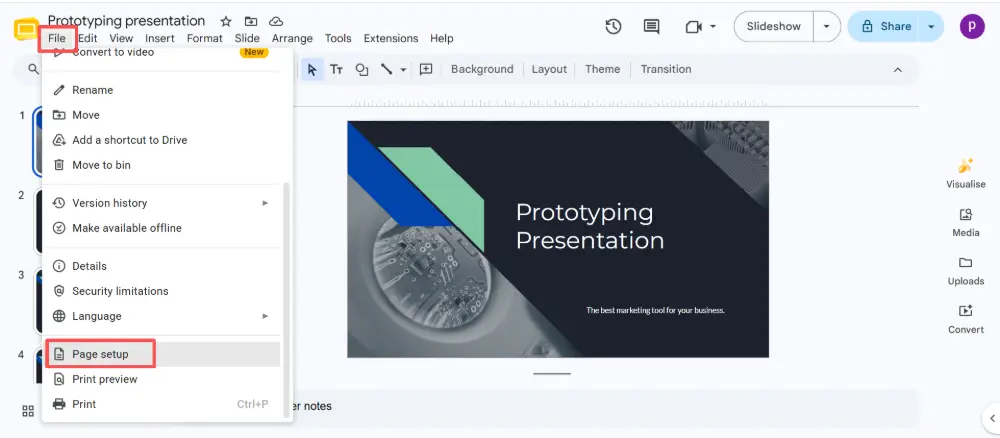
- Click the dropdown (it probably says "Widescreen 16:9") and select Custom.
- Enter vertical dimensions. Common portrait sizes include 7.5 × 10 inches (standard), 8.5 × 11 inches (US letter), or 21 × 29.7 cm (A4).
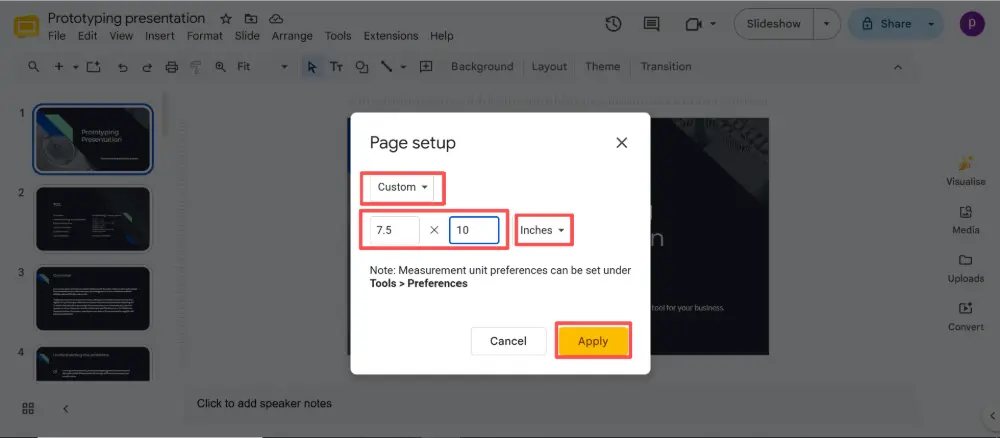
- Click Apply.
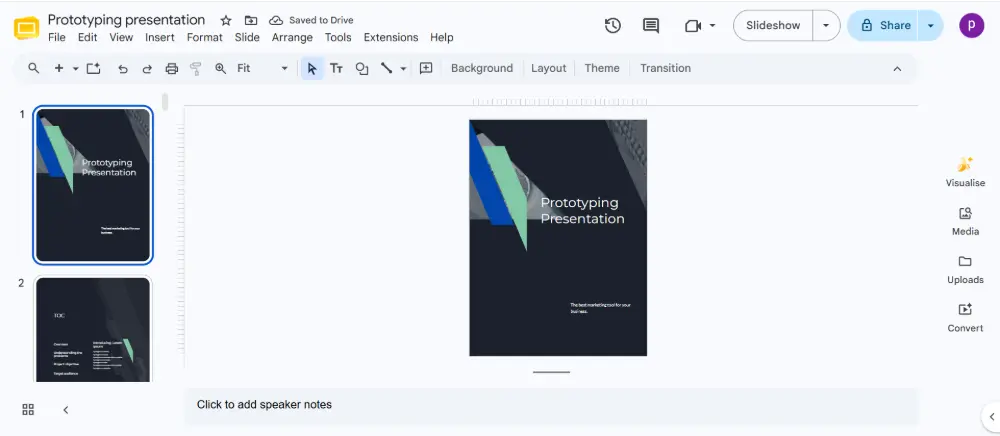
All slides in the presentation change to vertical orientation. You'll need to adjust your content — elements that were positioned for landscape may need resizing or repositioning.
| Common portrait size | Dimensions | Best for |
|---|---|---|
| Standard portrait | 7.5 × 10 in | General vertical presentations, infographics. |
| US Letter | 8.5 × 11 in | Printable handouts, resumes, flyers. |
| A4 | 21 × 29.7 cm | International print standard. |
| Phone screen | 9 × 16 in (or 1080 × 1920 px) | Mobile-first content, social media stories. |
| Poster | 24 × 36 in | Event posters, conference displays. |
Google Slides applies the page size to all slides — you can't mix landscape and portrait in the same presentation. If you need both, create two separate files and link between them, or use a tool that supports mixed orientations.
How to Rotate a Slide in PowerPoint (Portrait / Landscape)
PowerPoint makes it easier with a built-in orientation option:
- Open your presentation in PowerPoint.
- Go to the Design tab.
- Click Slide Size → Custom Slide Size.
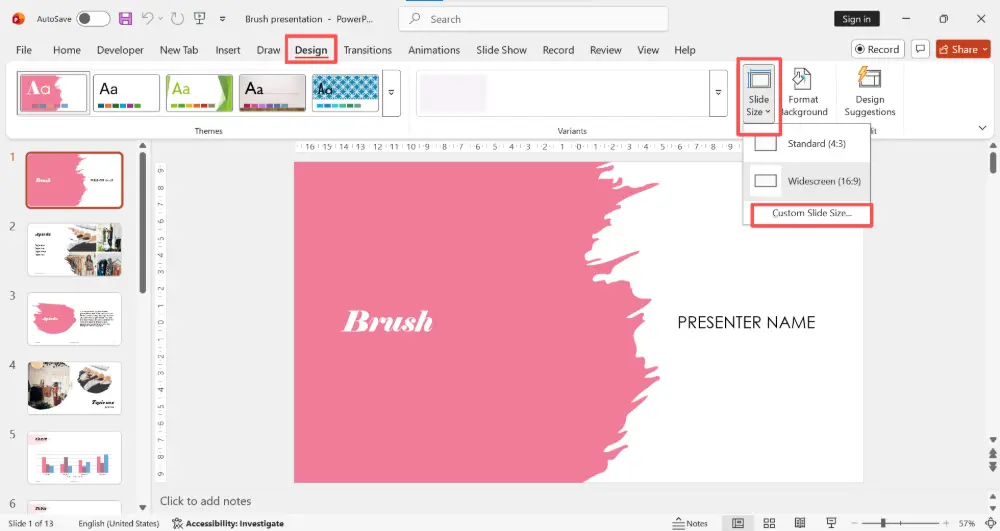
- Under Orientation, choose Portrait.
- Click OK.
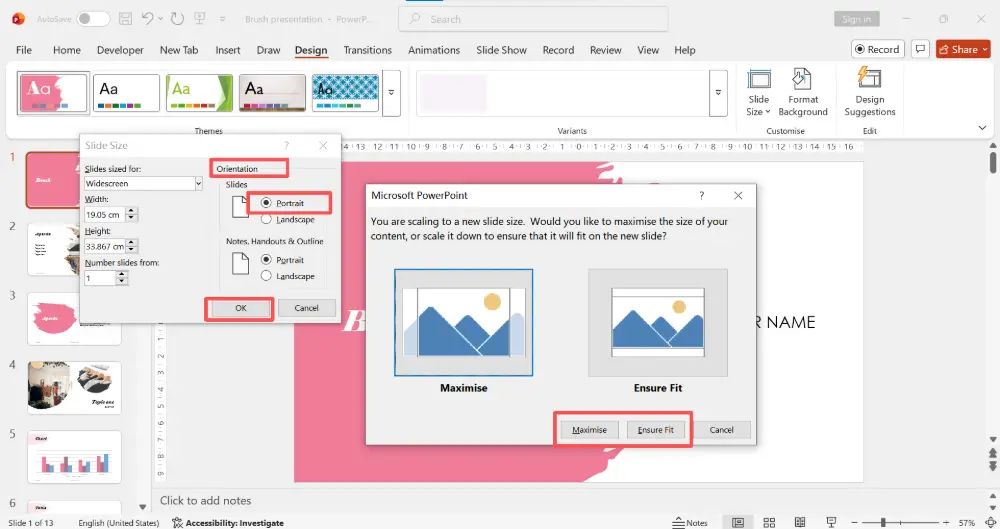
- PowerPoint asks whether to Maximize (scale content up to fill) or Ensure Fit (scale content down to fit). Choose based on your preference.
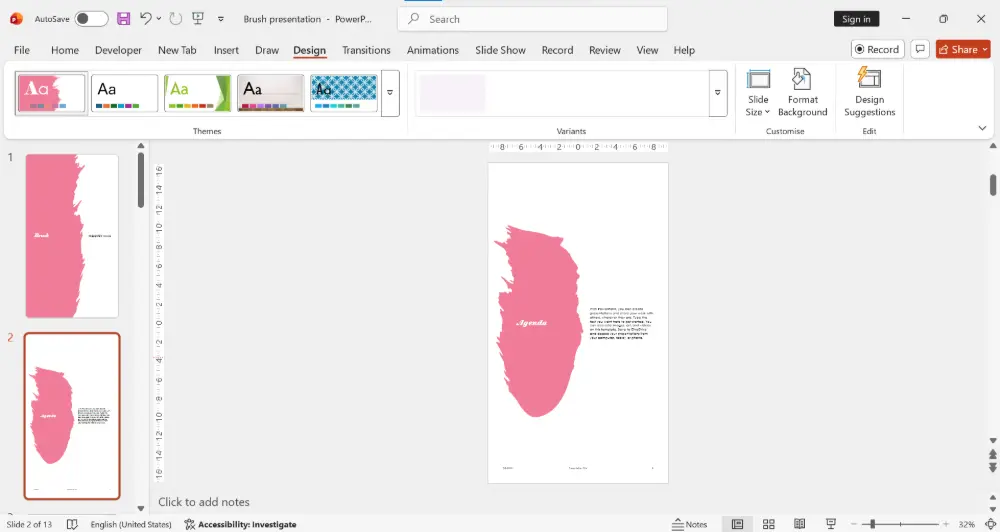
Like Google Slides, this applies to all slides in the file. PowerPoint doesn't support mixing orientations within one presentation either.
How to Flip an Image in Google Slides
Flipping an image (mirroring it horizontally or vertically) is a different action from rotating a slide — here's how:
- Click on the image you want to flip.
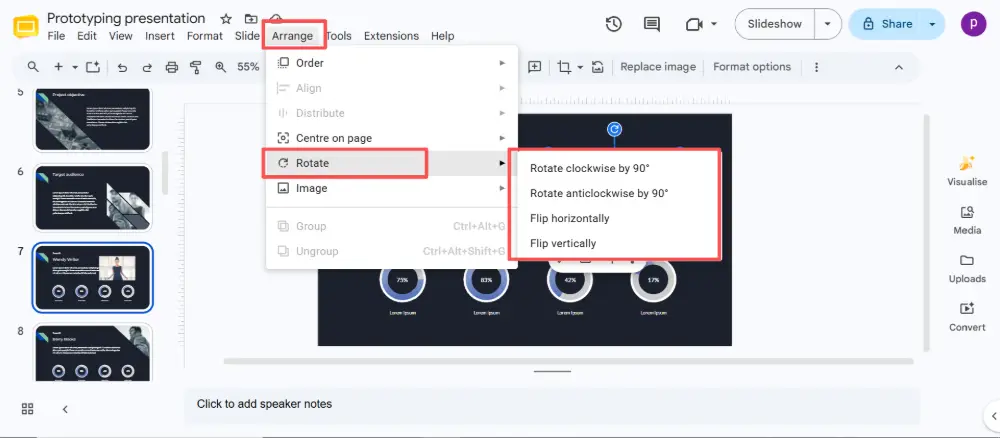
- Go to Arrange in the top menu.
- Hover over Rotate.
- Choose Flip horizontally (mirror left-right) or Flip vertically (mirror top-bottom).
The image flips instantly. This works for any element — images, shapes, text boxes, and grouped objects.
| Action | How to do it |
|---|---|
| Flip image horizontally | Click image → Arrange → Rotate → Flip horizontally. |
| Flip image vertically | Click image → Arrange → Rotate → Flip vertically. |
| Rotate image 90° | Click image → Arrange → Rotate → Rotate clockwise / counterclockwise. |
| Rotate to a custom angle | Click image → drag the circular rotation handle above the image, or right-click → Format options → Size & Rotation → enter a specific angle. |
💡 Pro tip: If you're creating vertical content like posters or infographics and want to skip the manual setup, AI tools like Gamma.com.ai let you choose your layout orientation upfront and generate the design automatically — no page-setup tweaking needed.
Conclusion
Making Google Slides vertical is simple: File → Page setup → Custom → enter portrait dimensions. In PowerPoint, go to Design → Slide Size → Portrait. Neither tool supports mixing orientations in one file, so plan accordingly. And to flip an image, use Arrange → Rotate → Flip horizontally or vertically. A few clicks and your slides go from landscape to portrait — or your image mirrors exactly the way you need it.
FAQs
How do I make Google Slides vertical?
File → Page setup → Custom → enter vertical dimensions (e.g., 7.5 × 10 inches for standard portrait, or 8.5 × 11 for US letter). Click Apply. All slides switch to vertical orientation.
Can I mix portrait and landscape slides in Google Slides?
No — Google Slides applies the same dimensions to every slide in a presentation. To mix orientations, create two separate files (one portrait, one landscape) and link between them. PowerPoint has the same limitation.
How do I change Google Slides to portrait mode?
There's no "portrait" button — use File → Page setup → Custom, then swap the width and height values so height is larger than width. For example, change 10 × 7.5 to 7.5 × 10 inches.
How do I rotate a slide in PowerPoint?
Go to Design → Slide Size → Custom Slide Size → under Orientation, select Portrait. Click OK and choose whether to Maximize or Ensure Fit for your existing content.
How do I flip an image in Google Slides?
Click the image, then go to Arrange → Rotate → Flip horizontally (mirror left-right) or Flip vertically (mirror top-bottom). This works for images, shapes, text boxes, and grouped objects.

