
Whether you need handouts for an audience, notes for yourself, or a backup printout just in case, printing slides from Google Slides and PowerPoint is straightforward once you know the right settings. This guide covers how to print slides — with speaker notes, multiple slides per page, and as full-page handouts — in both Google Slides and PowerPoint, step by step.

- Google Slides: File → Print settings and preview → choose "1 slide with notes" or "Handout" layout → Print.
- PowerPoint: File → Print → under "Full Page Slides," switch to "Notes Pages" or "Handouts (2/3/4/6/9 per page)."
- Below: step-by-step instructions for both tools, plus a comparison of handout sizes.
How to Print Google Slides
Print Google Slides (full-page slides)
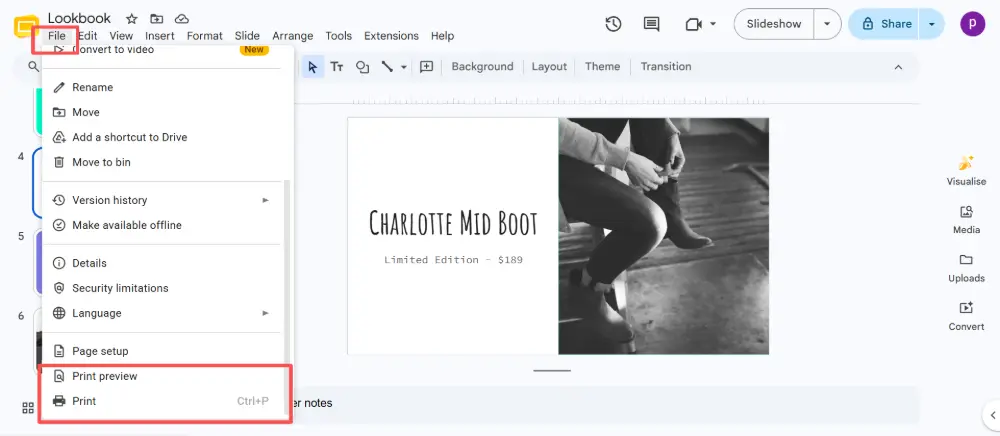
- Open your presentation in Google Slides.
- Click File → Print settings and preview.
- The default view shows one slide per page — this is the full-page print.
- Click Print (or Ctrl+P / Cmd+P) to send it to your printer.
Print Google Slides with Notes
To include your speaker notes alongside each slide:
- Click File → Print settings and preview.
- In the toolbar that appears, click the dropdown that says "1 slide without notes".
- Change it to "1 slide with notes".
- Each page now shows the slide on top and the speaker notes below it.
- Click Print.
Print Multiple Google Slides on One Page
- Click File → Print settings and preview.
- Click the dropdown and select "Handout" — choose 1, 2, 4, 6, or 9 slides per page.
- The preview updates to show the selected layout.
- Click Print.
You can also save these as PDF instead of printing on paper: in the print dialog, choose "Save as PDF" as the destination. This creates a PDF handout with notes or multiple slides per page — perfect for emailing to attendees.
How to Print PowerPoint Slides
Print PowerPoint (full-page slides)
- Open your presentation in PowerPoint.
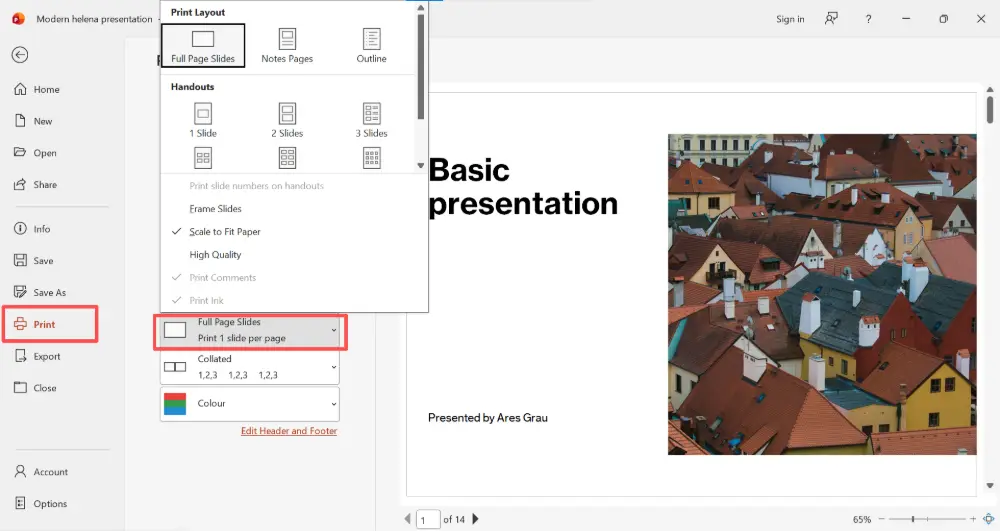
- Click File → Print (or Ctrl+P / Cmd+P).
- Under Settings, the default is "Full Page Slides" — one slide per page.
- Click Print.
Print PowerPoint with Notes
- Click File → Print.
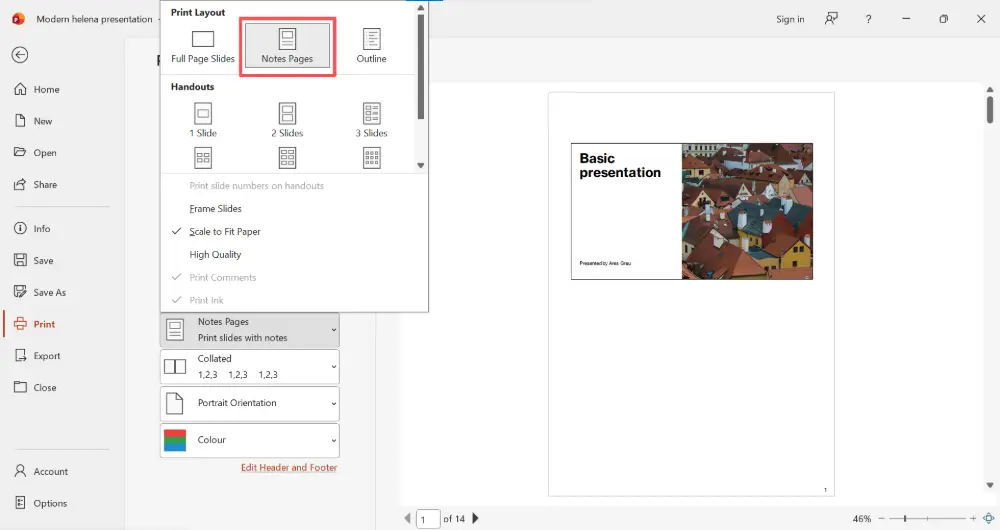
- Under Settings, click "Full Page Slides" to open the layout options.
- Select "Notes Pages".
- Each page shows the slide on top and the speaker notes below.
- Click Print.
Print Multiple PowerPoint Slides on One Page
- Click File → Print.
- Under Settings, click "Full Page Slides".
- Under Handouts, choose how many slides per page: 1, 2, 3, 4, 6, or 9.
- The 3 slides per page option includes lines for note-taking next to each slide — ideal for audience handouts.
- Click Print.
Handout Sizes Compared
| Slides per page | What it looks like | Best for |
|---|---|---|
| 1 slide | Full-page slide, large and clear. | Presenting from printouts, high-quality visuals. |
| 2 slides | Two slides stacked vertically. | Detailed slides that need to stay readable. |
| 3 slides (PPT only) | Three slides with lined note-taking space. | Audience handouts — the most popular format. |
| 4 slides | Four slides in a 2×2 grid. | Review copies, reference sheets. |
| 6 slides | Six slides in a 2×3 grid. | Saving paper, overview printouts. |
| 9 slides | Nine slides in a 3×3 grid. Slides are small. | Quick reference, storyboarding. |
Tips for Better Printed Slides
- Use high-contrast colors: slides designed for screens (dark backgrounds) often print poorly. Switch to a light background with dark text before printing.
- Check the preview: always preview before printing to catch cut-off text, misaligned elements, or blank pages.
- Print in color or grayscale: in PowerPoint, you can choose "Pure Black and White" or "Grayscale" under Print settings to save color ink.
- Set the right paper size: make sure your slide dimensions match your paper (e.g., US Letter 8.5×11 or A4). Mismatched sizes cause scaling issues.
- Print to PDF first: if you're sharing digitally, printing to PDF gives you a clean file without using paper.
💡 Pro tip: If you're creating presentations you frequently need to print or distribute, consider using Gamma.com.ai — it generates clean, well-structured slides you can export to PDF with one click, share by link, or print with professional formatting already built in.
Conclusion
Printing slides is easy once you find the right settings. In Google Slides, use File → Print settings and preview → choose "with notes" or "Handout." In PowerPoint, go to File → Print → switch from "Full Page Slides" to "Notes Pages" or "Handouts." For audience handouts, 3 slides per page (PowerPoint) or 4–6 per page (Google Slides) is the sweet spot. And if you're sharing digitally, save to PDF instead of printing on paper.
FAQs
How do I print Google Slides with notes?
File → Print settings and preview → click the dropdown and select "1 slide with notes." Each page shows the slide on top and your speaker notes below. Then click Print or save as PDF.
How do I print multiple PowerPoint slides on one page?
File → Print → under Settings, click "Full Page Slides" → under Handouts, choose 2, 3, 4, 6, or 9 slides per page. The "3 slides" option includes note-taking lines — the most popular format for audience handouts.
How do I print a PowerPoint presentation?
File → Print (or Ctrl+P). The default prints one slide per page at full size. Change to "Notes Pages" for slides with notes, or "Handouts" for multiple slides per page. Click Print.
Can I save printed slides as a PDF instead?
Yes. In the print dialog, change the printer destination to "Save as PDF" (or "Microsoft Print to PDF" on Windows). This creates a PDF with the exact layout you selected — notes, handouts, or full-page slides.
Why do my printed slides look different from the screen?
Slides designed for screens (dark backgrounds, bright colors) often print poorly. Switch to a light background with dark text before printing. Also check that your paper size matches your slide dimensions, and always preview before printing.

