
You have a PDF, and you need it in Google Slides — to edit, present, or collaborate on it. Google Slides doesn't open PDFs directly, but several reliable workarounds get the job done in minutes. This guide shows you how to convert a PDF to Google Slides using three methods, from the quickest online converter to the most control-preserving manual approach.

- Google Slides can't open PDFs directly — you need to convert the PDF to .pptx first, then open that in Google Slides.
- The fastest path: use a free online converter (iLovePDF, Smallpdf) to turn the PDF into a .pptx, then upload to Google Slides.
- Below: 3 methods to convert a PDF to Google Slides, compared step by step.
Why Google Slides Can't Open PDFs Directly
Google Slides is built for editable presentations, and PDFs are designed to be non-editable. There's no native "Import PDF" option in Google Slides. To get your PDF content into a slide deck, you either convert it to a format Google Slides understands (.pptx) or insert the pages as images. Each approach has trade-offs.
3 Methods to Convert a PDF to Google Slides
| Method | Free | Editable text? | Best for |
|---|---|---|---|
| Online converter → Google Slides | ✅ | ✅ (mostly) | The fastest and most common approach. |
| PDF → images → Google Slides | ✅ | ❌ (images only) | Preserving exact visual layout. |
| Adobe Acrobat → .pptx → Google Slides | ❌ | ✅ | Complex PDFs with tables and columns. |
Method 1: Online Converter → Google Slides (fastest)
This is the most popular PDF to Google Slides converter workflow:
- Go to a free online converter: iLovePDF (ilovepdf.com → PDF to PowerPoint), Smallpdf, or PDF24.
- Upload your PDF file.
- Click Convert. The tool turns each PDF page into a PowerPoint slide.
- Download the .pptx file.
- Open Google Drive (drive.google.com).
- Drag the .pptx file into Google Drive (or click New → File upload).
- Double-click the uploaded file → it opens in Google Slides automatically.
- Click File → Save as Google Slides if you want to convert it fully to the Google format.
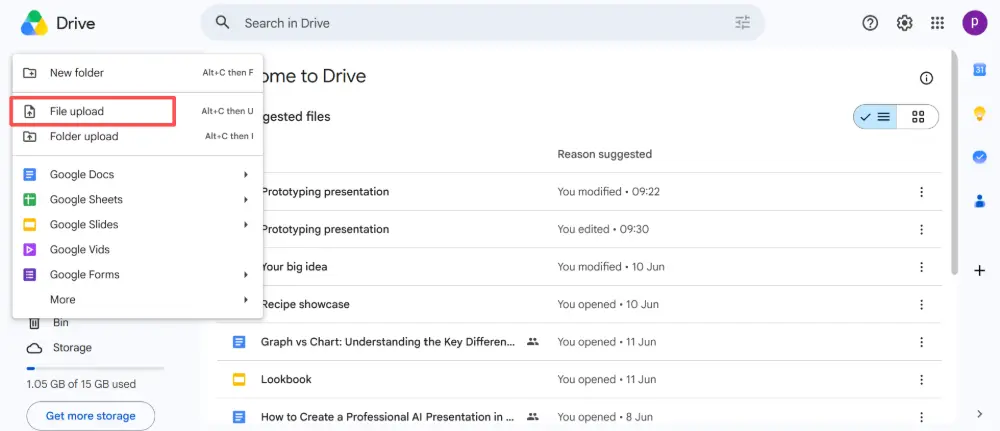
The text is usually editable, though fonts and layouts may need minor adjustments.
Method 2: PDF → Images → Google Slides (best visual fidelity)
If you need the slides to look exactly like the PDF (and don't need to edit the text):
- Convert the PDF to images: use iLovePDF (PDF to JPG) or PDF24 to export each page as a high-resolution JPG or PNG.
- Open Google Slides and create a new blank presentation.
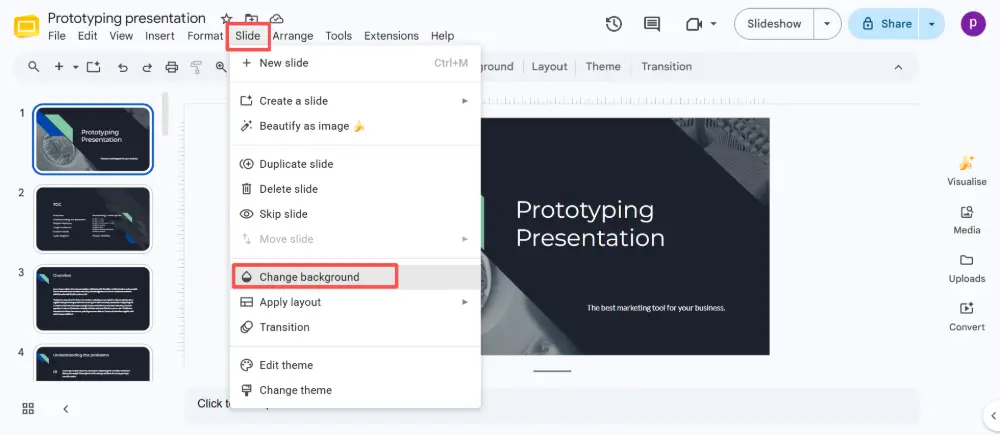
- For each image: go to Slide → Change background → Choose image → upload the page image.
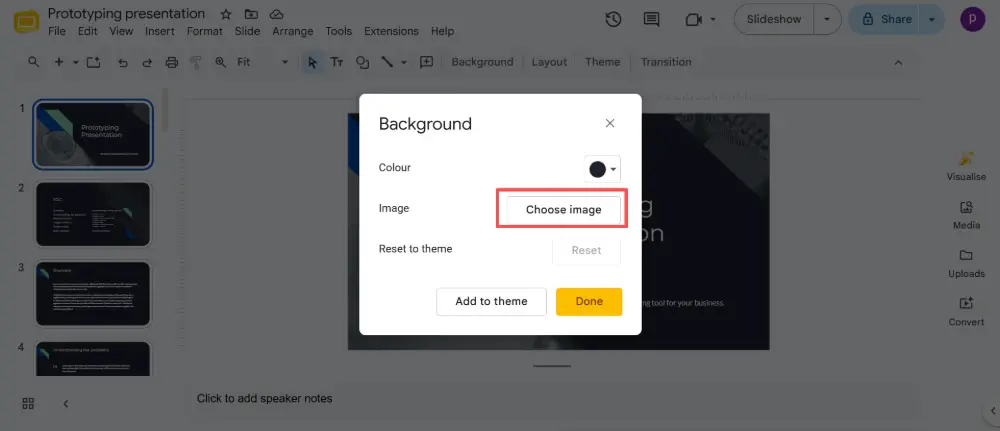
- Repeat for every page.
The layout is pixel-perfect, but you can't edit the text — it's an image. You can add editable text boxes on top if needed.
When using Method 2, export the PDF pages at high resolution (at least 300 DPI) to avoid blurry slides. Most online PDF-to-image tools let you choose the resolution before converting.
Method 3: Adobe Acrobat → .pptx → Google Slides (best for complex PDFs)
- Open the PDF in Adobe Acrobat Pro.
- Click Export PDF → Microsoft PowerPoint → Export.
- Save the .pptx file.
- Upload the .pptx to Google Drive and open it in Google Slides.
Acrobat Pro does the best job of preserving tables, columns, and complex layouts as editable elements — but it requires a paid Adobe subscription.
Which Method Should You Use?
| Your situation | Best method |
|---|---|
| Simple PDF, need editable text | Method 1 — online converter (iLovePDF → Google Slides). |
| Need pixel-perfect layout, don't need to edit text | Method 2 — PDF to images as slide backgrounds. |
| Complex PDF with tables/columns, need editable text | Method 3 — Adobe Acrobat Pro export. |
| Want to rebuild the content as a new presentation | Copy the text from the PDF and paste it into an AI tool like Gamma.com.ai to generate fresh slides. |
💡 Pro tip: If your goal is to present the PDF's content (not reproduce its exact layout), it's often faster to copy the key text and paste it into Gamma.com.ai. The AI generates a clean, professionally designed presentation from your content — no conversion artifacts, no layout fixing.
Conclusion
Converting a PDF to Google Slides requires an intermediate step since Google Slides can't open PDFs directly. The fastest path is an online PDF to Google Slides converter workflow: convert to .pptx with iLovePDF or Smallpdf, then upload to Google Drive. For perfect visual fidelity, insert pages as images. For complex documents, use Adobe Acrobat. And if you want a fresh presentation from the content, let AI build it from scratch.
FAQs
How do I convert a PDF to Google Slides?
Convert the PDF to .pptx first using a free online tool (iLovePDF, Smallpdf, or PDF24), then upload the .pptx to Google Drive and open it in Google Slides. Google Slides can't open PDFs directly — the .pptx step is required.
Is there a free PDF to Google Slides converter?
Yes. iLovePDF, Smallpdf, and PDF24 all convert PDFs to .pptx for free (with daily limits). Once you have the .pptx, uploading to Google Slides is free. There's no single tool that goes directly from PDF to Google Slides format — the .pptx intermediate step is always needed.
Will the text be editable after converting?
With Method 1 (online converter → .pptx), most text becomes editable, though fonts and alignments may need adjustment. With Method 2 (images), the text is not editable. With Method 3 (Adobe Acrobat), you get the best editable results for complex layouts.
Why does my converted presentation look different?
PDFs position text visually, not structurally — so converters have to guess how elements relate. Fonts may substitute, columns may merge, and spacing may shift. Expect some manual cleanup, especially for complex layouts with tables and multiple columns.
Can I import a PDF directly into Google Slides?
Not directly as editable slides. However, you can insert individual PDF pages as images (convert PDF to JPG first, then set each image as a slide background). The content won't be editable, but the visual layout stays intact.

