
This guide explains how to use Canva templates in Google Slides, whether the templates are compatible and safe, when this workflow makes sense, and how to choose the right import method. You will also learn how to prevent font substitutions, broken layouts, missing animations, and other common conversion problems.
- Canva templates are compatible with Google Slides through an intermediate format—not through a perfect one-click native transfer.
- For editable slides, export the Canva presentation as a PowerPoint file (.pptx), then open or import it in Google Slides.
- For maximum visual fidelity, export each Canva slide as a PNG and use it as a full-slide background.
- Animations, transitions, embedded videos, some fonts, and certain effects usually need to be rebuilt in Google Slides.
Why Use Canva Templates?
Canva templates are popular because they shorten the distance between a blank page and a professional-looking presentation. Instead of designing every layout from scratch, you can begin with coordinated colors, typography, image treatments, charts, and page structures.
The main reasons to choose Canva templates include:
- Design variety: Canva offers templates for pitch decks, lessons, reports, portfolios, webinars, proposals, social campaigns, and many other presentation types.
- Speed: A template provides a ready-made visual system, so you can focus on the message rather than alignment and decoration.
- Ease of use: Non-designers can customize colors, images, text, and layouts without learning advanced presentation software.
- Brand consistency: Repeating fonts, colors, and components helps a multi-slide presentation feel unified.
- Creative inspiration: A template can suggest better ways to visualize timelines, comparisons, processes, or key numbers.
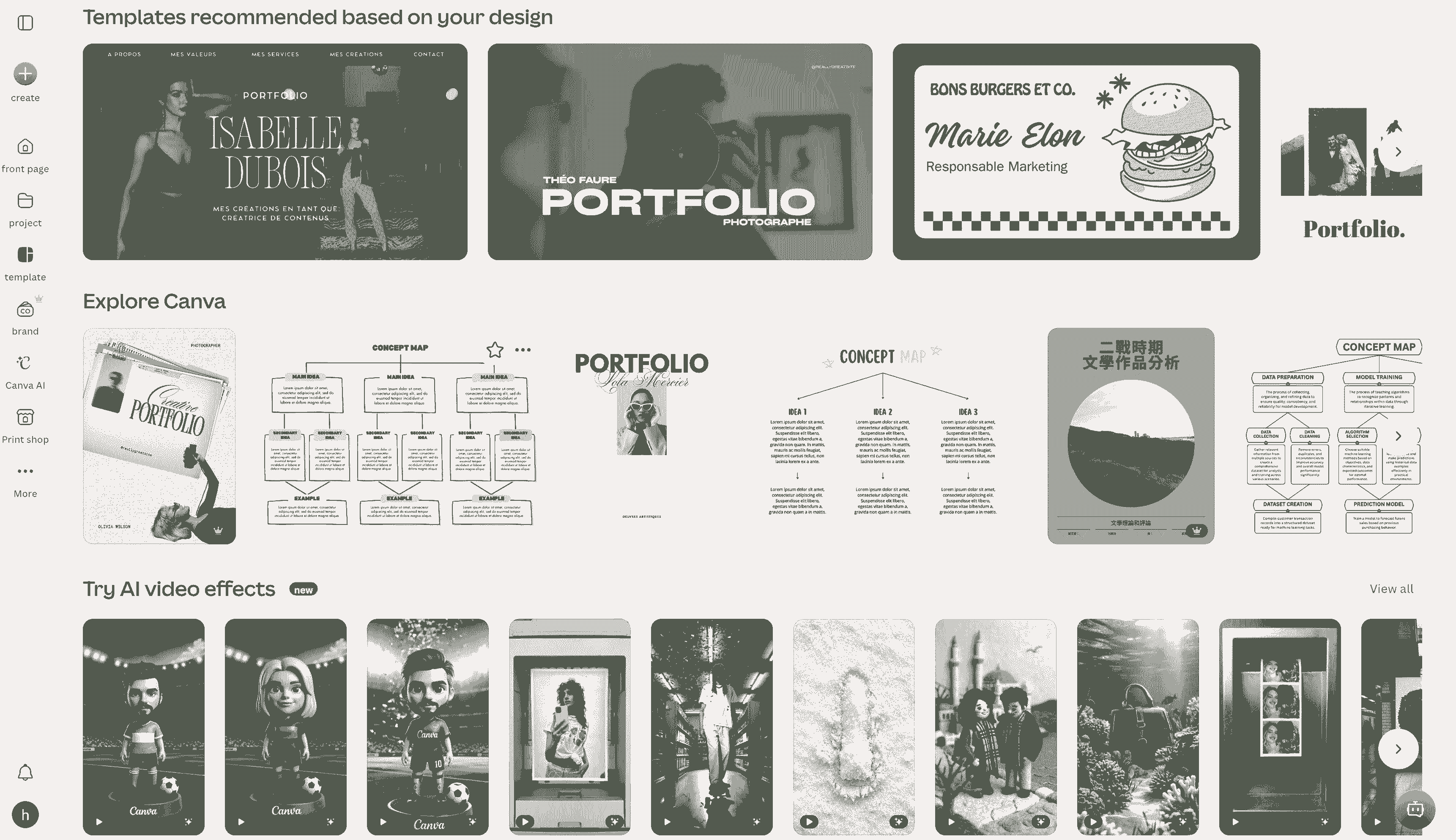
A Canva template should be a starting point, not the final strategy. Replace placeholder content, remove unnecessary decoration, and adapt the visual hierarchy to your audience. A beautiful template cannot compensate for an unclear story.
Are Canva Templates Compatible with Google Slides?
Yes, Canva templates can be used in Google Slides, but compatibility is partial. Canva does not turn every design feature into an identical native Google Slides element. The usual bridge is a PowerPoint (.pptx) export, which Google Slides can open and convert. Another option is to export the slides as images, preserving their appearance while flattening the content.
| Canva element | Typical Google Slides result | What to check |
|---|---|---|
| Text boxes | Usually editable after PPTX import | Font replacement, line breaks, spacing, and text overflow |
| Photos and basic graphics | Usually retained | Cropping, transparency, image quality, and positioning |
| Shapes and grouped objects | Often retained, sometimes flattened or regrouped | Layer order, borders, shadows, and alignment |
| Canva-only fonts | May be replaced | Choose a Google Fonts alternative before export |
| Animations and transitions | Usually do not transfer reliably | Recreate motion inside Google Slides |
| Video and audio | May be missing or nonfunctional | Reinsert media in Google Slides and test playback permissions |
| Interactive links | May survive, but not consistently | Click every link after conversion |
| Gradients, masks, and special effects | May look different or become images | Inspect on the device used for presenting |
If editability matters, use the PPTX method. If preserving the exact visual appearance matters more, use PNG backgrounds. For motion-heavy decks, expect to rebuild videos, transitions, and animations after the transfer.
Are Canva Templates Safe?
Canva templates from Canva’s own library are generally safe to open and customize, but “safe” involves more than malware. You should consider licensing, privacy, account permissions, and the sensitivity of your presentation content.
- Use legitimate sources: Start with Canva’s official template library or a creator you trust. Be cautious with files or links from unknown download sites.
- Check the content license: Canva content is subject to its Content License Agreement. Free, Pro, branded, educational, and third-party content can have different restrictions. Verify the current terms for your use case, especially for commercial or client work.
- Own or license uploaded assets: Only upload photos, video, audio, logos, and other materials you created or have permission to use.
- Protect confidential content: Do not put private customer data, unpublished financial information, credentials, or restricted documents into a public template or public share link.
- Review sharing settings: Use the least permissive link setting that still supports your workflow. Revoke access when a conversion is finished.
- Evaluate third-party converters: A converter may request a Canva link, file upload, email address, or access permission. Read its privacy policy and retention terms before sending business or personal material.
When Should You Use Canva Templates in Google Slides?
This combined workflow is useful when design begins in Canva but delivery and collaboration must happen in Google Slides. Typical situations include:
- A school or company requires all presentations to be submitted as Google Slides.
- Your team collaborates, comments, and controls permissions through Google Workspace.
- You want a more distinctive visual design than your existing Google Slides theme provides.
- A client gives you a Canva presentation but expects an editable Google Slides file.
- You need Google Slides features such as Presenter view, speaker notes, version history, or familiar sharing controls.
- You are assembling selected Canva slides into an existing Google Slides deck.
Avoid the workflow when the Canva presentation depends heavily on video backgrounds, animated elements, complex transitions, or precise custom typography. In those cases, presenting directly from Canva—or rebuilding the affected pages in Google Slides—may be more reliable.
Pros and Cons of Using Canva Templates in Google Slides
- Access to a broad range of polished visual styles
- Faster design for non-designers
- Editable content when the PPTX transfer works well
- Google Slides collaboration and sharing after conversion
- Flexible choice between editability and visual fidelity
- No guaranteed pixel-perfect conversion
- Fonts and text wrapping can change
- Animations and videos often need rebuilding
- PNG slides are visually stable but not element-level editable
- Complex decks require a complete post-import review
How to Import a Canva Template into Google Slides
There are two reliable manual methods. Choose before exporting so you do not waste time fixing the wrong file type.
Method 1: Export as PowerPoint for Editable Slides
This is the best default method when you need to edit text, move images, add speaker notes, or collaborate in Google Slides.
Part A: Export the Canva presentation
1 Open your presentation in Canva.
2 Review the page size. A standard widescreen presentation should normally use a 16:9 layout.
3 Click Share in the upper-right corner.
4 Choose Download. If it is not immediately visible, open More and search for the download option.
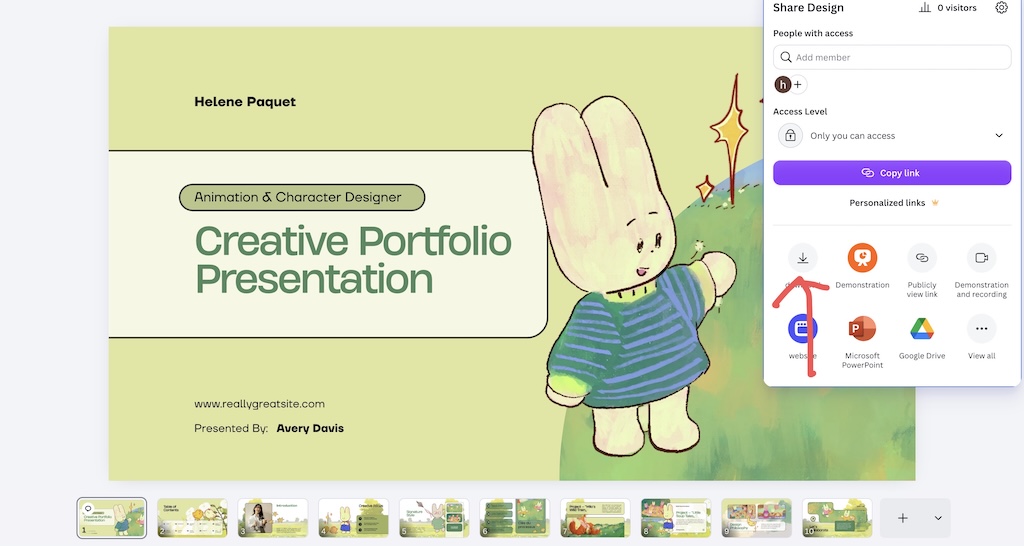
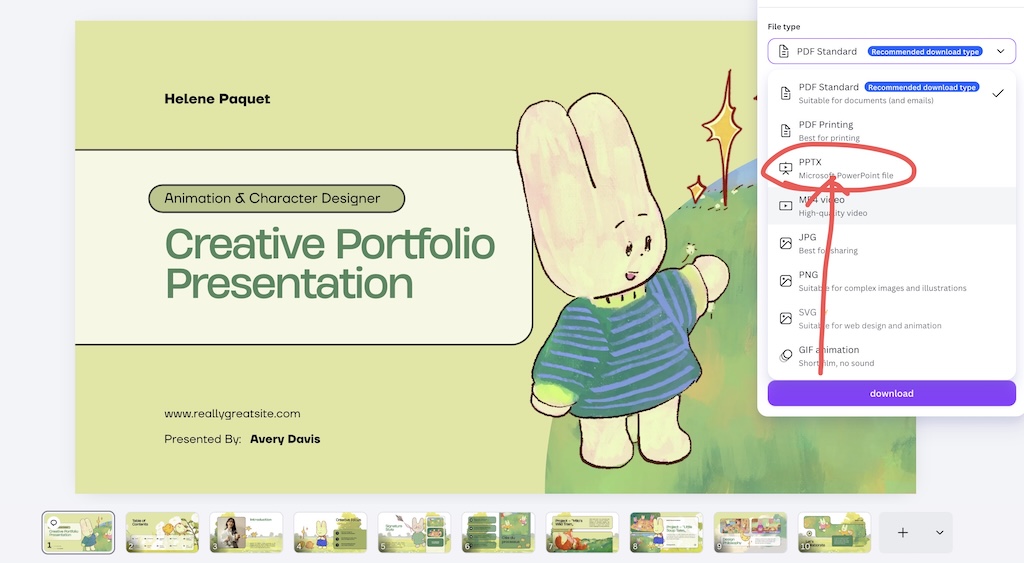
5 Open the file-type menu and select Microsoft PowerPoint (.pptx).
6 Select all pages or only the pages you need, then click Download.
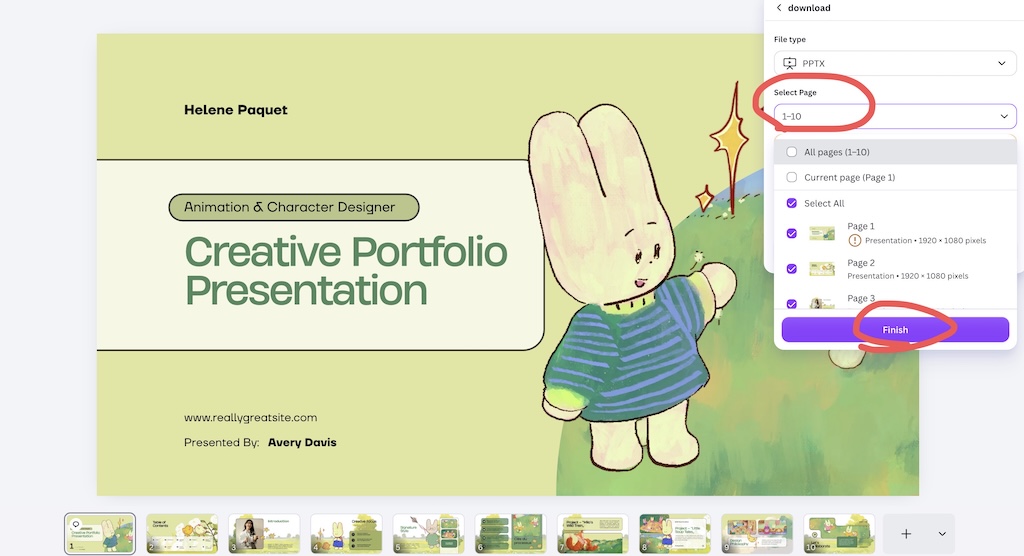
7 Save the PPTX file in a location you can easily find.
Part B: Convert the entire deck through Google Drive
- Open Google Drive and click New > File upload.
- Select the PPTX file downloaded from Canva.
- After the upload finishes, right-click the file and choose Open with > Google Slides.
- Google Slides will open the presentation. If it remains an Office-format file, choose File > Save as Google Slides to create a native Google Slides copy.
- Rename the new file so your team can distinguish it from the original Canva export.
This route is especially useful for a complete presentation and avoids adding an unwanted blank starter slide. Keep the original PPTX as a backup until the converted deck has passed review.
Part C: Import selected Canva slides into an existing deck
1 Open the destination presentation in Google Slides.
2 Choose File > Import slides.
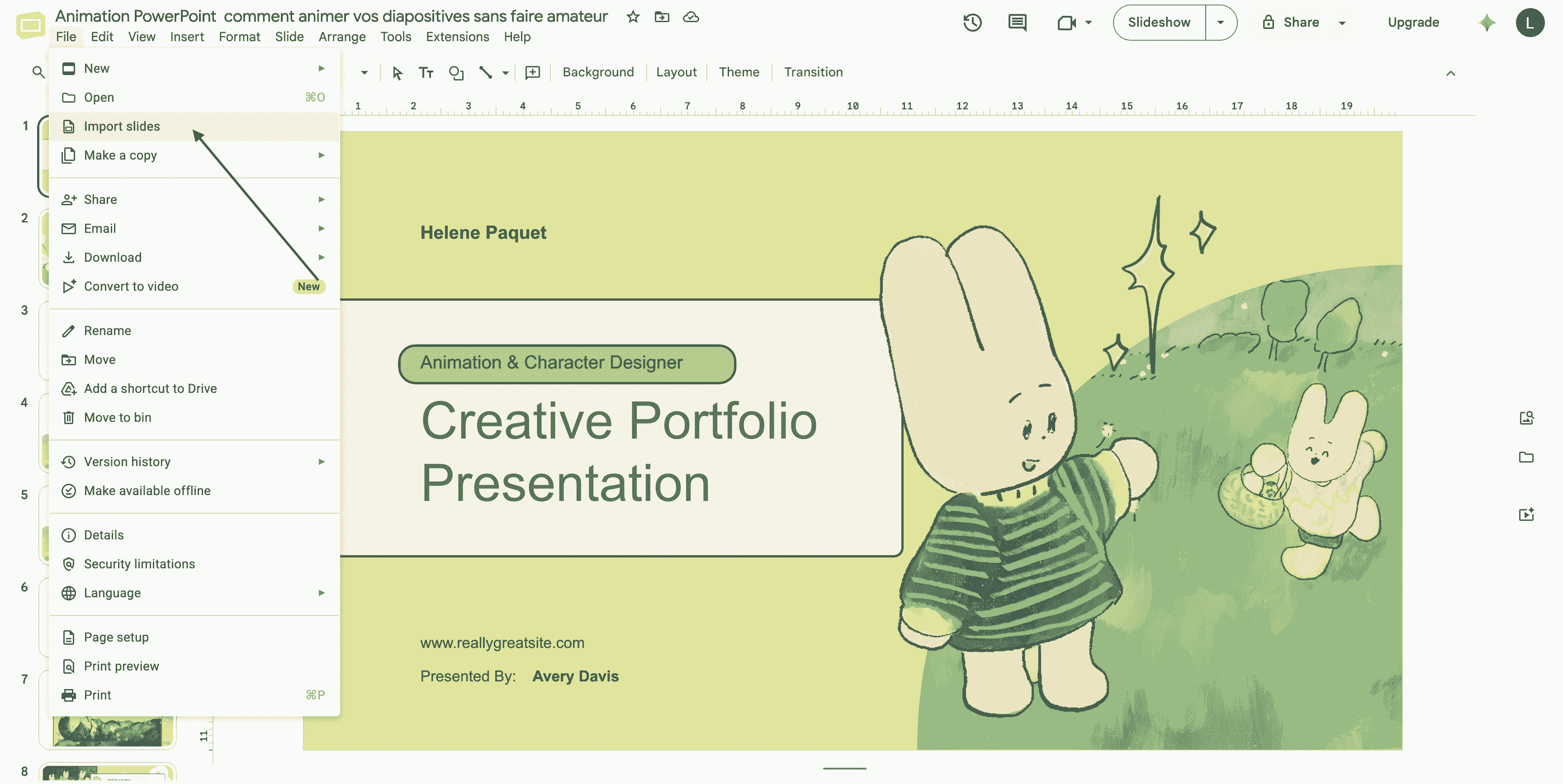
3 Open the Upload tab and drag the Canva PPTX into the window, or browse for the file.
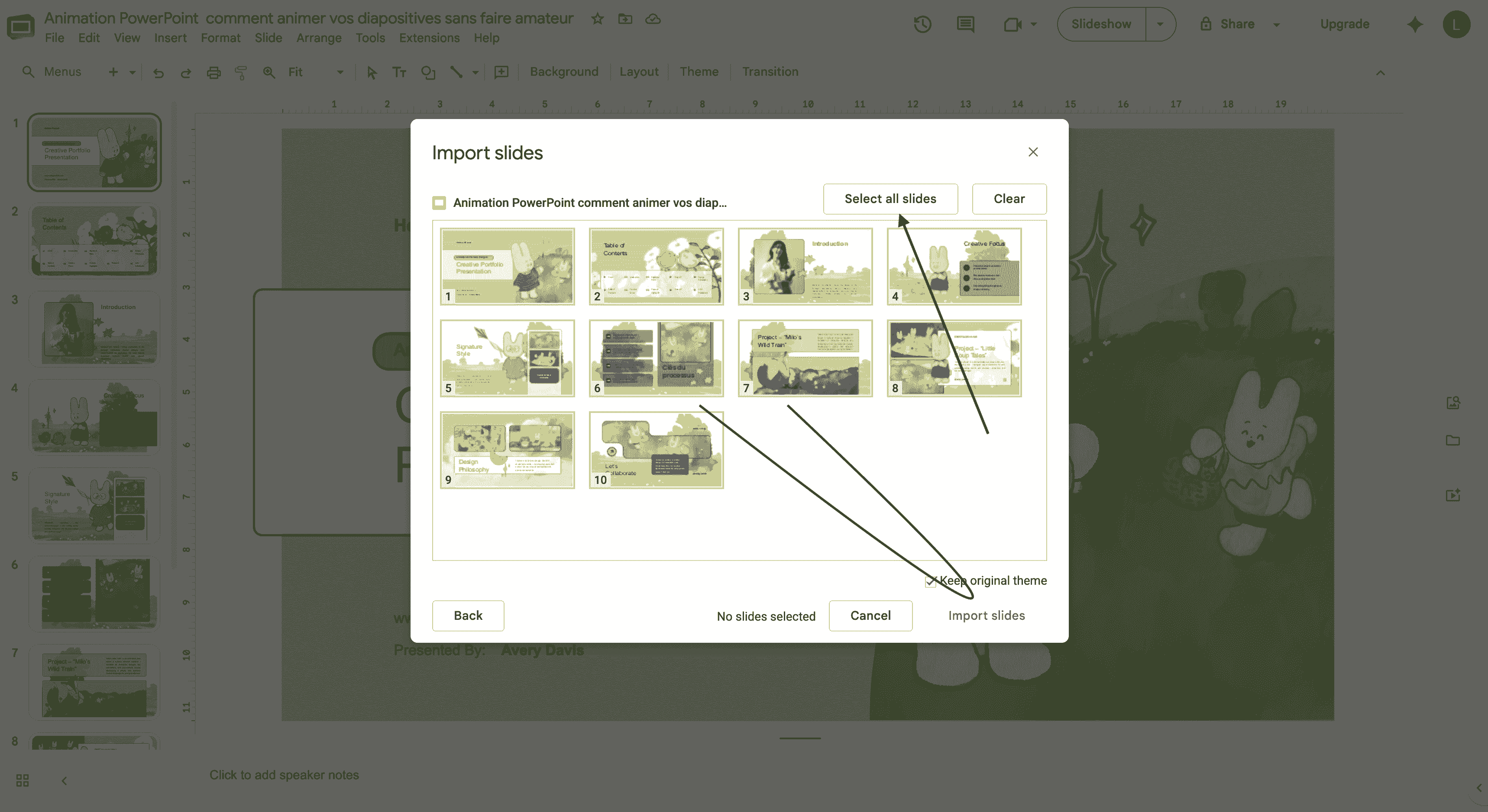
4 Wait for Google Slides to display the slide thumbnails.
5 Select individual slides or choose Select all slides.
6 Decide whether to keep the original theme. Keeping it usually preserves more of the Canva appearance; disabling it adapts imported slides to the destination deck’s theme.
7 Click Import slides, then check their order and delete any blank page you do not need.
Method 2: Export as PNG for Maximum Visual Fidelity
Use this method when the design is finalized and exact appearance matters more than editing. Each slide becomes one flat image, so text and individual objects cannot be edited in Google Slides.
1 Open the Canva presentation and choose Share > Download.
2 Select PNG as the file type.
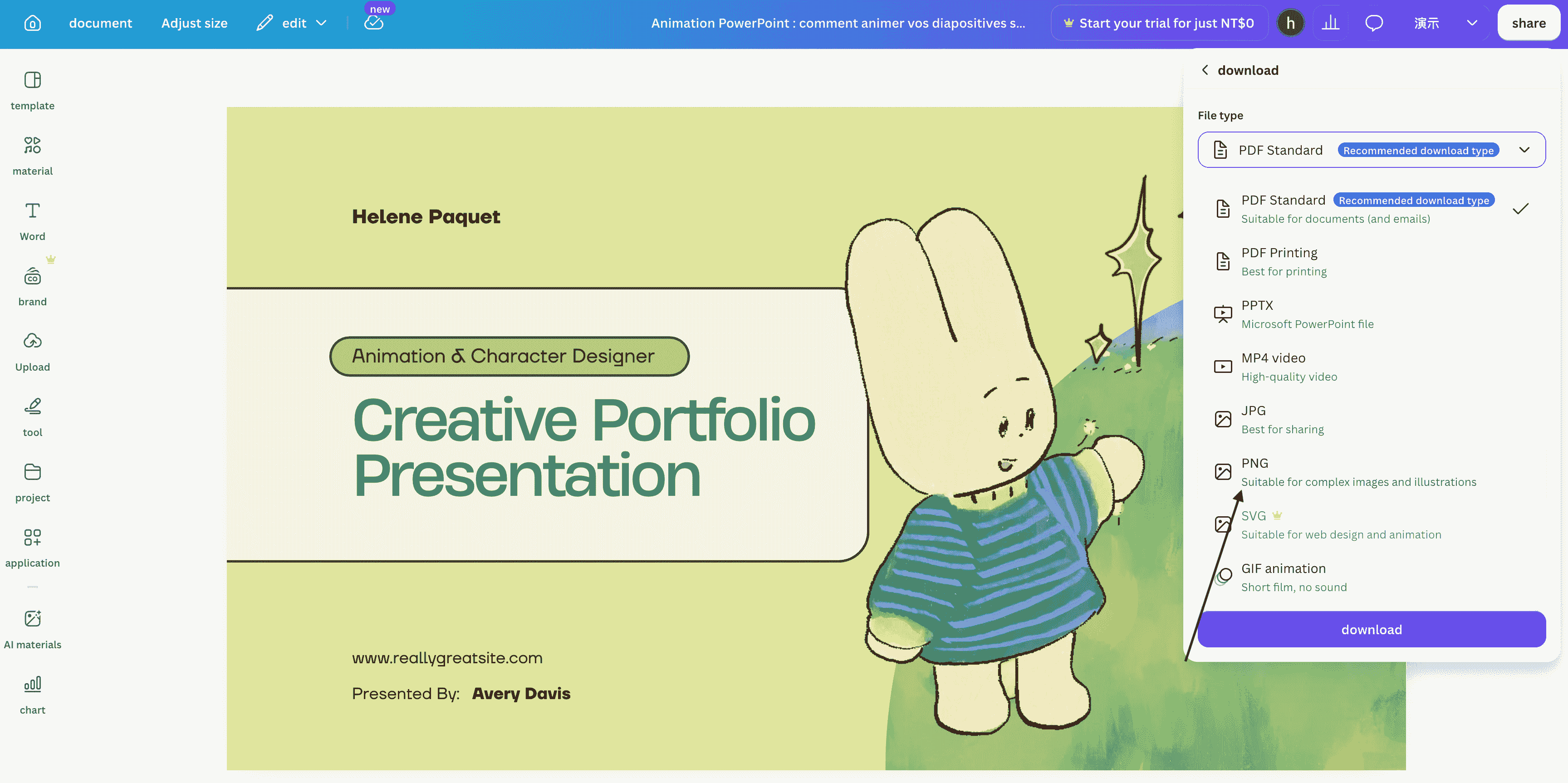
3 Choose all pages and download them. Canva may package multiple images in a ZIP file.
4 Extract the ZIP file and confirm the images are in the correct sequence.
5 Create a blank Google Slides presentation with the same aspect ratio as the Canva deck.
6 For each page, choose Slide > Change background > Choose image, then upload the matching PNG.
7 Repeat for every slide and add editable text boxes, links, videos, or speaker notes on top when necessary.
Using each PNG as a background prevents accidental movement during editing. It also makes it easier to place new Google Slides elements over the design. The tradeoff is larger files and limited accessibility unless you recreate important text as real text.
What About PDF or Third-Party Converters?
Google Slides does not natively treat a PDF as a normal editable slide deck. A PDF-first workflow therefore adds another conversion step and is rarely the best choice. If you already have a PDF, convert its pages to images or obtain the original PPTX instead.
Third-party converters can reduce manual work, but results and privacy practices vary. Confirm whether the service is active, what it charges, whether it stores your design, and whether you are comfortable sharing the link or file. For sensitive work, stay with the native PPTX route.
Best Practices for Optimizing Canva Templates for Google Slides
1. Set the correct aspect ratio before designing
Use the same page ratio in both tools—usually 16:9. Mixing 16:9 and 4:3 can create black bars, unwanted cropping, or distorted backgrounds.
2. Prefer widely available fonts
Choose fonts available in Google Slides, especially Google Fonts. After conversion, compare line breaks on title slides, tables, and narrow text boxes. Font substitution can change both the appearance and the layout.
3. Simplify effects before export
Heavy shadows, unusual masks, complex gradients, transparency layers, and overlapping groups are more likely to change. Flatten decorative clusters into images when you do not need to edit them.
4. Rebuild motion in the destination tool
Do not assume Canva animations, transitions, audio, or video backgrounds will survive. Import the static structure first, then reinsert videos and recreate only the motion that improves understanding.
5. Compress oversized media
Large photos and unnecessary video files make the deck slower to load. Resize images to the resolution actually needed, while avoiding compression so aggressive that projector viewing looks blurry.
6. Check accessibility
Maintain readable contrast, large enough text, logical reading order, meaningful link labels, and captions for important media. If you imported PNG backgrounds, recreate essential text as editable text where accessibility is required.
7. Test the entire converted presentation
Review every slide in both edit mode and slideshow mode. Check fonts, cropping, alignment, charts, links, embedded media, animations, speaker notes, slide numbers, and slide order. Then test on the device and Google account used for the actual presentation.
- Slide size matches
- Fonts are available
- No text is clipped
- Images are sharp
- Objects are aligned
- Links work
- Videos play
- Animations are rebuilt
- Notes are present
- Slide order is correct
- Sharing access is correct
- Original export is backed up
Create a Clearer Presentation with Gamma.com.ai
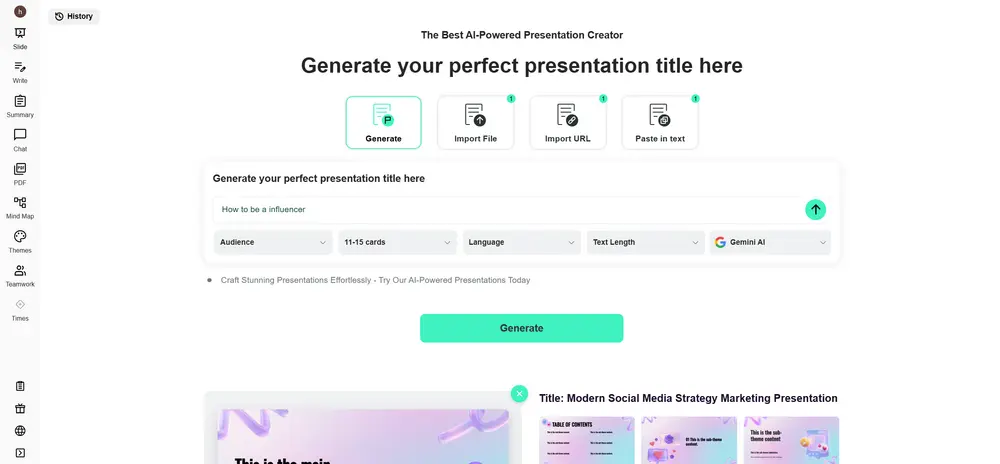
Canva templates solve the visual starting point, but the presentation still needs a focused story. Gamma.com.ai can help you turn a topic, brief, or outline into a structured deck before you refine the visuals and move the content into your preferred Google Slides workflow.
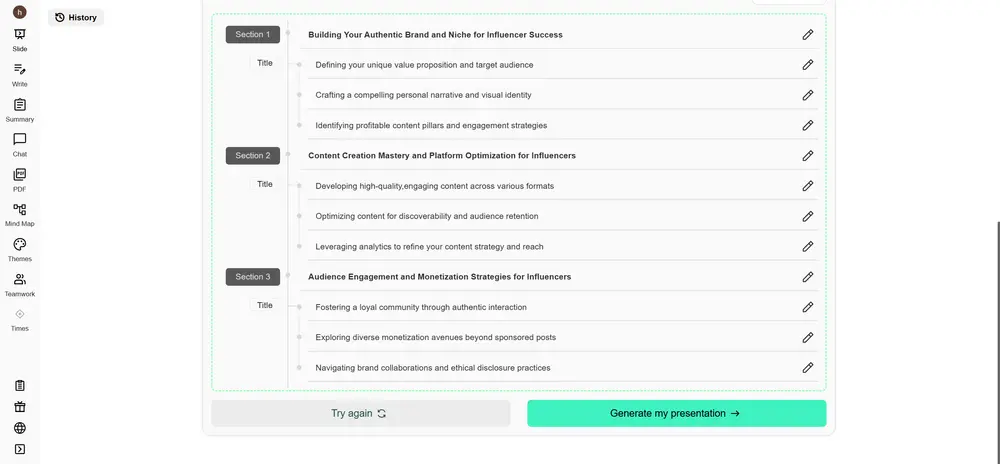
A useful prompt is: “Create a 10-slide presentation for [audience] about [topic]. Give each slide one message, no more than three supporting points, a suggested visual, and a transition to the next slide.” After generation, verify the facts and adapt the result to your brand, audience, and delivery time.
Browse the Gamma.com.ai template library and select a design that matches your purpose and audience.

Open your preferred template and choose “Generate with AI” to begin from a topic, prompt, or outline.

Enter the audience, objective, language, presentation length, and essential information the deck must cover.
Remove repetition, correct the sequence, verify claims, and make sure every slide has one clear purpose.
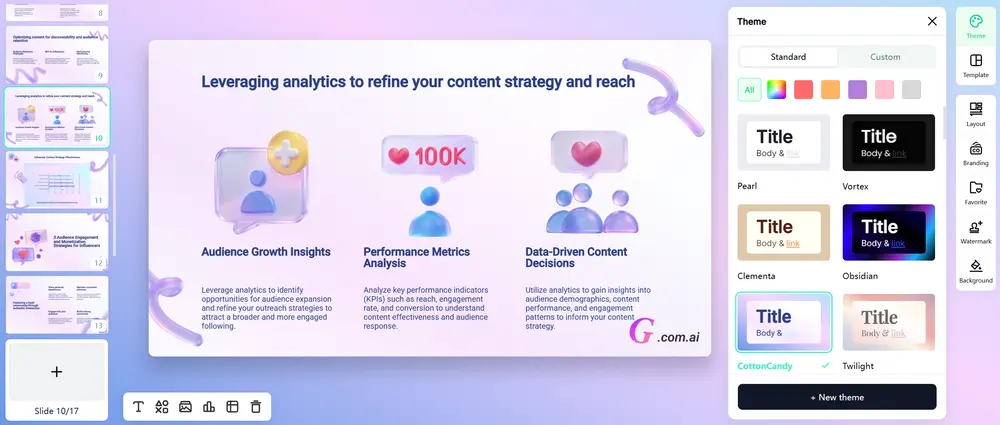
Refine the generated slides, apply your brand, and prepare the content for collaboration or further editing in Google Slides.
Conclusion
The best way to use Canva templates in Google Slides depends on what you need to preserve. Export as PPTX when text and objects must remain editable. Export as PNG backgrounds when the exact Canva appearance matters more than element-level editing. In either case, expect to review fonts, layouts, links, animation, and media after the transfer.
For most users, the simplest workflow is Canva → PowerPoint (.pptx) → Google Drive → Open with Google Slides → Save as Google Slides. Keep the design simple, use compatible fonts, protect sensitive information, and test the converted deck before sharing or presenting. Combined with a strong structure from Gamma.com.ai, this workflow can deliver both attractive visuals and convenient collaboration.