
Bullet points turn a wall of text into a scannable, easy-to-follow slide — but finding the right button in Google Slides isn't always obvious. This guide shows you exactly how to add bullet points in Google Slides, how to create a numbered list, and how to customize both so they match your design. Whether you're starting from scratch or converting existing text, you'll have clean bulleted lists in under a minute.

- The fastest way: click inside a text box, then click the bulleted list icon in the toolbar (or press Ctrl+Shift+8 / Cmd+Shift+8).
- For a numbered list, click the numbered list icon right next to it (or press Ctrl+Shift+7 / Cmd+Shift+7).
- Below: step-by-step instructions for adding, customizing, and nesting bullet points, plus keyboard shortcuts.
How to Add Bullet Points in Google Slides
Here's the quickest way to insert bullet points in Google Slides:
- Open your presentation in Google Slides.
- Click inside a text box (or insert a new one: Insert → Text box, then draw it on the slide).
- In the toolbar, click the Bulleted list icon (it looks like three horizontal lines with dots).
- Start typing. Each time you press Enter, a new bullet appears.
- To stop the list, press Enter twice, or click the bulleted list icon again to toggle it off.
How to Make a Numbered List in Google Slides
A numbered list works the same way — just use the icon next to the bullet icon:
- Click inside a text box.
- Click the Numbered list icon in the toolbar (three horizontal lines with numbers).
- Type your items, pressing Enter after each one. Numbers increment automatically.
- To switch back to bullets or plain text, click the appropriate icon.
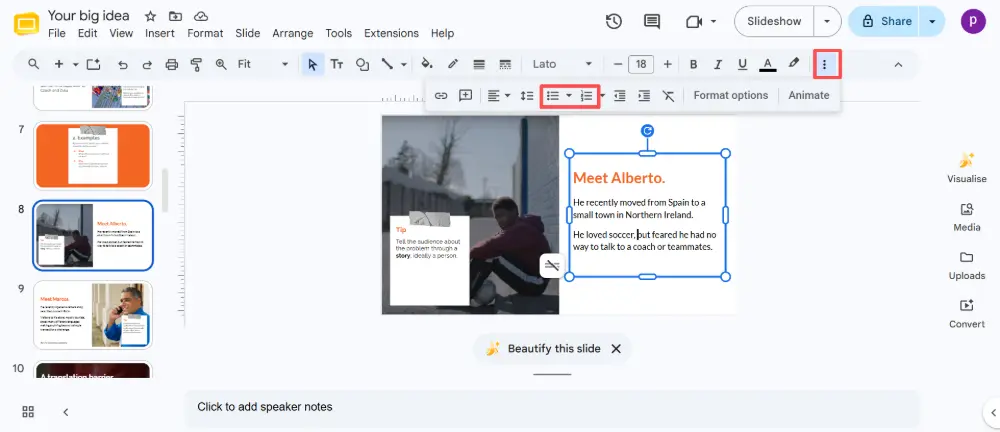
You can also convert existing text into a bulleted or numbered list. Just select the text you've already typed, then click the bulleted list or numbered list icon — Google Slides turns each line into a list item automatically.
Keyboard Shortcuts for Bullet Points
| Action | Windows / Chromebook | Mac |
|---|---|---|
| Toggle bulleted list | Ctrl + Shift + 8 | Cmd + Shift + 8 |
| Toggle numbered list | Ctrl + Shift + 7 | Cmd + Shift + 7 |
| Indent (create sub-bullet) | Tab | Tab |
| Un-indent (move back) | Shift + Tab | Shift + Tab |
| New bullet / next item | Enter | Enter |
| End list | Enter twice | Enter twice |
How to Nest Bullet Points (Sub-Bullets)
Sub-bullets create a visual hierarchy — a main point with supporting details underneath:
- Type your main bullet and press Enter.
- Press Tab to indent the next line — it becomes a sub-bullet with a different symbol (usually a hollow circle or dash).
- Type the sub-point and press Enter for more sub-bullets at the same level.
- Press Shift + Tab to move back to the main bullet level.
You can nest up to several levels deep, though most presentations look best with no more than two levels (main bullet + one sub-level).
How to Customize Bullet Points
The default bullet style is a simple filled circle, but Google Slides offers several options:
Change the bullet style
- Select the bulleted text.
- In the toolbar, click the small dropdown arrow next to the bulleted list icon.
- Choose from the available styles: filled circle, hollow circle, square, dash, star, arrow, or checkmark.
Change the bullet color and size
- Select the bulleted text.
- Change the text color (font color icon in the toolbar) — the bullets change color with the text.
- To change only the bullet color: select just the bullet character, then change its color independently.
- Adjust font size to make bullets larger or smaller.
Use custom symbols or emojis as bullets
- Click at the start of a bullet line.
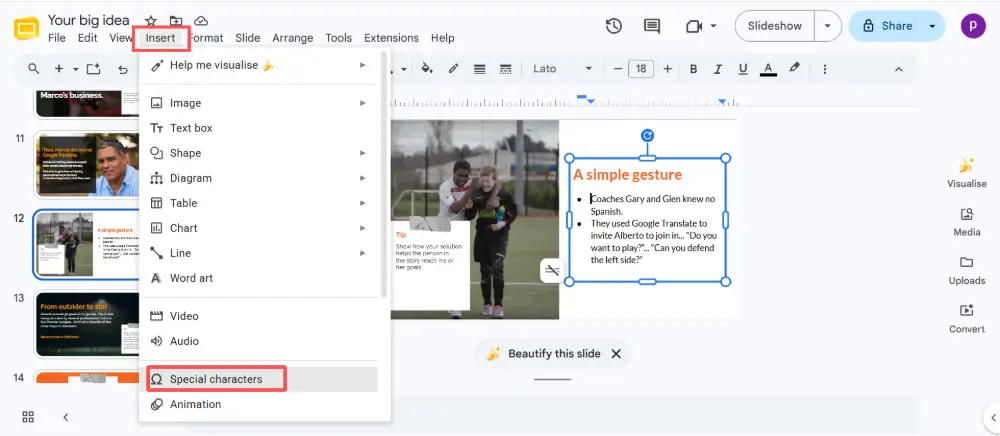
- Go to Insert → Special characters.
- Search for a symbol (arrow, checkmark, star, emoji) and insert it.
- Delete the default bullet, leaving your custom symbol.
| Bullet style | How to get it | Best for |
|---|---|---|
| Filled circle (●) | Default style. | Standard slides, any topic. |
| Hollow circle (○) | Dropdown → hollow circle. | Sub-bullets, lighter feel. |
| Square (■) | Dropdown → square. | Modern, blocky design. |
| Dash (—) | Dropdown → dash. | Minimalist, editorial style. |
| Checkmark (✓) | Dropdown → checkmark, or Insert → Special characters. | Checklists, completed items. |
| Arrow (→) | Dropdown → arrow, or Insert → Special characters. | Steps, flow, direction. |
| Custom emoji | Insert → Special characters → search. | Playful, branded, creative slides. |
Bullet Point Best Practices for Slides
- Keep it short: each bullet should be a concise phrase, not a full paragraph. If you're reading a sentence aloud, it's too long for a bullet.
- Limit to 5–6 bullets per slide: more than that overwhelms the audience and defeats the purpose.
- Use parallel structure: start each bullet the same way (all verbs, all nouns) for a clean, professional rhythm.
- Don't nest too deep: one sub-level is usually enough. More than two levels makes slides hard to read.
- Match your theme: customize bullet color and style to match your slide's color palette.
💡 Pro tip: If you find yourself spending time formatting bullet points, consider building your presentation in an AI tool like Gamma.com.ai — it generates clean, well-styled slides with properly formatted lists automatically, so you can focus on content instead of formatting.
Conclusion
Adding bullet points in Google Slides takes one click or one shortcut (Ctrl+Shift+8). For a numbered list, use Ctrl+Shift+7. Nest sub-bullets with Tab, customize the style through the dropdown, and keep your lists short, parallel, and limited to 5–6 items per slide. Once you know the shortcuts and the dropdown, formatting bulleted lists and numbered lists becomes second nature.
FAQs
How do I add bullet points in Google Slides?
Click inside a text box, then click the bulleted list icon in the toolbar — or press Ctrl+Shift+8 (Cmd+Shift+8 on Mac). Each time you press Enter, a new bullet appears. To stop, press Enter twice or click the icon again.
How do I make a numbered list in Google Slides?
Click inside a text box and click the numbered list icon in the toolbar (next to the bullet icon), or press Ctrl+Shift+7 (Cmd+Shift+7 on Mac). Numbers increment automatically with each new line.
How do I create sub-bullets?
After typing a bullet and pressing Enter, press Tab to indent the next line — it becomes a sub-bullet. Press Shift+Tab to move back to the main level. You can nest multiple levels, but one sub-level is usually enough for readability.
How do I change the bullet style?
Select the bulleted text, then click the small dropdown arrow next to the bullet icon in the toolbar. Choose from filled circle, hollow circle, square, dash, star, arrow, or checkmark. For custom symbols, use Insert → Special characters.
How many bullet points should I have per slide?
Aim for 5–6 bullets maximum per slide. More than that overwhelms the audience. Keep each bullet short — a phrase, not a sentence — and use parallel structure (start each bullet the same way) for a professional, clean look.

