
You've finished your presentation in Google Slides, and now you need a PDF — to email, print, or share with someone who doesn't use Google. The good news: converting Google Slides to PDF takes about three clicks and works on any device. This guide walks you through every method to convert Google Slides to PDF, from the built-in download to printing to PDF, plus how to handle common issues like missing fonts and broken layouts.

- The fastest way: File → Download → PDF Document (.pdf). Done in three clicks.
- You can also use File → Print → Save as PDF for more control over layout and page range.
- Below are all methods to convert Google Slides to PDF, including mobile, plus fixes for common issues.
Why Convert Google Slides to PDF?
A PDF locks your slides exactly as you designed them — same fonts, same layout, same images — regardless of the viewer's device or software. PDFs are also easier to email (no Google account needed to open), print cleanly, and archive reliably. If you're sharing a presentation with someone outside your organization, PDF is the safest format.
How to Convert Google Slides to PDF (4 Methods)
Here are all the ways to get a PDF from Google Slides, from quickest to most flexible.
| Method | Device | Best for |
|---|---|---|
| File → Download → PDF | Desktop | The fastest option — three clicks, full presentation. |
| File → Print → Save as PDF | Desktop | Choosing specific slides, adding notes, adjusting layout. |
| Share → Email as PDF | Desktop | Sending the PDF directly without downloading first. |
| Mobile app export | Phone / tablet | Converting on the go from the Google Slides app. |
Method 1: File → Download → PDF (fastest)
- Open your presentation in Google Slides.
- Click File in the top menu.
- Hover over Download.
- Click PDF Document (.pdf).
- The PDF downloads automatically to your computer.
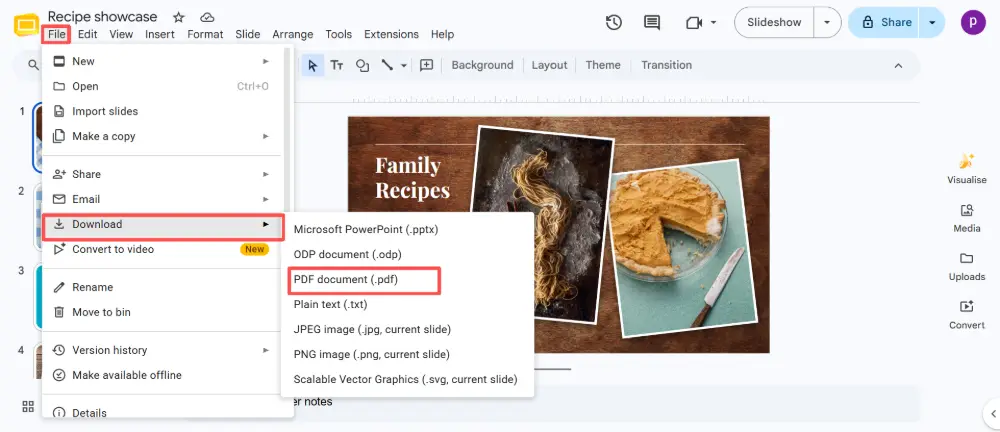
This exports all slides in the presentation. If you only need certain slides, use Method 2.
Method 2: File → Print → Save as PDF
This method gives you more control:
- Click File → Print (or press Ctrl+P / Cmd+P).
- In the print dialog, set the destination to "Save as PDF" (or "Microsoft Print to PDF" on Windows).
- Choose the page range if you only need specific slides.
- Adjust layout options (slides per page, include speaker notes, etc.).
- Click Save and choose where to save the file.
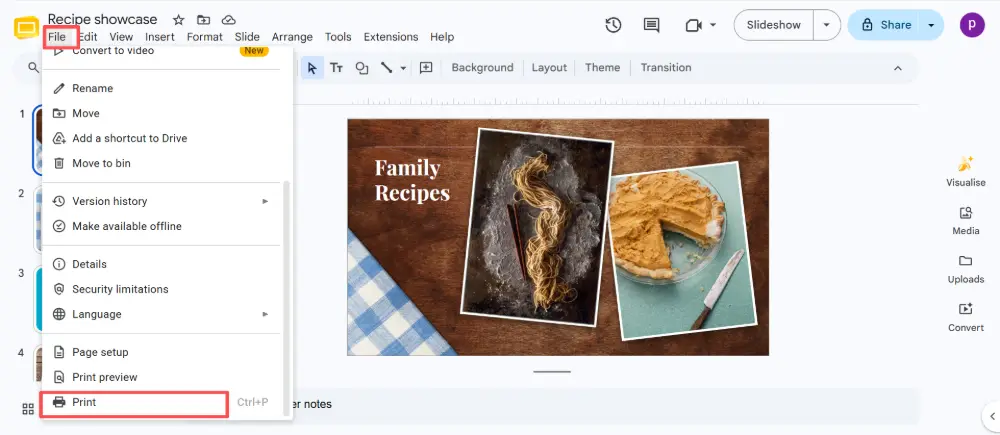
If you need speaker notes in your PDF, use the Print method: in the print settings, select "1 slide with notes" under the layout options. The standard Download → PDF method does not include speaker notes.
Method 3: Email as PDF Attachment
- Click File → Email as attachment.
- In the dialog, set the format to PDF.
- Enter the recipient's email, add a message, and click Send.
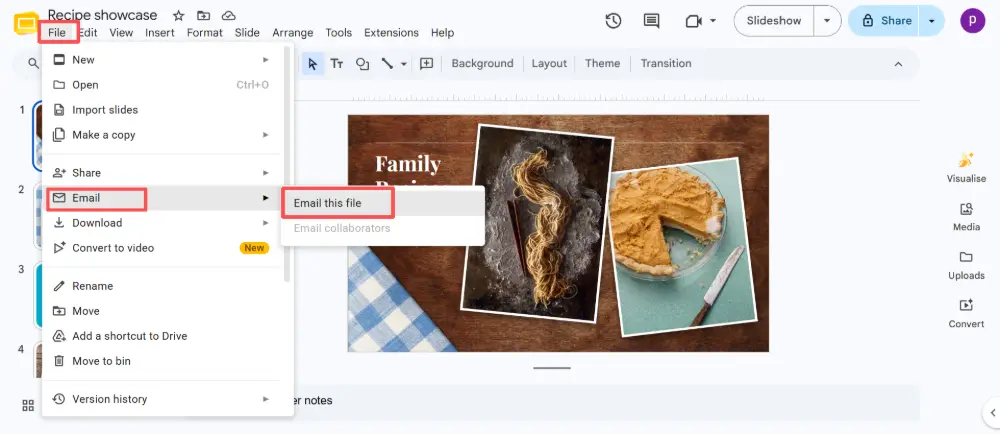
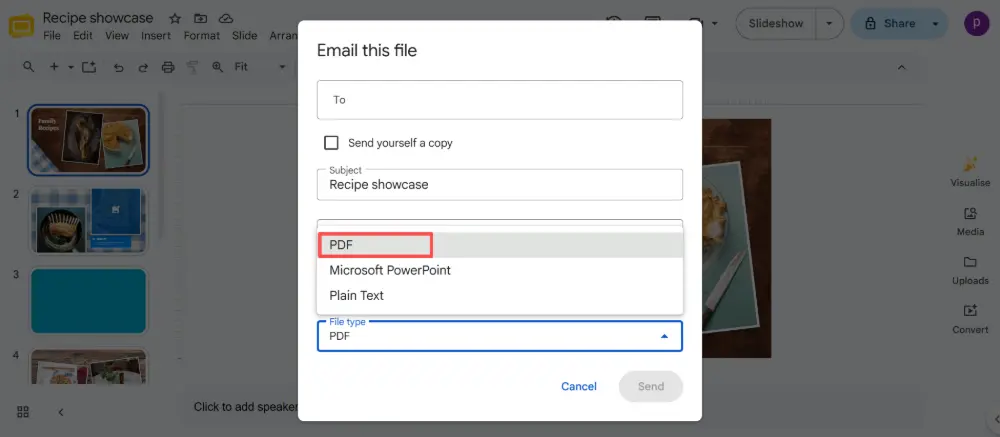
Google Slides converts the file and sends it as a PDF attachment — no need to download it to your computer first.
Method 4: Mobile (Google Slides App)
- Open the presentation in the Google Slides app (Android or iOS).
- Tap the three-dot menu (⋮) in the top right.
- Tap Share & export → Save as → PDF Document (.pdf).
- Choose where to save or share the file.
Common Issues and Fixes
Sometimes the PDF doesn't look exactly like your slides. Here's how to fix the most common problems:
| Issue | Fix |
|---|---|
| Fonts look different in the PDF | Use Google Fonts (they embed automatically) or standard system fonts. Custom uploaded fonts may not render correctly in PDF. |
| Layout is slightly shifted | Check slide dimensions (File → Page setup). Non-standard sizes can cause alignment shifts during export. |
| Images appear blurry | Use higher-resolution images in your slides. Google Slides may compress images during PDF export. |
| Animations/transitions are gone | PDFs are static — animations and transitions don't carry over. That's expected behavior, not a bug. |
| Speaker notes missing | Use File → Print → "1 slide with notes" layout, then Save as PDF. The direct download method skips notes. |
💡 Pro tip: If you're building presentations you frequently need to export as PDF, consider using an AI-powered slide tool like Gamma.com.ai. It generates clean, web-native presentations you can share by link — and export to PDF with one click, without font or layout issues.
Conclusion
Converting Google Slides to PDF is fast and simple: File → Download → PDF for the quick route, or File → Print → Save as PDF for more control over page range and speaker notes. On mobile, use the app's Share & export menu. If fonts or layouts look off, switch to Google Fonts and check your slide dimensions. Three clicks and your presentation is locked in a clean, shareable PDF.
FAQs
How do I convert Google Slides to PDF?
The fastest way: open your presentation, click File → Download → PDF Document (.pdf). The PDF downloads automatically. For more control (specific slides, speaker notes), use File → Print → Save as PDF instead.
Can I include speaker notes in the PDF?
Yes, but not with the direct download method. Use File → Print, select "1 slide with notes" in the layout options, then set the destination to Save as PDF. This creates a PDF with each slide and its notes on the same page.
Can I convert Google Slides to PDF on my phone?
Yes. Open the presentation in the Google Slides app, tap the three-dot menu, then Share & export → Save as → PDF Document. You can save or share the PDF directly from your phone.
Why do fonts look different in my PDF?
Custom uploaded fonts may not embed correctly during export. Stick to Google Fonts or standard system fonts for reliable results. Google Fonts embed automatically and render consistently across devices.
Can I convert just some slides to PDF?
Yes. Use File → Print, set the destination to Save as PDF, and enter the specific page range (for example, slides 1-5). This lets you export only the slides you need instead of the full presentation.

