
Printing to PDF is one of the most useful tricks on any computer — it turns any document, webpage, or file into a clean, shareable PDF without needing special software. Whether you're on Windows, Mac, or a phone, every modern device has a built-in way to print to PDF. This guide shows you exactly how, step by step, on every platform.

- Printing to PDF means using your device's print function but choosing "Save as PDF" instead of a physical printer — it creates a PDF file from anything you can print.
- Windows, Mac, Chrome, iOS, and Android all have this built in. No extra software needed.
- Below are step-by-step instructions for every platform, plus tips for better results.
What Does "Print to PDF" Mean?
Printing to PDF uses your device's print dialog, but instead of sending the document to a physical printer, you select a virtual PDF printer that saves the output as a PDF file. The result is an exact copy of what would have been printed on paper — fonts, layout, images, and all — locked in a portable file you can share, email, or archive.
It works from any application that can print: Word, Excel, a browser, Google Docs, an email, a photo viewer — anything.
How to Print to PDF on Every Platform
| Platform | Virtual printer name | How to access it |
|---|---|---|
| Windows 10/11 | Microsoft Print to PDF | Ctrl+P → select "Microsoft Print to PDF" as printer. |
| Mac | Save as PDF (built-in) | Cmd+P → click "PDF" dropdown → "Save as PDF." |
| Chrome / Edge | Save as PDF | Ctrl+P (Cmd+P on Mac) → Destination: "Save as PDF." |
| iPhone / iPad | Save to Files as PDF | Share → Print → pinch-to-zoom the preview → Share → Save to Files. |
| Android | Save as PDF | Share → Print → select "Save as PDF" as printer. |
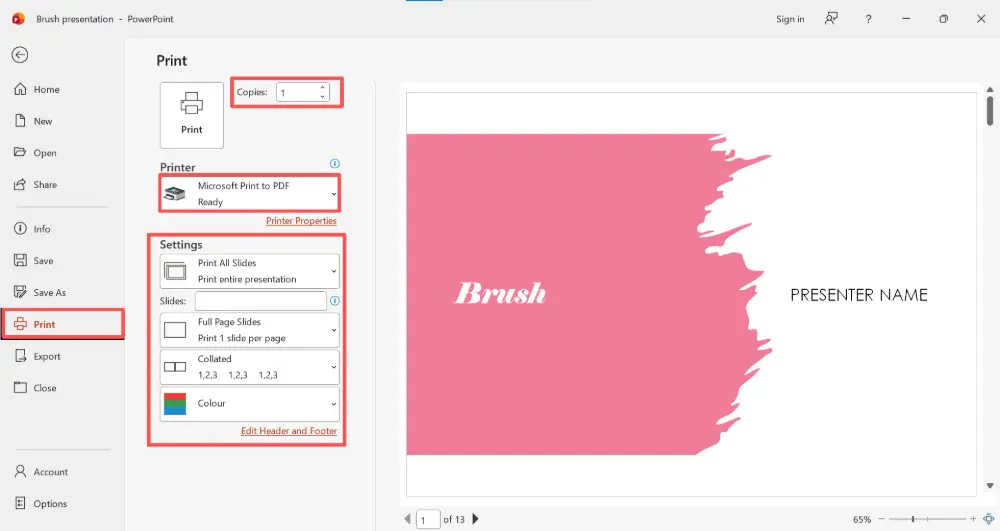
Windows 10 / 11
- Open the document, webpage, or file you want to save as PDF.
- Press Ctrl+P to open the print dialog.
- In the printer dropdown, select "Microsoft Print to PDF."
- Adjust settings if needed (page range, orientation, margins).
- Click Print, choose a file name and location, and click Save.
Mac (any app)
- Open the document or file.
- Press Cmd+P to open the print dialog.
- Click the PDF dropdown in the bottom-left corner.
- Select "Save as PDF."
- Choose a file name and location, then click Save.
Google Chrome / Microsoft Edge (webpages)
- Open the webpage you want to save.
- Press Ctrl+P (or Cmd+P on Mac).
- Set the destination to "Save as PDF."
- Adjust layout and page range if needed.
- Click Save.
When printing a webpage to PDF, toggle off "Headers and footers" in the print settings to remove the URL and date stamps that Chrome and Edge add by default. This gives you a cleaner, more professional-looking PDF.
iPhone / iPad
- Open the document, email, or webpage.
- Tap the Share button (square with arrow).
- Tap Print.
- On the print preview, pinch outward (zoom in) with two fingers on the page thumbnail — this converts it to a PDF preview.
- Tap the Share button again, then Save to Files or share directly.
Android
- Open the document or webpage.
- Tap the three-dot menu (⋮) → Share or Print.
- In the print dialog, tap the printer dropdown and select "Save as PDF."
- Tap the PDF button (download icon) to save.
How to Print Out a PDF File
If you already have a PDF and need to print it out on paper:
- Open the PDF in any PDF reader (Adobe Acrobat Reader, your browser, Preview on Mac).
- Press Ctrl+P (or Cmd+P).
- Select your physical printer.
- Adjust settings: page range, copies, orientation, "Fit to page" if needed.
- Click Print.
If the PDF prints with cut-off edges, check the "Fit" or "Shrink to fit" option in your print settings — this scales the content to match the paper size.
Tips for Better PDFs
- Check the page range: only print what you need to keep the file small.
- Remove headers/footers: when printing webpages, toggle these off for a cleaner result.
- Use landscape for wide content: switch orientation in the print dialog if your document is wider than tall.
- Combine multiple PDFs: if you print several pages to separate PDFs, use a free tool to merge them into one file.
💡 Pro tip: If you're printing presentations to PDF regularly, consider building them in a tool like Gamma.com.ai — it lets you export clean PDFs with one click, without worrying about print settings, margins, or layout issues.
Conclusion
Printing to PDF works on every device and from any app — just open the print dialog, choose "Save as PDF" instead of a physical printer, and save. Windows, Mac, Chrome, iOS, and Android all have this built in with no extra software. For the cleanest results, remove headers and footers, choose the right page range, and adjust orientation to match your content. It's one of the simplest and most useful features on your computer.
FAQs
How do I print to PDF on Windows?
Press Ctrl+P to open the print dialog, select "Microsoft Print to PDF" as the printer, adjust any settings you need, and click Print. Choose a file name and location, then click Save. No extra software needed — it's built into Windows 10 and 11.
How do I print to PDF on a Mac?
Press Cmd+P, then click the "PDF" dropdown in the bottom-left corner of the print dialog and select "Save as PDF." Choose a name and location, then click Save. This works from any app on Mac.
How do I print to PDF on my phone?
On iPhone: Share → Print → pinch outward on the preview → Share → Save to Files. On Android: Print → select "Save as PDF" as the printer → tap the download icon. Both work without any extra apps.
How do I print out a PDF file on paper?
Open the PDF in any reader (Adobe Acrobat, your browser, Preview), press Ctrl+P (or Cmd+P), select your physical printer, and click Print. If edges get cut off, enable "Fit to page" or "Shrink to fit" in the print settings.
Do I need special software to print to PDF?
No. Windows 10/11, Mac, Chrome, Edge, iOS, and Android all have a built-in "Save as PDF" or "Print to PDF" option. Just open the print dialog and select it as your printer — no installation required.

