
Google Slides and Google Docs are cloud-first — but they work offline too. You can view, edit, and create presentations and documents without an internet connection, as long as you set it up in advance. This guide shows you how to use Google Slides and Docs offline, step by step.

- Enable offline: Google Drive → Settings → toggle on "Offline." Requires Chrome browser and the Google Docs Offline extension.
- Once enabled, recent files sync automatically. Edits save locally and sync when you reconnect.
- Below: setup steps, how to make specific files available offline, and troubleshooting.
Can You Use Google Slides Offline?
Yes — Google Slides works offline in Chrome (desktop) and in the Google Slides mobile app (iOS/Android). You can view, edit, and create presentations without an internet connection. Changes save locally and sync automatically when you reconnect.
The same applies to Google Docs and Google Sheets — offline access is a Google Workspace feature that covers all three editors.
How to Enable Offline Editing (Desktop — Chrome)
Step 1: Install the Google Docs Offline extension
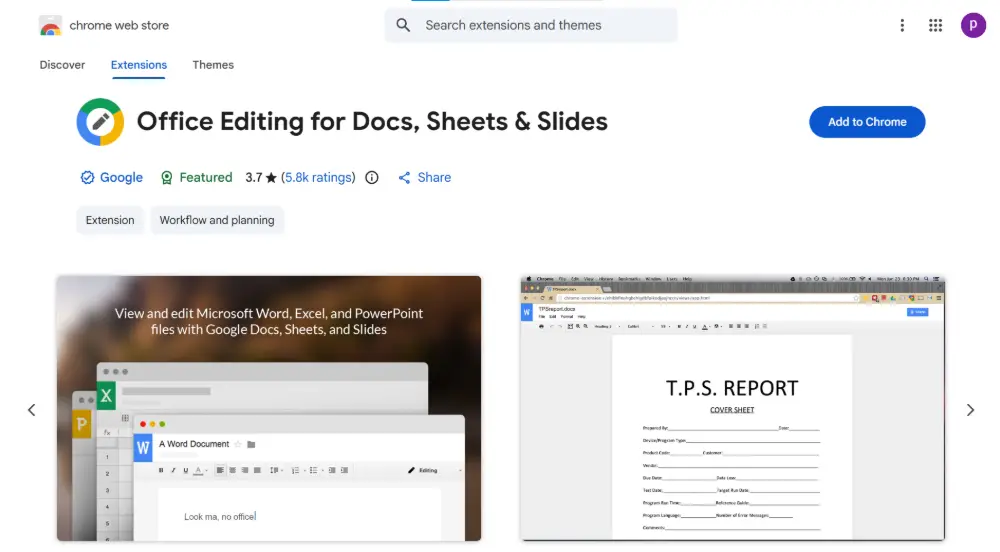
- Open Chrome (offline mode only works in Chrome, not Firefox or Safari).
- Go to the Chrome Web Store and search for "Google Docs Offline".
- Click Add to Chrome → Add extension.
- The extension enables offline caching for Google Docs, Slides, and Sheets.
Step 2: Turn on offline access in Google Drive
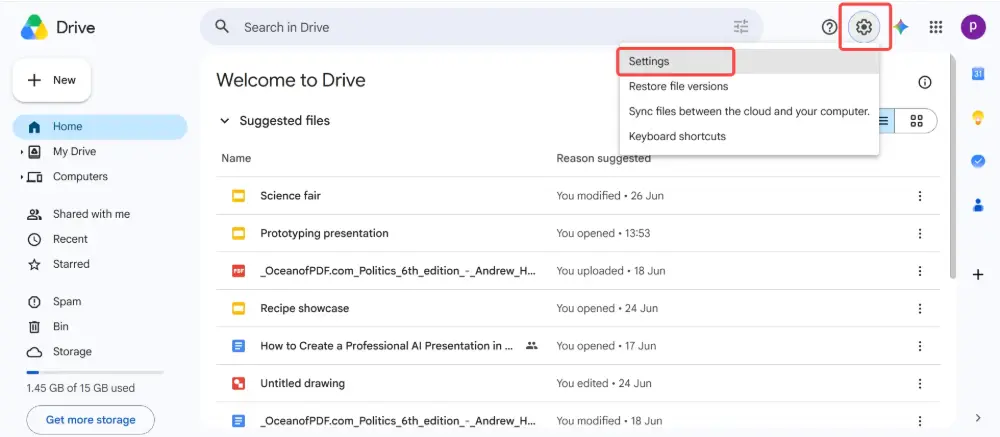
- Go to drive.google.com.
- Click the gear icon (top right) → Settings.
- In the General section, check "Create, open, and edit your recent Google Docs, Sheets, and Slides files on this device while offline."
- Click Done.
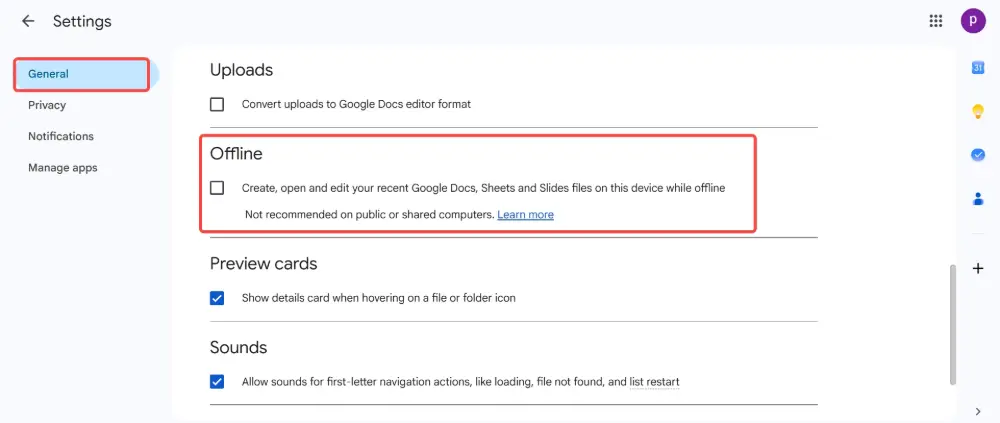
- Google Drive begins syncing your recent files for offline access.
You must enable offline access while you're still connected to the internet — you can't turn it on after you've already lost connection. Set it up before your flight, commute, or trip to a location without Wi-Fi.
How to Make a Specific File Available Offline
Google Drive automatically syncs recent files, but you can manually ensure a specific file is available:
- Go to drive.google.com (while online).
- Find the file you want available offline.
- Right-click → toggle "Available offline" to on.
- A checkmark icon appears next to the file, confirming it's cached.
- You can now open and edit this file without internet.
This works for Google Docs, Slides, and Sheets files. It does not work for non-Google files (PDFs, Word docs, images) unless you use Google Drive for Desktop.
How to Use Google Slides Offline (Mobile)
- Install the Google Slides app (iOS or Android).
- Open the app while connected to the internet.
- Find the presentation you want offline.
- Tap the three dots (⋮) next to the file → toggle "Available offline".
- The file downloads to your device. You can now open and edit it without connection.
The same process works in the Google Docs and Google Sheets apps.
What Works Offline (and What Doesn't)
| Feature | Works offline? | Notes |
|---|---|---|
| View presentations | ✅ Yes | All cached presentations are viewable offline. |
| Edit slides | ✅ Yes | Add text, move elements, delete slides. Changes sync when reconnected. |
| Create new presentations | ✅ Yes | You can create from scratch offline. Saved locally until sync. |
| Present (slideshow mode) | ✅ Yes | Full slideshow mode works offline. |
| Insert images from web | ❌ No | No internet = no web image search. Upload from device works. |
| Collaboration | ❌ No | Real-time collaboration requires internet. Edits sync when reconnected. |
| Add-ons / extensions | ❌ No | Most add-ons require an internet connection to function. |
| Linked charts (from Sheets) | ⚠️ Partial | Charts display but don't update. Data refreshes when online. |
Troubleshooting
| Problem | Solution |
|---|---|
| Offline option not showing | Make sure you're using Chrome and the Google Docs Offline extension is installed. The option doesn't appear in other browsers. |
| File not available offline | Right-click the file in Drive → toggle "Available offline." The file needs to sync while you're still online. |
| Edits didn't sync | Open Chrome and go to drive.google.com while connected. Offline edits should sync automatically. If not: check the sync status icon in Drive. |
| "Offline is unavailable" error | Clear Chrome cache and re-enable offline in Drive settings. Or sign out and back in to your Google account. |
| Storage full | Offline files use local storage. Clear browser cache or remove files you no longer need offline (right-click → toggle "Available offline" off). |
💡 Pro tip: If you frequently present in places without Wi-Fi, Gamma.com.ai presentations can be exported to PowerPoint (.pptx) for fully offline use — no browser, no extension, no sync required. Build online, present anywhere.
Conclusion
Google Slides works offline — you just need to set it up first: install the Google Docs Offline extension in Chrome, enable offline access in Google Drive settings, and mark specific files as "Available offline." Edits save locally and sync when you reconnect. On mobile, toggle "Available offline" in the Google Slides app. The key rule: set up offline access while you still have internet.
FAQs
Can I use Google Slides offline?
Yes — in Chrome (with the Google Docs Offline extension) or in the Google Slides mobile app. You need to enable offline access and sync files while still connected to the internet.
How do I edit Google Slides offline?
Enable offline: install Google Docs Offline extension → Drive Settings → enable offline → mark files as "Available offline." Then open and edit them in Chrome without internet. Changes sync when you reconnect.
Do I need the Google Docs Offline extension?
On desktop Chrome, yes — the extension enables offline caching for Google Docs, Slides, and Sheets. On mobile, the Google Slides app handles offline access natively without an extension.
Do offline edits sync automatically?
Yes — when you reconnect to the internet, Chrome syncs your offline edits to Google Drive automatically. You don't need to manually upload or save. If two people edited the same file, Google merges the changes.
Does Google Docs offline work in Firefox or Safari?
No — offline editing for Google Docs, Slides, and Sheets only works in Chrome. The Google Docs Offline extension is a Chrome extension and is not available for other browsers.

