
You've got a PDF, and you need someone else to see it — by email, by link, or online. The method you choose depends on the file size, who you're sending it to, and whether you want them to download it or just view it. This guide covers every way to share a PDF and send a PDF document, from a simple email attachment to a shareable link anyone can open in their browser.

- Small PDFs (under ~25 MB): attach directly to an email. Larger files or ongoing sharing: upload to a cloud service and share the link.
- Google Drive, Dropbox, and OneDrive all let you upload a PDF and generate a shareable URL — no download required for the viewer.
- Below are 6 ways to share a PDF compared, plus how to share a PDF as a link step by step.
Choosing the Right Method
The best way to send a PDF depends on three things:
- File size: most email services cap attachments at 20–25 MB. Anything larger needs a link.
- Access control: do you want anyone with the link to view it, or only specific people?
- View vs. download: a cloud link lets people view in their browser without downloading; an attachment requires a download.
6 Ways to Share a PDF
| Method | Max size | Free | Best for |
|---|---|---|---|
| Email attachment | 20–25 MB | ✅ | Small files sent to specific people. |
| Google Drive link | 5 TB | ✅ (15 GB free) | Sharing with anyone via URL; view in browser. |
| Dropbox link | 2 GB+ per file | ✅ (2 GB free) | Clean shareable links; password protection. |
| OneDrive link | 250 GB per file | ✅ (5 GB free) | Microsoft ecosystem; Office integration. |
| Online PDF sharing tool | Varies | ✅ (limited) | Quick, no-account sharing for one-off files. |
| Upload to a website | Server limit | Depends | Making a PDF permanently available at a URL. |
1. Email Attachment (the classic)
- Open your email client (Gmail, Outlook, etc.).
- Compose a new message.
- Click the attachment icon (paperclip).
- Select your PDF file.
- Send.
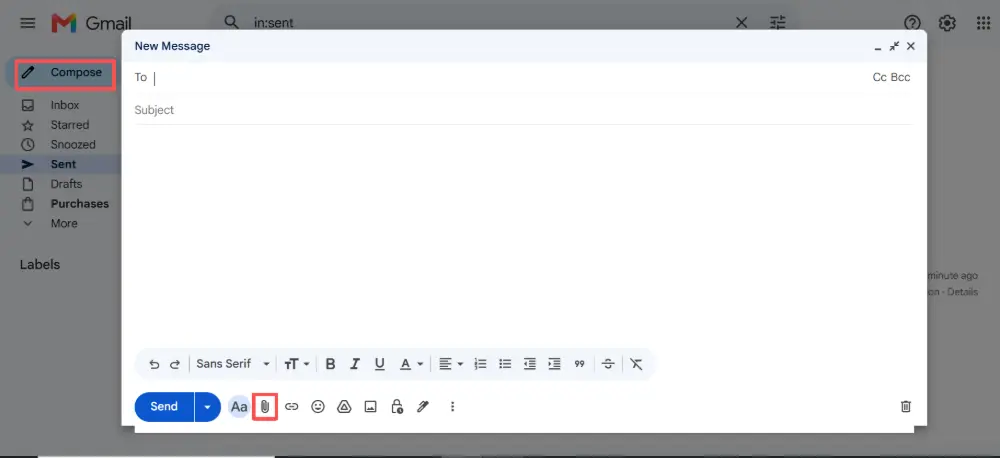
This works for files under ~25 MB. If your file is larger, your email provider will usually offer to insert a cloud link instead — which leads us to the next methods.
2. Google Drive (share as a link)
Google Drive is the easiest way to share a PDF as a link:
- Go to drive.google.com and sign in.
- Click New → File upload and select your PDF.
- Once uploaded, right-click the file → Share → Get link.
- Set access to "Anyone with the link" (or restrict to specific people).
- Copy the link and send it to whoever needs the file.
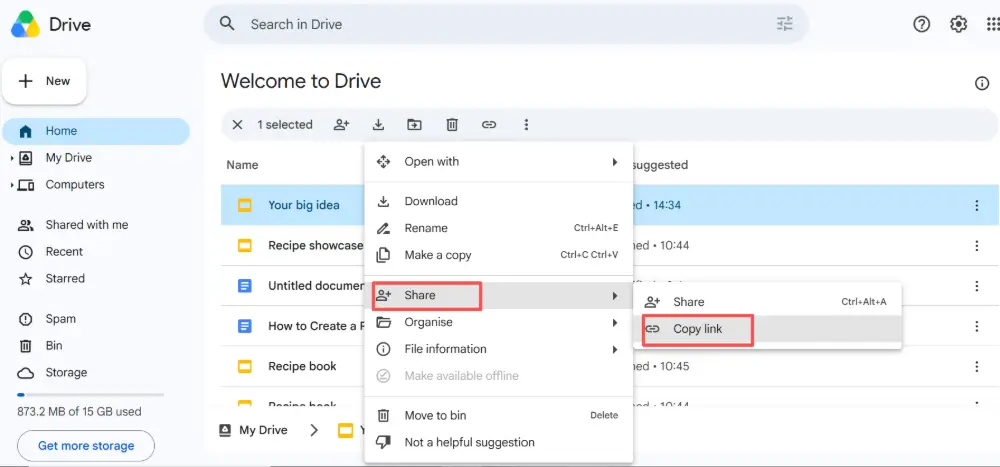
The recipient can view the PDF directly in their browser — no download needed, no Google account required (if you set it to "Anyone with the link").
3. Dropbox
- Upload your PDF to Dropbox (drag and drop, or click Upload).
- Hover over the file → click Share.
- Click Create link.
- Copy the link and share it.
Dropbox links can be password-protected and set to expire — useful for sensitive documents.
4. OneDrive
- Upload your PDF to onedrive.live.com.
- Right-click the file → Share.
- Set permissions (view only, or allow editing).
- Copy the link or send directly via email.
When sharing a PDF via a cloud link, always double-check the access settings before sending. "Anyone with the link" means anyone — including people the link gets forwarded to. For sensitive documents, restrict access to specific email addresses or add a password.
5. Online PDF Sharing Tools
For a quick, no-account share:
- Go to a free sharing tool (such as FileTransfer, WeTransfer, or SmallPDF's share feature).
- Upload your PDF.
- The tool generates a shareable link (usually valid for a few days).
- Copy and send the link.
These are great for one-off shares, but links typically expire after 7 days (free tier). For permanent sharing, use a cloud service or upload to a website.
6. Upload to a Website
If you need a permanent PDF URL that anyone can access anytime:
- Upload the PDF to your web hosting, CMS (WordPress, Wix, Squarespace), or a file hosting service.
- The PDF gets a direct URL (e.g., yoursite.com/docs/report.pdf).
- Share the URL by email, in a webpage, or on social media.
This is how companies share whitepapers, reports, and public documents — the PDF lives at a stable URL that never expires.
Can You Share URLs of PDFs?
Yes — any PDF uploaded to a cloud service or a website has a URL you can share. The URL either lets the viewer open the PDF in their browser (Google Drive, Dropbox, OneDrive) or download it directly (direct file link on a website). Cloud links also let you control who can access the file and revoke access later.
💡 Pro tip: If your PDF is a presentation, consider sharing it as a live web link instead of a static file. Tools like Gamma.com.ai let you share presentations as interactive web pages — viewers get a clean, responsive experience, and you can update the content anytime without resending a new file.
Conclusion
Sharing a PDF is straightforward once you pick the right method for the situation. Small files go as email attachments; larger files or ongoing sharing go to Google Drive, Dropbox, or OneDrive as a shareable link; one-off quick shares use a free upload tool; and permanent public access means uploading to a website. Always check your access settings before sending a link, and for sensitive documents, restrict access to specific people or add a password.
FAQs
How do I share a PDF as a link?
Upload the PDF to Google Drive, Dropbox, or OneDrive. Then use the Share or Get link option to generate a URL. Set access to "Anyone with the link" and copy the URL. The recipient can view the PDF in their browser without downloading it.
How do I send a PDF document by email?
Compose a new email, click the attachment icon (paperclip), select your PDF, and send. Most email services allow files up to 20–25 MB. For larger files, your email client will usually offer to insert a cloud link instead.
Can you share URLs of PDFs?
Yes. Any PDF uploaded to a cloud service (Google Drive, Dropbox, OneDrive) or a website gets a shareable URL. Cloud links let the viewer open the PDF in their browser; direct file links on a website let them download it.
How do I share a PDF without the recipient needing to download it?
Upload to Google Drive, Dropbox, or OneDrive and share the link. These services open the PDF directly in the browser — the viewer can read it without downloading anything. Set access to "Anyone with the link" for the easiest experience.
How do I upload a PDF online for free?
Google Drive (15 GB free), Dropbox (2 GB free), and OneDrive (5 GB free) all let you upload PDFs and generate shareable links at no cost. For quick one-off shares, tools like WeTransfer let you upload and share without creating an account.

