
Sharing a PowerPoint used to mean emailing a file back and forth — and hoping nobody overwrites your version. Today, you can share a live link, co-edit in real time, and control exactly who can view or change your slides. This guide shows you how to share a PowerPoint presentation, collaborate with others, and manage permissions — whether you're using the desktop app, the web, or OneDrive.

- The best way to share a PowerPoint for collaboration: save it to OneDrive or SharePoint, then click Share → send a link with "Can edit" permissions.
- For view-only sharing: send the link with "Can view" permissions, or export as PDF.
- Below: 4 ways to share a PowerPoint compared, plus how to collaborate in real time.
4 Ways to Share a PowerPoint
| Method | Real-time editing | Best for |
|---|---|---|
| Share via OneDrive link | ✅ | Collaboration — multiple people edit the same file simultaneously. |
| Email as attachment | ❌ | One-way sharing when the recipient doesn't need to edit live. |
| Share as PDF | ❌ | View-only sharing — locked layout, no edits possible. |
| Share via SharePoint / Teams | ✅ | Team collaboration within an organization (Microsoft 365). |
How to Share a PowerPoint via OneDrive (Best for Collaboration)
This is the recommended way to share PowerPoint with others to edit:
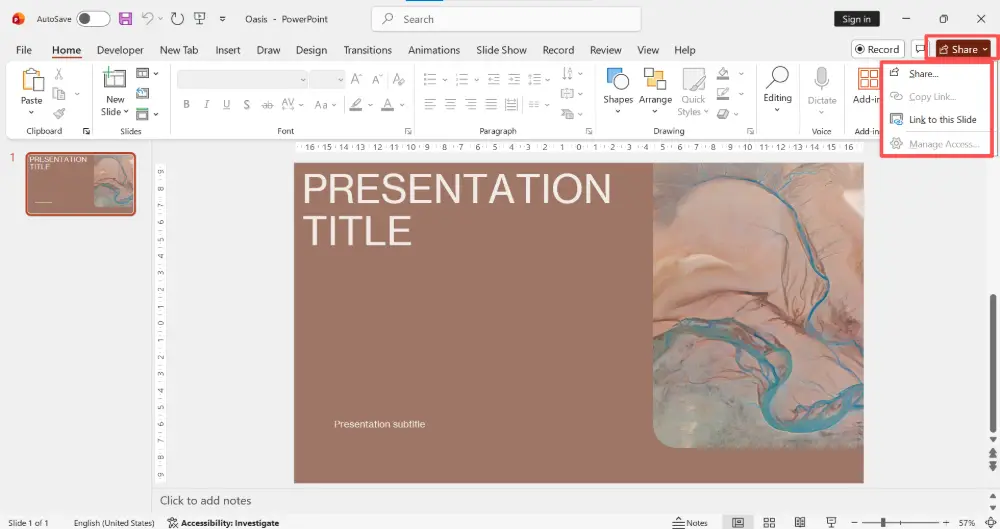
- Open your presentation in PowerPoint (desktop or web).
- Click the Share button in the top-right corner.
- If the file isn't already on OneDrive, PowerPoint will prompt you to save to OneDrive first. Do it.
- In the Share dialog, enter the email addresses of the people you want to share with.
- Set the permission level: "Can edit" (they can make changes) or "Can view" (view only).
- Optionally add a message.
- Click Send.
Recipients get an email with a link. They can open the file in PowerPoint (desktop or web) and — if you gave edit access — make changes in real time.
Share via link (without entering emails)
- Click Share → Copy link (or "Get a sharing link").
- Set the permission: "Anyone with the link can edit" or "Anyone with the link can view."
- Copy the link and send it however you want (Slack, text, email).
"Anyone with the link" means exactly that — if the link gets forwarded, anyone can access the file. For sensitive presentations, share with specific people by email and set "Can view" to prevent unintended edits.
How to Collaborate on PowerPoint (Real-Time Editing)
Once a shared PowerPoint is on OneDrive or SharePoint with edit access, collaboration works like this:
- Multiple editors at once: everyone opens the same link and edits simultaneously. You see colored cursors showing where others are working.
- Auto-save: changes save automatically — no need to press Ctrl+S.
- Comments: right-click or use the Review tab to add comments on specific slides. Collaborators can reply and resolve them.
- Version history: File → Info → Version History lets you see every change and restore older versions if needed.
- Works on desktop and web: collaborators can use PowerPoint desktop, the web app (free), or the mobile app.
How to Share a PowerPoint as an Email Attachment
- In PowerPoint, click File → Share → Email (or Attach a copy).
- Choose the format: PowerPoint (.pptx) or PDF.
- Your email client opens with the file attached. Add recipients and send.
Attachments are copies — any edits the recipient makes won't appear in your original file. This is fine for one-way sharing but not for collaboration.
Permission Settings Explained
| Permission | What the recipient can do |
|---|---|
| Can edit | View, edit, add/delete slides, leave comments. Changes sync in real time. |
| Can view | View and download only. No edits, no comments (depending on settings). |
| Specific people | Only the people you invite (by email) can access. Most secure. |
| Anyone with the link | Anyone who has the URL can access. Convenient but less secure. |
| Block download | Viewers can see the file but can't download a copy (available in some Microsoft 365 plans). |
💡 Pro tip: If sharing and collaborating on PowerPoint feels clunky — especially with people outside your organization — AI tools like Gamma.com.ai are built for link-based sharing from the start. Create a presentation, share it as a live web link, and collaborators can view it instantly without downloading anything or needing a Microsoft account.
Conclusion
Sharing a PowerPoint works best through OneDrive: save the file there, click Share, set permissions ("Can edit" for collaboration, "Can view" for read-only), and send the link. Real-time collaboration lets multiple people edit simultaneously with auto-save and version history. For one-way sharing, an email attachment or PDF export works fine. Always double-check your permissions before sending — "Anyone with the link" is convenient but means anyone can access the file.
FAQs
How do I share a PowerPoint with others to edit?
Save the file to OneDrive, click Share, enter email addresses (or copy a link), and set permissions to "Can edit." Recipients can open the link and edit in real time — in PowerPoint desktop, web, or mobile.
How do I collaborate on PowerPoint?
Save the presentation to OneDrive or SharePoint and share with "Can edit" permissions. Multiple people can edit simultaneously — you'll see colored cursors showing who's working where. Changes auto-save and you can use comments and version history.
Can people edit my PowerPoint without a Microsoft account?
If you set sharing to "Anyone with the link can edit," recipients can open and edit in PowerPoint for the web without signing in. For "Specific people" sharing, they need a Microsoft account to authenticate.
How do I share a PowerPoint as view-only?
Share via OneDrive with "Can view" permissions — recipients can see the file but not edit. Or export as PDF (File → Save As → PDF) for a completely locked version.
How do I stop sharing a PowerPoint?
Open the file → click Share → Manage Access (or the gear icon). Remove specific people, change permissions, or disable the sharing link. The file goes back to private.

