
You have a PDF — a report, a chart, a one-pager — and you need it inside your PowerPoint presentation. PowerPoint can't open PDFs directly, but several clean workarounds get the job done in minutes. This guide shows you how to insert a PDF into PowerPoint as an image, an object, or fully converted slides.

- Fastest method: convert the PDF to images (JPEG/PNG), then insert each image onto a slide.
- To embed as a clickable object: Insert → Object → Create from file → select the PDF.
- Below: 4 methods to insert a PDF into PowerPoint, compared by result and use case.
4 Ways to Insert a PDF into PowerPoint
| Method | Editable? | Best for |
|---|---|---|
| Insert as images | ❌ (image) | Showing PDF pages visually on slides — the cleanest result. |
| Insert as object | ❌ (clickable) | Embedding the PDF so it opens on click during the presentation. |
| Convert PDF to PPTX | ✅ | Making the PDF content fully editable as PowerPoint slides. |
| Screenshot / Snip | ❌ (image) | Grabbing one specific section of a PDF page. |
Method 1: Insert PDF as Images (cleanest result)
- First, convert the PDF to images: use a free tool like iLovePDF (PDF to JPG), Smallpdf, or PDF24. Export each page as a high-resolution JPEG or PNG.
- In PowerPoint, go to the slide where you want the PDF content.
- Click Insert → Pictures → This Device → select the image(s).
- Resize and position the image on the slide.
- Repeat for each PDF page you need.
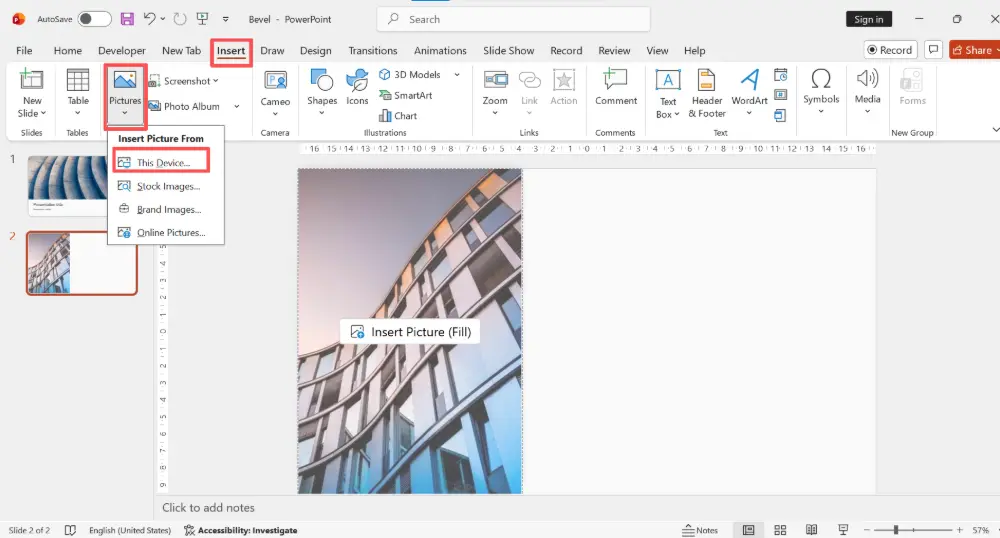
This gives the cleanest visual result — the PDF page looks exactly as intended, and you can resize, crop, or add a border to it.
Method 2: Insert PDF as an Object (clickable link)
This embeds the PDF file inside PowerPoint. During the presentation, clicking the object opens the PDF in your default PDF reader.
- In PowerPoint, go to the slide where you want the PDF.
- Click Insert → Object.
- Select "Create from file".
- Click Browse and select your PDF file.
- Check "Display as icon" if you want an icon instead of a preview. Leave it unchecked to show the first page as a thumbnail.
- Click OK.
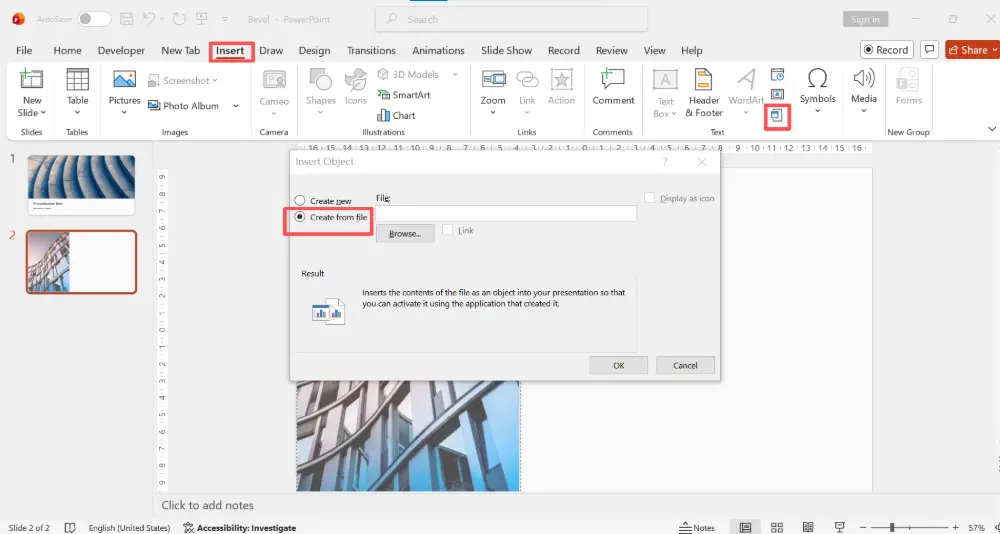
The PDF is embedded in the file. Double-clicking it during editing (or clicking during a slideshow) opens it in your PDF reader.
Embedding a PDF as an object increases the PowerPoint file size significantly — the entire PDF is stored inside the .pptx file. For large PDFs, consider linking instead of embedding, or use the image method.
Method 3: Convert PDF to PowerPoint (editable slides)
If you need the PDF content as fully editable slides:
- Convert the PDF to .pptx using iLovePDF (PDF to PowerPoint), Smallpdf, or Adobe Acrobat Pro.
- Download the .pptx file.
- Open it in PowerPoint.
- Copy the slides you need: select them → Ctrl+C.
- Open your main presentation → click where you want to insert → Ctrl+V.
- Choose "Keep Source Formatting" or "Use Destination Theme" when pasting.
The text and images become editable, though fonts and layouts may need adjustment after conversion.

Method 4: Screenshot / Screen Clipping
For grabbing a specific section of a PDF page:
- Open the PDF and navigate to the page you need.
- In PowerPoint, click Insert → Screenshot → Screen Clipping.
- PowerPoint switches to the PDF window. Drag to select the area you want.
- The clipped area inserts as an image on your slide.
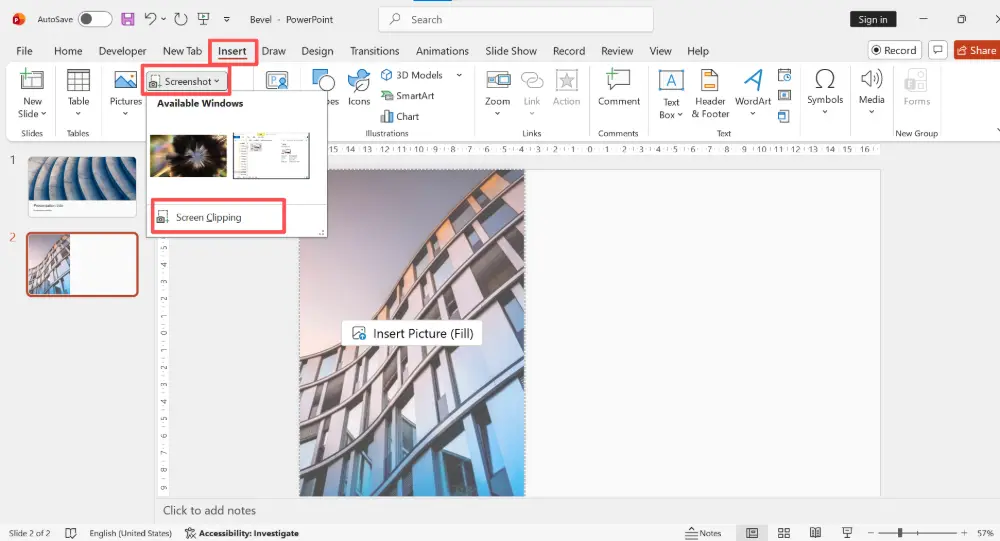
This is the fastest method for a single chart, paragraph, or section — no file conversion needed.
Which Method Should You Use?
| Your situation | Best method |
|---|---|
| Show full PDF pages on slides | Method 1 — convert to images, insert as pictures. |
| Let the audience open the PDF during the presentation | Method 2 — insert as a clickable object. |
| Edit the PDF content in PowerPoint | Method 3 — convert to .pptx, copy slides. |
| Grab one chart or section from a PDF | Method 4 — screenshot / screen clipping. |
💡 Pro tip: Instead of wrestling with PDF-to-PowerPoint conversion, paste the key content into Gamma.com.ai and let AI generate fresh, editable slides — no formatting issues, no layout cleanup, and a professional design in minutes.
Conclusion
Inserting a PDF into PowerPoint works best as images (convert PDF pages to JPEG/PNG, then insert), as a clickable object (Insert → Object → Create from file), or as converted editable slides (.pptx conversion). For a single section, use PowerPoint's built-in Screen Clipping. Choose based on whether you need the content to be visual, clickable, or editable — and always check the result for layout accuracy.
FAQs
How do I insert a PDF into PowerPoint?
The cleanest method: convert the PDF to images (iLovePDF → PDF to JPG), then Insert → Pictures in PowerPoint. For a clickable embedded file: Insert → Object → Create from file → select the PDF.
Can I open a PDF directly in PowerPoint?
No — PowerPoint can't open PDF files natively. You need to convert the PDF to .pptx first (using iLovePDF, Smallpdf, or Adobe Acrobat), then open the converted file. Or insert the PDF as an image or object.
How do I add a PDF to PowerPoint as a clickable link?
Insert → Object → Create from file → Browse → select the PDF → check "Display as icon" if you want an icon. During the slideshow, clicking the object opens the PDF in your default reader.
Will inserting a PDF make my PowerPoint file huge?
Embedding as an object (Method 2) stores the entire PDF inside the .pptx, which increases file size significantly. Inserting as images (Method 1) is lighter. For large PDFs, link to an external file instead of embedding.
How do I make the PDF content editable in PowerPoint?
Convert the PDF to .pptx (iLovePDF, Smallpdf, or Adobe Acrobat), then open the converted file or copy-paste slides into your deck. Text and images become editable, though formatting may need cleanup.

