
Adding page numbers to PowerPoint should be simple — but the feature is buried in a menu most people never find, and the numbers don't always show up where you expect. This guide shows you how to add page numbers in PowerPoint, fix common issues, and customize the numbering to start from any number.

- Insert → Header & Footer → check "Slide number" → Apply to All. That's it.
- If numbers don't appear, the slide layout may be hiding the placeholder — check the Slide Master.
- Below: step-by-step instructions, how to customize numbering, and troubleshooting.
How to Add Page Numbers in PowerPoint
- Open your presentation in PowerPoint.
- Click Insert in the ribbon.
- Click Header & Footer (in the Text group).
- In the dialog box, check Slide number.
- Optional: check "Don't show on title slide" if you want the first slide without a number.
- Click Apply to All (applies to every slide) or Apply (current slide only).
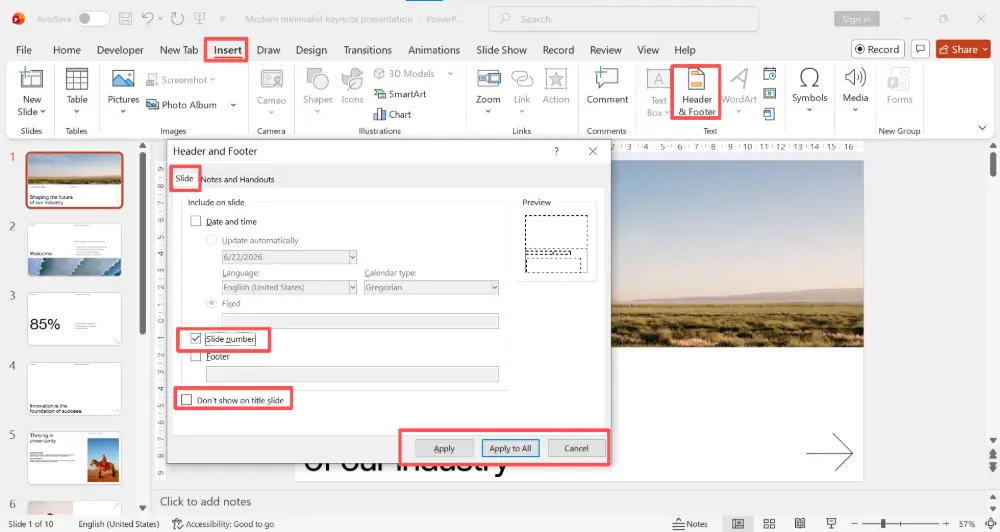
The slide number appears in the position defined by your slide layout — usually bottom-right or bottom-center.

How to Change Where the Number Appears
The position of the slide number is controlled by the Slide Master:
- Click View → Slide Master.
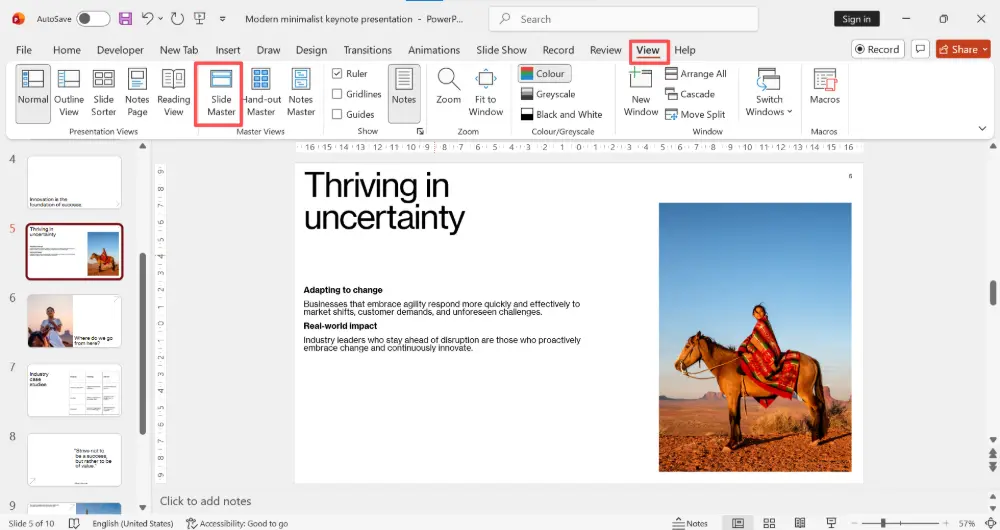
- Select the top master slide (the largest one at the top of the left panel).
- Find the <#> placeholder — this is the slide number field.
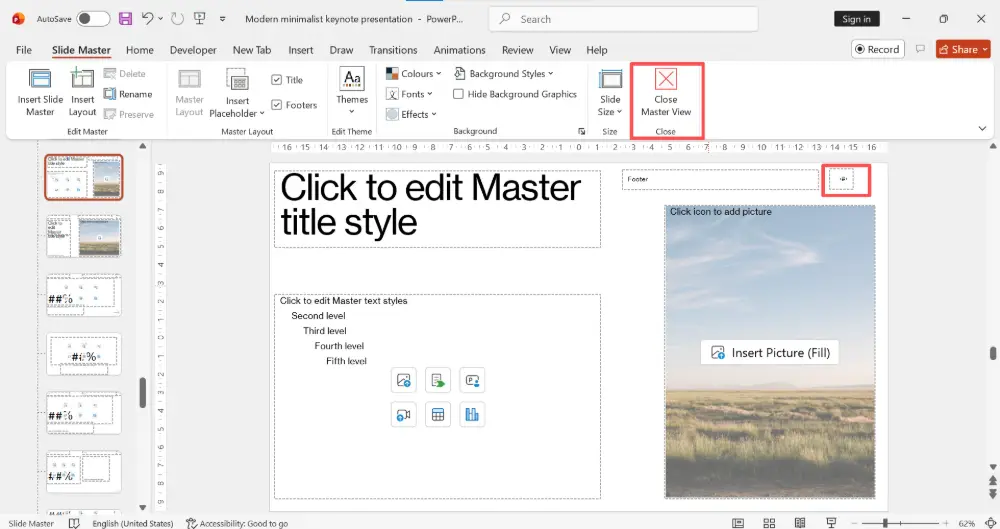
- Click and drag it to your preferred position (bottom-left, bottom-center, top-right, etc.).
- Resize and restyle it: change font, size, color, alignment.
- Click Close Master View.

How to Start Numbering from a Different Number
By default, PowerPoint starts numbering at 1. To change the starting number:
- Click Design in the ribbon.
- Click Slide Size → Custom Slide Size.
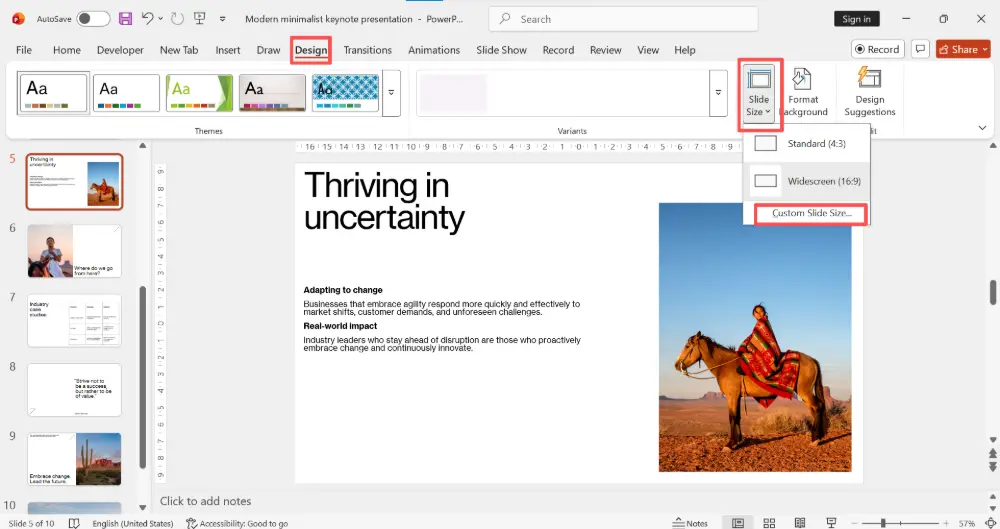
- At the bottom, change "Number slides from" to your desired starting number (e.g., 0 to make the title slide "0" and the first content slide "1").
- Click OK.
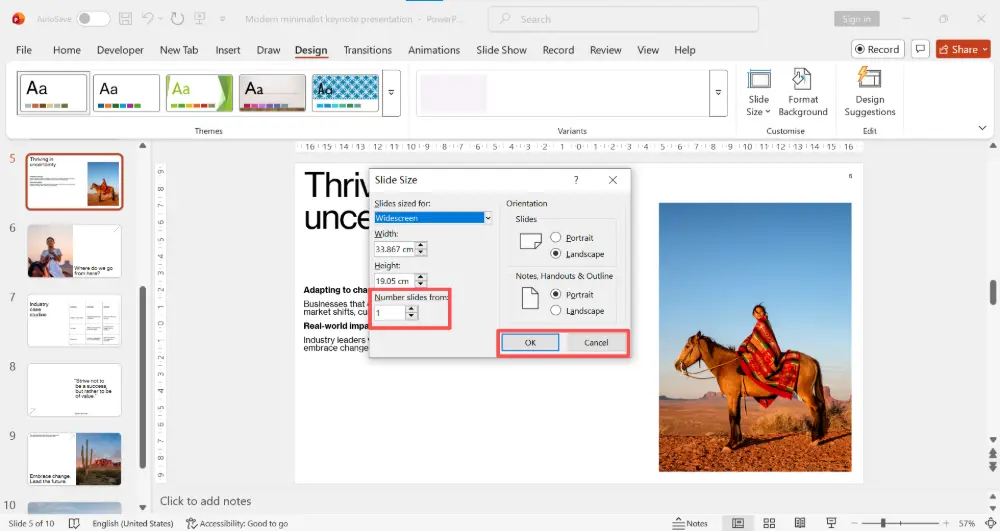
A common trick: set "Number slides from" to 0, then check "Don't show on title slide." The title slide is numbered 0 (hidden), and the first visible number is 1 on the second slide.
How to Show "Slide X of Y" (e.g., "3 of 12")
PowerPoint doesn't have a built-in "X of Y" format, but you can create it manually:
- Go to View → Slide Master.
- Find the <#> placeholder.
- Click inside it and type your format around the field: <#> of 12 (replace 12 with your total slide count).
- Close Master View.
The downside: you need to update the total manually if you add or remove slides.
Troubleshooting: Slide Numbers Not Showing
| Problem | Fix |
|---|---|
| Numbers don't appear at all | The slide layout may have deleted the number placeholder. Go to View → Slide Master → check that the <#> placeholder exists. If missing, Insert → Text Box → Insert → Slide Number, or reset the layout. |
| Numbers appear on some slides but not others | Different layouts may have the placeholder hidden or removed. Check each layout in the Slide Master. |
| Numbers are in the wrong position | Move the <#> placeholder in the Slide Master (View → Slide Master → drag the placeholder). |
| Numbers are too small or wrong color | Select the <#> placeholder in the Slide Master and change font size, color, or style. |
| Title slide shows a number | Insert → Header & Footer → check "Don't show on title slide" → Apply to All. |
💡 Pro tip: If you're tired of wrestling with PowerPoint formatting, tools like Gamma.com.ai handle slide numbering, layout, and design automatically when generating presentations — so you focus on content, not on finding hidden menu options.
Conclusion
Adding page numbers in PowerPoint takes three clicks: Insert → Header & Footer → Slide number → Apply to All. If numbers don't appear, check the Slide Master for the <#> placeholder. To change the starting number, go to Design → Slide Size → Custom Slide Size → "Number slides from." And to reposition or restyle the numbers, edit the placeholder in the Slide Master. Once set up, PPT page numbering updates automatically as you add or reorder slides.
FAQs
How do I insert slide numbers in PowerPoint?
Insert → Header & Footer → check "Slide number" → Apply to All. The number appears in the position defined by your slide layout (usually bottom-right).
Why aren't my slide numbers showing?
The slide layout may have removed the number placeholder. Go to View → Slide Master and check that the <#> placeholder exists on the layout you're using. If it's missing, insert a text box with Insert → Slide Number.
How do I start numbering from 0 or a different number?
Design → Slide Size → Custom Slide Size → change "Number slides from" to your desired starting number. Set to 0 and check "Don't show on title slide" to make the first visible number 1.
How do I move the slide number to a different position?
View → Slide Master → select the master slide → find and drag the <#> placeholder to your preferred position. Change font, size, or color as needed. Close Master View.
How do I add "slide X of Y" numbering?
In the Slide Master, edit the <#> placeholder to read "<#> of [total]" (e.g., "<#> of 15"). You need to update the total manually when adding or removing slides.

