
Speaker notes are the secret weapon of confident presenters — they're the private script you see on your screen while the audience sees only your slides. This guide covers what speaker notes are, how to add speaker notes in PowerPoint and Google Slides, how to view them during a presentation, and how to print or export them.

- PowerPoint: click the Notes pane at the bottom of the slide editor and type. Google Slides: click View → Show speaker notes.
- During a presentation, use Presenter View (PowerPoint) or Speaker Notes view (Google Slides) to see your notes while the audience sees only the slides.
- Below: step-by-step instructions for both tools, plus tips for writing effective notes.
What Are Speaker Notes?
Speaker notes are the private text that appears below each slide in the editing view. They're invisible to the audience during the presentation — only the presenter sees them. Think of them as your talking points, reminders, or full script for each slide.
Speaker notes are useful for remembering key data points, transitions between slides, timing cues, or answers to anticipated questions. They let you keep your slides clean (minimal text) while still having everything you need to say right in front of you.
How to Add Speaker Notes in PowerPoint
- Open your presentation in PowerPoint.
- At the bottom of the slide editing area, you'll see a narrow bar that says "Click to add notes" (or a Notes button in the status bar). Click it.
- The Notes pane opens below the slide. Click inside and type your notes.
- Drag the top edge of the Notes pane to make it larger if you need more space.
- Repeat for each slide.
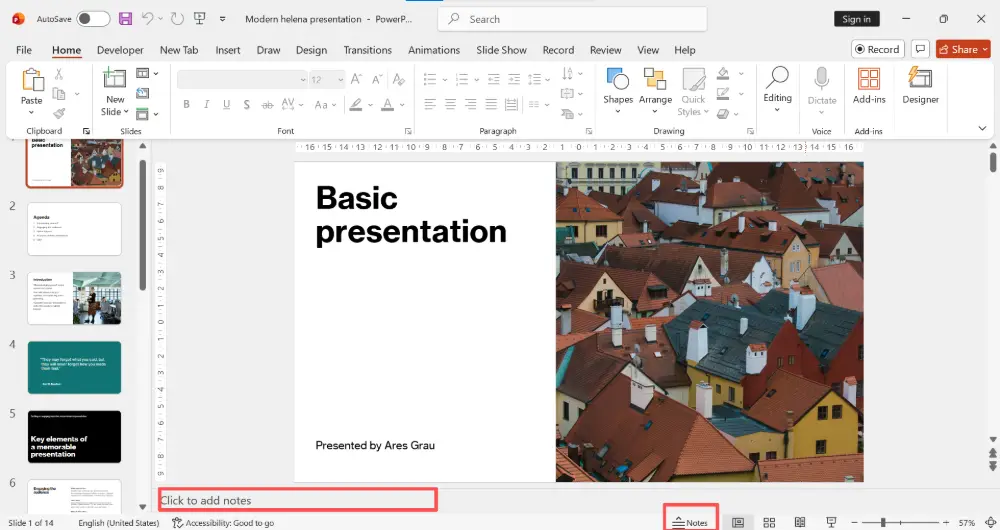
If you don't see the Notes pane, go to View → Notes to toggle it on.
How to View Speaker Notes During a PowerPoint Presentation
- Connect to a projector or external screen (so the audience sees one screen, you see another).
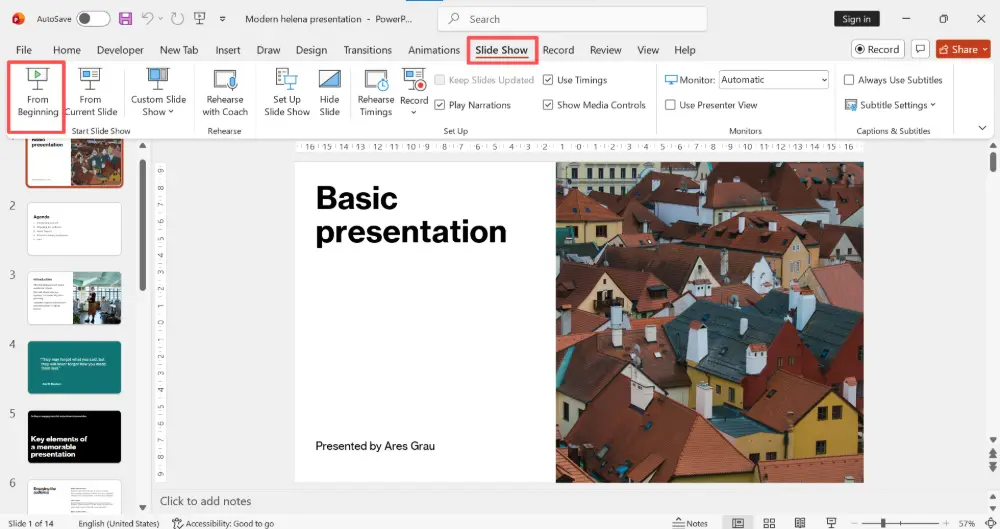
- Start the presentation: Slide Show tab → From Beginning.
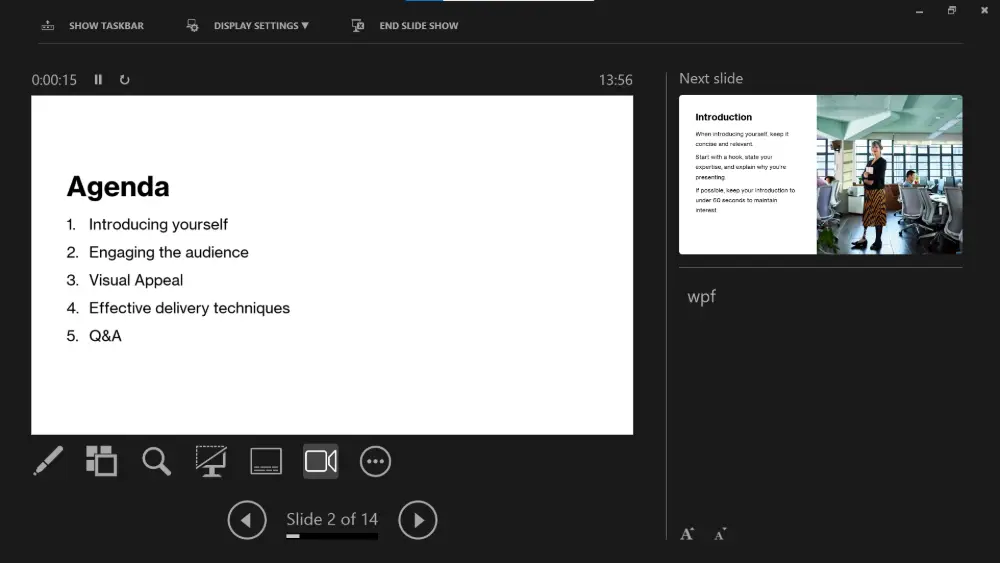
- PowerPoint automatically enters Presenter View: the audience sees the slide full-screen, while your laptop shows the current slide, your notes, the next slide, and a timer.
- If Presenter View doesn't activate automatically, right-click during the slideshow → Show Presenter View.

You can also use Presenter View on a single screen (no projector): in the Slide Show tab, check "Use Presenter View," start the slideshow, then right-click → Show Presenter View. Useful for practice runs.
How to Add Speaker Notes in Google Slides
- Open your presentation in Google Slides.
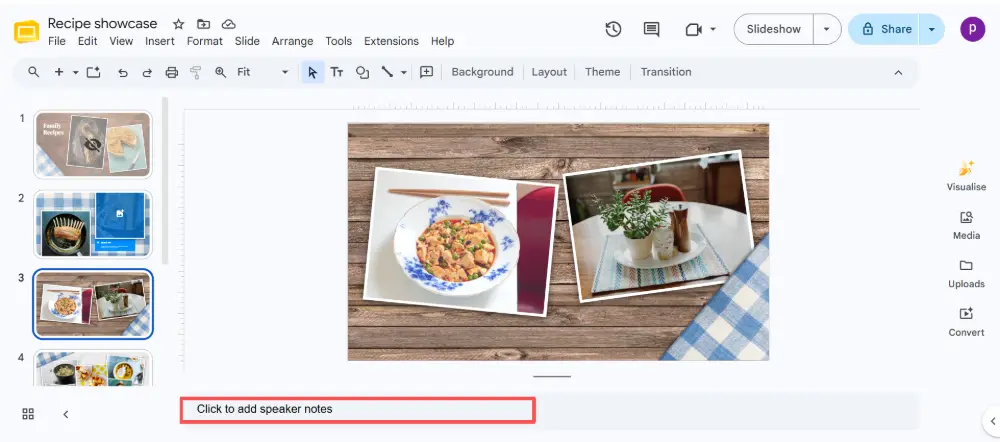
- Click View → Show speaker notes (if the notes panel isn't already visible).
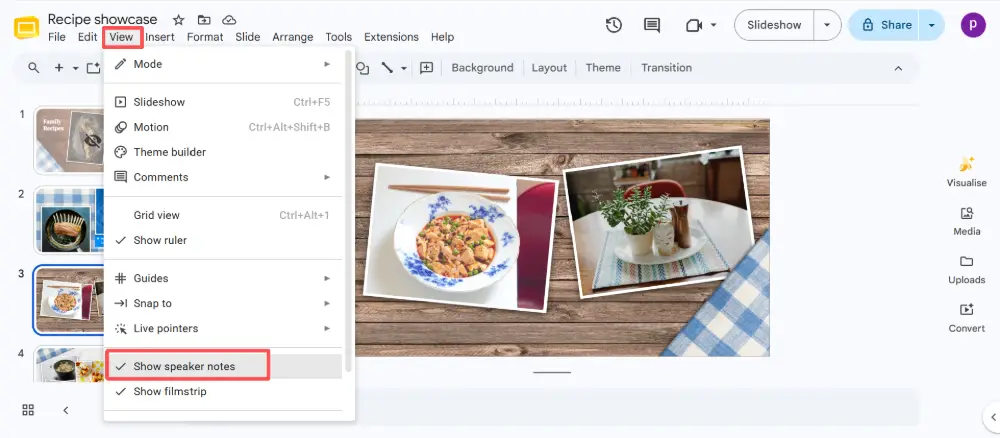
- A text area appears below the slide. Click inside and type your notes.
- Repeat for each slide.
How to View Speaker Notes During a Google Slides Presentation
- Click the drop-down arrow next to the Slideshow button (top right).
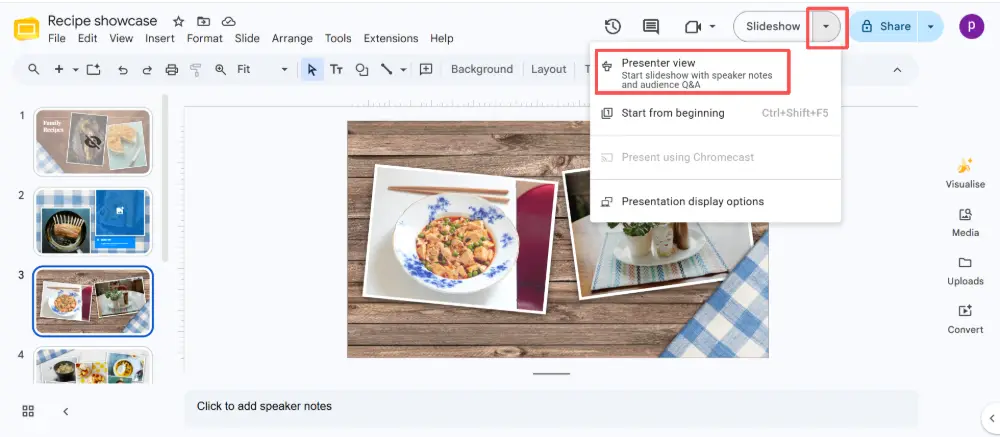
- Select Presenter view.
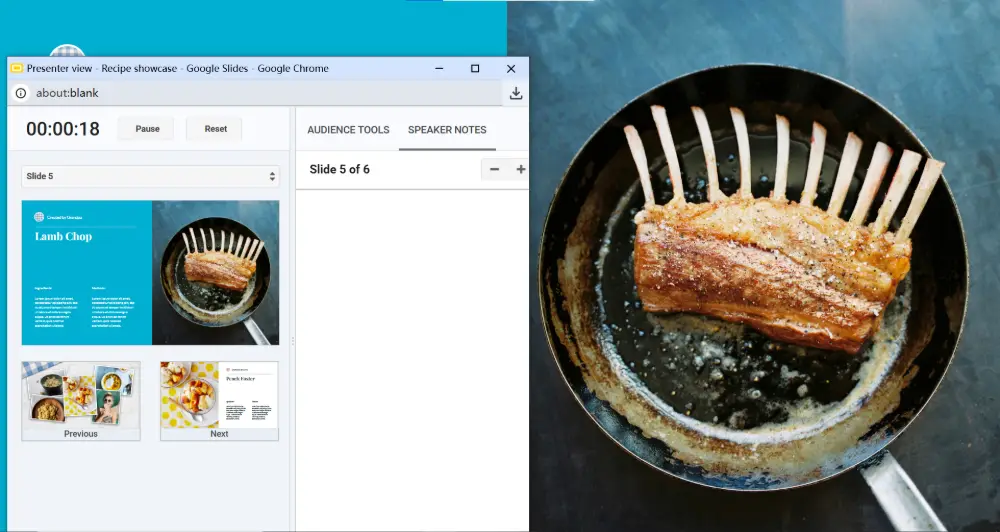
- Two windows open: the audience sees the slides full-screen, and a separate presenter window shows your notes, a timer, and slide controls.
PowerPoint vs. Google Slides: Speaker Notes Compared
| Feature | PowerPoint | Google Slides |
|---|---|---|
| Add notes | Notes pane below slide (or View → Notes) | View → Show speaker notes |
| Formatting | Bold, italic, bullets, font size | Plain text only |
| Presenter View | Built-in, auto-detects dual screens | Dropdown → Presenter view (opens separate window) |
| Print with notes | File → Print → Notes Pages | File → Print settings → 1 slide with notes |
| Export notes to PDF | Print → Notes Pages → Save as PDF | Print settings → 1 slide with notes → Save as PDF |
Tips for Writing Effective Speaker Notes
- Write talking points, not a script: bullet-style reminders are easier to glance at than full paragraphs. You'll sound natural instead of reading.
- Include key data: exact numbers, names, and dates you might forget under pressure.
- Add transition phrases: "This brings us to…" or "Now let's look at…" keep your delivery smooth.
- Note timing cues: "By this slide, I should be at the 5-minute mark" helps you pace yourself.
- Keep it short: if your notes are longer than 4–5 lines per slide, you're probably putting too much on the slide itself. Simplify both.
💡 Pro tip: If you build your presentations in Gamma.com.ai, you can focus on content while the AI handles design — and export to PowerPoint or PDF with your notes intact. Less time formatting, more time rehearsing what you'll actually say.
Conclusion
Speaker notes let you keep your slides clean while having everything you need to say right in front of you. In PowerPoint, type in the Notes pane below the slide and use Presenter View during the talk. In Google Slides, enable notes via View → Show speaker notes and present with Presenter View. Write talking points (not scripts), include key data and timing cues, and keep each slide's notes to a quick glance.
FAQs
How do I add speaker notes in PowerPoint?
Click the Notes pane at the bottom of the slide editor (or go to View → Notes) and type your notes. They appear below each slide and are visible only to you during Presenter View.
How do I add speaker notes in Google Slides?
Click View → Show speaker notes. A text area appears below the slide — click inside and type. Use Presenter view (dropdown next to the Slideshow button) to see your notes during the presentation.
Can the audience see my speaker notes?
No — speaker notes are private. The audience sees only the slides. You see the notes on your screen through Presenter View (PowerPoint) or Presenter view (Google Slides). The only way the audience sees notes is if you print or export them intentionally.
How do I print slides with speaker notes?
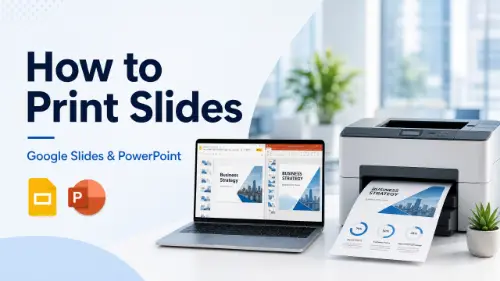
PowerPoint: File → Print → change "Full Page Slides" to "Notes Pages." Google Slides: File → Print settings and preview → select "1 slide with notes." Both create a page with the slide on top and notes below.
What are speaker notes used for?
Speaker notes hold your talking points, key data, transitions, and timing cues — everything you need to remember while presenting. They let you keep slides minimal (for the audience) while having a full reference (for yourself).

