
Strikethrough text — like this — is useful for showing changes, crossing off completed items, or indicating removed content in presentations. But finding the option in Google Slides and PowerPoint isn't obvious. This guide shows you the exact steps and shortcuts for strikethrough in both tools.

- Google Slides shortcut: Alt+Shift+5 (Windows) or Cmd+Shift+X (Mac).
- PowerPoint: no keyboard shortcut — use Home → Font dialog → Strikethrough checkbox.
- Below: step-by-step for both tools and a full shortcut reference.
Strikethrough in Google Slides
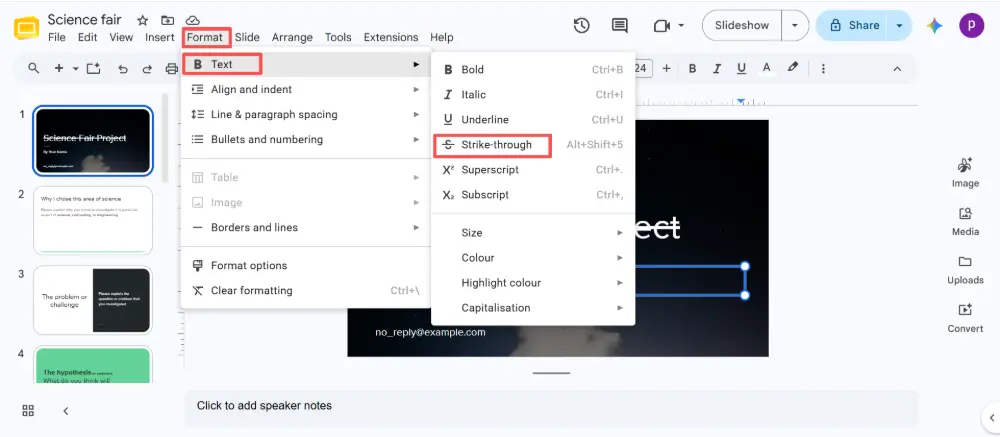
Method 1: Keyboard shortcut (fastest)
- Select the text you want to strikethrough.
- Press Alt+Shift+5 (Windows/ChromeOS) or Cmd+Shift+X (Mac).
- The text gets a line through it. Press the same shortcut again to remove.
Method 2: Format menu
- Select the text.
- Click Format → Text → Strikethrough.
- The strikethrough is applied. Click again to toggle off.
Strikethrough in PowerPoint
PowerPoint doesn't have a built-in keyboard shortcut for strikethrough. Here's how to do it:
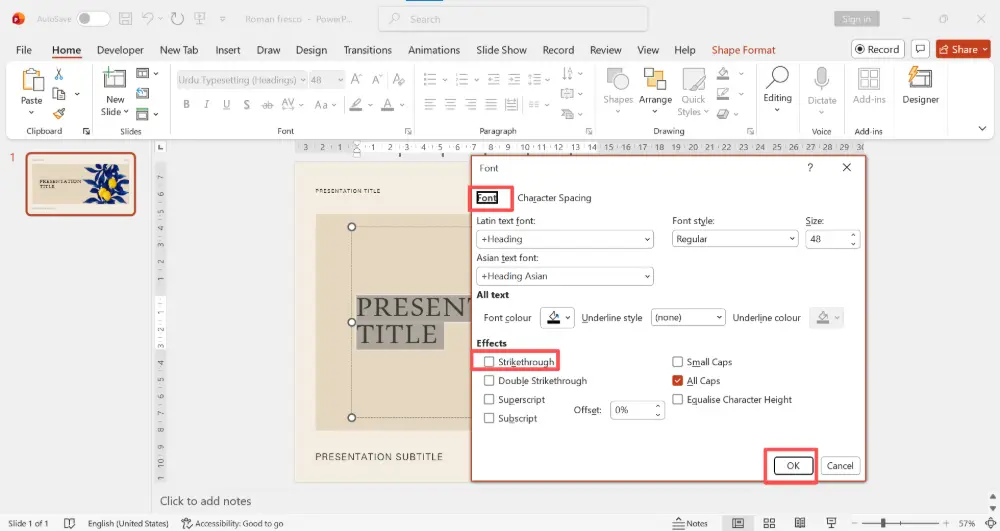
Method 1: Font dialog box
- Select the text.
- Press Ctrl+T (Windows) or Cmd+T (Mac) to open the Font dialog box. Or right-click → Font.
- Check the Strikethrough checkbox (or Double Strikethrough for a double line).
- Click OK.
Method 2: Ribbon (PowerPoint for Mac)
- Select the text.
- In the Home tab, look for the Strikethrough button (ab with a line through it) in the Font group.
- Click it to toggle strikethrough on/off.
On Windows, the strikethrough button may not appear in the ribbon by default. You can add it: right-click the ribbon → Customize the Ribbon → add the Strikethrough command.
Method 3: Add a keyboard shortcut (Windows)
If you use strikethrough often, you can assign a custom shortcut in PowerPoint:
- Click File → Options → Customize Ribbon.
- Click Keyboard Shortcuts: Customize (at the bottom).
- In Categories, select All Commands.
- Find Strikethrough in the command list.
- Click in "Press new shortcut key" and press your desired shortcut (e.g., Ctrl+Shift+5).
- Click Assign → Close.
Google Slides wins here — Alt+Shift+5 is a built-in shortcut that works instantly. PowerPoint requires the Font dialog (Ctrl+T → checkbox) or a custom shortcut setup. If you switch between the two, remember: Google = Alt+Shift+5, PowerPoint = Ctrl+T → Strikethrough.
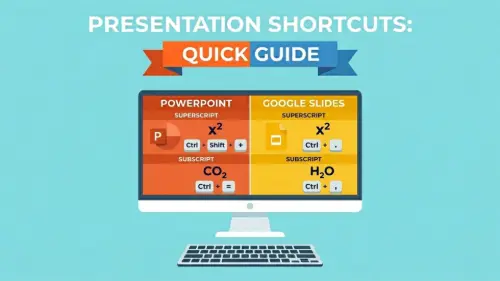
Strikethrough Shortcuts at a Glance
| Tool | Windows shortcut | Mac shortcut | Menu path |
|---|---|---|---|
| Google Slides | Alt+Shift+5 | Cmd+Shift+X | Format → Text → Strikethrough |
| Google Docs | Alt+Shift+5 | Cmd+Shift+X | Format → Text → Strikethrough |
| PowerPoint | None (use Ctrl+T → checkbox) | None (use Cmd+T → checkbox) | Home → Font dialog → Strikethrough |
| Word | Alt+H, 4 | Cmd+Shift+X | Home → Strikethrough button |
When to Use Strikethrough in Presentations
| Use case | Example |
|---|---|
| Show before/after | |
| Cross off completed items | Task list with completed items struck through — shows progress at a glance. |
| Indicate removed content | In editing or review slides: |
| Humorous emphasis | "Our competitors are |
| Myth-busting |
💡 Pro tip: If text formatting like strikethrough, bold, and alignment eat into your presentation time, try Gamma.com.ai — the AI handles all formatting automatically when generating your slides, so you focus on the message instead of the styling.
Conclusion
Strikethrough in Google Slides: Alt+Shift+5 (Windows) or Cmd+Shift+X (Mac) — instant and easy. Strikethrough in PowerPoint: Ctrl+T to open the Font dialog → check Strikethrough → OK. PowerPoint doesn't have a default keyboard shortcut, but you can assign one through Customize Ribbon. Both tools support single and double strikethrough, and both toggle off with the same action.
FAQs
What is the strikethrough shortcut in Google Slides?
Alt+Shift+5 on Windows/ChromeOS. Cmd+Shift+X on Mac. Select the text first, then press the shortcut. Press again to remove the strikethrough.
How do I strikethrough in PowerPoint?
Select the text → press Ctrl+T (Cmd+T on Mac) to open the Font dialog → check the Strikethrough box → OK. PowerPoint doesn't have a default keyboard shortcut, but you can assign one.
Is there a strikethrough button in Google Slides?
Not in the toolbar by default. Use the shortcut (Alt+Shift+5) or go to Format → Text → Strikethrough. The menu method works but the shortcut is faster.
Can I do double strikethrough?
In PowerPoint: yes — open the Font dialog (Ctrl+T) and check "Double Strikethrough" instead of regular Strikethrough. Google Slides only supports single strikethrough.
How do I remove strikethrough?
Select the strikethrough text and press the same shortcut (Alt+Shift+5 in Google Slides) or uncheck the box in the Font dialog (PowerPoint). It toggles off the same way it toggles on.

