
Google Slides doesn't have a one-click "Add border" button for slides — but creating borders, frames, and rounded-corner shapes is easy once you know the workaround. This guide shows you how to add a border in Google Slides, create transparent borders, round corners, use decorative frames, and change border colors — in both Google Slides and PowerPoint.

- To add a slide border: Insert → Shape → Rectangle → resize to fill the slide → set fill to transparent, add a colored border line.
- For rounded corners: use a Rounded Rectangle shape instead of a regular Rectangle.
- Below: step-by-step instructions for borders, frames, rounded corners, transparent borders, and changing border color in PowerPoint.
How to Add a Border in Google Slides
Google Slides doesn't have a built-in slide border feature, but you can create one with a shape:
- Click Insert → Shape → Shapes → select Rectangle.
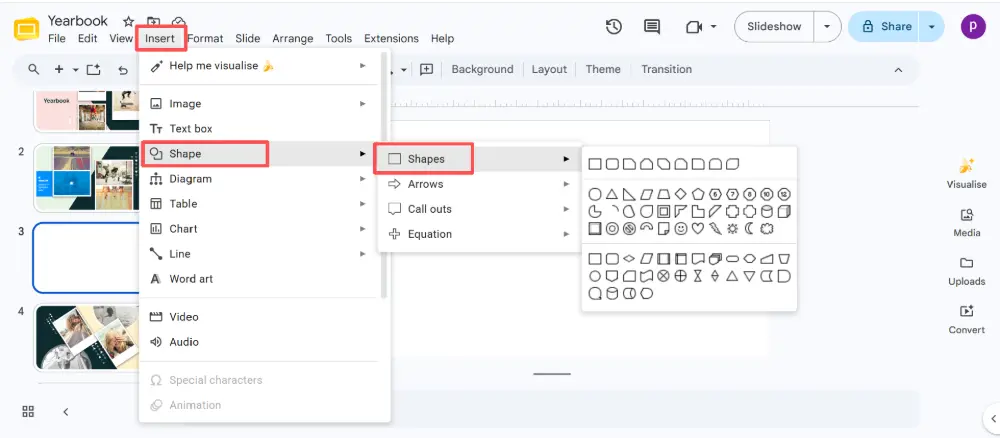
- Draw the rectangle to cover the entire slide (drag from the top-left corner to the bottom-right).
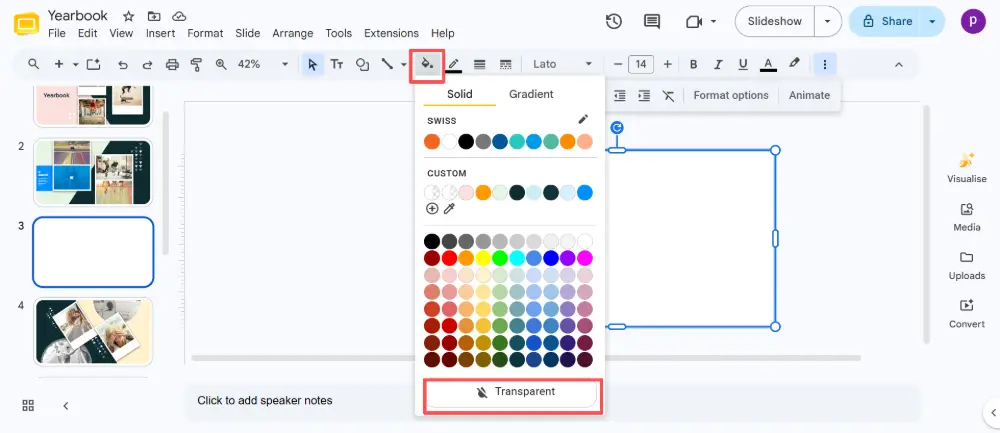
- With the rectangle selected, set the Fill color to Transparent (click the paint bucket icon → Transparent).
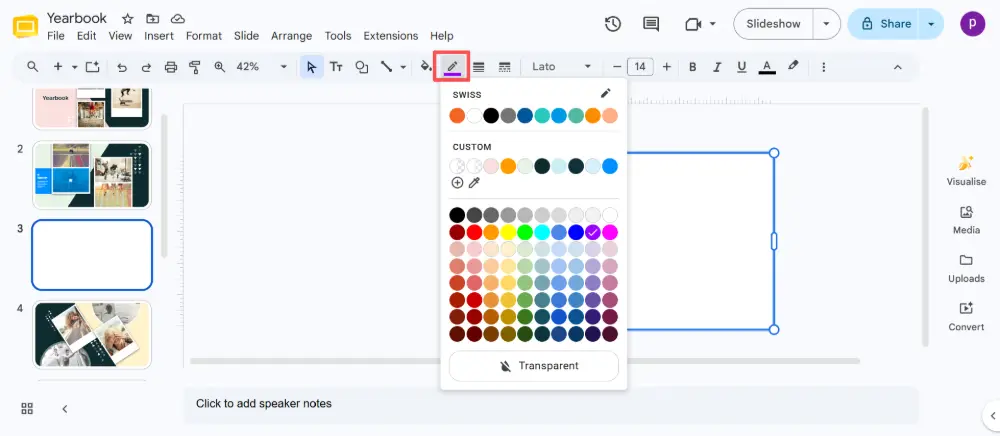
- Set the Border color to your desired color (click the pencil/border icon → pick a color).
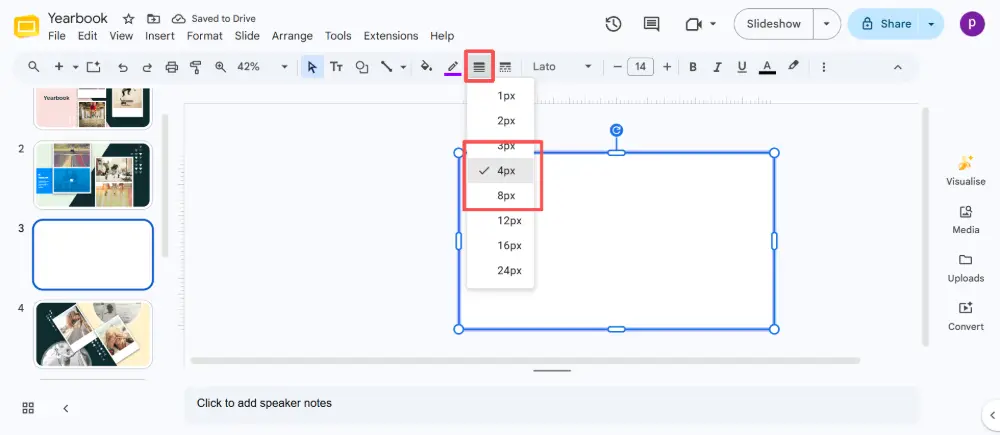
- Set the Border weight (line thickness) — 3–8 px works well for a visible border.
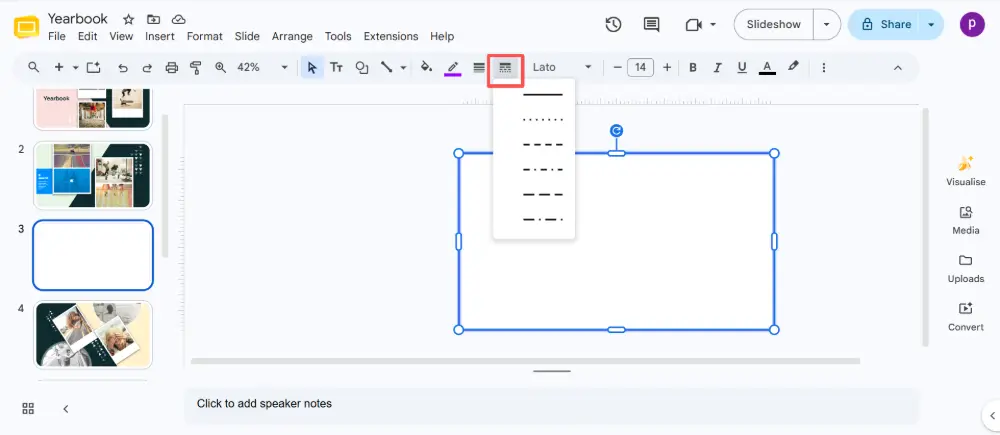
- Optionally, set the Border dash style (solid, dashed, dotted).
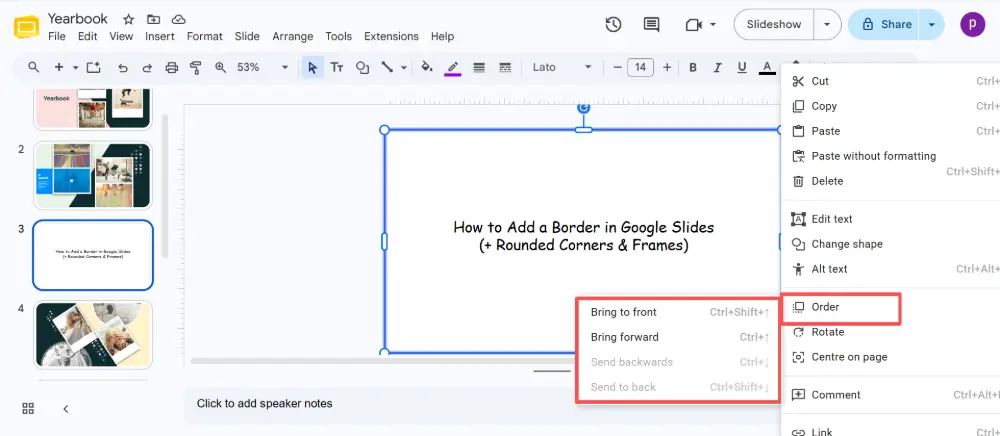
- Right-click the rectangle → Order → Send to back so it doesn't cover your content.
How to Make a Transparent Border
A transparent border for Google Slides means the border line is visible, but the inside of the shape is see-through (so your slide content shows through). This is exactly what the method above creates — the key step is setting the fill to Transparent in step 3.
For a semi-transparent colored border with a tinted overlay effect, set the fill to a color but reduce its opacity: click Fill color → Custom → set the transparency slider to 80–90%.

How to Round Corners in Google Slides
To create a border with rounded corners:
- Click Insert → Shape → Shapes → select Rounded Rectangle (the rectangle with curved corners).
- Draw it to cover the slide.
- Set fill to Transparent, add a border color and weight (same as above).
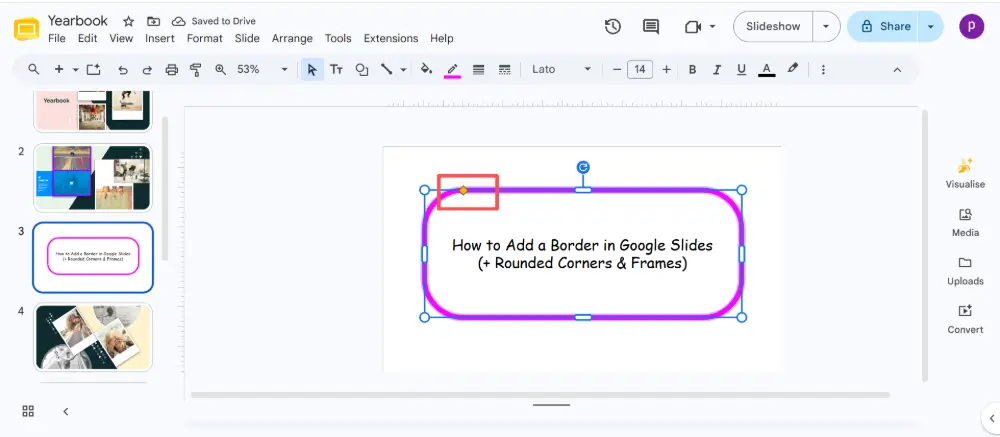
- To adjust the corner radius: select the shape → drag the yellow diamond handle near the top-left corner. Drag it inward for sharper corners, outward for rounder ones.
To apply the same border to every slide, add it to the master slide: Slide → Edit theme → add the border shape to the master (top slide). Close the editor. The border appears on all slides automatically.
Border Options at a Glance
| Border type | How to create it | Best for |
|---|---|---|
| Simple line border | Rectangle shape, transparent fill, colored border. | Clean, professional frames. |
| Rounded border | Rounded Rectangle shape, adjust yellow handle. | Modern, soft design. |
| Thick border | Same method, increase border weight to 8–16 px. | Bold, decorative emphasis. |
| Dashed / dotted | Set border dash style to dashed or dotted. | Informal, playful feel. |
| Transparent overlay | Rectangle with semi-transparent fill + border. | Tinted frame over background images. |
| Decorative frame | Insert a PNG frame image (transparent background). | Ornate, themed, or branded slides. |
How to Use Decorative Frames in Google Slides
For ornate or decorative Google Slides frames:
- Find a decorative frame image online (search "decorative frame PNG transparent" on a free stock site like Pexels, Pixabay, or Freepik).
- Make sure the image has a transparent background (PNG format).
- In Google Slides: Insert → Image → upload the frame PNG.
- Resize it to cover the slide. Content shows through the transparent center.
- Right-click → Order → Send to back (or Bring to front, depending on the frame design).

How to Add a Border Around an Image
To add a border around a specific image (not the whole slide):
- Click the image.
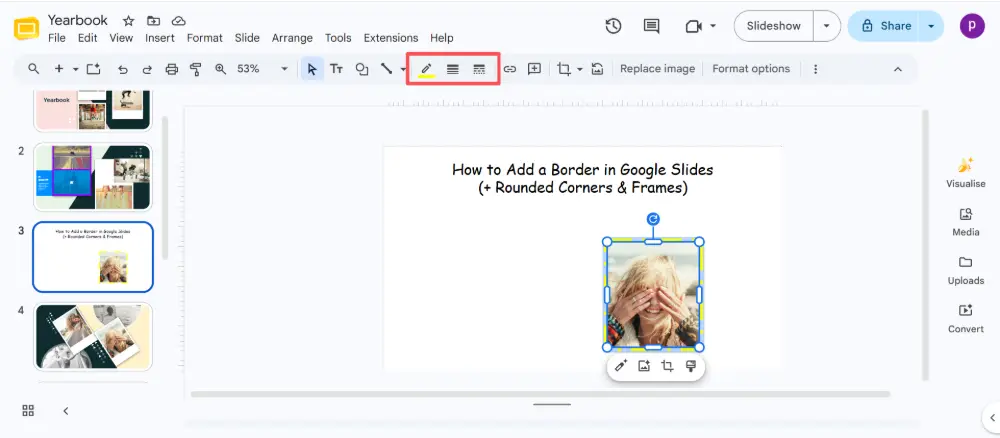
- In the toolbar, click the Border color icon (pencil) → choose a color.
- Click Border weight → choose thickness (1–4 px for subtle, 4–8 px for visible).
- Click Border dash → choose solid, dashed, or dotted.
How to Change Border Color in PowerPoint
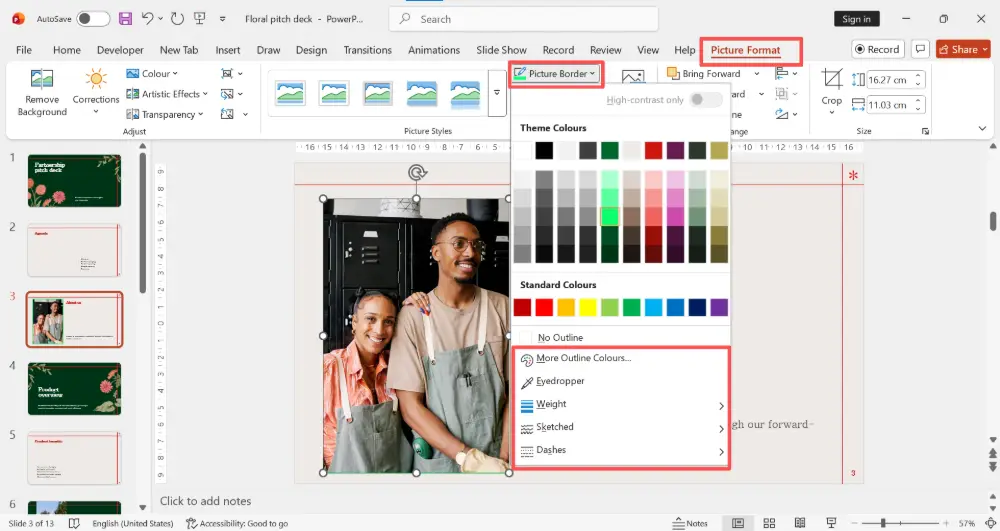
In PowerPoint, changing a shape or image border color is similar:
- Click on the shape or image.
- Go to the Shape Format (or Picture Format) tab.
- Click Shape Outline (the pencil icon).
- Pick a color from the palette or click More Outline Colors for a custom hex code.
- Set the Weight (thickness) and Dashes (style) from the same dropdown.
💡 Pro tip: If you want polished, consistent borders and frames without manual shape work, AI tools like Gamma.com.ai apply professional design elements — including borders, cards, and layout framing — automatically when you create a presentation.
Conclusion
Adding a border in Google Slides is a shape workaround: insert a rectangle (or rounded rectangle), set the fill to transparent, add a colored border line, and send it to the back. For decorative frames, insert a PNG with a transparent background. For rounded corners, use the Rounded Rectangle shape and drag the yellow handle. In PowerPoint, use Shape Outline to change border color, weight, and dash style. And to apply a border to every slide, add it to the master slide.
FAQs
How do I add a border in Google Slides?
Insert → Shape → Rectangle → resize to fill the slide → set fill to Transparent → add a border color and weight → Send to back. This creates a visible border frame around your slide content.
How do I round corners in Google Slides?
Use a Rounded Rectangle instead of a regular Rectangle (Insert → Shape → Rounded Rectangle). After drawing it, drag the yellow diamond handle to adjust the corner radius — inward for sharper, outward for rounder.
How do I make a transparent border?
When creating the border shape, set the Fill color to Transparent (paint bucket → Transparent). The border line is visible, but the inside is see-through so your slide content shows through.
How do I change border color in PowerPoint?
Click the shape or image → Shape Format tab → Shape Outline → pick a color. You can also set the weight (thickness) and dashes (solid, dashed, dotted) from the same dropdown.
How do I apply a border to all slides?
Add the border shape to the master slide: Slide → Edit theme (Google Slides) or View → Slide Master (PowerPoint). Add the border on the master, and it appears on every slide automatically.

