
You designed a presentation in Canva but need it in Google Slides — for collaboration, for a class, or because your team works in Google Workspace. Converting Canva to Google Slides isn't a one-click process, but there are several reliable methods. This guide shows you how to transfer Canva slides to Google Slides, with the trade-offs of each approach.

- Best method: Export from Canva as PowerPoint (.pptx) → upload to Google Drive → open in Google Slides.
- For visual fidelity: export as PNG/PDF images → insert into Google Slides as image slides (not editable).
- Below: 4 methods compared, what transfers well, and how to fix issues.
Method 1: Export as PowerPoint, Open in Google Slides (Recommended)
This is the most reliable way to convert Canva to Google Slides with editable content:
- Open your presentation in Canva.
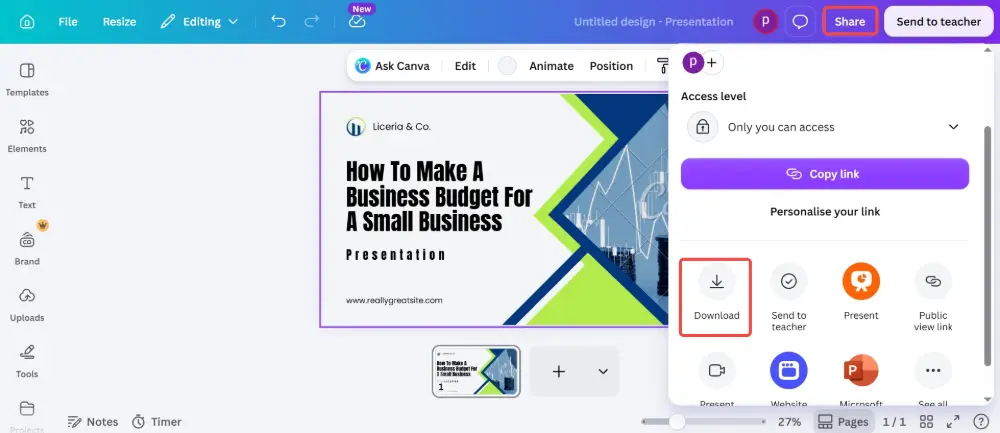
- Click Share (top right) → Download.
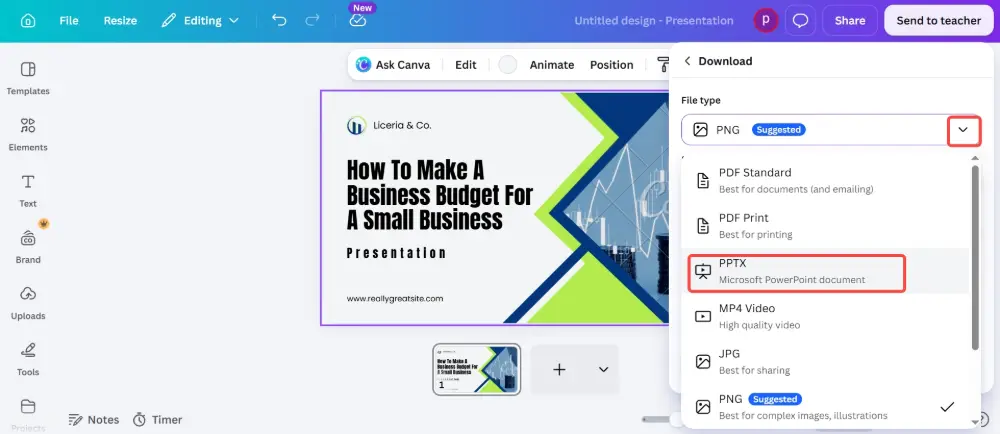
- In "File type," select Microsoft PowerPoint (.pptx).
- Click Download. The .pptx file saves to your computer.
- Go to Google Drive → drag and drop the .pptx file to upload it.
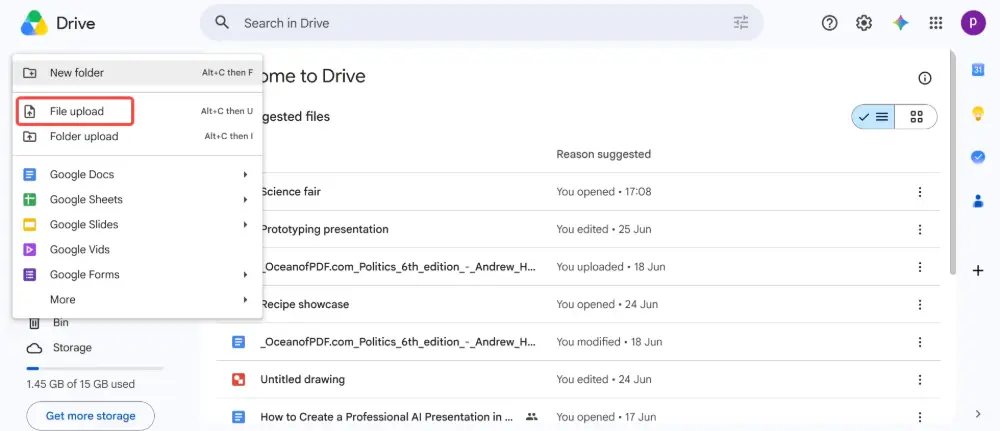
- Double-click the uploaded file → it opens in Google Slides automatically.
- The presentation is now editable in Google Slides.
Method 2: Export as Images (PNG/JPEG)
If you want perfect visual fidelity but don't need to edit the slides:
- In Canva, click Share → Download.
- Select PNG (best quality) or JPEG.
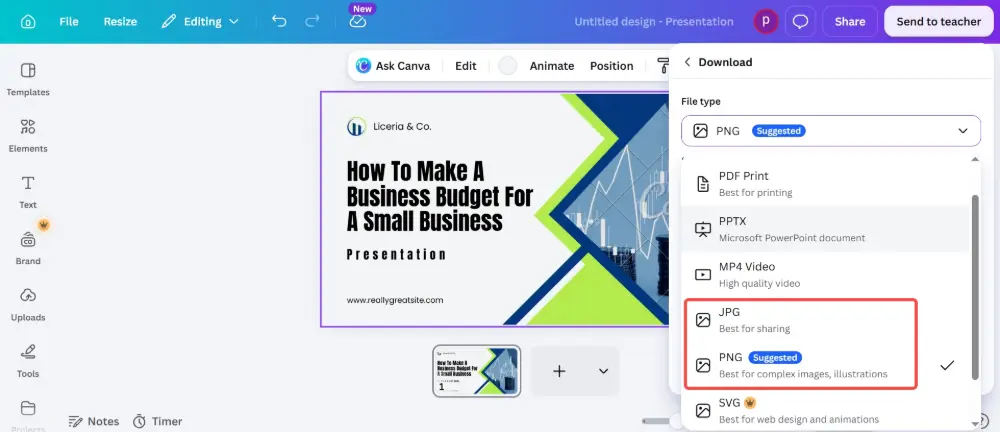
- Check "All pages" to export every slide as a separate image.
- Download the images (they'll come as a ZIP file).
- Create a new Google Slides presentation.
- For each slide: Insert → Image → Upload from computer → select the PNG file.
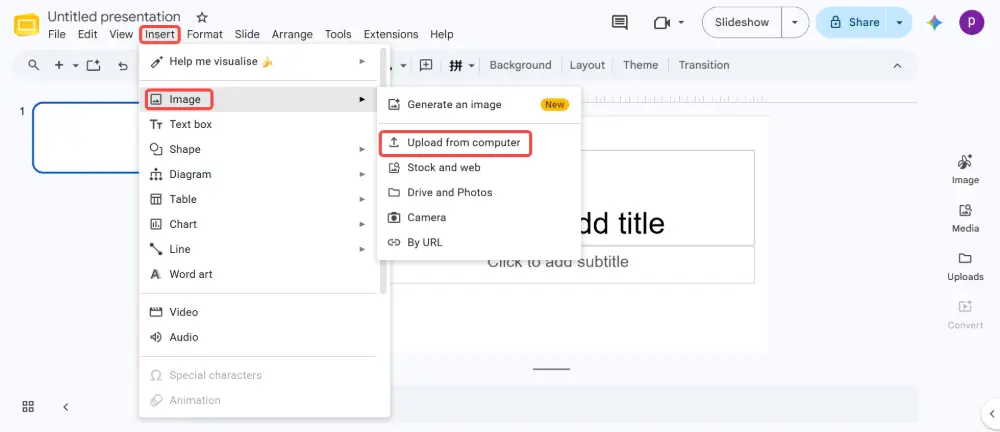
- Resize each image to fill the slide.
The slides look exactly like Canva — but text, shapes, and elements are not editable. This is best for final presentations you won't modify.
Method 3: Export as PDF, Import to Google Slides
- In Canva, click Share → Download → select PDF Standard or PDF Print.
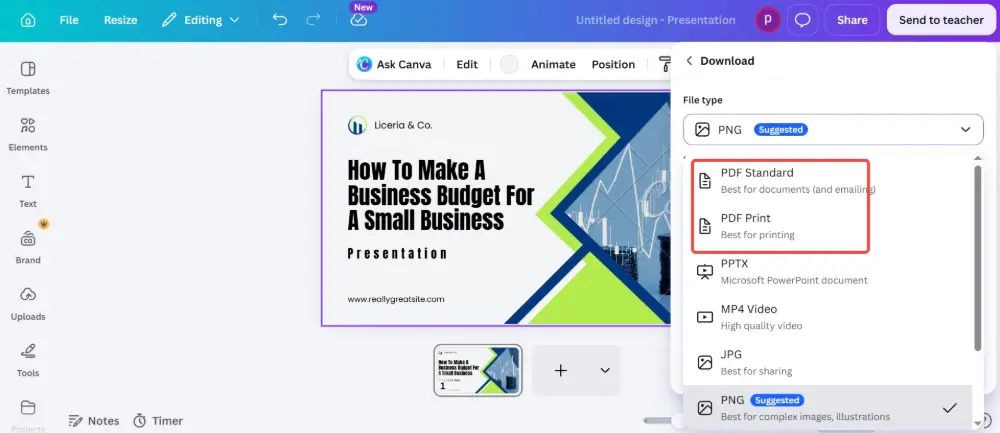
- Upload the PDF to Google Drive.
- The PDF won't open directly as Google Slides. Instead, insert each page as an image: open a new Google Slides → Insert → Image → upload the PDF pages.
This method produces the same result as Method 2 (non-editable image slides) but with an extra step. Use it only if you need a PDF backup alongside the Google Slides version.
Method 4: Canva's Google Drive Integration
- In Canva, click Share → scroll down to "More".
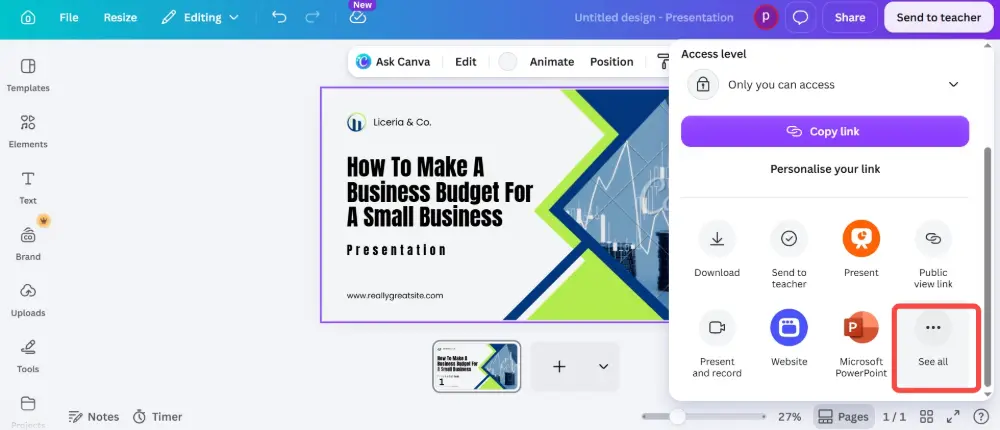
- Look for Google Drive under "Save."
- Connect your Google account if prompted.
- Save the design to Google Drive — Canva saves it as a .pptx file.
- Open the file in Google Drive → it opens in Google Slides.
This skips the manual download-upload step but produces the same .pptx conversion as Method 1.
There is no direct "Export to Google Slides" button in Canva. Every method goes through an intermediate format — either .pptx or images. The PowerPoint route preserves editability; the image route preserves visual fidelity. Choose based on whether you need to edit afterward.
All Methods Compared
| Method | Editable | Visual fidelity | Best for |
|---|---|---|---|
| Export as .pptx | ✅ Yes | ⚠️ Good (some changes) | Collaborative editing in Google Slides. Best overall method. |
| Export as PNG | ❌ No | ✅ Perfect | Final presentations you won't modify. Visual accuracy matters. |
| Export as PDF | ❌ No | ✅ Perfect | Same as PNG but with a PDF backup. Extra step involved. |
| Google Drive save | ✅ Yes | ⚠️ Good | Same as .pptx but skips manual upload. Requires Canva-Google connection. |
Common Issues After Conversion
| Issue | Fix |
|---|---|
| Fonts look different | Canva uses custom fonts that Google Slides may not have. Replace with Google Fonts (similar alternatives: use Poppins for Canva Sans, Montserrat for Canva's header fonts). |
| Elements shifted | Some design elements (grouped objects, overlapping layers) may shift during .pptx conversion. Manually reposition them in Google Slides. |
| Animations missing | Canva animations don't transfer to .pptx. Re-add simple animations in Google Slides (Insert → Animation). |
| Background effects lost | Gradient backgrounds and blur effects may simplify. Recreate the background in Google Slides or export the slide as an image and use it as a background. |
| Canva Pro elements | Premium Canva elements (Pro photos, graphics) are embedded in the export — they transfer fine. But you can't edit them once in Google Slides. |
💡 Pro tip: If you're tired of converting between tools, Gamma.com.ai generates presentations that are web-native — shareable by link, viewable in any browser, and exportable to PowerPoint or PDF when needed. No conversion headaches.
Conclusion
The best way to transfer Canva to Google Slides: export as .pptx from Canva → upload to Google Drive → open in Google Slides. Text and images are editable, though fonts and animations may need minor fixes. For perfect visual fidelity with no editing, export as PNG images and insert them into Google Slides. There's no direct Canva-to-Google-Slides export — every path goes through an intermediate format.
FAQs
Can I directly export Canva to Google Slides?
No — Canva doesn't have a direct "Export to Google Slides" option. The best method: export as .pptx → upload to Google Drive → open in Google Slides. Or use Canva's Google Drive integration to save as .pptx directly to Drive.
Will my Canva design look the same in Google Slides?
Mostly — text, images, and basic shapes transfer well. Fonts may change (install matching Google Fonts), animations are lost, and complex effects (gradients, blur) may simplify. Always review slides after converting.
Is there a free Canva to Google Slides converter?
No third-party converter is needed. Canva's built-in .pptx export + Google Drive's automatic conversion is the converter. It's free and works with any Canva account (free or Pro).
Can I edit Canva slides after importing to Google Slides?
Yes — if you used the .pptx export method. Text, shapes, and images are editable in Google Slides. If you exported as PNG images, the slides are static and can't be edited.
Do Canva animations transfer to Google Slides?
No — Canva animations are not included in the .pptx export. You'll need to re-add animations in Google Slides (click an element → Insert → Animation). Only simple effects are available.

