
Sometimes you want to keep a slide in your deck but skip it during the presentation — backup data, draft content, or slides for a different audience. Both Google Slides and PowerPoint let you hide slides without deleting them. This guide shows you how to hide and unhide slides in both tools, with shortcuts.

- Google Slides: right-click the slide → Skip slide. To unhide (unskip): right-click → Unskip slide.
- PowerPoint: right-click the slide → Hide Slide. To unhide: right-click → Hide Slide again (toggles off).
- Below: step-by-step for both tools, how to hide multiple slides, and what hidden slides look like.
How to Hide a Slide in Google Slides
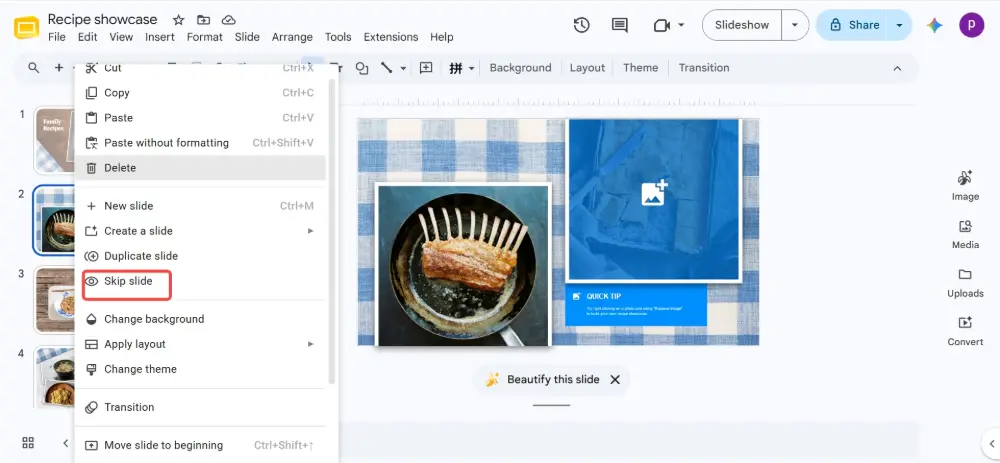
- In the slide panel (left side), right-click the slide you want to hide.
- Click Skip slide.
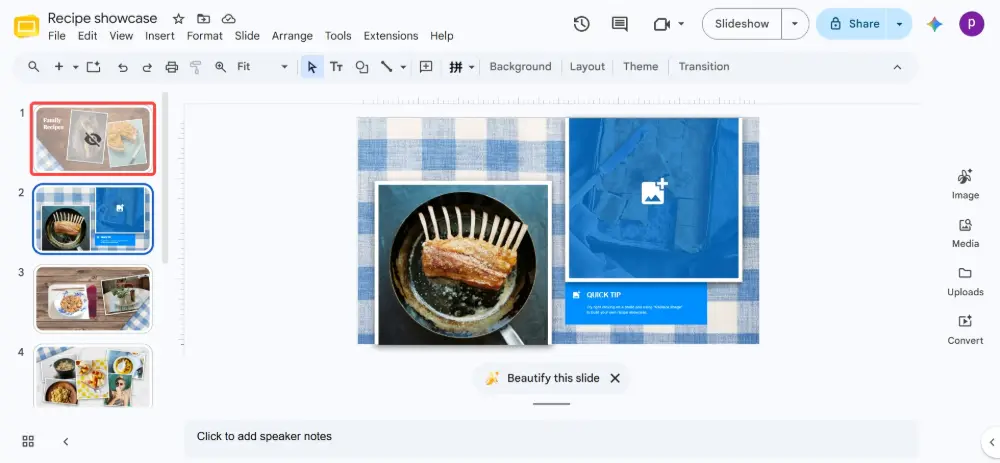
- The slide thumbnail shows a crossed-out eye icon and appears faded — it's still in the deck but will be skipped during the presentation.
How to hide multiple slides
- Hold Ctrl (Cmd on Mac) and click each slide you want to hide.
- Right-click any of the selected slides → Skip slide.
- All selected slides are skipped.
How to unskip (unhide) a slide in Google Slides
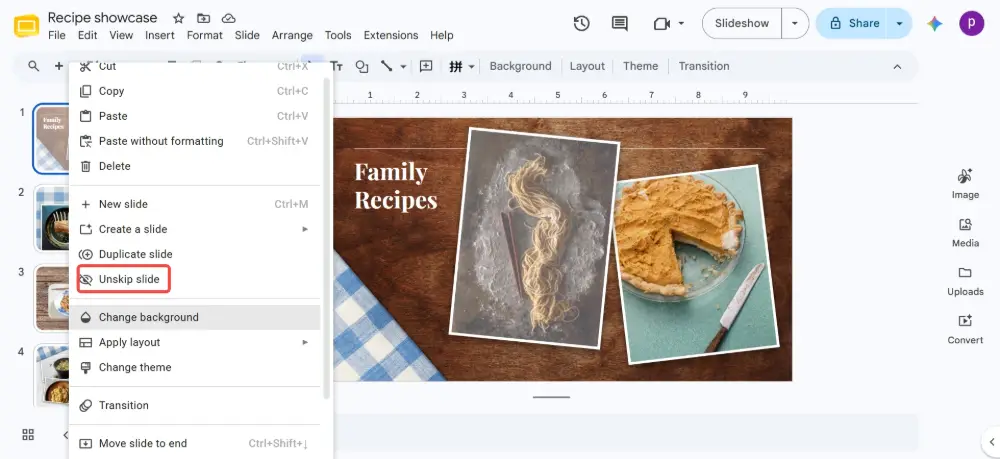
- Right-click the skipped slide (the one with the crossed-out eye).
- Click Unskip slide.
- The slide is restored to the presentation flow.
In Google Slides, the feature is called "Skip slide" — not "Hide slide." The effect is the same: the slide is excluded from the slideshow but stays in the deck. If you're searching for "hide," look for "Skip" in the right-click menu.
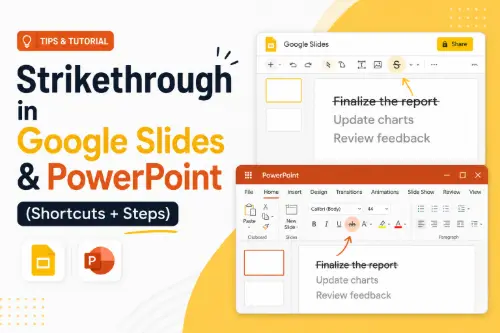
How to Hide a Slide in PowerPoint
- In the slide panel (left side), right-click the slide you want to hide.
- Click Hide Slide.
- The slide number gets a line through it (e.g.,
5) and the thumbnail dims — the slide is hidden from the slideshow.
How to hide multiple slides in PowerPoint
- Hold Ctrl (Cmd on Mac) and click each slide.
- Right-click any selected slide → Hide Slide.
- All selected slides are hidden.
How to unhide a slide in PowerPoint
- Right-click the hidden slide (the one with the struck-through number).
- Click Hide Slide again — it's a toggle. The slide is restored.
All Methods Compared
| Action | Google Slides | PowerPoint |
|---|---|---|
| Hide a slide | Right-click → Skip slide. | Right-click → Hide Slide. |
| Unhide a slide | Right-click → Unskip slide. | Right-click → Hide Slide (toggle off). |
| Hide multiple slides | Ctrl+click to select → right-click → Skip slide. | Ctrl+click to select → right-click → Hide Slide. |
| Visual indicator | Crossed-out eye icon, faded thumbnail. | Struck-through slide number, dimmed thumbnail. |
| Keyboard shortcut | None — right-click menu only. | None — right-click menu only. |
| Show during presentation | Skipped slides are completely invisible to the audience. | Hidden slides can be jumped to during the slideshow (right-click → Go to Slide). |

When to Use Hidden Slides
- Backup data: extra charts or data slides you might need during Q&A but don't want in the main flow.
- Different audiences: hide technical slides for an executive audience, unhide them for an engineering team.
- Draft content: slides that aren't finished but you don't want to delete yet.
- Shortened version: hide slides to create a shorter version of the same deck without duplicating the file.
- Presenter notes: slides with notes for yourself that the audience shouldn't see.
💡 Pro tip: If you frequently need different versions of the same presentation for different audiences, Gamma.com.ai lets you share presentations as web links — you can customize which content is visible without managing multiple files or hidden slides.
Conclusion
Hiding slides is a one-click operation in both tools: right-click → Skip slide (Google Slides) or Hide Slide (PowerPoint). To unhide: right-click → Unskip (Google Slides) or click Hide Slide again to toggle it off (PowerPoint). Hidden slides stay in the deck but are skipped during the presentation — perfect for backup data, draft content, or audience-specific customization.
FAQs
How do I hide a slide in Google Slides?
Right-click the slide in the left panel → Skip slide. The slide gets a crossed-out eye icon and is excluded from the slideshow. To unhide: right-click → Unskip slide.
How do I unhide a slide in PowerPoint?
Right-click the hidden slide (the one with the struck-through number) → click Hide Slide. It's a toggle — clicking it again removes the hidden status and restores the slide to the presentation.
Can the audience see hidden slides?
No — hidden/skipped slides are completely invisible during the slideshow. In PowerPoint, you can manually jump to a hidden slide during the presentation (right-click → Go to Slide), but the audience won't see it unless you choose to show it.
Is there a keyboard shortcut to hide slides?
Neither Google Slides nor PowerPoint has a dedicated keyboard shortcut for hiding slides. The only method is right-click → Skip slide (Google) or Hide Slide (PowerPoint).
Does hiding a slide delete it?
No. Hiding (or skipping) a slide only excludes it from the slideshow. The slide remains in the deck, fully editable, and can be unhidden at any time. It's completely reversible.

