
The default Google Slides size is 16:9 widescreen (10 × 5.625 inches). But what if you need a different size — for a poster, a social media graphic, or an A4 printout? This guide covers the exact dimensions of Google Slides, how to change the slide size, and which dimensions to use for different purposes.

- Default Google Slides size: 10 × 5.625 inches (25.4 × 14.29 cm) — 16:9 widescreen.
- Change it: File → Page setup → choose a preset or enter custom dimensions.
- Below: all dimensions explained, preset options, custom sizes, and which size to use when.
What Are the Dimensions of a Google Slide?
| Preset | Aspect ratio | Size (inches) | Size (cm / px) |
|---|---|---|---|
| Standard (default) | 16:9 | 10 × 5.625 in | 25.4 × 14.29 cm / 1920 × 1080 px at 192 dpi |
| Widescreen 16:10 | 16:10 | 10 × 6.25 in | 25.4 × 15.88 cm |
| Standard 4:3 | 4:3 | 10 × 7.5 in | 25.4 × 19.05 cm |
| Custom | Any | Any | You define it — inches, cm, points, or pixels. |
The default 16:9 ratio matches modern monitors, projectors, and TVs. The older 4:3 ratio was standard before widescreen displays became universal.
How to Change the Size of a Google Slide
- Open your presentation in Google Slides.
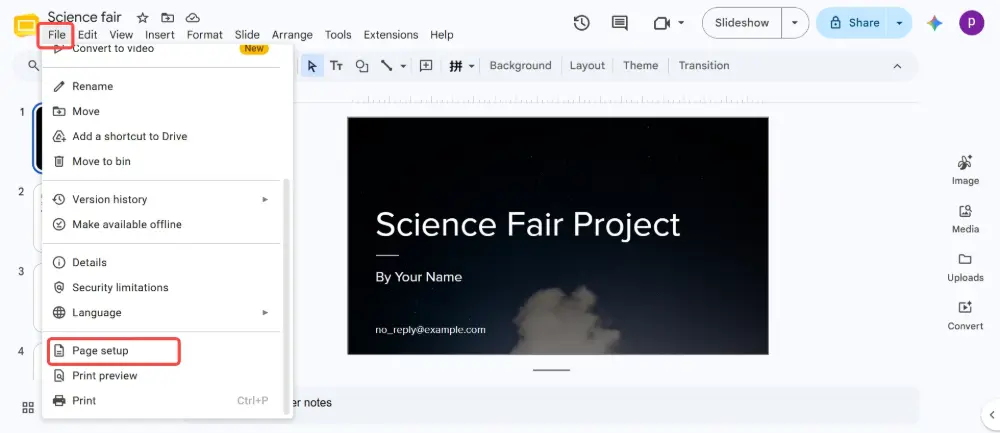
- Click File → Page setup.
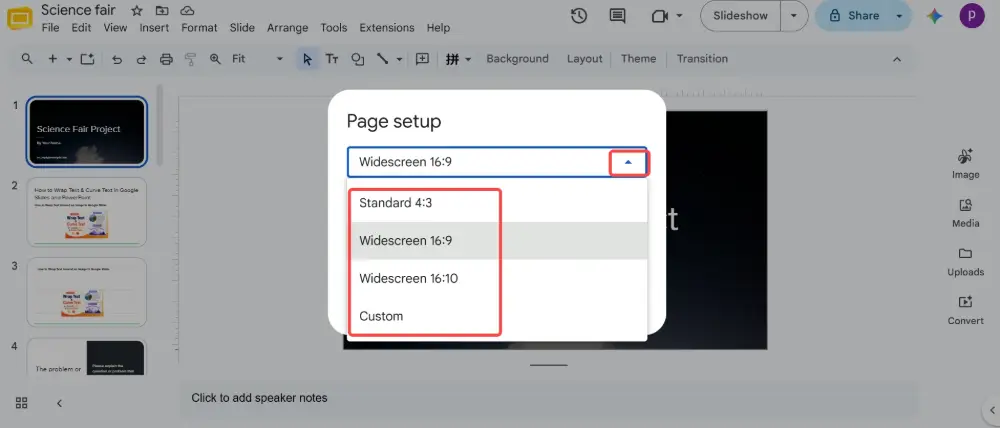
- Click the dropdown (it shows "Widescreen 16:9" by default).
- Choose a preset: Standard 4:3, Widescreen 16:9, or Widescreen 16:10.
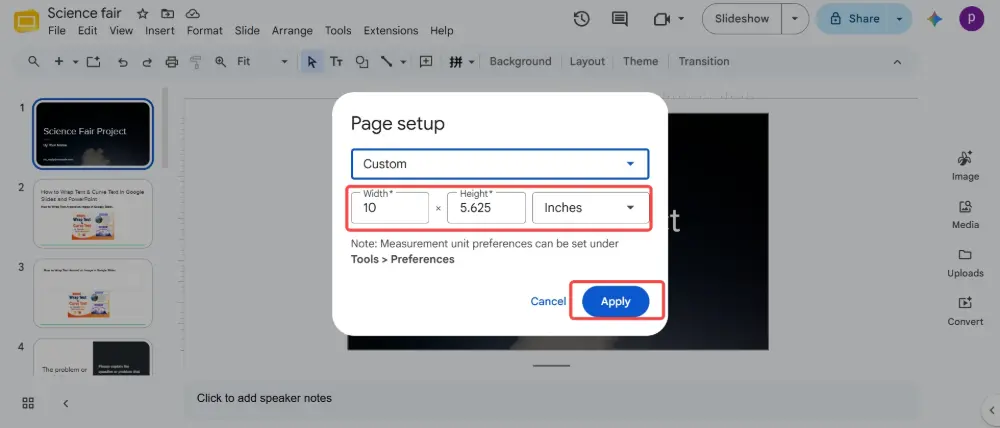
- Or select Custom → enter your desired width and height (in inches, cm, points, or pixels).
- Click Apply.
The size change applies to all slides in the presentation — you can't have different sizes for different slides.
Changing the slide size after you've already designed slides can break your layout — elements may shift, images may stretch, and text may overflow. It's best to set the dimensions before you start designing. If you must change it later, review every slide afterward.
Which Size to Use
| Use case | Recommended size | Why |
|---|---|---|
| Presenting on a screen/projector | 16:9 (default) | Matches modern widescreen monitors and projectors. The universal standard. |
| Old projector / square screen | 4:3 | Matches older projectors and iPad screens. Avoids black bars on the sides. |
| Printing on A4 paper | Custom: 29.7 × 21 cm | Matches A4 landscape dimensions for clean printouts. |
| Printing on US Letter | Custom: 11 × 8.5 in | Matches Letter landscape dimensions. |
| Instagram post | Custom: 10 × 10 in | Square format (1:1 ratio) for Instagram feed posts. |
| Instagram Story / TikTok | Custom: 5.625 × 10 in | 9:16 vertical format for Stories, Reels, and TikTok. |
| Poster | Custom: 24 × 36 in | Standard poster size. Export as PDF for print-shop quality. |
| Banner / LinkedIn cover | Custom: varies | LinkedIn banner: 1584 × 396 px. Enter in pixels using Custom. |
Google Slides Dimensions in Pixels
Google Slides works internally in inches, not pixels. But when you export slides as images (File → Download → PNG or JPEG), the exported image size depends on the slide dimensions and resolution:
- Default 16:9 slide (10 × 5.625 in) exports at approximately 1920 × 1080 pixels (Full HD).
- If you need higher resolution for print, create a larger custom slide size (e.g., 20 × 11.25 in) and the exported image will be proportionally larger.
- Google Slides doesn't let you set export DPI directly — the workaround is to increase slide dimensions.

Google Slides vs. PowerPoint Dimensions
| Feature | Google Slides | PowerPoint |
|---|---|---|
| Default size | 10 × 5.625 in (16:9) | 13.333 × 7.5 in (16:9) |
| Presets | 4:3, 16:9, 16:10, Custom | 4:3, 16:9, 16:10, A3, A4, Letter, Custom, and more. |
| Custom units | Inches, cm, points, pixels | Inches, cm |
| Change applies to | All slides (global) | All slides (global) |
| Where to change | File → Page setup | Design → Slide Size → Custom Slide Size |
💡 Pro tip: If you're building a presentation and don't want to worry about slide dimensions, aspect ratios, or export settings, Gamma.com.ai generates responsive, web-native presentations that adapt to any screen size automatically — no manual sizing needed.
Conclusion
The default Google Slides dimensions are 10 × 5.625 inches (16:9 widescreen). To change the slide size: File → Page setup → choose a preset or enter custom dimensions. Use 16:9 for presentations, 4:3 for older projectors, and custom sizes for print, social media, or posters. Set the size before designing — changing it later can break layouts.
FAQs
What size is a Google Slide?
The default size is 10 × 5.625 inches (25.4 × 14.29 cm) in a 16:9 widescreen ratio. This matches modern monitors and projectors. You can change it via File → Page setup.
How do I change the slide size in Google Slides?
File → Page setup → click the dropdown → choose a preset (4:3, 16:9, 16:10) or select Custom and enter your dimensions in inches, cm, points, or pixels. Click Apply.
What are Google Slides dimensions in pixels?
The default 16:9 slide exports at approximately 1920 × 1080 pixels (Full HD). Google Slides works in inches internally — pixel dimensions are determined at export time based on slide size and resolution.
Can I have different-sized slides in the same presentation?
No — Google Slides (and PowerPoint) apply one size to all slides in a presentation. If you need different sizes, you'll need separate presentation files.
What size should I use for printing?
For A4 landscape: Custom → 29.7 × 21 cm. For US Letter landscape: Custom → 11 × 8.5 inches. Set this before designing to avoid layout issues. Export as PDF for printing.

