
You built your presentation in Google Slides, but now you need it in PowerPoint — for a client, a conference, or a colleague who doesn't use Google. Converting Google Slides to PowerPoint takes about 10 seconds. This guide shows you how, what to watch for, and how to fix formatting issues that can happen in the conversion.

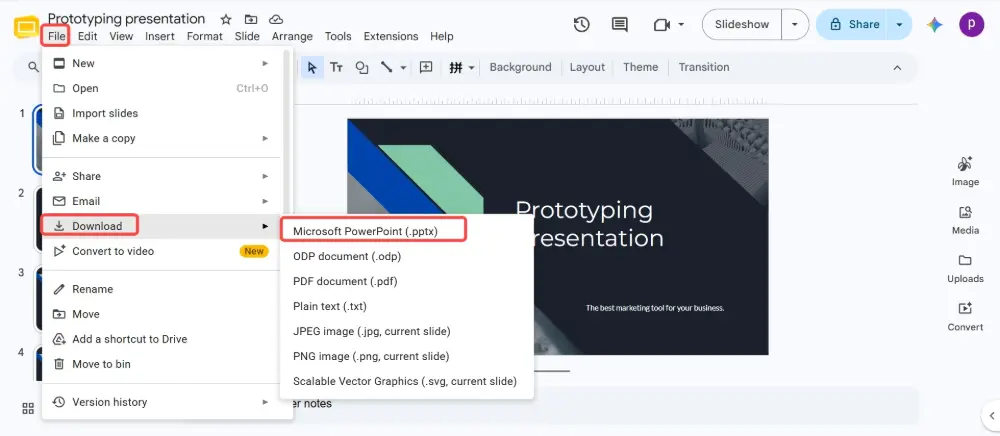
- File → Download → Microsoft PowerPoint (.pptx). That's it — one click.
- Most slides convert perfectly. Fonts, animations, and linked content may need minor fixes.
- Below: 3 methods, common formatting issues, and how to fix them.
How to Convert Google Slides to PowerPoint
Method 1: Download as .pptx (fastest)
- Open your presentation in Google Slides.
- Click File → Download → Microsoft PowerPoint (.pptx).
- The file downloads to your computer as a .pptx file.
- Open it in PowerPoint — done.
Method 2: From Google Drive
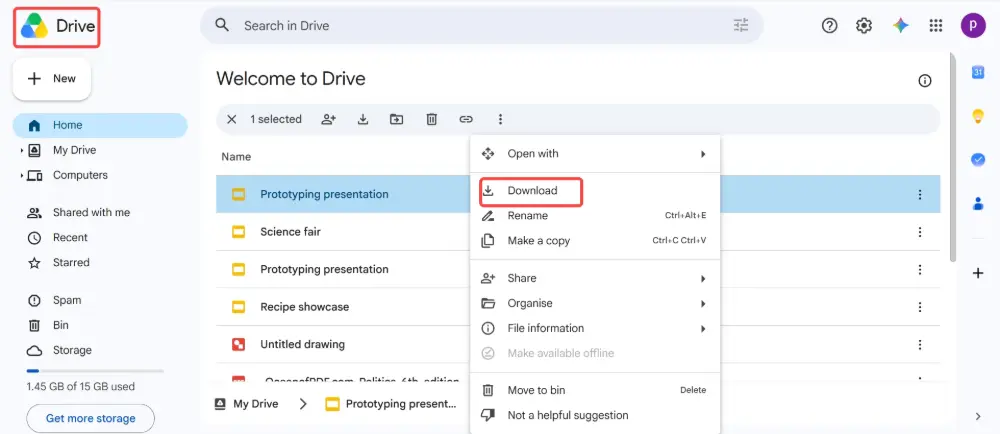
- Go to Google Drive.
- Right-click the Google Slides file.
- Click Download.
- Google Drive automatically converts it to .pptx and downloads it.
Method 3: Email as PowerPoint attachment
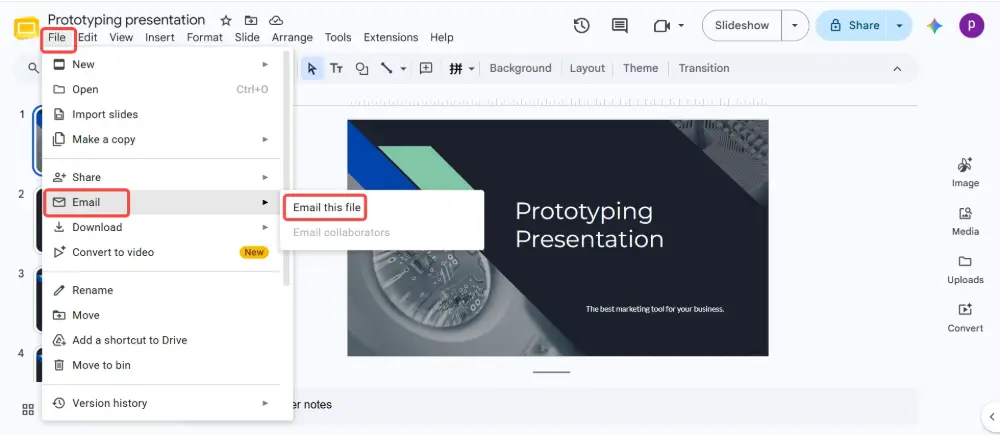
- In Google Slides, click File → Email as attachment.
- In the "Attach as" dropdown, select Microsoft PowerPoint.
- Enter the recipient's email and send.
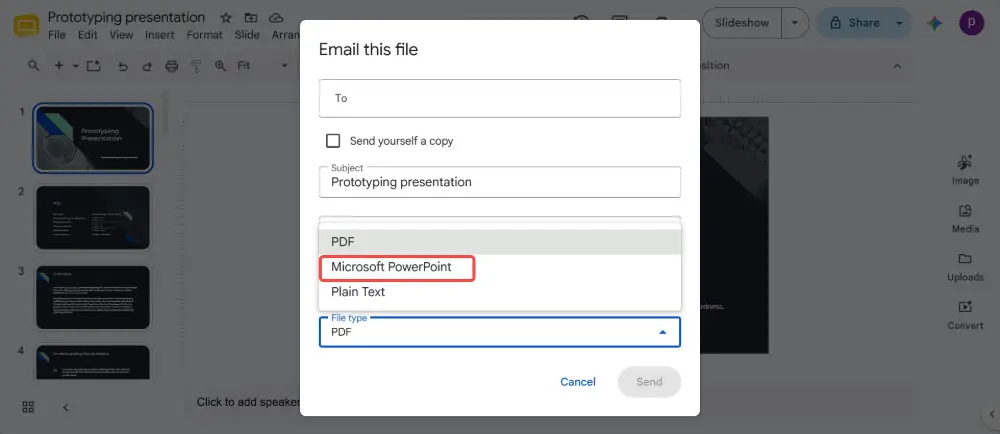
- The recipient gets the .pptx file attached to the email.
Always open the converted .pptx file in PowerPoint and check every slide before presenting. Most conversions are clean, but fonts, animations, and special elements can shift. A 2-minute review prevents surprises on stage.
What Converts Well (and What Doesn't)
| Element | Conversion quality | Notes |
|---|---|---|
| Text | ✅ Excellent | Text content, size, and color convert accurately. |
| Images | ✅ Excellent | Images are embedded and transfer without issues. |
| Shapes | ✅ Good | Most shapes convert well. Complex custom shapes may shift slightly. |
| Charts | ⚠️ Mostly good | Charts become static images in PowerPoint — they're no longer linked to Google Sheets data. |
| Fonts | ⚠️ May change | Google Fonts not installed on the computer are replaced with defaults. Install the fonts or use universal ones (Arial, Helvetica). |
| Animations | ⚠️ Basic only | Simple animations (fade, appear) convert. Complex animations or transitions may be lost or simplified. |
| Linked content | ❌ Breaks | Links to Google Sheets, embedded YouTube videos, and Google-specific add-ons don't transfer. |
| Speaker notes | ✅ Excellent | Speaker notes convert fully and are visible in PowerPoint Presenter View. |
How to Fix Common Conversion Issues
| Issue | Fix |
|---|---|
| Fonts look different | Install the missing Google Font on your computer (fonts.google.com → download → install). Or replace with a universal font (Arial, Calibri) in PowerPoint. |
| Animations are missing | Re-add them in PowerPoint: select the element → Animations tab → choose an effect. Simple animations are fastest to recreate. |
| Charts are static images | Re-create the chart in PowerPoint (Insert → Chart) using the original data from Google Sheets. Or keep the static image if you don't need to edit it. |
| Text overflows boxes | Font substitution can change text size. Resize the text box or reduce font size in PowerPoint. |
| Embedded videos don't play | Re-insert the video in PowerPoint: Insert → Video → Online Video → paste the YouTube URL. |
How to Open Google Slides in PowerPoint
If someone sends you a Google Slides link and you want to open it in PowerPoint:
- Open the Google Slides link in your browser.
- Click File → Download → Microsoft PowerPoint (.pptx).
- Open the downloaded .pptx in PowerPoint.
You need view access (at minimum) to the Google Slides file to download it.
PowerPoint to Google Slides (Reverse)
Going the other way is just as easy:
- Upload the .pptx file to Google Drive.
- Double-click to open it — Google Drive opens it in Google Slides automatically.
- Or: in Google Slides, click File → Open → Upload → select the .pptx file.
💡 Pro tip: If you frequently need to share presentations across platforms, Gamma.com.ai avoids the conversion problem entirely — presentations are web-native and viewable by link in any browser. Export to PowerPoint or PDF when needed, with no formatting surprises.
Conclusion
Converting Google Slides to PowerPoint is a one-click operation: File → Download → Microsoft PowerPoint (.pptx). Text, images, shapes, and speaker notes transfer cleanly. Fonts, animations, and linked content may need minor fixes — always review the converted file before presenting. For the reverse (PowerPoint to Google Slides), upload the .pptx to Google Drive and open it.
FAQs
How do I convert Google Slides to PowerPoint?
Open the presentation in Google Slides → File → Download → Microsoft PowerPoint (.pptx). The file downloads as a .pptx that opens directly in PowerPoint.
Will I lose formatting when converting?
Text, images, shapes, and speaker notes convert well. Fonts may change if Google Fonts aren't installed on your computer. Complex animations may be simplified. Charts become static images. Always review the converted file.
Can I convert Google Slides to PowerPoint without downloading?
You can email it directly as a PowerPoint attachment: File → Email as attachment → select Microsoft PowerPoint → send. The recipient gets the .pptx without you downloading it first.
How do I open a PowerPoint file in Google Slides?
Upload the .pptx to Google Drive → double-click to open. Google Drive automatically opens it in Google Slides. Or: in Google Slides → File → Open → Upload → select the .pptx file.
Do speaker notes transfer?
Yes — speaker notes convert fully from Google Slides to PowerPoint. They appear in PowerPoint's Presenter View exactly as they were in Google Slides.

